
Appearance
Modules
Modules are an enhanced version of Subgraphs that include their own built-in front panel. They let you create reusable, self-contained audio processing units with a custom control surface, like building your own plugin within MNodes.
Looking for polyphony?
For a polyphonic version of a Module, where the same voice plays several notes at once, see Poly Modules.
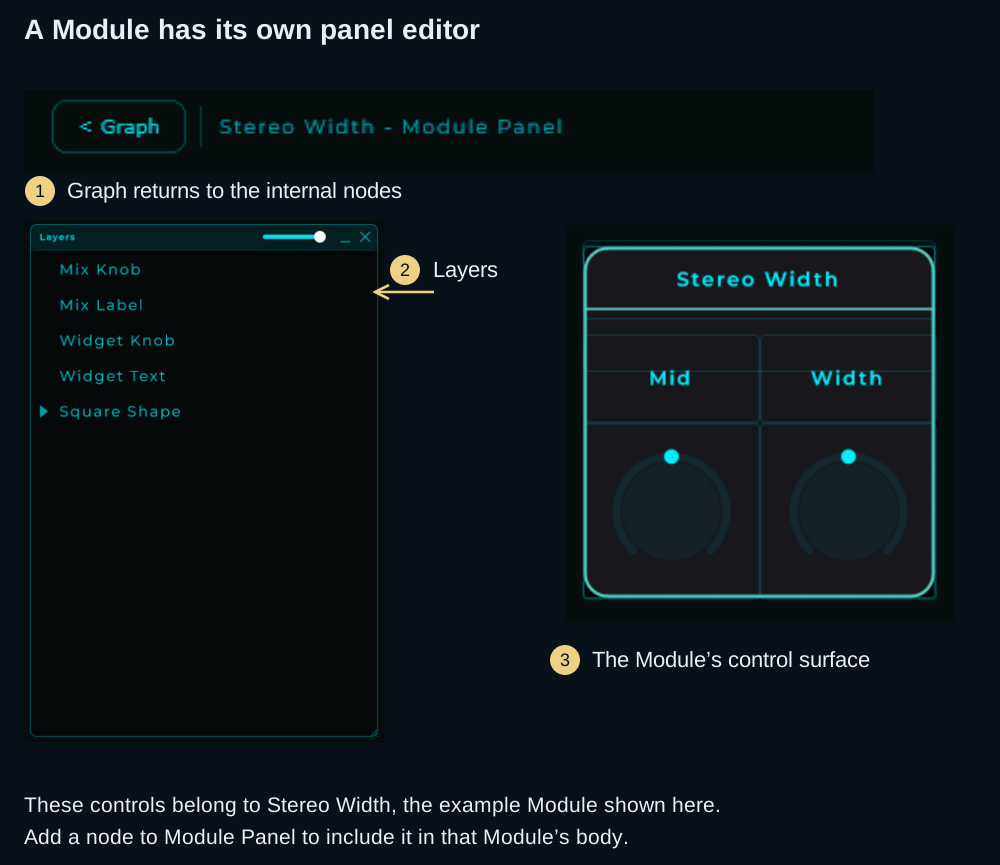
What is a Module?
A Module is a container node that holds an internal graph plus a dedicated front panel where you arrange widgets. From the outside, the Module node displays your custom panel directly in its body, showing knobs, sliders, meters, and any other widgets you've placed.
Think of Modules as the building blocks for creating custom instruments, effect chains, and utility tools, complete with their own user interface.
Modules vs Subgraphs
| Feature | Subgraph | Module |
|---|---|---|
| Internal graph | Yes | Yes |
| I/O ports (Audio, MIDI, CV, Data/CV) | Yes | Yes |
| Custom front panel (body) | No | Yes |
| Visible widgets in parent graph | No | Yes |
| Can be added to Front Panel | No | Yes (shows widgets only) |
| Preset format | .mnsubgraph | .mnmod |
| Keyboard shortcut | Ctrl/Cmd + G | Ctrl/Cmd + Shift + G |
Creating a Module
A small first Module
Start from the first patch with a Knob connected to Filter's Freq. Select Knob, Filter and Volume, leaving Saw and Audio Out outside, then press Ctrl/Cmd + Shift + G.
Enter the new Module. Your three nodes and their names remain inside, and the audio crossing the selection is routed through ports. Right-click the Knob's header → Add to Module Panel, open Module Panel, unlock that panel and arrange the control. Return to the parent graph: the Module's body now shows the control surface you made.
Turn the Knob and listen for the same cutoff change as before. The internal graph does the processing; the Module panel presents the controls you chose. Saving the project keeps this instance, while Save As Module… makes it available for reuse in another project.
From selected nodes
- Select the nodes you want to encapsulate
- Press Ctrl/Cmd + Shift + G, or right-click and choose a grouping option
- The selected nodes are moved inside a new Module node
- Input/output ports are automatically created based on existing connections
From scratch
- Add a Module node from the Node Browser
- Double-click to enter the Module
- Build your internal graph with audio processing nodes and widgets
- Add widgets to the Module Front Panel (see below)
The Module Front Panel
Each Module has its own front panel: a canvas where you arrange the widgets that will be visible in the Module's body.
Opening the Module Front Panel editor
- Double-click the Module to enter it, or select it and press Enter.
- Click the Module Panel button (bottom-left corner), or press Ctrl/Cmd + Alt + M.
- The graph view is replaced by the Module Front Panel editor.
- Click Graph to switch back to the graph view, or press Ctrl/Cmd + Alt + M again.
- Press Esc (or click the breadcrumb) to exit the Module and return to the parent graph.
The shortcut opens the panel of the Module you are currently inside, so it never has to ask which one you mean: if that Module contains further Modules, their panels are reached by entering them first. Outside a Module there is nothing to open and the shortcut does nothing. It is also in the menu, under View > Panels > Show Module Panel, alongside the Explorer, Inspector and Front Panel toggles.
Panel view state is remembered
Each Module remembers its own panel view: grid on/off, zoom level, background colour, toolbar state. Enter a Module, tweak the editor to how you like it, exit, come back later: it's exactly how you left it. Each Module keeps its own state independent of others.
Adding widgets to the Module Front Panel
- Inside the Module, right-click the header of a supported widget node
- Select Add to Module Panel
- The widget appears in the Module Front Panel
- Switch to Module Panel view to arrange it
You can also add widgets to the global Front Panel using Add to Front Panel. Both options are available simultaneously.
Editing the Module Front Panel
The Module Front Panel editor works exactly like the global Front Panel:
- Drag widgets to reposition them
- Resize widgets by dragging edges or corners
- Grid snap for precise alignment (toggle in toolbar)
- Zoom and pan the canvas
- Background color and grid color customization
- Panel dimensions: resize the panel by dragging its right edge, bottom edge, or corner
- Duplicate widgets with Ctrl/Cmd + D or right-click
- Delete widgets with Delete/Backspace or right-click
- Undo/Redo all panel editing actions
Panel Alpha
In the Inspector, the Module has a Panel Alpha parameter (under the "Module" category) that controls the transparency of the panel background in the body. Set it to 0 for a fully transparent background, or 1 for fully opaque.
A Module's panel in a window of its own
A Module has a Show Panel pin. Send it an event and that Module's front panel opens in a window of its own, with nothing else in it.
This is how you get more than one window in Perform. Perform is a single window by design, so a big patch had nowhere to put its second half: with this, a mixer can sit on one screen and an oscillator editor on another, each one a Module, each one its own window.
The pin takes a value as well as an event. True or any non-zero number opens the window and false or zero closes it, so one Toggle on the front panel can be the light switch for a whole window with nothing in between.
Where each window sat and whether it was open are saved with the patch. A layout built for a live set comes back the way it was left rather than needing three events first, and a window whose screen is no longer there comes back on one that is.
The main front panel is still in charge. Close it and every Module window goes with it, so you can never end up with windows left floating over your DAW after the plugin is gone. The panel inside the window is as locked in Perform and as editable while editing as the main one.
Try it: connect a Toggle's output to the Module's Show Panel input. Turn it on to open the window, then off to close it. This displays the Module's existing panel; it does not make another copy of its sound engine.
How a Module Looks from Outside
The Module node in the parent graph displays:
- Header with the Module name
- Pins on the sides (inputs left, outputs right), just like a Subgraph
- Body showing the Module Front Panel with all your widgets, scaled to fit
The body size automatically adjusts based on:
- The Module Front Panel dimensions (width and height)
- The number of pins (more pins = taller node)
Adding a Module to the Global Front Panel
Since a Module is also a panel widget, you can add it to the global Front Panel:
- Right-click the Module node in the graph
- Select Add to Front Panel
- The Module appears in the global Front Panel showing only its widgets (no header, no pins, no border)
This lets you build complex hierarchical control surfaces: a Module's widgets nested inside the main performance panel.
Saving and Loading Modules
Saving
- Right-click on the Module node
- Select Save As Module...
- Enter a name and a category. Pack is optional: pick one you already have, or type a new name, and the Module is filed with the rest of that pack. Then author and description, and tick Rack Module if the Module is made for a Rack Canvas (see Rack Modules)
- Click Save
The Module is saved as a .mnmod file in Library/Modules/User/{Category}/, or in Library/Modules/User/{Pack}/{Category}/ when it has a pack. A PNG thumbnail of the panel is generated alongside it.
If a Module with the same name already exists, you'll be asked whether to replace it.
Editing Module Info
You can edit the metadata of a saved Module at any time:
- In the Node Browser → Modules section, right-click on a Module
- Select Edit Info...
- The Save Module panel opens with the existing name, category, author, description and Rack Module box pre-filled
- Make your changes and click Save to overwrite
Loading
Saved Modules appear in the Node Browser → Modules section with their thumbnail preview. You can:
- Drag and drop from the browser onto the graph
- Double-click to insert at the center of the view
- Right-click for Show Info, Edit Info, Add to Rack Modules, Export, Collect & Export Module, Show in Finder / Explorer, or Delete
Module folder
The default Module storage path is Library/Modules/. You can change this in Settings → Library → Modules.
Packs
A pack is simply a folder under Library/Modules/User/. Everything inside it is one pack, whatever the categories of the Modules in it, so a pack you unzip there by hand and one you build with Save As Module read the same. To organise your own Modules, make a folder and drop them in, or choose the pack when you save.
A folder holding a single Module is not shown as a pack, unless it has a face (see below): a pack is two Modules or more. An imported Module lands in a folder of its own, and that folder stays a plain Module in the list.
In the Modules explorer, All, Modules, Racks and Subgraphs at the top choose what it lists: everything, your Modules, only the Rack Modules, or your Subgraphs. Every collection, a pack, the factory Modules or your own, heads with a banner: its cover when it has one, otherwise a strip of the Modules inside, drawn from the picture each Module keeps beside it, with its name, how many Modules it holds and who made it. Click a banner to open it onto a card for each Module, with the picture of its panel, its name, its category and, on a Rack Module, a RACK tag. The categories are a few broad ones, such as Instruments, Effects, MIDI and Utilities. Above the list, a slider sets the size of the cards and a button folds every collection at once, and each project remembers what the explorer was showing. To search one collection only, click the magnifier on its banner, or right-click the banner and choose Search in this collection; its X or Esc closes the search.
A pack can carry its face. Put a _pack.json in the pack's folder with name, author and description, and a _cover.png beside it, and the explorer shows them on the pack's banner. Without them, the folder's name is the name and the banner is made of the Modules inside.
You do not have to make the folder by hand. File > Create Module Pack... names the pack, takes an author, a description and a cover, and the Modules you add from your library or from disk; Install in Library then makes the folder with its face, and Export Pack... writes the same thing as one .mnmodpack file to share (see Sharing Modules below). File > Install Module Pack..., or a drop of the file on the graph, installs such a pack on any machine, replacing a pack of the same name.
Rack Modules
A Rack Module is a Module made for a Rack Canvas, usually one with jacks on its panel to patch it with. The browser a rack opens when you press its Modules button shows only Rack Modules, and a rack takes no other. The mark is saved in the Module's own file, so it stays with the Module in a pack, in an export and on the Hub.
Nothing is a Rack Module until you mark it:
- One Module: right-click it in the Modules explorer and choose Add to Rack Modules. Remove from Rack Modules takes the mark off.
- A whole pack or section: right-click its header and choose Add All to Rack Modules or Remove All from Rack Modules. Only the Modules the list shows under that header count.
- When you save: tick Rack Module in Save As Module or Edit Info.
In the Modules explorer, Racks shows only your Rack Modules, collection by collection like the rest. Everywhere else in the explorer, a Rack Module's card carries a small RACK tag, and searching for "rack" finds them.
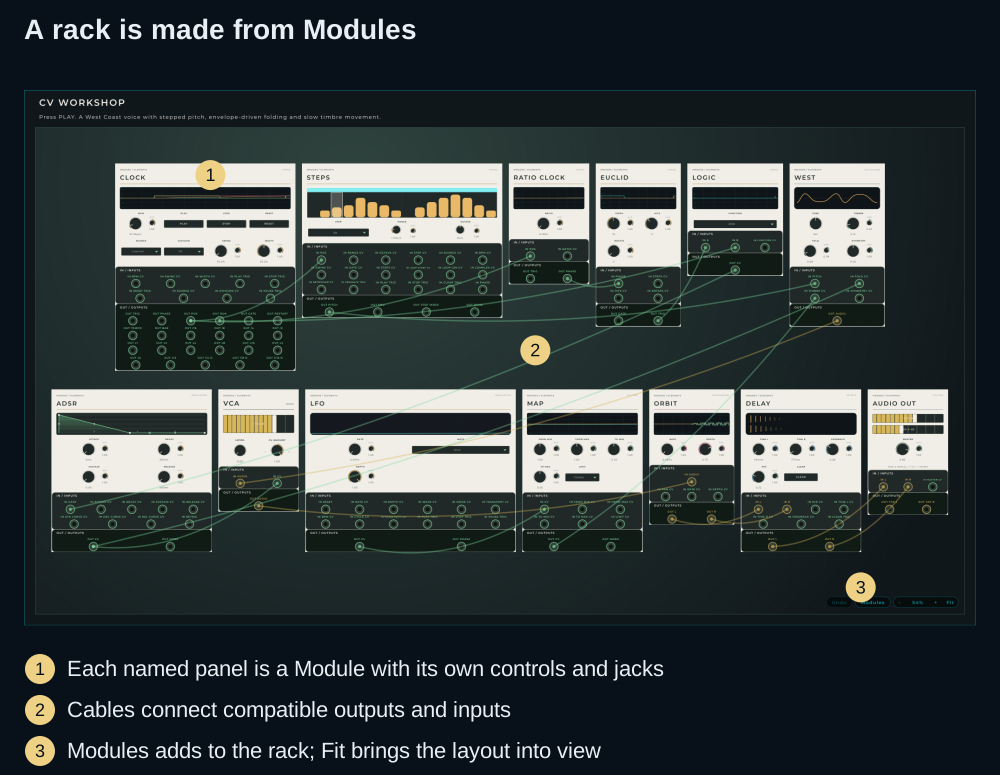
Each panel is a Module. Marking a saved Module as rack-ready makes it available to the rack browser; its jacks and controls still come from the panel you built.
A project that uses a Rack Canvas carries what it needs. The placed modules’ graphs and panels are saved inside the project. External samples, images and hosted plugins still need to be available. When you share the project with Collect All & Export, your own Rack Modules travel inside the .mnprtz, and the ones from the MNodes Hub or from MNodes' factory content are installed automatically on the computer that imports it. Anything that could not be installed shows up on the rack as missing, ready to get with one press. The Rack Canvas guide explains it step by step, with a checklist for sharing.
Marking a Module that came with MNodes or from the Hub writes into its file, so installing a new version of that content brings its Modules back the way their author made them.
Module Presets (per-instance state)
Once a Module is placed in your patch, you can save snapshots of every internal control as a Module Preset. This is different from saving the Module itself:
- Module file (
.mnmod) defines what the Module is (its inner graph and panel layout). Saved once when you build the Module. - Module Preset (
.mnmprst) captures the current values of every internal node inside an already placed Module. Topology stays the same, only parameter values change on apply.
Saving and applying
- Select the Module node in the graph (the parent graph, not its inside view).
- In the inspector, expand the Module Presets section.
- Tweak the Module's controls to taste, then click Save As... and give the preset a name.
- The preset appears in the list. Double-click to apply, or single-click then drag the prev/next/random controls of the inspector if you want to step through them. Click Overwrite to update the currently loaded preset.
Right-click a preset for Open, Export, Reveal in Explorer, Delete, and Import. Drag-and-drop a .mnmprst file onto the list to import it.
Where presets live
Module Presets are filed by Module title:
Library/Modules/Presets/User/<ModuleTitle>/<presetName>.mnmprst
Library/Modules/Presets/Factory/<ModuleTitle>/<presetName>.mnmprst
The list in the inspector only shows presets that match the title of the Module currently selected. A "Reverb II" preset will not show up while a "Compressor" Module is selected, even if both are in your library.
Importing a preset for a different Module
If you import a .mnmprst whose recorded module title does not match the Module you have selected, MNodes still files it correctly under its own folder and pops a short info notice telling you which Module it belongs to. Open an instance of that Module to see the preset listed.
Sharing Modules: Module Packs
Module Packs (.mnmodpack) bundle a Module with the supported external resources its nodes report. A single-Module pack contains:
- module.mnmod: the preset with all node configurations
- thumbnail.png: a visual preview of the Module panel
- files/: collected resources such as samples, images, film strips and wavetables
Exporting a Module Pack
From the graph:
- Right-click on a Module node
- Select Collect & Export Module…
- Review the Save Module form and save it. This step also appears for a Module saved before.
- Choose the destination for the
.mnmodpackfile in the export dialog.
Cancelling the Save Module form cancels the export. Keep the referenced resource files available while collecting.
From the browser:
- In the Node Browser → Modules section, right-click on a saved Module
- Select Collect & Export Module…
- Choose a destination
Importing a Module Pack
Simply drag and drop a .mnmodpack file onto the graph canvas. MNodes will:
- Extract the Module preset and thumbnail to
Library/Modules/User/{name}/ - Extract all resources to a
files/subfolder - Remap all file paths so resources are found at their new location
- Create a Module node with everything connected and working
The imported Module also appears in the Node Browser for future use.
Packs of several Modules
A .mnmodpack can also hold a whole pack: several Modules, each with its picture and its resources, plus the pack's name, author, description and cover. File > Create Module Pack... builds one: fill in the name, the author and the description, drop or choose a cover, add Modules with Add from Library... (a searchable list of every Module you have) or Add Files... (.mnmod files from disk), then either Install in Library or Export Pack....
Installing a pack of this kind, from File > Install Module Pack... or by dropping the file on the graph, writes Library/Modules/User/{pack name}/ with the Modules filed by category, their pictures beside them, their resources next to each one, and the pack's face, which is exactly what the Modules explorer shows as a pack with a banner. Installing it again replaces the folder, so a pack is never in the library twice. Inside the file:
- _pack.json: name, author, description, version
- _cover.png: the cover, optional
- {Category}/{Name}.mnmod and {Category}/{Name}.png: each Module and its picture
- {Category}/{Name}_files/: that Module's resources, with the Module's paths pointing there
A one-Module .mnmodpack made before packs could hold several still installs as described above.
What gets collected
The collector asks the nodes inside the Module for their external files. Supported resource types include:
| Resource type | Examples |
|---|---|
| Audio files | Samples used by player, granular and Sampler nodes |
| Images | Widget Image backgrounds, Button on/off images |
| Film strips | Widget FilmStrip knob/slider skins |
| Wavetables | Wavetable oscillator files |
| Scale files | Micro-tuning SCL files |
| Pattern files | Pattern sequencer data |
Nested Subgraphs and Modules are scanned too. A pack does not install third-party plugins or reconstruct files already missing at export time. After importing on another setup, check the samples, images and any hosted plugins before sharing the pack more widely.
Nesting Modules
Modules can contain other Modules: the nesting is fully recursive:
- Audio, MIDI, CV and Data cross levels through the corresponding ports
- Each nested Module has its own front panel
- A parent Module can show a nested Module's widgets in its own panel by adding the nested Module to its Module Front Panel
Use Cases
- Custom instruments: Oscillator + filter + envelope + XY pad, all in one Module with a performance-ready panel
- Channel strips: Gain + EQ + compressor + meter, with faders and meters visible in the body
- Effect racks: Chain multiple effects with knobs for key parameters exposed on the panel
- Reusable building blocks: Save frequently used configurations as Module presets and share them
- Performance interfaces: Build entire performance surfaces by nesting Modules in the global Front Panel
Tips
- Use the Panel Alpha parameter to blend the Module background with the graph or make it fully transparent
- Resize the Module Front Panel canvas by dragging its edges: it can go as small as 10x10 pixels
- Widget minimum size in the panel is 10x10, allowing very compact layouts
- The Module Front Panel size determines the body size in the parent graph
- All Front Panel features (grid, zoom, colors, duplicate, undo) work identically in the Module Panel editor
Which save should I use?
| You want to keep… | Use |
|---|---|
| The whole song/instrument patch around this Module | Project Save (.mnprt) |
| The Module's graph and panel for reuse | Save As Module… (.mnmod) |
| A different sound from the same placed Module | Module Presets → Save As… (.mnmprst) |
| A Module and its supported resources for someone else | Collect & Export Module… (.mnmodpack) |
If the sound needs independent note voices, continue with Poly Modules. If it is designed to be plugged together on a performance surface, continue with Rack Canvas.