Appearance
Installation
Install the standalone app to learn or play without a DAW, and the plugin variants you want to use on DAW tracks. Then activate MNodes, choose your audio/MIDI setup and open a first patch.
System Requirements
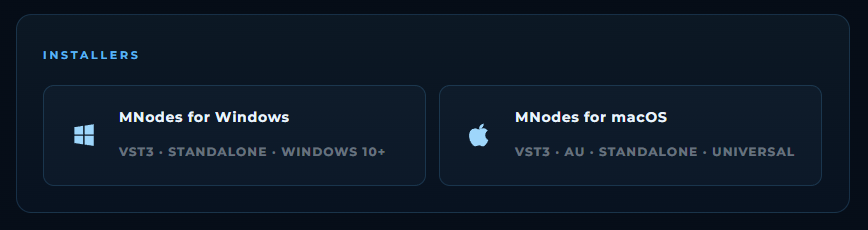
- OS: Windows 10 or newer (64-bit), or macOS 10.14 or newer (Intel / Apple Silicon)
- Processing needs: depend on the patch, voice count, samples and hosted plugins
- DAW: a compatible VST3 host, or an AU host on macOS; no DAW is required for standalone
Purchase & Download
- Purchase MNodes from marionietoworld.com/mnodes
- After your purchase, you will receive a serial number via email
- You will also get access to the installers for both Windows and macOS
If you purchased from marionietoworld.com, your serial will also be available in your account page.
Installation
Windows
- Close your DAW and any running MNodes app before installing an update.
- Run the downloaded
.exeinstaller. - Choose the components you need: MNodes standalone, MNodes FX (VST3) and/or MNodes Instrument (VST3). A full installation includes all three.
- Complete the installer. Launch MNodes from the Start menu, or reopen your DAW and let it scan plugins.
macOS
- Close your DAW and MNodes before installing an update.
- Run the downloaded
.pkginstaller and follow its steps. - The package installs the standalone app and the plugin variants. Launch MNodes from Applications, or reopen your DAW and let it scan/validate plugins.
- Choose MNodes Instrument, MNodes FX, or MNodes MIDI FX in the appropriate host slot; see DAW Integration.
License Activation
When you open MNodes for the first time (either in your DAW or standalone), it will ask for your credentials:
- Enter the email associated with your purchase
- Enter the serial number you received
Check Settings → License to confirm activation on this computer. Activation is remembered between launches; reinstalling the application is not a way to free an activation on another computer.
Key License Details
The License page shows the status of this computer and the activation usage for your license. Use Your MNodes Account to find your serial, installers and account tools. An internet connection is needed for activation and online downloads; your installed local patches can be used offline after activation.
Managing Your Licenses
You can manage your license slots in two ways:
- From MNodes: Go to Settings → License and release a license slot to free it for another computer
- From your account: Go to marionietoworld.com, log into your account, and manage or deactivate licenses from one computer to transfer to another
This is useful when you get a new computer:simply release the slot on the old machine (or from your online account) and activate on the new one.
File Locations
MNodes stores its data in:
| Content | Location |
|---|---|
| Factory presets | ~/Music/Mario Nieto/MNodes/Library/Projects/Factory/ |
| User presets | ~/Music/Mario Nieto/MNodes/Library/Projects/User/ |
| Node presets | ~/Music/Mario Nieto/MNodes/Library/Node Presets/ |
| Subgraphs | ~/Music/Mario Nieto/MNodes/Library/Subgraphs/ |
| Modules | ~/Music/Mario Nieto/MNodes/Library/Modules/ |
Content folder locations can be changed in Settings → Library. Use the paths shown there for your installation; changing a content folder does not relocate the application itself.
Verifying Installation
Standalone
- Launch MNodes and confirm that Home opens.
- Open Settings → Audio & MIDI. Choose the audio device and outputs you listen through; enable your MIDI input if you use a keyboard.
- Return to Home and start Your first patch. You can hear that example without a MIDI keyboard.
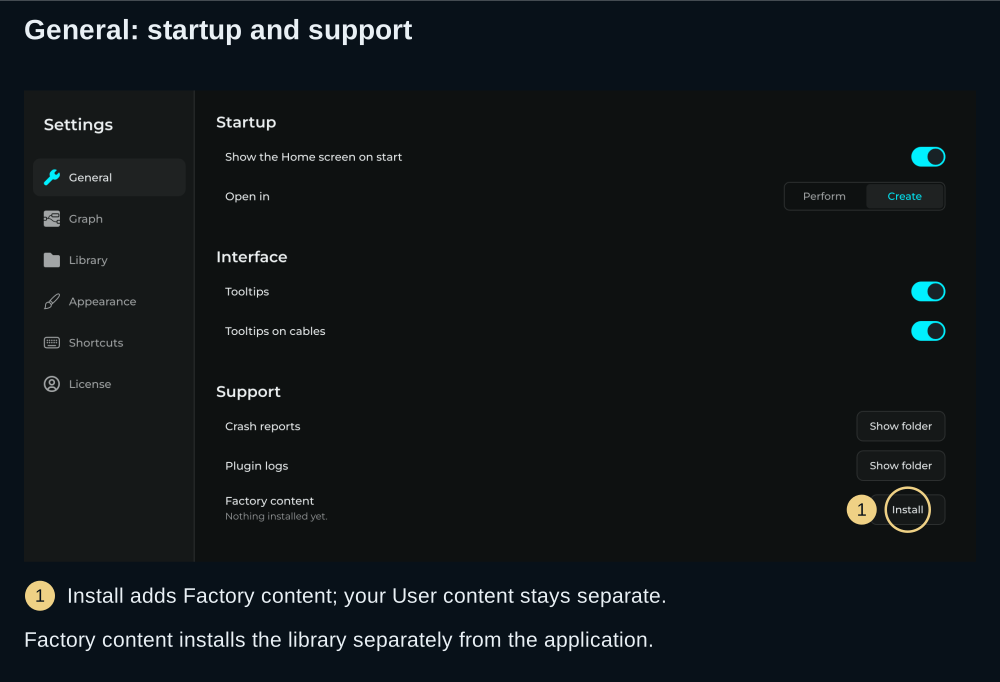
- To install the optional Factory library, use Settings → General → Factory content after activation.
In your DAW
- Rescan/validate plugins if your host has not done so automatically.
- Put MNodes Instrument on an instrument track, or MNodes FX in an audio effect slot.
- Activate if requested, then load a suitable project. An instrument needs MIDI input; an effect needs incoming audio.
- Configure the audio device and MIDI routing in the DAW. MNodes' standalone device settings do not configure the plugin instance.
Continue with DAW Integration for an instrument and an effect walkthrough.
If something is missing
| Symptom | Check |
|---|---|
| Standalone opens, but the DAW lists no MNodes plugin | The needed plugin component was installed, the host supports its format, and its plugin scan completed |
| Only one variant appears | Search for MNodes Instrument and MNodes FX separately and check the track/slot type |
| The app opens but produces no sound | Check the device/output in standalone, or track routing in the DAW, then check the patch's Audio Out |
| Factory presets are absent | Install Factory content from General, then browse Library; installing the application and installing its content are separate steps |
| A moved project is marked MISSING | Use Locate on its Library entry; reinstalling the app will not restore that file |