Appearance
Your MNodes Account
Everything around buying MNodes, activating it, and managing your account: serial, installers, Hub access, and how to claim a license if you bought as guest.
The journey at a glance
- Buy MNodes on the MNodes product page.
- Receive your serial by email, along with direct download links for Windows and macOS.
- Install MNodes on your computer (DAW or standalone).
- Activate by entering your email and serial the first time you open the plugin.
- From that moment, your account has everything: serial, installers, Hub access, your shared projects.
Buying MNodes
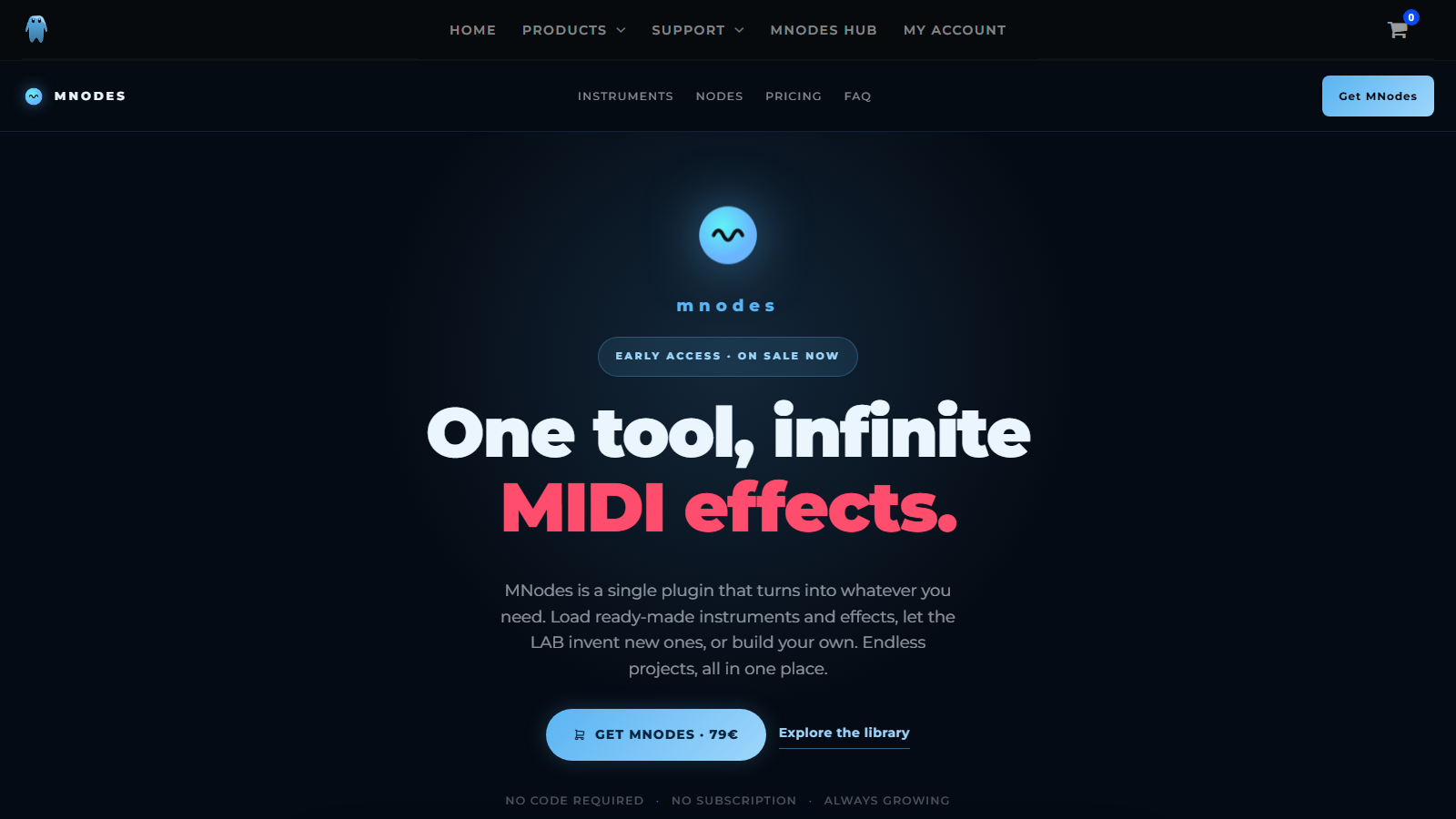
Head to the MNodes product page and click Buy MNodes. At checkout, what you see depends on whether you already have an account:
- You're already logged in. The cleanest path. Your billing details prefill, the order is automatically attached to your account, and after paying you'll find your serial and downloads in your account right away.
- You have an account but you're logged out. The checkout shows a "Returning customer? Click here to log in" link. Logging in is optional but recommended; otherwise you can carry on as guest.
- You don't have an account yet. You can either tick Create an account during checkout (recommended) or leave it unticked to buy as guest. Guest buyers receive the serial by email and can attach it to an account at any time afterwards.
Accepted payment methods: credit / debit cards (via Stripe) and PayPal.
What you receive after purchase
A confirmation email lands in your inbox with two key things highlighted at the top:
- Your serial number. A unique code you'll paste into MNodes the first time you open it. Each serial supports up to 3 simultaneous installations across your own devices.
- Direct download buttons for Windows and macOS. These point to the latest released version. Even if you click them weeks later, you get the most recent build.
If the email doesn't arrive within a few minutes, check your spam folder. The sender is
mario@marionietoworld.com.
Activating MNodes
- Install MNodes following the Installation guide.
- Open MNodes in your DAW or as standalone.
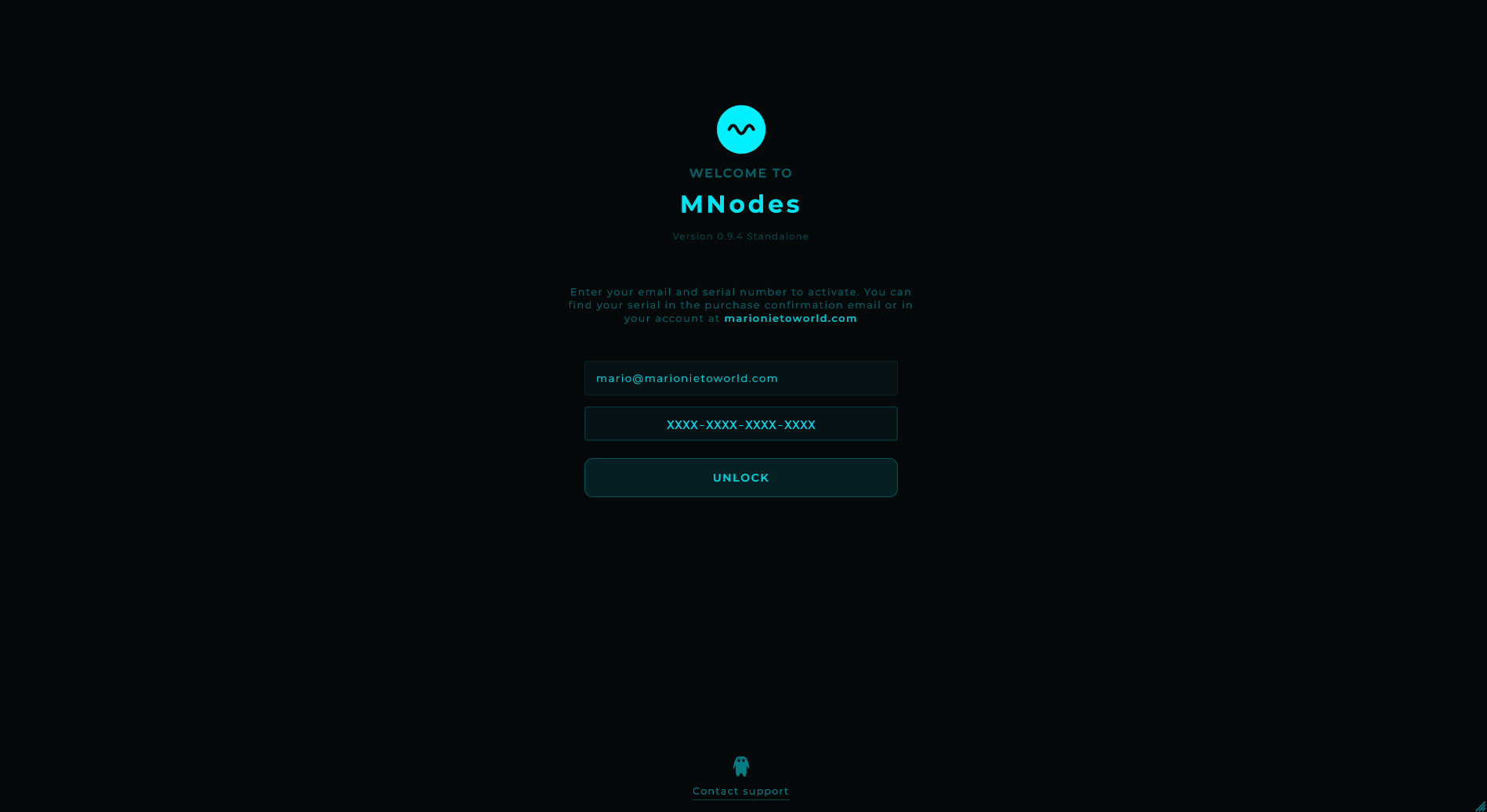
- The activation screen asks for two things:
- Email: the email used at checkout.
- Serial number: from your confirmation email.
- Paste both and confirm.
Activation is remembered on this computer. Check Settings → License for its current status and activation usage; use the account tools below when transferring to another computer.
Your MNodes account
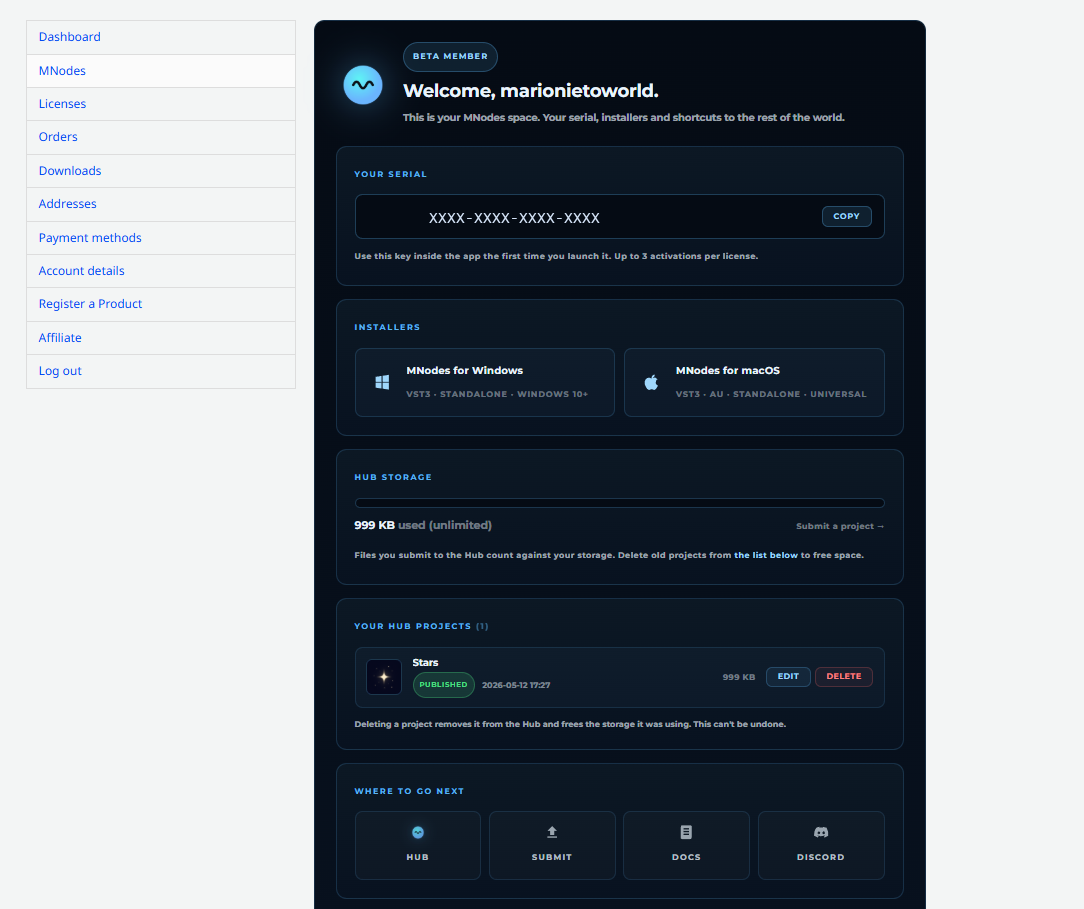
Log into your account and click MNodes in the sidebar. You'll see:
Your serial
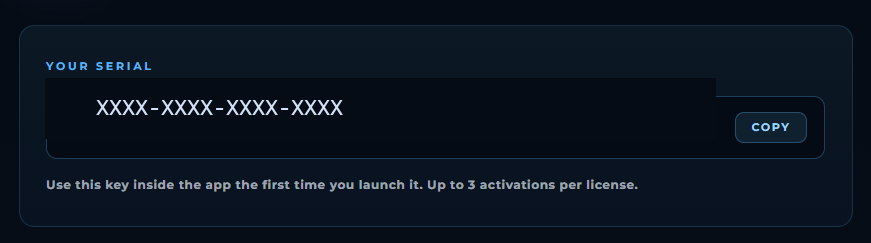
Your serial is shown with a one-click Copy button. Use it whenever you need to paste it into MNodes again.
Installers
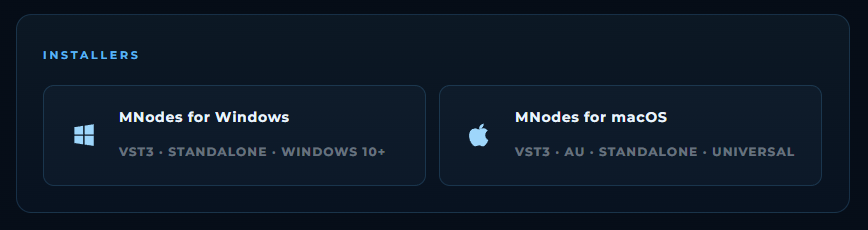
Big buttons for Windows and macOS. They always point to the latest released version, so:
- After the launch, you click and you get the latest.
- Months later, when we release a new version, the same buttons silently start serving the new one. No new email, no broken link.
Below each button you'll find the current version number and an expandable What's new section with the release notes for that version.
Hub storage
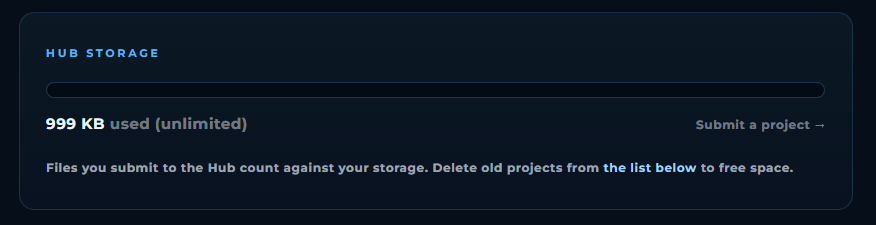
A live progress bar that shows how much storage your Hub uploads are using. Default allowance: 2 GB lifetime per user, plenty for hundreds of presets. If you approach the limit, you can free space by deleting old projects, or contact us to request more.
Your Hub projects
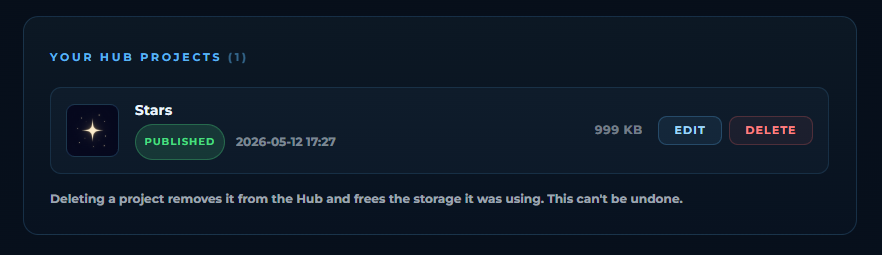
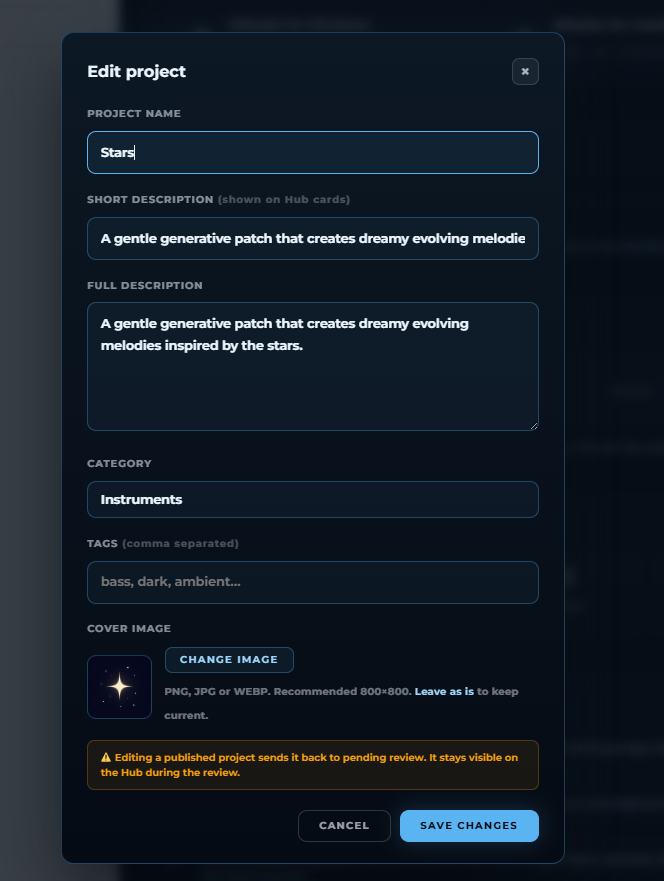
Every project you've uploaded to the Hub appears here:
- Edit lets you update name, description, category, tags, and cover image.
- Delete removes the project from the Hub and frees its storage.
Projects pending review carry a yellow badge; published ones show a green one.
Already have a serial? Attach it to your account
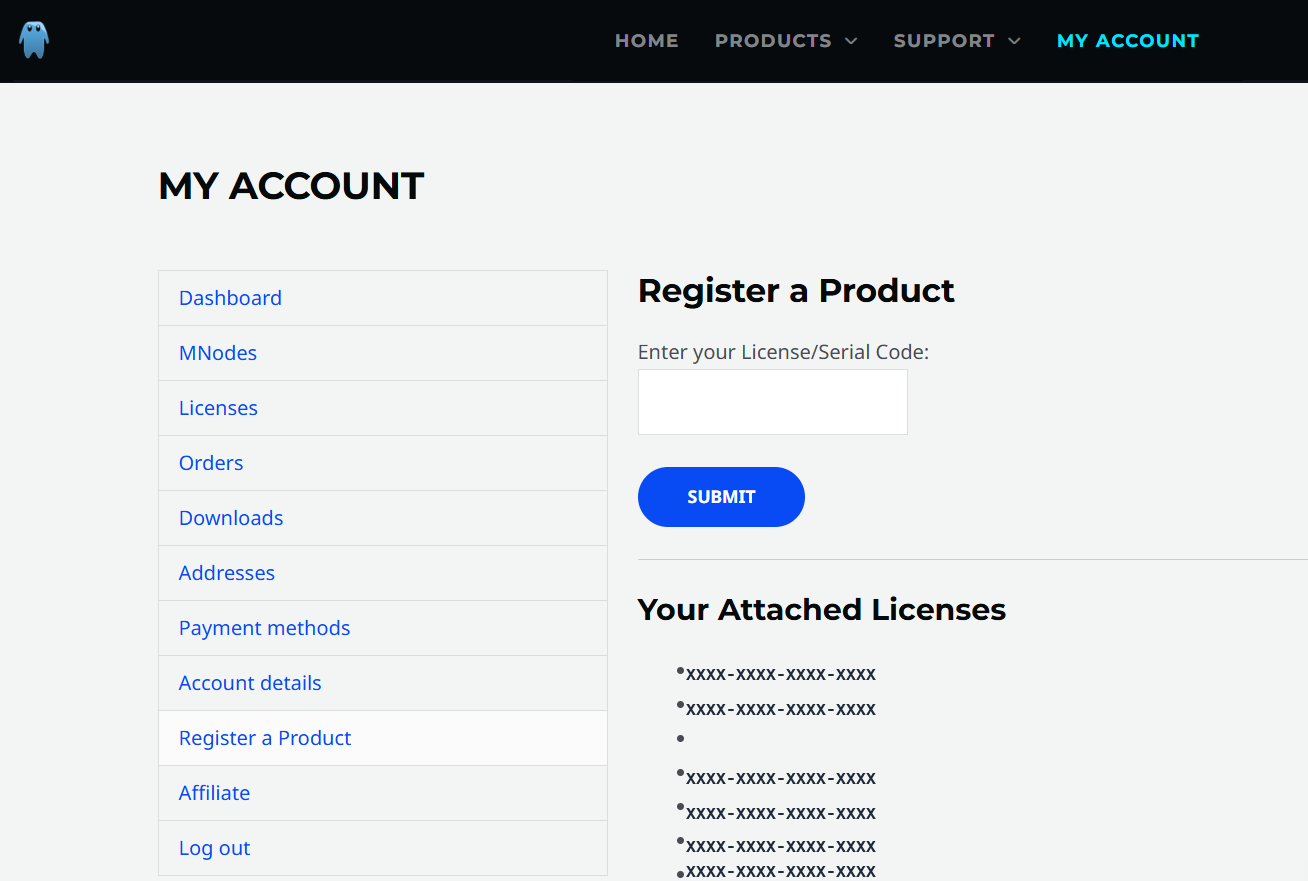
There are two situations where you'll arrive at MNodes with a valid serial but no account yet at Mario Nieto World:
- You bought MNodes as guest at checkout and never created an account.
- You bought MNodes from a reseller, who sent you a unique serial and the installer links by their own channel.
In both cases the activation of the plugin itself works straight away: you can install MNodes and paste the serial on first launch, no questions asked. But to unlock the rest of the MNodes ecosystem (Hub access, automatic updates to newer versions, the My Account dashboard) you need to link that serial to a free account:
- Create a free account on the website. Use the same email as your purchase when possible (it makes future support easier), but it's not strictly required.
- Log into your account.
- Click Register a Product in the account sidebar.
- Paste your serial and press Submit.
Done. Your account now has Hub access, the MNodes tab shows your serial and installers, the standard Downloads section lists MNodes for both platforms, and any future MNodes release is one click away.
Each serial can be linked to one account only. If your serial was already attached to a different account, the form will refuse it. In that case contact support and we'll help you sort it out.
Hub access
Once a serial is linked to your account you can:
- Browse the MNodes Hub to explore presets and devices shared by the community.
- Submit your own projects to share what you've built.
- Download Hub content directly from inside MNodes via the Hub panel.
Without a serial linked, the Hub shows a "Get MNodes" landing instead. Buy MNodes or attach an existing serial to unlock it.
Always the latest version
The download buttons in your account are intentionally dynamic. The URL doesn't point to a specific file; it points to a small backend route that resolves to whichever version is currently published. Practical effect:
- We release v1.0.4 today.
- Your existing button (configured at the time of your purchase) automatically starts serving v1.0.4 on your next click.
- We don't need to email you a new link, and you don't need to bookmark anything new.
If you need a specific older version for any reason, contact support.
Activation slots and moving between computers
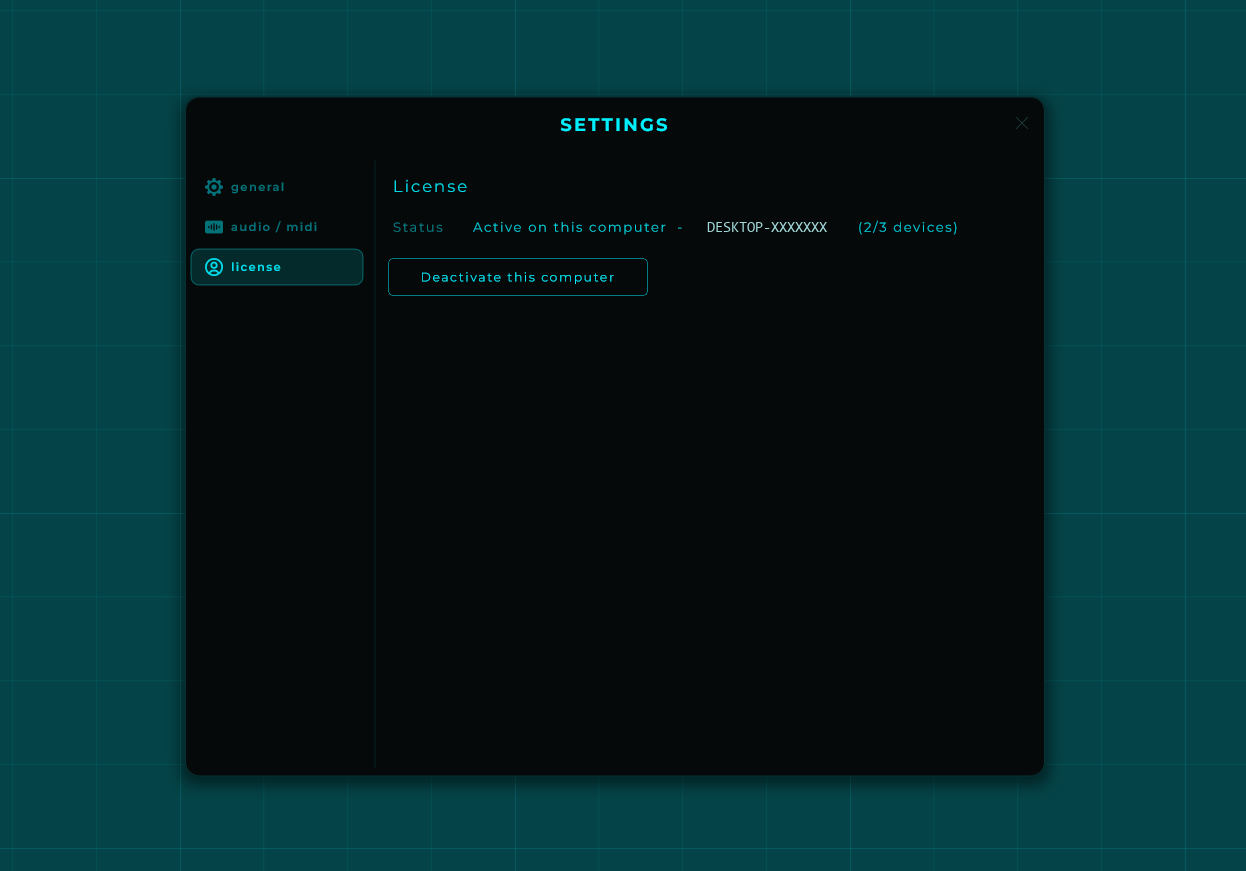
| Simultaneous activations per serial | 3 |
| Where to release a slot from MNodes | Settings → License → Release this computer |
| Where to release from the website | Your account, logged in, under the licenses section |
| Offline use after activation | Fully supported. No internet required |
| Time limit | None. License is permanent |
When you change computer:
- Release the slot on the old machine (or from your online account).
- Run the installer on the new one.
- Paste your email and serial on first launch.
Help
- I can't find my serial. Open your MNodes account; the serial is at the top of the page. If you can't log in, reset your password.
- Activation isn't working. Try releasing a slot from your account first. If it still fails, email mario@marionietoworld.com with your serial and a short description.
- Refunds, invoicing, anything billing-related. Same email above.