
Appearance
Preset Library
Library is your local collection. Use it to return to a project, find a Factory sound, or organise your own work. Hub is the online catalogue; installing something from Hub adds it to your local content.
Open Home → Library, or click the preset name in the editor's top bar to open the Preset Browser.
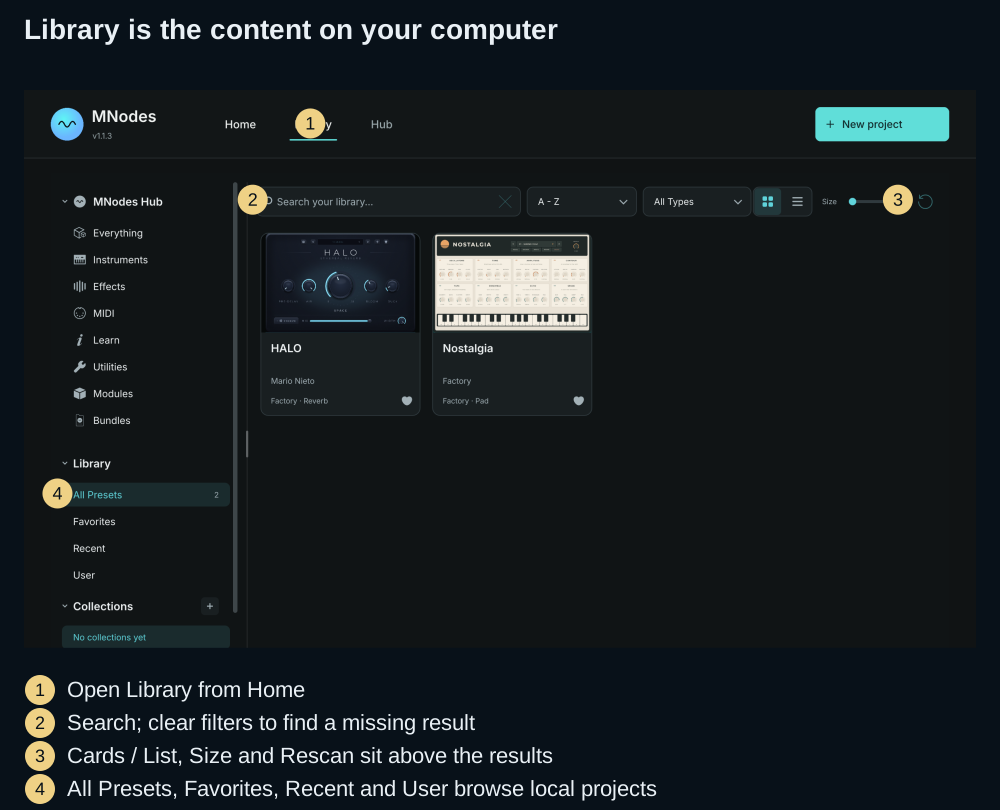
How presets are organised
A complete patch is a project (.mnprt). MNodes also calls it a preset in the browser and Save window. Node presets, Subgraphs and Modules are reusable parts of a project; they have their own folders and appear in the relevant Explorer sections.
The Library can also remember a project stored elsewhere. Seeing a card here does not mean the file has been copied into your Library folder.
Setting the paths
- Open Settings → Library.
- Find the row for the content you want to relocate: Projects, Node Presets, Subgraphs, Modules or Fonts.
- Hover the row to reveal its folder button, then use it to choose an existing folder. MNodes changes where it looks and rescans.
- Use Rescan folders after adding files outside MNodes. The reset button on a changed row restores its default location.
Changing a folder setting does not move your existing files. Keep the old location available until you have copied the content you want and checked that it loads from the new one.
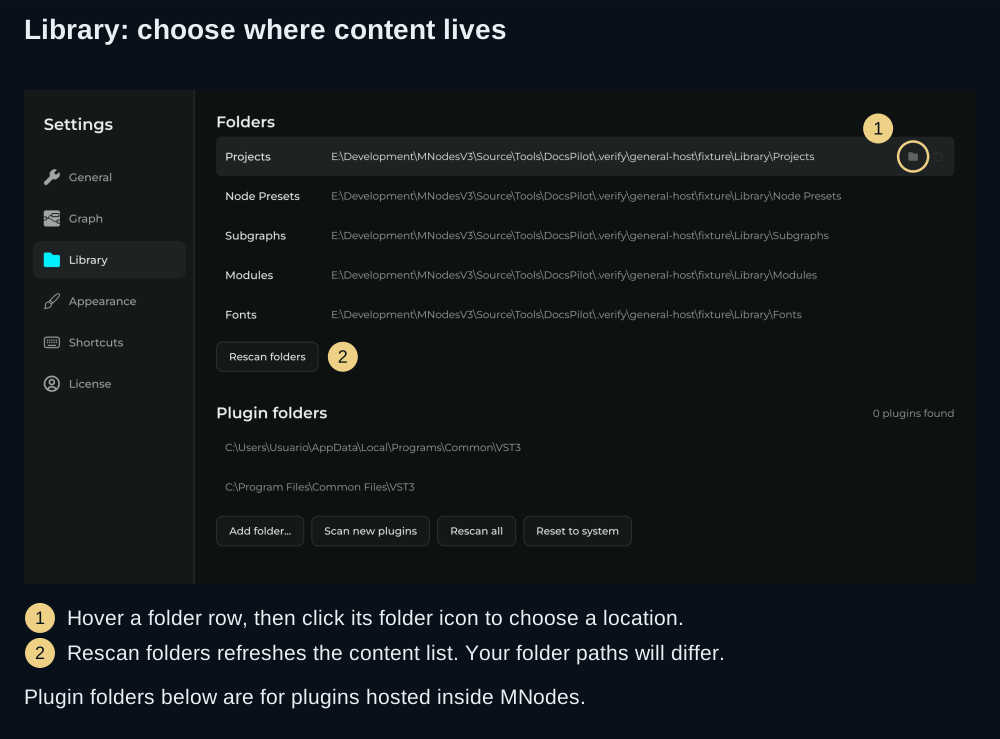
What lives inside
The default root is Music → Mario Nieto → MNodes → Library. The folders relevant to everyday work are:
| Folder | Contents | Where you use it |
|---|---|---|
| Projects | Complete .mnprt projects; Factory and User content have separate subfolders | Home Library / Preset Browser |
| Node Presets | .mnnpreset settings for a node | Node preset controls |
| Subgraphs | .mnsubgraph reusable graphs | Explorer's Subgraphs view |
| Modules | .mnmod graphs with panels, and Module presets | Explorer's Modules view |
| Fonts | Additional fonts for your panels | Font choices |
A plain project can refer to samples and images elsewhere on disk. Use Collect All & Export when sharing a project with those resources.
Browsing the Library
- Choose All Presets, User, Favorites or Recent in the left rail.
- Type part of the project name in Search. Clear the search and type/category filters if a known project disappears.
- Choose Cards for artwork or List for a compact view. The Size slider is above the results and adjusts either view.
- Double-click a project to load it, or right-click → Load. It opens in its saved Edit or Perform mode.
The rail also contains purpose/category filters and installed bundles. Favorites is a shortlist you make with the heart; Recent records what you opened.
Collections
Use + beside Collections to create a group, then drag projects onto it. A collection organises entries in the browser; it is not a folder relocation or a portable export. For several projects to send together, use the bundle workflow in Presets & Projects.
File actions
Right-click a card for the actions available to that file. Show in Finder / Explorer is the quickest way to see its actual location. Save a variation of Factory content before editing your own copy.
For a project opened from outside the Library:
- Copy to Library makes a library copy and leaves the original file in place. Load the copy from User to work on it.
- Locate… repairs a MISSING entry after you move or rename the external file.
- Remove from Library forgets the external reference without deleting that file. This differs from Delete on a library file.
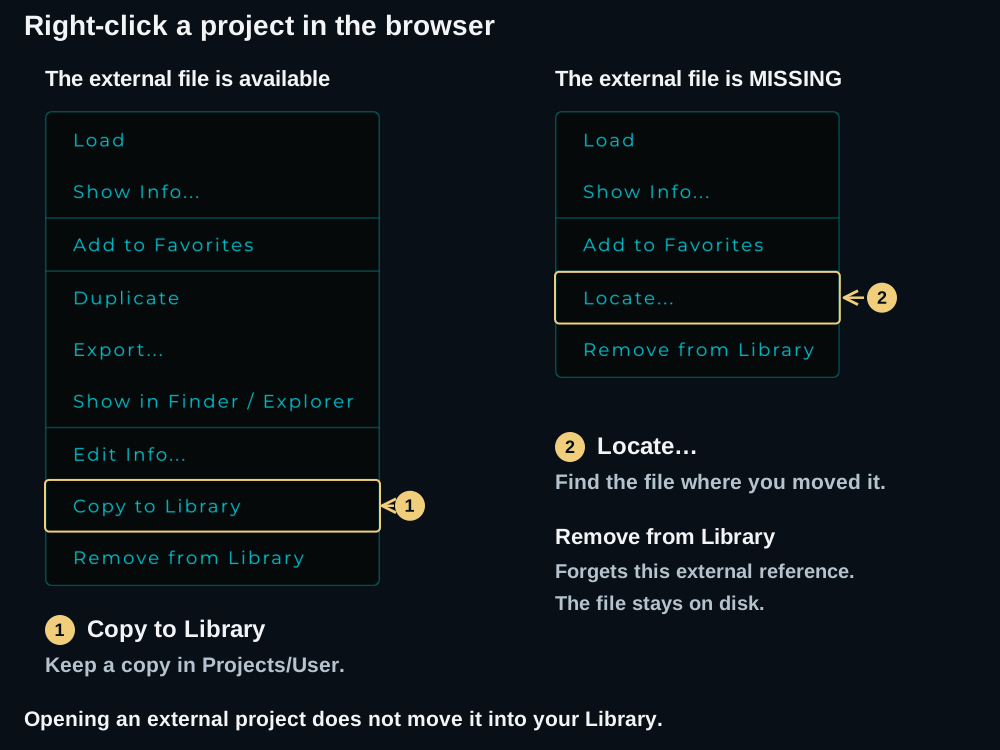
Refreshing
Click Rescan in the browser after moving or adding files outside MNodes. If a project is still absent, clear filters and check its configured Projects folder. For an external project marked MISSING, use Locate rather than importing another copy.
How the scan works
MNodes indexes the configured content folders and remembers external projects you opened. The browser uses a cache, so a file-system change can need a rescan before the result updates. Saving or managing content inside MNodes updates the library through the application.
Tips
- Use Favorites for a short performance set and Collections for broader groups.
- Keep external project folders available; Recent remembers locations, not backup copies.
- Before moving work to another computer, save and export a bundle, then check that the imported copy finds its resources.
- To discover content you have not installed yet, continue with MNodesHub.