Appearance
Keyboard Shortcuts
Use Ctrl on Windows and Cmd (⌘) on macOS wherever this page says Ctrl/Cmd. Alt is Option (⌥) on a Mac. These are the default bindings; your assignments in Settings → Shortcuts take precedence.
Find a task: File · Edit · Nodes & Graph · Front Panel · View · Mouse & cables. To change a key, go to Customize your shortcuts.
Start with these
| I want to… | Use… |
|---|---|
| Save my project | Ctrl/Cmd + S |
| Undo an edit | Ctrl/Cmd + Z |
| Find my nodes on the graph | F fits the selection; clear the selection to fit the whole graph |
| Inspect a selected node | Ctrl/Cmd + I shows or hides the Inspector |
| Show the lower Front Panel editor | Ctrl/Cmd + Alt + P, then raise its divider if it has too little height |
| Switch between building and playing | Ctrl/Cmd + P switches Edit / Perform |
| Cancel a cable I am dragging | Esc |
Click in the area you want to edit first. Duplicate and Delete act on the selection in the Graph, Front Panel or Layers palette you are working in. A selection left in another view is not enough.
While typing in a text field, plain keys such as B, F, Delete and the arrows belong to the field. Modified commands such as Ctrl/Cmd + S can still work. Finish typing and click back into the graph before using its single-key shortcuts.
Most editing and view commands require Edit mode. In Perform, switch back with Ctrl/Cmd + P before arranging nodes or changing the workspace.
Customize your shortcuts
In Edit mode, open Settings with Ctrl/Cmd + , (comma), then choose Shortcuts. The page begins with mouse preferences; scroll down to the command categories.
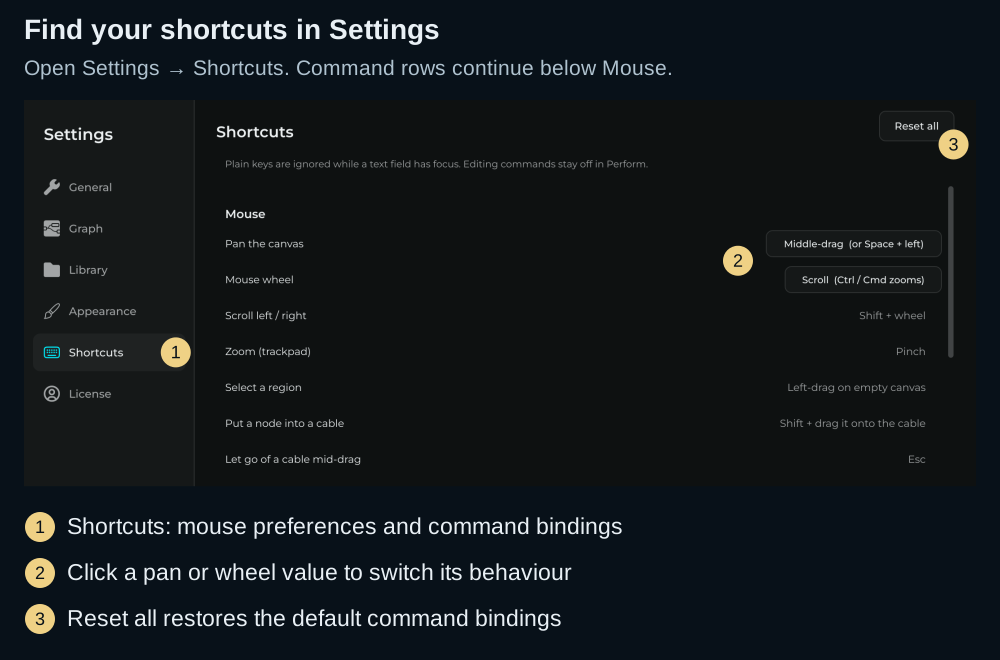
- Find the command you want to change and click its Learn button.
- Press the new key combination once. The field updates and the assignment is saved immediately.
- Close Settings and try it in the appropriate view, with the required selection.
While Learn is waiting, Esc, Cancel, or clicking away leaves the previous assignment unchanged. The command list contains actions that ship with a shortcut; it also keeps a row visible after you clear its binding.
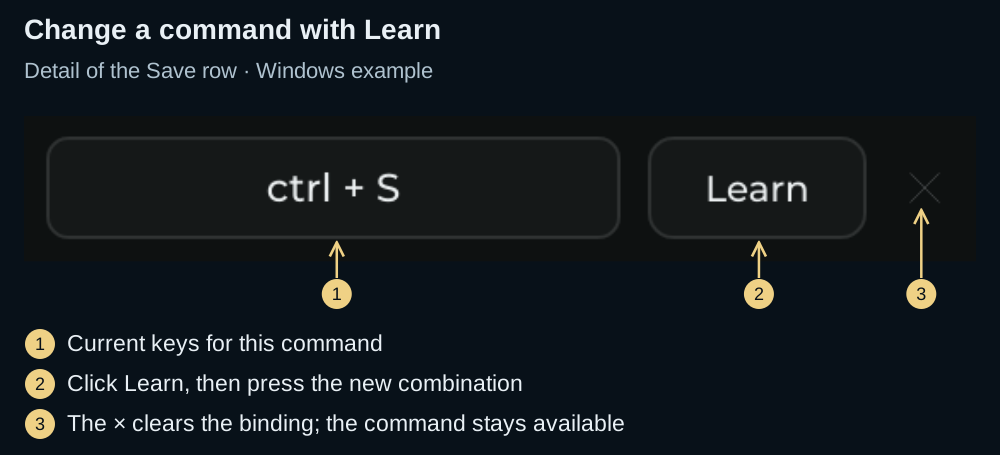
Learn replaces that command's previous binding. If another command already uses the combination, MNodes moves that combination to the new command. Read the message at the top and check the previous command's row if it stops responding.
Click the × at the end of a row to leave that command without a shortcut. Reset all restores all default command bindings, including any you cleared. It leaves the pan and mouse-wheel preferences as they are.
The Layers palette keys and panel gestures described below are local controls; they are not all listed as remappable commands in Settings.
File
| Action | Default shortcut |
|---|---|
| New Project… | Ctrl/Cmd + N |
| Open… | Ctrl/Cmd + O |
| Save | Ctrl/Cmd + S |
| Save As… | Ctrl/Cmd + Shift + S |
| Import Modules… | Ctrl/Cmd + Shift + I |
| Previous Preset, in Perform | Ctrl/Cmd + Shift + ← |
| Next Preset, in Perform | Ctrl/Cmd + Shift + → |
Previous / Next Preset require Perform mode and a populated preset library. Import Presets… has no default shortcut; use the File menu. For saving locations and project formats, see Presets & Files.
Edit
| Action | Default shortcut |
|---|---|
| Undo | Ctrl/Cmd + Z |
| Redo — Windows | Ctrl + Y |
| Redo — macOS | Cmd + Shift + Z |
| Cut selected graph nodes | Ctrl/Cmd + X |
| Copy selected graph nodes | Ctrl/Cmd + C |
| Paste graph nodes | Ctrl/Cmd + V |
| Duplicate the current selection | Ctrl/Cmd + D |
| Select all graph nodes | Ctrl/Cmd + A |
| Delete the current selection | Delete or Backspace |
| Frame Selection | Ctrl/Cmd + Shift + F |
Frame Selection creates a Frame around selected nodes. To bring nodes into view without adding anything, use Fit View (F) instead. See Working with Nodes.
Nodes & Graph
Select the node or nodes in the graph before using these commands.
| Action | Default shortcut |
|---|---|
| Rename one selected node | Ctrl/Cmd + R |
| Group to Subgraph | Ctrl/Cmd + G |
| Group to Module | Ctrl/Cmd + Shift + G |
| Enter one selected Subgraph / Module | Enter / Return |
| Exit to the parent graph | Esc |
| Toggle bypass on supported selected nodes | B |
| Compact Selected — toggle compact / full size | Ctrl/Cmd + K |
| Expand Selected — restore every selected node | Ctrl/Cmd + Shift + K |
| Show UI Only / Show Params | Ctrl/Cmd + U |
| Hide Unconnected: show only the rows and pins that have a cable | H |
| Fit selected nodes, or the whole graph with nothing selected | F |
Show UI Only keeps a supported node's own editor visible while hiding its parameter rows. Compact Selected hides the body too. Hide Unconnected keeps only the rows and pins that have a cable; press H again to see everything. Compare the node display modes before choosing one. Bypass only affects nodes that support it; boundary nodes such as Audio In and Audio Out do not.
During a cable drag, Esc cancels the cable first. Otherwise, inside a Subgraph or Module, it goes up one level.
Align & Distribute
Select multiple items in the Graph or an unlocked Front Panel. These commands arrange the view you are working in. Auto Layout is for the graph.
| Action | Default shortcut |
|---|---|
| Align Left / Right | Ctrl/Cmd + Alt + ← / → |
| Align Top / Bottom | Ctrl/Cmd + Alt + ↑ / ↓ |
| Distribute Horizontally | Ctrl/Cmd + Shift + Alt + H |
| Distribute Vertically | Ctrl/Cmd + Shift + Alt + V |
| Distribute H + Align Top | Ctrl/Cmd + Shift + H |
| Distribute V + Align Left | Ctrl/Cmd + Shift + V |
| Auto Layout, in signal-flow order | Ctrl/Cmd + Shift + L |
| Straighten Cables: select the nodes or the cables first | Q |
Front Panel: canvas
Work in Edit mode with the panel unlocked. Select the widgets on the panel itself to move their layout; a locked widget stays in place.
| Action | Key or gesture |
|---|---|
| Nudge selected widgets by one panel pixel | ← / → / ↑ / ↓ |
| Nudge by ten panel pixels | Shift + arrow |
| Duplicate selected widgets | Ctrl/Cmd + D |
| Delete selected widgets | Delete or Backspace |
| Toggle the whole panel's layout lock | Ctrl + left-click on empty panel canvas |
The lock gesture uses Ctrl on both Windows and macOS, and starts on empty canvas. You can also use the toolbar's padlock. Locking the layout, showing only the panel, and switching to Perform are separate actions; see The Front Panel.
Front Panel: Layers Palette
Click an item in the Layers tree first. Its grouping keys arrange panel layers; the same combinations in the graph create a Subgraph or Module.
| Action | Key |
|---|---|
| Delete selected widgets | Delete or Backspace |
| Duplicate selected widgets | Ctrl/Cmd + D |
| Group selected layers — at least two | Ctrl/Cmd + G |
| Ungroup selected layers | Ctrl/Cmd + Shift + G |
| Lock / Unlock selected layers | Ctrl/Cmd + L |
| Rename the current item | F2, or double-click |
| Move selected layers one slot up / down | Ctrl/Cmd + ↑ / ↓ |
Moving layers up or down changes their order among siblings; it stops at the edge of that group. It does not nudge their position on the panel. See Layers Palette.
View
Panels and workspace
| Action | Default shortcut |
|---|---|
| Toggle Perform Mode | Ctrl/Cmd + P |
| Show Explorer | Ctrl/Cmd + Alt + E |
| Show Inspector | Ctrl/Cmd + I, or Ctrl/Cmd + Alt + I |
| Show Front Panel | Ctrl/Cmd + Alt + P |
| Show Module Panel, from inside a Module | Ctrl/Cmd + Alt + M |
| Show Only Front Panel | Ctrl/Cmd + Alt + W |
| Open Settings | Ctrl/Cmd + , |
These show/hide commands are toggles: press again to return. Show Inspector affects the window you are working in, including a detached Front Panel. Show Only Front Panel uses the whole workspace for the panel while keeping Edit mode.
Zoom and graph display
| Action | Default shortcut |
|---|---|
| Zoom in on the Graph or Front Panel you are working in | Ctrl/Cmd + + |
| Zoom out | Ctrl/Cmd + - |
| Reset that view to 100% | Ctrl/Cmd + 0 |
| Show Graph Grid and snap | Ctrl/Cmd + Alt + G |
| Show Front Panel Grid and snap | Ctrl/Cmd + Shift + Alt + G |
| Show Performance Stats | Ctrl/Cmd + Alt + T |
| Show Node CPU | Ctrl/Cmd + Alt + C |
| Show Mini Map | Ctrl/Cmd + Shift + Alt + M |
| Wires on Top of Nodes | Ctrl/Cmd + Shift + W |
For keyboard layouts where + needs Shift, Zoom In also accepts Ctrl/Cmd + Shift + + and Ctrl/Cmd + =. Reset Zoom also accepts Ctrl/Cmd + numpad 0 or Ctrl/Cmd + Shift + 0. Show Node Latency is available from View without a default key.
Mouse & Trackpad
Choose how the canvas moves
In Settings → Shortcuts, click the value beside Pan the canvas or Mouse wheel to switch it. The screenshot above shows Middle-drag and Scroll.
| Preference or gesture | What it does |
|---|---|
| Pan the canvas → Middle-drag | Hold the middle button and drag |
| Pan the canvas → Alt + left-drag | Hold Alt and drag with the left button |
| Space + left-drag | Pans with either preference |
| Mouse wheel → Scroll | Wheel scrolls; Ctrl/Cmd + wheel zooms |
| Mouse wheel → Zoom | Wheel zooms; Ctrl/Cmd + wheel scrolls |
| Shift + wheel | Scrolls left / right |
| Trackpad pinch | Zooms |
Use these gestures over the canvas; a control under the pointer may handle the wheel itself. A Help example always uses wheel-to-scroll and Ctrl/Cmd + wheel-to-zoom. Over a Rack Canvas, the pan gesture scrolls the rack.
Select nodes and connect pins
| Action | Gesture |
|---|---|
| Select a node | Click it |
| Select several nodes | Shift + click, or left-drag a selection box on empty canvas |
| Open the Node Palette | Right-click empty graph canvas |
| Open a node's actions | Right-click its header |
| Connect two pins | Drag from one pin to another |
| Connect several consecutive pins | Ctrl/Cmd + drag from the first pin |
| Connect one output to several inputs | Hold Alt when dropping; release Alt to finish |
| Cancel a cable drag | Esc; a reconnect returns to its original connection |
| Add a node at the end of a cable | Drop the cable on empty canvas and choose a node |
| Grow a port on a Module | Drop the cable on the Module's body |
| Connect different pin types | Drop onto the other pin; MNodes adds a converter when a supported conversion exists |
| Insert a node into a cable | Shift + drag the node onto the cable; keep Shift held when releasing |
| Bend a cable | Alt + click it to add a joint, then drag the joint; Alt + click the joint to remove it |
| Move several joints together | Shift + click each joint, or drag a selection box over them, then drag one |
| Delete a cable | Right-click it → Delete Cable |
| Find either endpoint | Right-click the cable → Go to the chosen node |
| Start another cable from either endpoint | Right-click the cable → New Cable from / New Cable to |
After New Cable from / to, click a pin to connect, click empty canvas to choose a node, or press Esc to cancel. Hold Alt when connecting to continue from the source. See Connections & Pins for illustrated examples and hybrid pins.
Patch Cables
Panel cables connect jacks on the Front Panel, Modules and Rack Canvas. Handle a cable at its jack, rather than dragging its middle. These gestures differ from graph cables.
| Action | Gesture |
|---|---|
| Plug in a cable | Drag from a Jack Out to a compatible Jack In |
| Replace an input's cable | Drop a new cable onto that input |
| Move a cable to another input | Drag from its connected input to the new input |
| Unplug a cable | Drag from its connected input and release away from the jacks |
| Disconnect all cables at a jack | Right-click the jack → Disconnect Cable |
| Trace a jack's cables | Hover over the jack |
Lock an ordinary Front Panel to patch its jacks. Rack Canvas jacks can be patched while playing. Follow the screenshots in Patch Cables for the full workflow.
If a shortcut does nothing
- Check the view and selection. Click the relevant graph, panel or Layers item. Rename needs one node; Enter needs one enterable Subgraph or Module. Unlock the panel before moving widgets.
- Finish typing. Plain letters, Delete and arrows stay in the text field until focus moves elsewhere.
- Check Edit / Perform. Use Ctrl/Cmd + P to return to Edit for commands that change nodes or the workspace.
- Check your binding. Open Settings → Shortcuts; it may have changed or been cleared. A disabled menu action also needs its conditions met before its shortcut can work.
- Check who receives the keys. When using the plugin, click inside its editor. Your DAW or operating system may reserve a combination; compare with the menu action and choose another binding if necessary.
For a missing panel or lost graph, see Interface Overview. For audio device selection and plugin setup, continue with Settings or DAW Integration.