
Appearance
Widgets
Widgets are the parts your finished instrument is made of: the knobs, sliders, buttons, labels, shapes and drop zones that you and your users actually click and turn. They are what sits on the front panel, the polished face of your creation, and they carry values into and out of your patch (the network of connected nodes) through their pins (the little dots where you plug cables in). Most widgets have an Appearance input that takes a small block of style settings written as JSON (a simple text format for describing settings), so you can change how a widget looks from inside the patch itself, usually by feeding it from an Appearance Changer node, without opening the inspector panel. This page describes every node in the Widgets category.
Appearance Changer
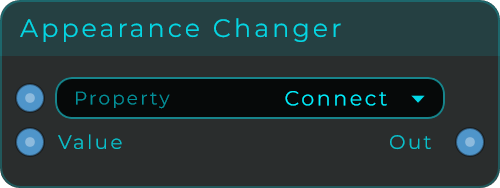
This node lets you restyle a connected widget on the fly from inside your patch. You pick one look-and-feel property (for example a colour or a size), feed in a new value, and it builds the small block of style settings that the widget understands. The Property list fills in by itself when everything it is connected to is the same kind of widget. If you have connected different widget types at once, it shows "Mixed targets" and stays empty.
| Parameter | Range | Default | Description |
|---|---|---|---|
| Property | (auto from targets) | Connect | Selected appearance property. Auto-populates from connected widget Appearance targets when they are all the same type, otherwise shows "Mixed targets". Also accepts a zero-based property index or a property id/label text. |
| Value | any | 0 | Incoming property value. Text, bool, and numeric values are converted to the selected property's JSON type. |
Inputs: Property (selects the target property by index or by id/label text), Value (the value assigned to the selected property). Outputs: Out (a JSON text patch holding one property, ready to connect to a widget's Appearance input).
Widget Slider Vertical
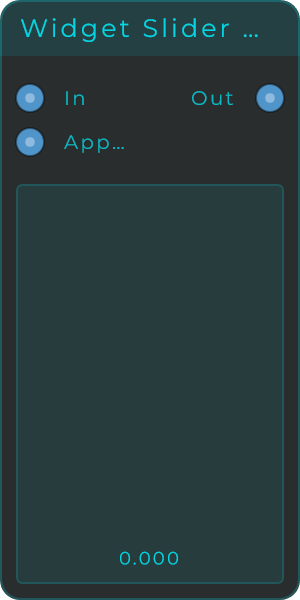
An up-and-down slider for your front panel. As you drag it, it sends out a smoothly changing number somewhere between your chosen lowest and highest values (Min and Max). You can fully style its look: the track, the coloured fill, the border, how rounded the corners are, the value text and where the label sits.
| Parameter | Range | Default | Description |
|---|---|---|---|
| Value | 0 to 1 | 0 | Current slider value. |
| Min | unbounded | 0 | Lower bound for the slider value range. |
| Max | unbounded | 1 | Upper bound for the slider value range. |
| Default | unbounded | 0 | Default value used for reset behaviour. |
| Increment | unbounded | 0 | Optional snap step. 0 means continuous. The mouse wheel always moves at least 1% of the range per notch, so a very fine increment still snaps the value without making the wheel feel dead. Anything below 0.000001 is treated as 0. The readout shows as many decimals as the increment needs, so a step of 0.001 reads three places and a step of 0.0001 reads four. |
| Drag Sensitivity | 0.1 to 20 | 1 | Scales how quickly the slider responds to dragging. |
| Spring Back | Off / Centre / Minimum / Maximum / Default | Off | Where it goes when you let go, like a pitch or mod wheel. Off leaves it where you put it. Centre is the middle of the range, whatever the range is, so a control set to -1 to 1 comes back to zero. |
| Spring Time | 0 to 2,000 ms | 0 ms | How long the return takes. 0 snaps back the instant you let go. |
| Hover Output | On / Off | Off | Adds a Hover output to the node: true while the pointer, or a finger on a touch screen, is over the widget, and false when it leaves. Use it to light something placed under the widget, or to switch an effect on while the control is touched. |
| Track Colour, Fill Colour, Border Colour, Text Colour | colour | theme | Colours of the track, active fill, border and value text. |
| Corner Radius | 0 to 100 | 3 | Corner radius of the slider body. |
| Border Width | 0 to 100 | 1 | Width of the slider border. |
| Show Value | on / off | on | Shows or hides the formatted value text. |
| Text Size | 8 to 48 | 11 | Font size of the value text. |
| Text Position | (choice) | Inside Top | Places the value text inside or outside the slider. |
| Display Mode | Float / Integer / Note | Float | Formats the displayed value. |
| Suffix | text | (empty) | Text appended after the displayed value. |
| Positions | Off / 2 to 16 | Off | Turns the fader into a slide switch with that many stops between Min and Max: the value can only rest on one of them, the ticks mark them, and a Position output says which, counted from 0. For a waveform or a filter type picked by sliding |
| Show Ticks | on / off | off | Draws marks along the travel. A switch turns them on by itself, one per position |
| Tick Shape | Lines / Dots | Lines | Marks as lines across the travel or as dots |
| Tick Count | 2 to 200 | 11 | How many marks, the two ends included. With Positions on there is one per position instead |
| Tick Length / Tick Width | 0.5 to 100 / 0.5 to 10 | 4 / 1 | Size of the marks, the length in pixels or as a percentage of the fader's short side. A dot is as wide as its line would be long |
| Tick Colour | colour | theme | Colour of the marks |
| Ticks Inside | on / off | on | On draws the marks across the bar, off draws them beside it on both sides, which needs room around it |
Inputs: In (sets the value), Appearance (JSON object to restyle the widget). Outputs: Out (the current value as a float), Position (only with Positions on: which stop the fader sits on, counted from 0), Hover (only with Hover Output on: true while the pointer is over the fader).
Widget Slider Horizontal
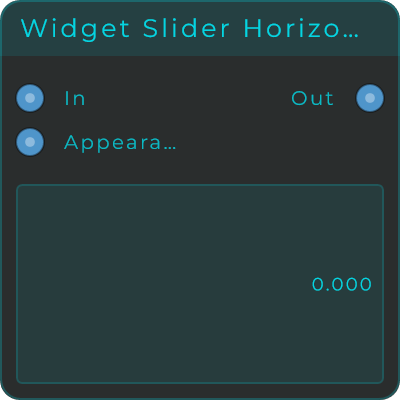
A left-to-right slider for your front panel. It works just like the up-and-down slider, sending out a smoothly changing number between your lowest and highest values (Min and Max) with the same full styling options, but it is laid out sideways.
| Parameter | Range | Default | Description |
|---|---|---|---|
| Value | 0 to 1 | 0 | Current slider value. |
| Min | unbounded | 0 | Lower bound for the slider value range. |
| Max | unbounded | 1 | Upper bound for the slider value range. |
| Default | unbounded | 0 | Default value used for reset behaviour. |
| Increment | unbounded | 0 | Optional snap step. 0 means continuous. The mouse wheel always moves at least 1% of the range per notch, so a very fine increment still snaps the value without making the wheel feel dead. Anything below 0.000001 is treated as 0. The readout shows as many decimals as the increment needs, so a step of 0.001 reads three places and a step of 0.0001 reads four. |
| Drag Sensitivity | 0.1 to 20 | 1 | Scales how quickly the slider responds to dragging. |
| Spring Back | Off / Centre / Minimum / Maximum / Default | Off | Where it goes when you let go, like a pitch or mod wheel. Off leaves it where you put it. Centre is the middle of the range, whatever the range is, so a control set to -1 to 1 comes back to zero. |
| Spring Time | 0 to 2,000 ms | 0 ms | How long the return takes. 0 snaps back the instant you let go. |
| Hover Output | On / Off | Off | Adds a Hover output to the node: true while the pointer, or a finger on a touch screen, is over the widget, and false when it leaves. Use it to light something placed under the widget, or to switch an effect on while the control is touched. |
| Track Colour, Fill Colour, Border Colour, Text Colour | colour | theme | Colours of the track, active fill, border and value text. |
| Corner Radius | 0 to 100 | 3 | Corner radius of the slider body. |
| Border Width | 0 to 100 | 1 | Width of the slider border. |
| Show Value | on / off | on | Shows or hides the formatted value text. |
| Text Size | 8 to 48 | 11 | Font size of the value text. |
| Text Position | (choice) | Inside Left | Places the value text inside or outside the slider. |
| Display Mode | Float / Integer / Note | Float | Formats the displayed value. |
| Suffix | text | (empty) | Text appended after the displayed value. |
| Positions | Off / 2 to 16 | Off | Turns the fader into a slide switch with that many stops between Min and Max: the value can only rest on one of them, the ticks mark them, and a Position output says which, counted from 0. For a waveform or a filter type picked by sliding |
| Show Ticks | on / off | off | Draws marks along the travel. A switch turns them on by itself, one per position |
| Tick Shape | Lines / Dots | Lines | Marks as lines across the travel or as dots |
| Tick Count | 2 to 200 | 11 | How many marks, the two ends included. With Positions on there is one per position instead |
| Tick Length / Tick Width | 0.5 to 100 / 0.5 to 10 | 4 / 1 | Size of the marks, the length in pixels or as a percentage of the fader's short side. A dot is as wide as its line would be long |
| Tick Colour | colour | theme | Colour of the marks |
| Ticks Inside | on / off | on | On draws the marks across the bar, off draws them beside it on both sides, which needs room around it |
Inputs: In (sets the value), Appearance (JSON object to restyle the widget). Outputs: Out (the current value as a float), Position (only with Positions on: which stop the fader sits on, counted from 0), Hover (only with Hover Output on: true while the pointer is over the fader).
Widget Range Slider
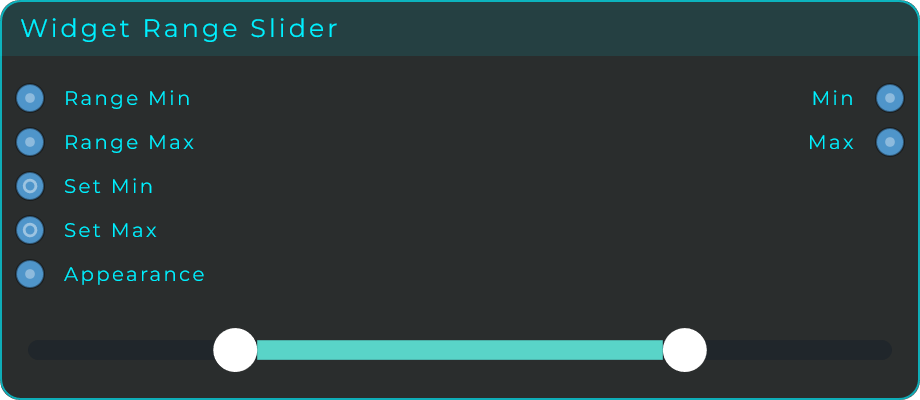
A slider with two handles that picks a range instead of a single value. Drag either handle to choose the low and high ends: the fill is drawn between them, and each end is sent out of its own output, Min and Max. A handle stops when it reaches the other one, always keeping at least the Min Gap between them, and both snap to the Increment. Reach for it whenever one control should give you a low and high pair: the bottom and top of a filter sweep, the bounds for a random value, any setting that needs a "from here to there".
| Parameter | Range | Default | Description |
|---|---|---|---|
| Min | within the range | 4 | The selected low value (the left handle). |
| Max | within the range | 12 | The selected high value (the right handle). |
| Range Min / Range Max | unbounded | 0 / 16 | The bounds the two handles move within. |
| Increment | unbounded | 1 | Optional snap step. 0 means continuous. The mouse wheel always moves at least 1% of the range per notch, so a very fine increment still snaps the value without making the wheel feel dead. Anything below 0.000001 is treated as 0. The readout shows as many decimals as the increment needs, so a step of 0.001 reads three places and a step of 0.0001 reads four. |
| Min Gap | 0 to 16 | 1 | The smallest distance the two handles keep between them, so they never overlap. |
| Hover Output | On / Off | Off | Adds a Hover output to the node: true while the pointer, or a finger on a touch screen, is over the widget, and false when it leaves. Use it to light something placed under the widget, or to switch an effect on while the control is touched. |
| Rail Thickness | 0.05 to 1 | 0.45 | Rail thickness as a fraction of the slider's height. |
| Track Colour / Fill Colour | colour | (preset) | Colours of the rail and of the fill between the handles. |
| Rail Border Colour / Width | colour / 0 to 40 | none | Optional outline around the rail. |
| Rail Image | png / jpg / svg | (empty) | A picture drawn along the rail, so the body of the fader can be your own artwork. It goes over the rail colour and under the active fill. |
| Rail Image Size | 10 to 400 | 100 | Rail image size as a percentage of the rail. Above 100 it spills past it. |
| Rail Image Fit | Fill / Fit / Stretch | Stretch | How the picture meets the rail. Fill covers it and crops what does not fit, Fit shows the whole picture, Stretch ignores the aspect and does as it is told. |
| Handle Shape | Circle / Square / Rounded Rect / Triangle / Hexagon / Line | Circle | Shape of the two handles. |
| Handle Colour / Size / Border | colour / 0.05 to 4 / 0 to 40 | white / 1.2 / none | Colour, size and outline of the two handles. |
Inputs: Range Min (sets the lower bound), Range Max (sets the upper bound), Set Min (sets the selected low value), Set Max (sets the selected high value), Appearance (JSON object to restyle the widget). Outputs: Min (the selected low value), Max (the selected high value), Hover (only with Hover Output on: true while the pointer is over the slider).
Widget Slider Vertical Thumb
An up-and-down slider built around its handle: a slim rail with a fully stylable thumb riding on it, and the thumb always stays completely visible, never sliding off the ends. You choose the handle's shape (circle, square, rounded rectangle, triangle, hexagon or a plain line), its size, colour and border, or swap the drawn shape for your own picture (PNG, JPG or SVG). The rail and fill can be restyled too, or made invisible, which makes this the building block for custom fader looks on the front panel where the track is your own artwork, such as a UI kit background or an image.
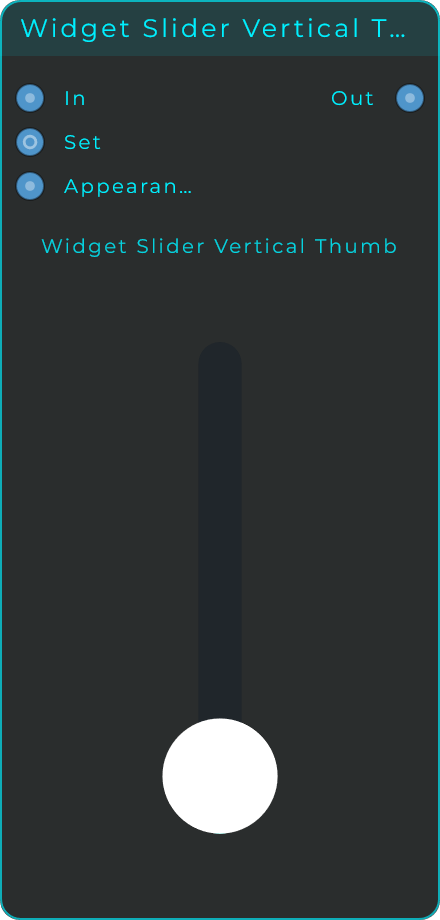
| Parameter | Range | Default | Description |
|---|---|---|---|
| Value | 0 to 1 | 0 | Current slider value. |
| Min / Max | unbounded | 0 / 1 | Bounds of the slider value range. |
| Default | unbounded | 0 | Default value used for reset behaviour. |
| Increment | unbounded | 0 | Optional snap step. 0 means continuous. The mouse wheel always moves at least 1% of the range per notch, so a very fine increment still snaps the value without making the wheel feel dead. Anything below 0.000001 is treated as 0. The readout shows as many decimals as the increment needs, so a step of 0.001 reads three places and a step of 0.0001 reads four. |
| Drag Sensitivity | 0.1 to 20 | 1 | Scales how quickly the slider responds to dragging. |
| Spring Back | Off / Centre / Minimum / Maximum / Default | Off | Where it goes when you let go, like a pitch or mod wheel. Off leaves it where you put it. Centre is the middle of the range, whatever the range is, so a control set to -1 to 1 comes back to zero. |
| Spring Time | 0 to 2,000 ms | 0 ms | How long the return takes. 0 snaps back the instant you let go. |
| Hover Output | On / Off | Off | Adds a Hover output to the node: true while the pointer, or a finger on a touch screen, is over the widget, and false when it leaves. Use it to light something placed under the widget, or to switch an effect on while the control is touched. |
| Rail Thickness | 0.05 to 1 | 0.45 | Rail thickness as a fraction of the slider's width. |
| Track Colour / Fill Colour | colour | (preset) | Colours of the rail and the active fill. |
| Rail Border Colour / Width | colour / 0 to 40 | none | Optional outline around the rail. |
| Rail Image | png / jpg / svg | (empty) | A picture drawn along the rail, so the body of the fader can be your own artwork. It goes over the rail colour and under the active fill. |
| Rail Image Size | 10 to 400 | 100 | Rail image size as a percentage of the rail. Above 100 it spills past it. |
| Rail Image Fit | Fill / Fit / Stretch | Stretch | How the picture meets the rail. Fill covers it and crops what does not fit, Fit shows the whole picture, Stretch ignores the aspect and does as it is told. |
| Handle Shape | Circle / Square / Rounded Rect / Triangle / Hexagon / Line | Circle | Shape of the draggable handle. |
| Handle Colour | colour | white | Fill colour of the handle. |
| Handle Size | 0.05 to 4 | 1.2 | Handle size as a fraction of the slider's width. It can be bigger than the rail. |
| Handle Border Colour / Width | colour / 0 to 40 | none | Optional outline around the handle. |
| Handle Image | png / jpg / svg | (empty) | A picture that replaces the drawn handle shape. |
| Handle Image Size | 10 to 400 | 100 | Image size as a percentage of the handle area. |
| Reduce Width / Reduce Height | 0 to 200 | 6 | Insets the slider inside the widget, leaving a margin around it. |
| Positions | Off / 2 to 16 | Off | Turns the fader into a slide switch with that many stops between Min and Max: the value can only rest on one of them, the ticks mark them, and a Position output says which, counted from 0. For a waveform or a filter type picked by sliding |
| Show Ticks | on / off | off | Draws marks along the travel. A switch turns them on by itself, one per position |
| Tick Shape | Lines / Dots | Lines | Marks as lines across the travel or as dots |
| Tick Count | 2 to 200 | 11 | How many marks, the two ends included. With Positions on there is one per position instead |
| Tick Length / Tick Width | 0.5 to 100 / 0.5 to 10 | 4 / 1 | Size of the marks, the length in pixels or as a percentage of the fader's short side. A dot is as wide as its line would be long |
| Tick Colour | colour | theme | Colour of the marks |
| Ticks Inside | on / off | off | On draws the marks across the rail, off draws them beside it on both sides, which needs room around it |
A rail picture and a handle picture together mean the whole fader is drawn by you. Both are collected with the preset when you export a bundle, so the patch still looks right on somebody else's machine.
Inputs: In (sets the value), Set (sets the value without sending it out again, handy for keeping controls in sync), Appearance (JSON object to restyle the widget). Outputs: Out (the current value as a float), Position (only with Positions on: which stop the fader sits on, counted from 0), Hover (only with Hover Output on: true while the pointer is over the fader).
Widget Slider Horizontal Thumb
The same handle-first slider laid out sideways. It offers everything the vertical version does, the same handle shapes, sizes, colours, borders and image options for both the handle and the rail, the same stylable rail and fill, and the same In, Set and Out connections, but it drags left to right. Use the pair to build matched vertical and horizontal faders over your own front panel artwork.
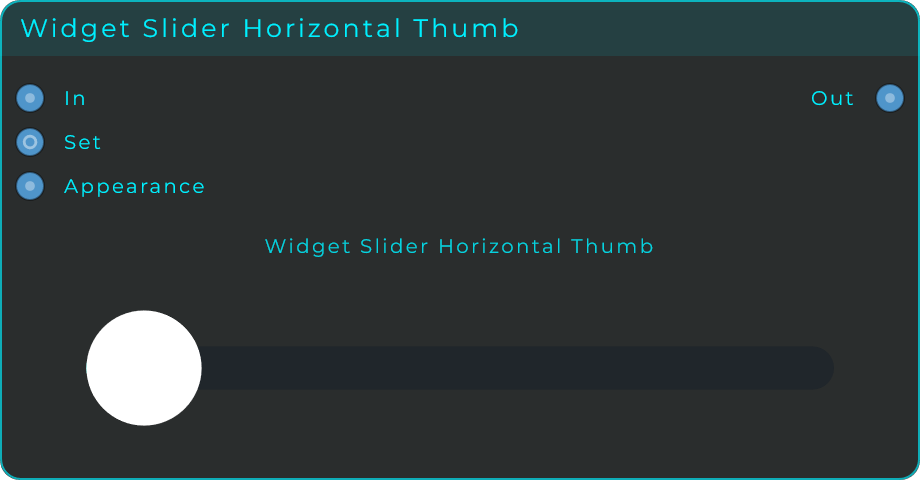
Inputs: In (sets the value), Set (sets the value without sending it out again), Appearance (JSON object to restyle the widget). Outputs: Out (the current value as a float), Position (only with Positions on: which stop the fader sits on, counted from 0), Hover (only with Hover Output on: true while the pointer is over the fader).
Widget ComboBox
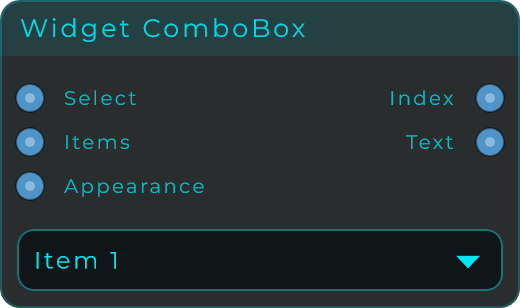
A drop-down menu for your front panel: click it and a list of choices opens. You write the list of items yourself, and you can set how the text lines up and style the border and the little arrow. It sends out both the position of the chosen item in the list and its text. Ready-made item lists are included for common musical choices.
| Parameter | Range | Default | Description |
|---|---|---|---|
| Items Preset | Custom / Notes / MIDI Scales / Chord Types / Cycle / Waveforms / Filter Types / EQ Band Types | Custom | Loads a predefined item list, or Custom to use your own. Filter Types and EQ Band Types match the Filter node's Mode and the Parametric EQ's band Type exactly, labels and order, so the ComboBox can drive them directly. |
| Items | text | Item 1, Item 2, Item 3 | The list of items. Separate entries with commas or line breaks. |
| Selected Index | 0 to item count | 0 | Index of the currently selected item. |
| Text Size (%) | 10 to 90 | 40 | Text size as a percentage of the combo height. |
| Text Align | Left / Centre / Right | Left | Horizontal text alignment. |
| Text Font | Regular / Medium / SemiBold / Bold / Light | Regular | Font weight of the combo text. |
| Popup Text Size (%) | 10 to 90 | 40 | Popup text size as a percentage of the combo height. |
| Popup Item Height | 0 to 80 | 35 | Height of each popup item. Use 0 for auto sizing. |
| Background / Text / Border / Arrow Colour | colour | theme | Colours of the body, text, border and drop-down arrow. |
| Border Width | 0 to 12 | 1 | Width of the combo border. |
| Corner Radius | 0 to 40 | 8 | Corner radius of the combo body. |
| Arrow Scale | 20 to 300 | 100 | Scale of the drop-down arrow. |
| Tooltip | text | (empty) | Tooltip shown when hovering the widget. |
Inputs: Select (selects an item by index or by item text), Items (replaces the item list), Appearance (JSON object to change appearance and items). Outputs: Index (the selected item index), Text (the selected item text).
Widget Radio Group
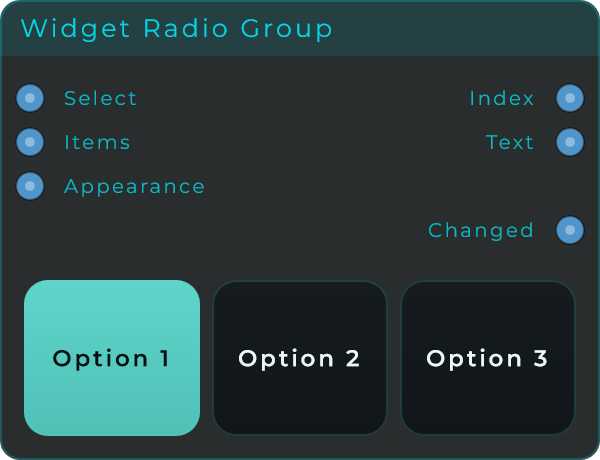
A row or column of clickable buttons that act as one group. The Selection Mode decides how clicking behaves: Single (only one can be on at a time, like old car-radio buttons), Multi (turn on any combination, or none at all) or Multi (min 1) (any combination, but at least one always stays on). It sends out the position of the button you clicked most recently and its label.
| Parameter | Range | Default | Description |
|---|---|---|---|
| Selection Mode | Single / Multi / Multi (min 1) | Single | How clicks behave: radio, free multi-select, or multi-select with at least one on. |
| Items | text | Option 1, Option 2, Option 3 | The list of segment labels. Separate entries with commas or line breaks. |
| Selected Index | 0 to item count | 0 | Index of the active (or most-recently-clicked) segment. |
| Orientation | Horizontal / Vertical | Horizontal | Layout direction of the segments. |
| Gap | 0 to 30 | 6 | Gap between segments. |
| Text Size | 8 to 42 | 14 | Segment text size. |
| Text Font | Regular / Medium / SemiBold / Bold / Light | SemiBold | Font weight of the segment labels. |
| Corner Radius | 0 to 100 | 12 | Corner radius of each segment. |
| Face / Active / Hover Colour | colour | (preset) | Background of unselected segments, the selected segment, and the hover tint. |
| Text / Active Text / Border Colour | colour | (preset) | Text colour of unselected and selected segments, and the segment outline. |
| Tooltip | text | (empty) | Tooltip shown on hover. |
Inputs: Select (selects an item by index or by text), Items (replaces the item list), Appearance (JSON object to change appearance and items). Outputs: Index (the selected segment index; the most-recently-clicked one in Multi modes), Text (the selected segment text).
Widget Knob
A round knob for your front panel that you turn to send out a smoothly changing number between your chosen lowest and highest values (Min and Max). You can style almost everything about it: the shape of the arc it sweeps, the pointer style, a centre dot, the background, the outline, the tick marks and the value readout. It can grow from one end (unipolar) or from the middle outwards (bipolar), which is handy for things that go both ways, like pan or pitch.
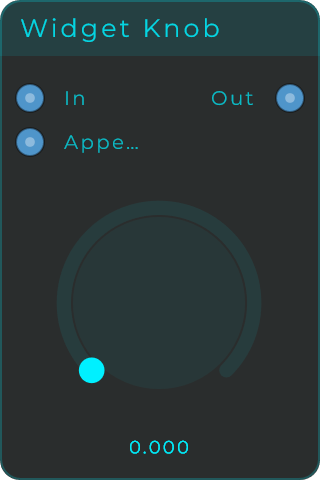
| Parameter | Range | Default | Description |
|---|---|---|---|
| Value | 0 to 1 | 0 | Current knob value. |
| Min | unbounded | 0 | Lower bound for the knob value range. |
| Max | unbounded | 1 | Upper bound for the knob value range. |
| Default | unbounded | 0 | Default value used for reset and double-click. |
| Increment | unbounded | 0 | Optional snap step. 0 means continuous. The mouse wheel always moves at least 1% of the range per notch, so a very fine increment still snaps the value without making the wheel feel dead. Anything below 0.000001 is treated as 0. The readout shows as many decimals as the increment needs, so a step of 0.001 reads three places and a step of 0.0001 reads four. |
| Drag Direction | Vertical / Horizontal / Rotary | Vertical | Drag gesture used to turn the knob. |
| Endless | on / off | off | Lets the knob run past its ends: keep turning up from the top and it carries on from the bottom, the way the selector on a rack unit does. Set Sweep Angle to 360 as well and there is no seam to see either. |
| Spring Back | Off / Centre / Minimum / Maximum / Default | Off | Where it goes when you let go, like a pitch or mod wheel. Off leaves it where you put it. Centre is the middle of the range, whatever the range is, so a control set to -1 to 1 comes back to zero. |
| Spring Time | 0 to 2,000 ms | 0 ms | How long the return takes. 0 snaps back the instant you let go. |
| Hover Output | On / Off | Off | Adds a Hover output to the node: true while the pointer, or a finger on a touch screen, is over the widget, and false when it leaves. Use it to light something placed under the widget, or to switch an effect on while the control is touched. |
| Base Image | svg / png / jpg | (empty) | A picture drawn as the body of the knob. It stays still. |
| Base Image Size | 10 to 200 | 100 | Base image size as a percentage of the knob body. Above 100 it spills past the arcs. |
| Cap Image | svg / png / jpg | (empty) | A picture drawn on top and turned with the value, like the cap of a real knob. |
| Cap Image Size | 10 to 200 | 100 | Cap image size as a percentage of the knob body. |
| Cap Image Angle | -360 to 360 deg | 0 | Turns the cap image before the value turns it, so a picture drawn facing some other way starts where it should. |
| Start Angle | 0 to 360 deg | 225 | Start angle of the rotary arc. |
| Sweep Angle | 10 to 360 deg | 270 | Total arc span of the knob. |
| Bipolar | on / off | off | Draws the fill from the centre instead of from the start. |
| Thumb Style | None / Dot / Line | Dot | Selects no thumb, a dot, or a radial line indicator. |
| Show Centre Dot | on / off | off | Draws a dot in the middle of the knob. |
| Show Background | on / off | on | Draws a circular background behind the knob. |
| Show Outline | on / off | off | Draws an outline around the background. |
| Show Ticks | on / off | off | Draws tick marks along the arc. |
| Tick Shape | Lines / Dots | Lines | Lines, or dots. A dot sits where its line would run and is as wide as the line is long, so Tick Length sizes both. |
| Tick Count | 2 to 200 | 11 | Number of tick marks. |
| Show Value | on / off | on | Shows or hides the value text. |
| Text Size | 8 to 48 | 11 | Font size of the value text. |
| Display Mode | Float / Integer / Note | Float | Formats the displayed value. |
Endless is for the knob that picks one of a list. Turned on, the value wraps instead of pressing against the end: past the last item and you are back at the first, which is what a rack unit's selector does and what a hardware encoder does. It works on a continuous range too, where it becomes a control with no ends at all, and it is worth pairing with a Sweep Angle of 360 so the arc has no gap for the value to jump across. Off by default, because a level or a mix wants to stop where it stops.
Two pictures rather than one, and the difference between them is the point. The base is the body of the knob and stays where it is; the cap is the part you would grip on a real one, so it turns with the value. Draw the cap pointing up, which is where the arc starts, and the mark on it lands exactly where the dot or the line would. If it was drawn facing some other way, or the arc does not start where the artwork expects, Cap Image Angle turns the picture before the value turns it, so it starts where it should. The base sits over the background fill and under the track, the fill and the ticks, so a transparent PNG is tinted by the background colour and the arc still reads on top of the face. Both are collected with the preset when you export a bundle.
Inputs: In (sets the knob value, clamped to range and snapped to the increment), Appearance (JSON object to restyle the widget). Outputs: Out (the current knob value as a float), Position (only with Positions on: which stop the knob sits on, counted from 0), Hover (only with Hover Output on: true while the pointer is over the knob).
Widget Text
A text label for your front panel. Use it to show fixed words, or to display a live value coming from anywhere in your patch. You can choose the font, the weight, how the text lines up, the colour, the spacing around it, a border, and the direction it reads (including sideways and stacked top-to-bottom).
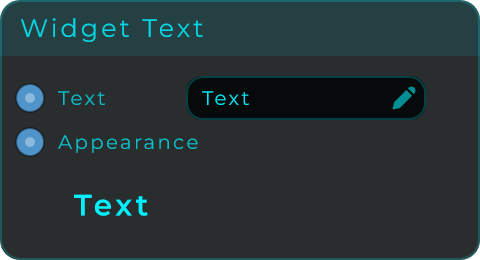
| Parameter | Range | Default | Description |
|---|---|---|---|
| Text Size | 8 to 120 | 18 | Base font size in pixels. |
| Decimals | As Is / 0 to 6 | As Is | How many decimals to show when a NUMBER arrives. As Is prints it in full. Text is never touched. |
| Font Style | Regular / Medium / SemiBold / Bold / Light (+ italics) | SemiBold | Font weight and italic style for the label. |
| Underline | on / off | off | Draws the text underlined. |
| Justification | 9-way (Top Left to Bottom Right) | Centre | Text alignment inside the widget. |
| Orientation | Horizontal / Vertical (up) / Vertical (down) / Stacked | Horizontal | Text orientation. Stacked draws one letter per row, unrotated. |
| Scrollable | on / off | off | Keeps the text at its set size and adds a scrollbar for whatever does not fit. Horizontal orientation only. |
| Scrollbar Width | 2 to 24 | 8 | Thickness of the scrollbar. |
| Scrollbar Colour | colour | theme | Colour of the scrollbar. The track is the same colour, faded. |
| Padding | 0 to 80 | 10 | Inner padding around the text area. |
| Text Colour | colour | theme | Colour of the text. |
| Background Colour | colour | transparent | Background fill colour. |
| Border Colour | colour | theme | Border colour. |
| Border Width | 0 to 12 | 0 | Stroke width of the optional border. |
| Tooltip | text | (empty) | Tooltip shown when hovering the widget. |
Showing a rounded value. A number arriving on the Text input is turned into a string, and by default that string carries every decimal it has: a meter reading -2.6834717 shows all of it. Set Decimals to 2 and it reads -2.68. It only touches values that arrive as numbers, so a label showing words stays exactly as you typed it, and Text Out sends the same string you can see. (Asked for on the forum by OctaFuzZ.)
Inputs: Text (updates the displayed text; non-text values are converted to a readable string), Appearance (JSON object to restyle the widget). Outputs: Text Out (fires when the user edits the text, and re-sends the current text when an event arrives on the Text input).
Long text: turn on Scrollable
Normally the label shrinks its text until the whole thing fits the widget. That is what you want for a heading and useless for a paragraph: a page of text ends up unreadably small.
Turn on Scrollable and the widget becomes a reading box instead. The text keeps the size you set, wraps to the width, and anything past the bottom is reached with the scrollbar on the right or the mouse wheel. Drag the bar, or click above and below it to jump a page at a time.
This is what makes the Widget Text usable as the help page of something you built: write your instructions once, size the box to your panel, and let the reader scroll. Pair it with a Widget Button and an Appearance Changer set to Visible, and the help opens and closes like a window.
Scrolling is live whenever the panel is not in edit mode, so it works in Perform and on a locked widget. While you are moving or resizing the widget the panel keeps the mouse, the same as every other widget.
Widget XY Pad
A flat pad you drag around in two directions at once. Moving the handle sets an X value (left to right) and a Y value (up and down) at the same time, each with its own range, so you can control two things with one gesture. The node also tells the patch when the pointer is hovering over the pad and when the mouse is pressed or released.
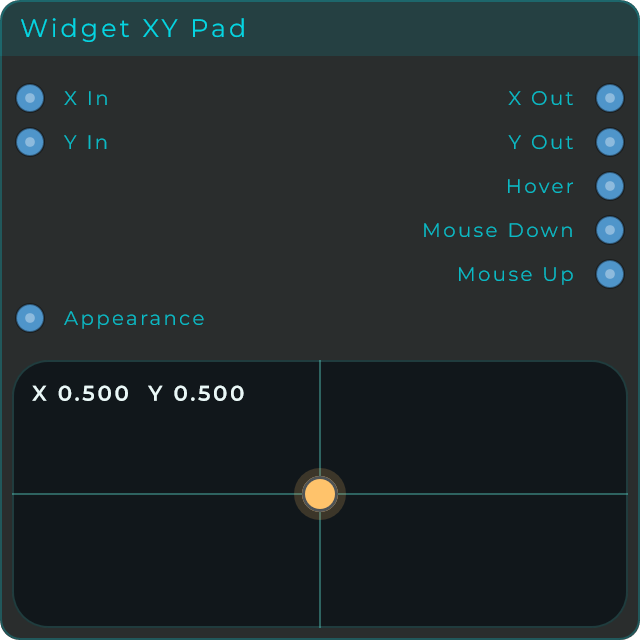
| Parameter | Range | Default | Description |
|---|---|---|---|
| X | (Min X to Max X) | 0.5 | Current X value. |
| Y | (Min Y to Max Y) | 0.5 | Current Y value. |
| Min X / Max X | -1000 to 1000 | 0 / 1 | Bounds of the X range. |
| Min Y / Max Y | -1000 to 1000 | 0 / 1 | Bounds of the Y range. |
| Default X / Default Y | (within range) | 0.5 | Default X and Y values. |
| Increment X / Increment Y | 0 to 1000 | 0 | Optional snap step per axis. 0 is continuous. |
| Spring Back | Off / Centre / Minimum / Maximum / Default | Off | Where the handle goes when you let go, like a joystick. Both axes move together. Centre is the middle of each range, so a pad set to -1 to 1 comes back to zero. |
| Spring Time | 0 to 2,000 ms | 0 ms | How long the return takes. 0 snaps back the instant you let go. |
| Pad / Accent / Handle Colour | colour | (preset) | Pad surface, accent guides, and draggable handle. |
| Border / Crosshair / Text Colour | colour | (preset) | Border, X/Y guide lines, and readout text. |
| Show Text | on / off | on | Shows the current X/Y values. |
| Text Font | Regular / Medium / SemiBold / Bold / Light | SemiBold | Font weight of the X/Y readout. |
| Handle Size Mode | Pixels, % of Pad | % of Pad | What Handle Size counts in. Proportional keeps the handle the same size relative to the pad however big you make it; Pixels pins it to a fixed size. |
| Handle Size | 4 to 60 | 6 | Size of the draggable handle, in pixels or as a percentage of the pad's shorter side. |
| Corner Radius | 0 to 100 | 18 | Corner radius of the pad body. |
| Border Width | 0 to 100 | 1 | Border width of the pad body. |
| Pad Image | file | (empty) | A PNG, JPG or SVG drawn over the pad surface. Empty leaves the painted surface alone. |
| Pad Image Fit | Contain, Cover, Stretch, Original | Stretch | How the picture is laid into the pad. Stretch fills it exactly at any size; Cover and Contain keep the aspect. |
| Pad Image Opacity | 0 to 100 | 100 | How solid the pad image is over the surface underneath. |
| Handle Image | file | (empty) | A PNG, JPG or SVG that replaces the drawn handle. Empty draws the handle. Loading one onto a pad whose Handle Size has not been touched sets the mode to % of Pad and the size to 8, because a picture needs more room than the dot it is replacing. |
| Handle Image Size | 10 to 400 | 100 | Size of the handle image as a percentage of the handle box. Over 100 it spills past it. |
| Handle Image Opacity | 0 to 100 | 100 | How solid the handle image is. |
| Tooltip | text | (empty) | Tooltip shown when the pad is hovered. |
Fit decides how the picture meets the pad, and only one of the four fills it exactly: Stretch, the default, takes the picture to the pad's own width and height, so there is never a gap at the edges and never a piece pushed out of frame, whatever size you drag the widget to. The price is the aspect: a square picture on a wide pad comes out wide. Cover and Contain keep the aspect instead and pay for it at one end, Cover by pushing the overflow past the edge (the corner radius crops it) and Contain by leaving the surface showing around it. Original draws it at its own pixel size, centred.
Both pictures sit in the layers you would expect: the pad image goes over the surface and its gradient but under the guides, the handle and the readout, so nothing you need to read gets buried, and the corner radius crops it. The handle image replaces the whole drawn puck, halo included, and is centred on the exact point the drag reports, so a pointer baked into the artwork lands where the value is. Both are collected with the preset when you export a bundle, so the patch still looks right on somebody else's machine.
Inputs: X In (sets X), Y In (sets Y), Appearance (JSON object to restyle the widget).
Outputs:
| Pin | Type | Description |
|---|---|---|
| X Out | Float | The current X value. |
| Y Out | Float | The current Y value. |
| Hover | Bool | High while the pointer is over the pad. |
| Mouse Down | Event | Fires when the pointer goes down on the pad. |
| Mouse Up | Event | Fires when the pointer is released. |
Widget Image
Shows a picture (PNG, JPG or SVG) both in your patch and on the front panel. You can drop a file straight onto it, choose how the picture fits the space or have it tile to fill, rotate it, make it more or less see-through, and frame it with a background and a border.
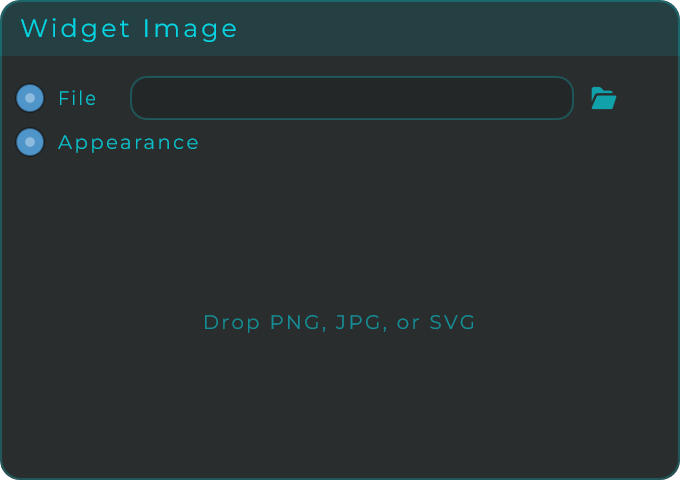
| Parameter | Range | Default | Description |
|---|---|---|---|
| File | png / jpg / jpeg / svg | (empty) | Path of the image to display. Drop a file or connect a text source. |
| Intercepts Clicks | on / off | on | When the panel is locked, the image either captures clicks or lets them pass through. |
| Fit Mode | Contain / Cover / Stretch / Original | Contain | How the image is fitted inside the widget. |
| Repeat | None / Repeat X / Repeat Y / Repeat Both | None | Tiles the image across the widget. |
| Scale % | 1 to 300 | 100 | Scales the image inside its area. |
| Alpha | 0 to 1 | 1 | Image opacity. |
| Rotation | 0 to 360 | 0 | Rotates the image in degrees. |
| Render Quality | Low / Medium / High | Medium | Image resampling quality. |
| Background Colour | colour | transparent | Background fill behind the image. |
| Border Colour | colour | (preset) | Border colour. |
| Border Width | 0 to 12 | 0 | Width of the border. |
| Corner Radius | 0 to 100 | 0 | Corner radius of the widget. |
Inputs: File (sets the image path), Appearance (JSON object to restyle the widget). Outputs: none.
Widget Film Strip
Shows a single frame picked from one long picture made of many small frames stacked together (a sprite sheet). This is the classic way to build your own custom knob look from a set of ready-made frames: as the incoming value changes, the displayed frame changes, so the knob appears to turn. The frames can be stacked vertically or laid out horizontally, and the widget can behave as a slider, an on/off toggle, or a press-and-hold button.
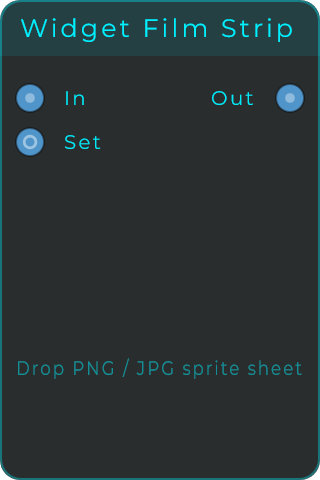
| Parameter | Range | Default | Description |
|---|---|---|---|
| Value | 0 to 1 | 0 | Value that selects which frame is shown. |
| Min | unbounded | 0 | Lower bound of the value range. |
| Max | unbounded | 1 | Upper bound of the value range. |
| File | png / jpg / jpeg | (empty) | Path of the sprite-sheet image. |
| Orientation | Vertical / Horizontal | Vertical | How the frames are laid out in the strip. |
| Frame Count | 1 to 1024 | 128 | Number of frames in the strip. |
| Render Quality | Low / Medium / High | Medium | Image resampling quality. |
| Mode | Slider / Toggle / Button / Display | Slider | Interaction style of the widget. |
| Animate | on / off | off | Toggle and Button only. The picture travels the frames between the two ends instead of cutting straight to the other one. |
| Animation Time | 10 to 2,000 ms | 150 ms | How long that travel takes. |
| Wrap | on / off | off | Slider and Display only. Past the last frame the strip goes round to the first: dragging turns like an endless dial, and a value fed into In that leaves the range wraps round it instead of stopping at an end. For a sheet drawn as a full turn, whose last frame leads back into its first. |
| Drag Direction | Vertical / Horizontal | Vertical | Drag gesture used in Slider mode. |
| Spring Back | Off / Centre / Minimum / Maximum / Default | Off | Slider mode only. Where it goes when you let go, like a pitch or mod wheel. Button mode already returns on release, which is what being a button means. |
| Spring Time | 0 to 2,000 ms | 0 ms | How long the return takes. 0 snaps back the instant you let go. |
| Hover Output | On / Off | Off | Adds a Hover output to the node: true while the pointer, or a finger on a touch screen, is over the widget, and false when it leaves. Use it to light something placed under the widget, or to switch an effect on while the control is touched. |
Dropping a picture onto the graph offers Load As Widget Filmstrip, which creates the node with the image already loaded. MNodes reads the strip's layout off the picture: frames are square in almost every strip, so the long side divided by the short one gives the frame count and the long side says whether the strip runs down or across. When the division does not come out to a whole number the frames are not square, so nothing is guessed and Frame Count keeps its default for you to type in (the node arrives selected, with that field in the Inspector).
In Toggle and Button, Animate makes the strip play through the frames between off and on rather than cutting between them, which is what a strip drawn as a movement (a switch throwing, a lamp warming up) is for. Only the picture travels: the value changes the instant you click, so nothing the widget feeds is held back by the animation, and pressing again mid-travel turns it around from wherever it had got to. Both rows grey out in Slider, which is already showing every frame under your finger, and in Display, which has nothing to press.
Inputs: In (sets the value, clamped to the range, or taken round it with Wrap on). Outputs: Out (the current value as a float), Hover (only with Hover Output on: true while the pointer is over the strip).
Polygon Shadow
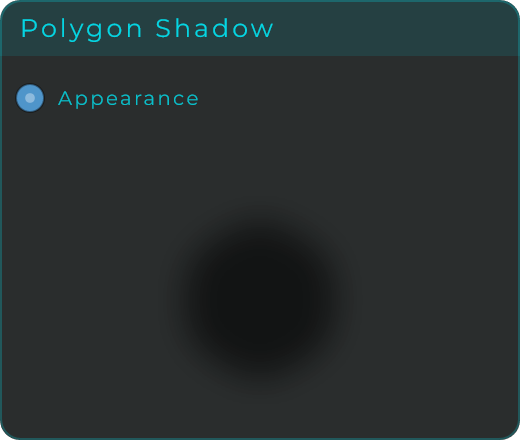
A soft drop shadow in the shape of a many-sided figure. It stores its blurred shape so it can redraw cheaply without slowing things down. Place it behind other widgets to give them a sense of depth. It has no fill or border of its own, just the shadow.
It takes no picture either, and that is why: the whole widget is an outline blurred into a soft patch, so there is no face for a picture to sit on. To put a shadow under an image, give the image to a Shape and park one of these behind it.
| Parameter | Range | Default | Description |
|---|---|---|---|
| Shadow Colour | colour | black 55% | Colour and alpha of the cached shadow. |
| Blur Radius | 0 to 64 | 18 | Blur radius in pixels. |
| Offset X | -120 to 120 | 0 | Horizontal shadow offset in pixels. |
| Offset Y | -120 to 120 | 0 | Vertical shadow offset in pixels. |
| Spread X | 0 to 100 | 75 | Shadow width as a percentage of the component. |
| Spread Y | 0 to 100 | 75 | Shadow height as a percentage of the component. |
| Reduce | 0 to 100 | 0 | Shrinks the rendered shape inward. |
| Corner Radius | 0 to 100 | 16 | Rounds the corners of the shadow shape. |
| Rotation | 0 to 360 | 45 | Rotates the shape in degrees. |
| Corners | 3 to 12 | 4 | Number of polygon corners. |
Inputs: Appearance (JSON object to restyle the widget). Outputs: none.
Square Shape
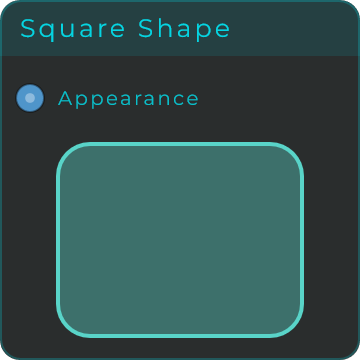
A simple square you can use to decorate your panel, with its own fill, border and rounded corners. Every part of its look, including a gradient fill or border (a smooth blend between two colours), can also be set from the Appearance style input.
| Parameter | Range | Default | Description |
|---|---|---|---|
| Fill Mode | Solid / Linear / Radial | Solid | Fill paint mode. |
| Fill Colour | colour | (preset) | Solid fill colour (or gradient endpoints in gradient modes). |
| Border Mode | Solid / Linear / Radial | Solid | Border paint mode. |
| Border Colour | colour | (preset) | Solid border colour. |
| Border Width | 0 to 40 | 2 | Stroke width in pixels. |
| Corner Radius | 0 to 100 | 16 | Rounded corner amount. |
| Reduce | 0 to 100 | 0 | Shrinks the rendered shape inward. |
| Rotation | 0 to 360 | 0 | Rotates the shape in degrees. |
Inputs: Appearance (JSON object to restyle the widget). Outputs: none.
Rectangle Shape
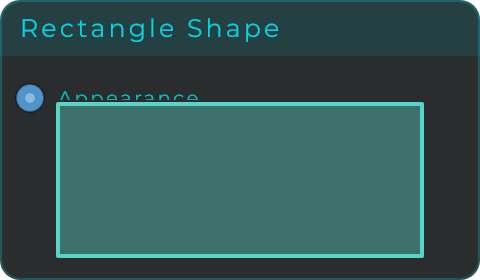
A simple rectangle for decorating your panel, with its own fill, border and rounded corners. Like the other shapes, you can completely change how it looks from the Appearance style input.
| Parameter | Range | Default | Description |
|---|---|---|---|
| Fill Mode | Solid / Linear / Radial | Solid | Fill paint mode. |
| Fill Colour | colour | (preset) | Solid fill colour (or gradient endpoints in gradient modes). |
| Border Mode | Solid / Linear / Radial | Solid | Border paint mode. |
| Border Colour | colour | (preset) | Solid border colour. |
| Border Width | 0 to 40 | 2 | Stroke width in pixels. |
| Corner Radius | 0 to 100 | 16 | Rounded corner amount. |
| Reduce | 0 to 100 | 0 | Shrinks the rendered shape inward. |
| Rotation | 0 to 360 | 0 | Rotates the shape in degrees. |
Inputs: Appearance (JSON object to restyle the widget). Outputs: none.
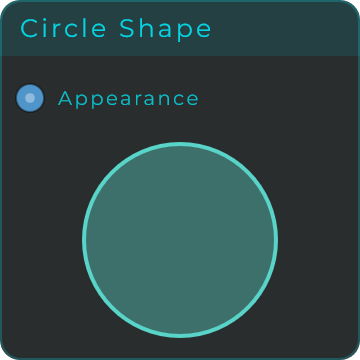
Circle Shape
A simple circle for decorating your panel, with its own fill and border. You can set a solid colour or a gradient (a smooth blend between two colours), either in the inspector panel or by feeding the Appearance style input.
| Parameter | Range | Default | Description |
|---|---|---|---|
| Fill Mode | Solid / Linear / Radial | Solid | Fill paint mode. |
| Fill Colour | colour | (preset) | Solid fill colour (or gradient endpoints in gradient modes). |
| Border Mode | Solid / Linear / Radial | Solid | Border paint mode. |
| Border Colour | colour | (preset) | Solid border colour. |
| Border Width | 0 to 40 | 2 | Stroke width in pixels. |
| Reduce | 0 to 100 | 0 | Shrinks the rendered shape inward. |
| Rotation | 0 to 360 | 0 | Rotates the shape in degrees. |
Inputs: Appearance (JSON object to restyle the widget). Outputs: none.
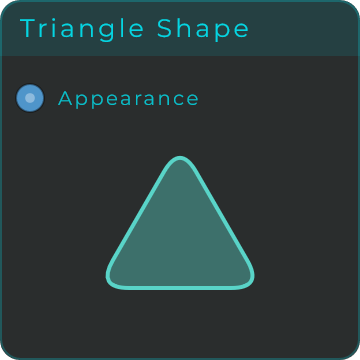
Triangle Shape
A simple triangle for decorating your panel, with its own fill, border and rounded corners. You can completely restyle it from the Appearance style input.
| Parameter | Range | Default | Description |
|---|---|---|---|
| Fill Mode | Solid / Linear / Radial | Solid | Fill paint mode. |
| Fill Colour | colour | (preset) | Solid fill colour (or gradient endpoints in gradient modes). |
| Border Mode | Solid / Linear / Radial | Solid | Border paint mode. |
| Border Colour | colour | (preset) | Solid border colour. |
| Border Width | 0 to 40 | 2 | Stroke width in pixels. |
| Corner Radius | 0 to 100 | 16 | Rounded corner amount. |
| Reduce | 0 to 100 | 0 | Shrinks the rendered shape inward. |
| Rotation | 0 to 360 | 0 | Rotates the shape in degrees. |
Inputs: Appearance (JSON object to restyle the widget). Outputs: none.
Polygon Shape
A many-sided shape for decorating your panel, where you choose how many corners it has, plus its own fill, border and rounded corners. Set the number of corners to make anything from a triangle up to a twelve-sided figure.
| Parameter | Range | Default | Description |
|---|---|---|---|
| Fill Mode | Solid / Linear / Radial | Solid | Fill paint mode. |
| Fill Colour | colour | (preset) | Solid fill colour (or gradient endpoints in gradient modes). |
| Border Mode | Solid / Linear / Radial | Solid | Border paint mode. |
| Border Colour | colour | (preset) | Solid border colour. |
| Border Width | 0 to 40 | 2 | Stroke width in pixels. |
| Corner Radius | 0 to 100 | 16 | Rounded corner amount. |
| Corners | 3 to 12 | 6 | Number of polygon corners. |
| Reduce | 0 to 100 | 0 | Shrinks the rendered shape inward. |
| Rotation | 0 to 360 | 0 | Rotates the shape in degrees. |
Inputs: Appearance (JSON object to restyle the widget). Outputs: none.
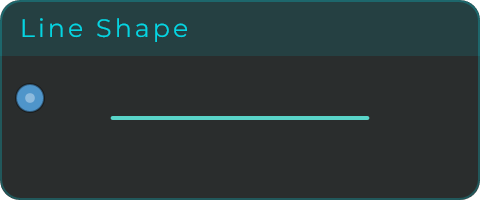
Line Shape
A straight line for decorating your panel, with its own thickness, rotation and end points. Choose Horizontal, Vertical, or Custom (where you set both ends yourself), and for the Horizontal and Vertical options you can pull both ends in evenly with an inset.
| Parameter | Range | Default | Description |
|---|---|---|---|
| Border Mode | Solid / Linear / Radial | Solid | Stroke paint mode. |
| Border Colour | colour | (preset) | Stroke colour. |
| Border Width | 0 to 40 | 2 | Stroke width in pixels. |
| Orientation | Horizontal / Vertical / Custom | Horizontal | Line orientation. Custom uses the Start/End points. |
| Inset | 0 to 50 | 0 | Symmetric inset for Horizontal and Vertical orientations. 0 is edge to edge. |
| Start X / Start Y | 0 to 100 | 15 / 50 | Line start point as a percentage of width/height (Custom). |
| End X / End Y | 0 to 100 | 85 / 50 | Line end point as a percentage of width/height (Custom). |
| Reduce | 0 to 100 | 0 | Shrinks the rendered shape inward. |
| Rotation | 0 to 360 | 0 | Rotates the shape in degrees. |
Inputs: Appearance (JSON object to restyle the widget). Outputs: none.
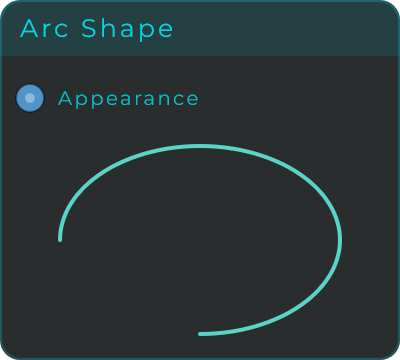
Arc Shape
A curved line (part of a circle) for decorating your panel, with its own thickness and adjustable start and length. Handy for rings, gauge-style markings and decorative curves.
| Parameter | Range | Default | Description |
|---|---|---|---|
| Border Mode | Solid / Linear / Radial | Solid | Stroke paint mode. |
| Border Colour | colour | (preset) | Stroke colour. |
| Stroke Width | 0 to 40 | 2 | Stroke width in pixels. |
| Start Angle | -360 to 360 | -90 | Arc start angle in degrees. |
| Sweep Angle | -360 to 360 | 270 | Arc sweep angle in degrees. |
| Reduce | 0 to 100 | 0 | Shrinks the rendered shape inward. |
| Rotation | 0 to 360 | 0 | Rotates the shape in degrees. |
Inputs: Appearance (JSON object to restyle the widget). Outputs: none.
Widget Button
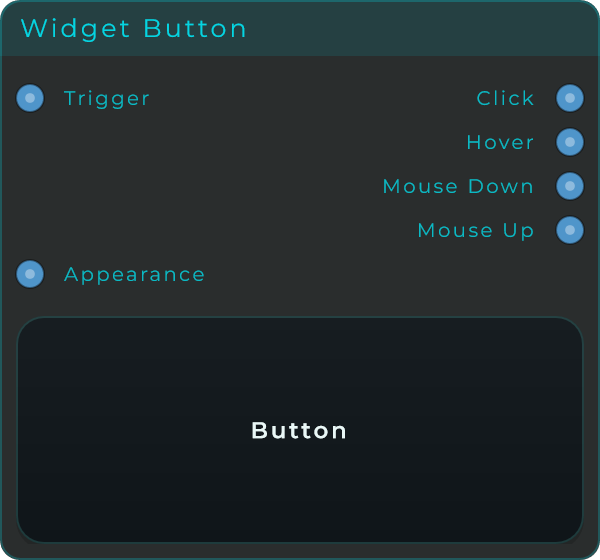
A press-and-hold button for your front panel. It stays on only while you hold it down and sends out a click signal, plus separate outputs for when the mouse goes down, when it comes back up, and when the pointer is hovering over it, so you can build richer reactions. You can give it a label, set different pictures for its up and pressed states, and fully restyle it.
| Parameter | Range | Default | Description |
|---|---|---|---|
| Label Off / Label On | text | Button / Pressed | Text shown while the button is up and while it is pressed. |
| Trigger On Mouse Down | on / off | off | Fires the click as soon as the mouse goes down instead of on release. |
| Show Text | on / off | on | Shows the text label over any button image. |
| Image Up / Image Down | svg / png / jpg | (empty) | Images used while the button is up and down. |
| Face / Active / Hover / Disabled Colour | colour | (preset) | Face colours for the idle, active, hover and disabled states. |
| Text / Border / Shadow Colour | colour | (preset) | Label, outline and shadow colours. |
| Text Size | 8 to 42 | 14 | Label font size. |
| Corner Radius | 0 to 100 | 14 | Corner radius of the button body. |
| Border Width | 0 to 100 | 1 | Outline thickness. |
| Tooltip | text | (empty) | Tooltip shown on hover. |
Inputs: Trigger (fires the button from the graph), Appearance (JSON object to restyle the widget).
Outputs:
| Pin | Type | Description |
|---|---|---|
| Hover | Bool | High while the pointer is over the button. |
| Mouse Down | Event | Fires when the pointer goes down. |
| Mouse Up | Event | Fires when the pointer is released. |
| Event | Event | Fires a click (on press or release, per Trigger On Mouse Down). |
Widget Toggle
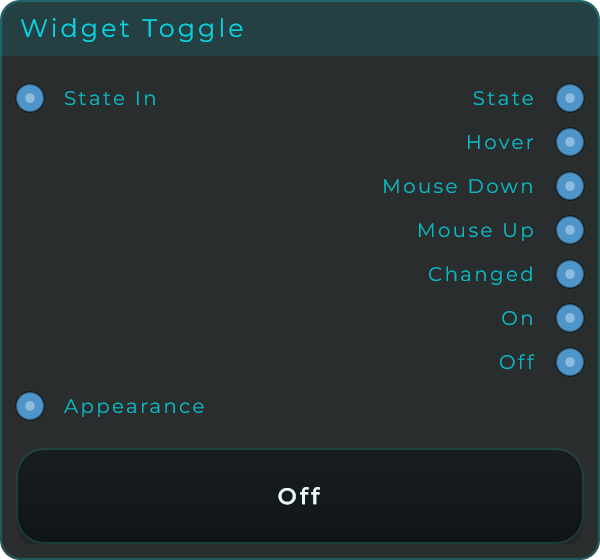
A button with state for your front panel, and Mode decides what pressing it means. Toggle latches: click once to turn it on and it stays on, click again to turn it off. Momentary is high only while you hold it, like a key. Hybrid is both, which is what saves placing two buttons: a quick tap latches, and a press held past Hold Time behaves as a momentary and lets go when you do. It sends out its current state in every mode, plus dedicated signals every time it flips: one for any change, one when it turns on, and one when it turns off. You can set different labels and pictures for the off and on states. Look decides its shape without touching any of that: Button fills the widget with the face and puts the label inside it, and Checkbox shrinks that same face to a square with a tick and moves the label out beside it, which is the shape a settings panel is made of. Every colour, border, image and pin means the same thing in both.
| Parameter | Range | Default | Description |
|---|---|---|---|
| State | on / off | off | Current toggle state. |
| Mode | Toggle / Momentary / Hybrid | Toggle | What pressing it means. Toggle latches, Momentary is high only while held, Hybrid latches on a tap and acts momentary on a held press. |
| Look | Button / Checkbox | Button | Its shape. Button fills the widget with the face; Checkbox makes the face a square with a tick and puts the label beside it. |
| Hold Time | 100 to 2,000 ms | 400 ms | Hybrid only. How long a press has to last before it counts as held rather than tapped. |
| Label Off / Label On | text | Off / On | Text shown while the toggle is off and on. |
| Trigger On Mouse Down | on / off | off | Flips the toggle on mouse down instead of on release. |
| Show Text | on / off | on | Shows the text label over any image. |
| Image Off / Image On | svg / png / jpg | (empty) | Images used while the toggle is off and on. |
| Face / Active / Hover / Disabled Colour | colour | (preset) | Face colours for the idle, active, hover and disabled states. |
| Text / Border / Shadow Colour | colour | (preset) | Label, outline and shadow colours. |
| Text Size | 8 to 42 | 14 | Label font size. |
| Corner Radius | 0 to 100 | 14 | Corner radius of the toggle body. |
| Border Width | 0 to 100 | 1 | Outline thickness. |
| Tooltip | text | (empty) | Tooltip shown on hover. |
Mode travels on the Appearance input, so one Appearance Changer switches a whole rack of these at once rather than one at a time in the Inspector.
Inputs: State In (sets the state from the graph), Appearance (JSON object to restyle the widget).
Outputs:
| Pin | Type | Description |
|---|---|---|
| State | Bool | The current toggle state. |
| Hover | Bool | High while the pointer is over the toggle. |
| Mouse Down | Event | Fires when the pointer goes down. |
| Mouse Up | Event | Fires when the pointer is released. |
| Changed | Event | Fires on every state flip. |
| On | Event | Fires when the toggle turns on. |
| Off | Event | Fires when the toggle turns off. |
MIDI Drag Exporter
Turns an incoming musical pattern or MIDI file into a real MIDI file you can drag straight onto the timeline in your music software (your DAW). Feed it either a MIDI File Descriptor or a raw pattern, then drag from the body of the widget into your DAW to drop a finished, ready-to-use .mid file. (MIDI is the standard way of describing notes and timing, separate from the actual sound.)
The look is yours to shape: the body fills its whole slot edge to edge, and the Appearance section of the inspector adds background and border colours, corner radius, an editable title, and toggles to hide the title and the status line. You can also drop in a background image (PNG, JPG or SVG) with contain, cover or stretch fitting and its own opacity, which turns the widget into a custom drag button for a finished panel. Everything travels with Copy/Paste Appearance and can be driven live as JSON through the Appearance pin.
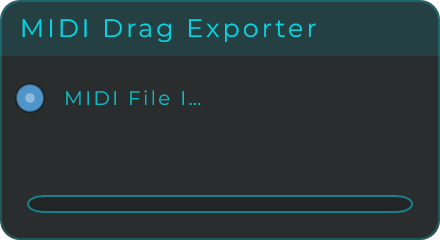
Inputs: MIDI File In (a MIDI File Descriptor JSON, for example from Pattern To MIDI File, or a raw Pattern JSON, for example from MIDI Riff Generator; patterns are auto-converted to a temporary .mid file), Appearance (JSON restyle input). Outputs: none. The MIDI file leaves the node by dragging the widget body into your DAW.
Sampler
A complete sampler instrument with a visual editor where you lay your sounds out across a keyboard. Drag and drop audio files (WAV, AIFF, FLAC, MP3 or OGG) onto the on-screen piano keys to create zones. Each zone assigns one sample to a range of keys and has its own pitch, volume, pan, fade, looping, ADSR (how the sound swells and fades over time) and velocity (how hard you play) settings. Connect MIDI In to feed it notes, and connect the Sample View output to a Sample View widget to edit the selected zone's waveform. Right-click the strip to save the map to a file of its own or to load one; how a map is built, and how it travels with its samples, is on the Samplers page.

This node offers a large set of settings for each zone, and every one of them has its own input pin so you can change it live while the music plays. The most useful ones are:
| Parameter | Range | Default | Description |
|---|---|---|---|
| Select by MIDI | on / off | on | When on, incoming notes auto-select the matching zone. |
| Voices | 1 to 16 | (preset) | Maximum number of simultaneous voices. |
| Glide | on / off | off | Portamento between notes (mono only). |
| Glide Time (ms) | 1 to 5000 | (preset) | Glide time in milliseconds. |
| Bend Range | 0 to 48 | (preset) | Pitch-bend range in semitones. |
| Link (Edit All) | on / off | off | Applies parameter edits to all zones at once. |
| Root Note / Low Note / High Note | 0 to 127 | (per zone) | Original-pitch note and the zone's key range. |
| Low Vel / High Vel | 0 to 127 | (per zone) | Velocity range that triggers the zone. |
| Transpose / Fine Tune | semitones / cents | (per zone) | Pitch offset of the zone. |
| Volume / Pan | 0 to 1 / -1 to 1 | (per zone) | Output level and stereo position. |
| Gain (dB) | -24 to +24 | 0 | A trim on top of Volume. Right-click a zone and Normalize sets it so the loudest point reaches full scale. |
| Attack / Decay / Sustain / Release | seconds / level | (per zone) | ADSR envelope of the zone. |
| Loop / Loop Start / Loop End / Loop Crossfade | on-off / normalised / ms | (per zone) | Sample loop settings. Ping-Pong makes the loop go out and back instead of round and round. |
| One Shot | on / off | off | Plays the zone through to its end whatever the key does: note-off and the loop are ignored. For drum hits and sound effects. |
| Sample Start / Sample End | 0 to 1 | (per zone) | Playback start and end inside the file. |
Inputs: MIDI In (notes trigger the keyboard and pass through), Appearance (JSON appearance patch), plus a Data input pin per zone parameter listed above (Root Note, Low Note, High Note, Low Vel, High Vel, Transpose, Fine Tune, Volume, Gain, Pan, Attack, Decay, Sustain, Release, Fade In, Fade Out, Sample Start, Sample End, Loop Start, Loop End, Loop Xfade, Reverse, Fixed Vel, Loop On, Ping-Pong, One Shot, Link, Select MIDI, Voices, Glide, Glide Time, Bend Range).
Outputs:
| Pin | Type | Description |
|---|---|---|
| MIDI Out | MIDI | External MIDI plus keyboard-click events. |
| Sample View | Data (Text) | The node id, for connecting to a Sample View. |
| Out L | Audio | Left audio output. |
| Out R | Audio | Right audio output. |
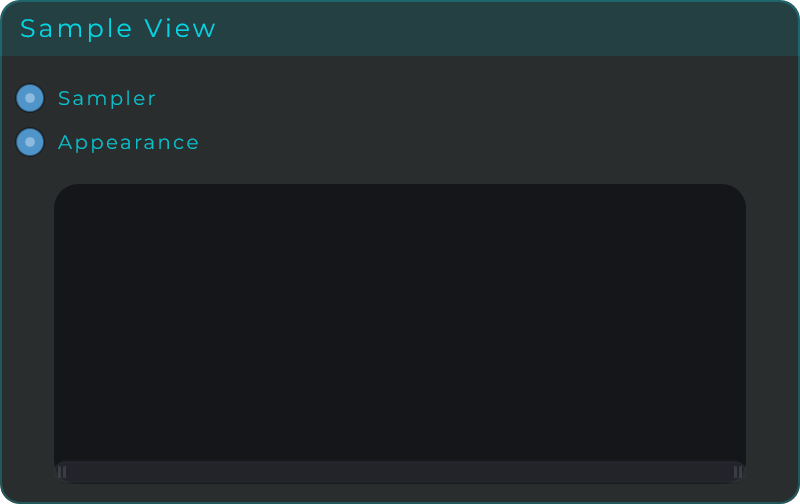
Sample View
A window for viewing and editing the shape of a sound (its waveform). Connect it to a Sampler and it draws the waveform of the selected zone, with markers you can drag to set the sample's start and end, its loop region and its fades. It also offers zoom, side-to-side scrolling, and a moving line that shows where playback currently is. The wave stands as tall as the zone's Gain makes it, so a normalized zone looks as loud as it sounds; right-click the wave for Normalize and Reset Gain on that zone.
| Parameter | Range | Default | Description |
|---|---|---|---|
| Wave Colour | colour | theme | Colour of the waveform. |
| Wave Opacity | 0 to 1 | 0.75 | Opacity of the waveform fill. |
| Background Colour | colour | (preset) | Background fill behind the waveform. |
| Marker / Loop / Playhead / Fade Colour | colour | (preset) | Colours of the markers, loop region, playhead and fade curves. |
| Marker Width | 0.5 to 4 | 1.5 | Width of the marker lines. |
| Corner Radius | 0 to 100 | 0 | Corner radius of the widget body. |
| Show Info | on / off | on | Shows the info label. |
| Show Scrollbar | on / off | on | Shows the minimap scrollbar. |
| Show Fades | on / off | on | Draws the fade-in/out curves. |
| Show Playhead | on / off | on | Draws the real-time playhead. |
Inputs: Sampler (connect to a Sampler to display its zones), Appearance (JSON object to restyle the widget). Outputs: none.
Envelope View
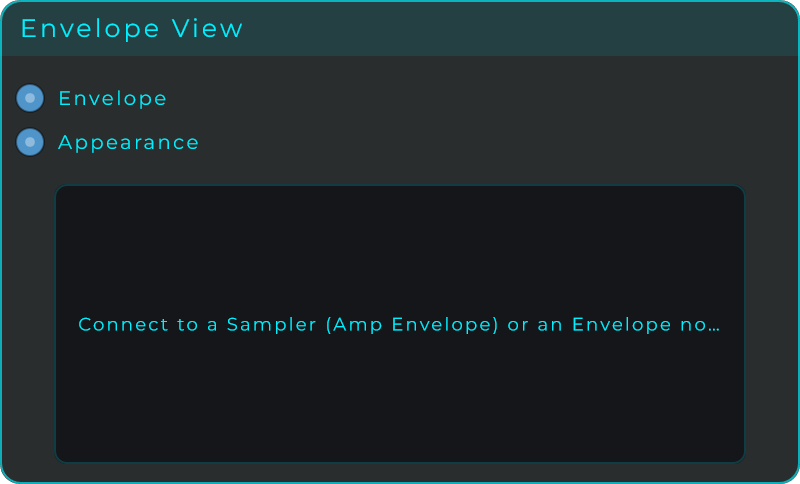
A display that draws the envelope of another node. Connect its Envelope input to a Sampler's Amp Envelope output, or to an Envelope, Trig Envelope or AHD Envelope node, and it mirrors that envelope's shape live, complete with a moving playhead. It is more than a picture: drag its handles and you edit the connected envelope's settings from here. Drop it on the front panel to give your instrument a big, styled envelope display wherever you want one.
| Parameter | Range | Default | Description |
|---|---|---|---|
| Background / Curve / Fill Colour | colour | (preset) | Colours of the background, the envelope curve and the fill under it. |
| Fill Mode | Solid / Linear / Radial | Linear | How the area under the curve is painted, with Fill From and Fill To setting the gradient colours. |
| Grid / Handle / Frame Colour | colour | (preset) | Colours of the grid, the drag handles and the outer frame. |
| Text / Playhead Colour | colour | (preset) | Colours of the labels and the moving playhead. |
| Show Handles | on / off | on | Shows or hides the drag handles. |
| Show Labels | on / off | on | Shows or hides the text labels. |
Inputs: Envelope (connect the envelope source to display), Appearance (JSON object to restyle the widget). Outputs: none.
Widget File Drop
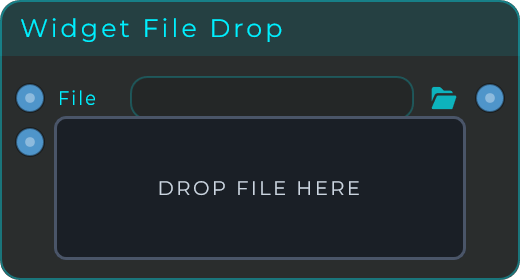
A drop zone that accepts any file you drag onto it, whether in your patch or on the front panel, and sends out the full location (path) of that file. You can limit which file types it accepts with the Accept Extensions setting, and style its background, border, corners and text. It is a handy building block for patches that need to react to dropped samples, presets or images.
| Parameter | Range | Default | Description |
|---|---|---|---|
| Label | text | DROP FILE HERE | Text shown on the drop zone when no file is loaded. |
| Accept Extensions | text | (any) | Semicolon-separated list of accepted extensions (e.g. "wav;aiff;flac"). Empty accepts any file. |
| Show Filename | on / off | on | Shows the filename on the widget after a file is dropped. |
| Background Colour | colour | (preset) | Background fill colour. |
| Border Colour | colour | (preset) | Border colour. |
| Border Width | 0 to 12 | 1.5 | Width of the border outline. |
| Corner Radius | 0 to 60 | 6 | Corner rounding radius in pixels. |
| Text Colour | colour | (preset) | Colour of the label and filename text. |
| Text Size | 8 to 48 | 12 | Font size of the label and filename. |
The Appearance input takes the whole list above, Label included, so an Appearance Changer can rewrite the caption of the drop zone while the patch runs.
Inputs: File In (sets the file path programmatically), Appearance (JSON object to restyle the widget). Outputs: File Out (the absolute path of the dropped or loaded file).
Preset Manager
The preset system of a device. A project built in MNodes and handed to other people had no way for them to keep a sound; this widget goes on the front panel like any other control and gives the device presets the way an instrument has them. A preset is what a person can change on the front panel: the values of the knobs, sliders, toggles, dropdowns and pads, including those on a Module's own panel, the cables patched between Jack In and Jack Out sockets, and on a Rack Canvas the modules it holds and where they sit. Loading a preset changes only what differs, so a module still on its rack stays as it is. What sits behind the panel is the creator's design and a preset never writes it. A preset saved with an earlier version of MNodes has no cables or racks in it and leaves them as they are. (The States node below is a different tool: a scene of the whole patch, made for morphing.)
On the panel the widget is a strip: previous and next, the favourite star, the preset's name and category, Save, and a menu. Click the name to open the browser; the small arrow next to it opens a quick list grouped by category. Every part of the strip can be hidden in Appearance and replaced by your own buttons wired to the pins.
The browser shows the categories down the left (All, Favourites, then each category with its count, and New category at the bottom) and the presets on the right. Double-click loads. Right-click a preset to move it to a category, rename, delete or export it; right-click a category to rename or delete it, and its presets stay, without a category. Save as new opens the one dialog there is: a name, a category picked from the ones that exist or typed new, and in Edit mode a switch to store the preset in the project. The browser and its dialogs wear the strip's colours, so a device styled by its creator keeps its look there.
Whose presets are where. Presets stored in the project are the creator's factory presets and ship with the device. Presets saved in Perform mode are files, one per preset, in a folder named after the device under DevicePresets in the Library's Projects folder, so a Hub update of the project leaves them exactly where they were. The list shows both. Editing a factory preset in Perform makes it your copy; deleting the copy brings the original back.
Files. Presets are .mndevpreset files unless the creator sets File Extension, so a device can hand out presets that look like its own (.mysynth) rather than MNodes files. The device's name travels inside the file, never in the extension: a preset dropped on another device is refused, whatever it is called. Import takes a file, several, or a zip of them, from the menu or by dropping them on the strip; Export writes the preset showing, and Export all the whole bank as a zip. A preset that names files, a Sampler's zones say, leaves with them: the export is a zip under the same extension with the samples inside, and Import unpacks them into the device's folder and points the preset at the copies. Presets stored in the project are part of the device, so Collect All & Export packs their samples along with everything else.
| Parameter | Range | Default | Description |
|---|---|---|---|
| File Extension | text | mndevpreset | The extension of the preset files this device writes and reads. |
| Show Arrows / Show Favourite / Show Save / Show Menu / Show Category | On / Off | On | Which parts of the strip are drawn. Hide one and wire the matching pin to a button of your own. |
| Text Size, Text Align, Font Weight | The strip's text, the same controls as the Widget ComboBox. | ||
| Text, Hover, Popup Text, Background, Border, Icon Colour | colour | theme | The strip's colours, solid or gradient, the same set as the Widget ComboBox. The browser takes its background, text and accent from them. |
| Corner Radius, Border Width | The strip's shape. |
Inputs: Recall (a number picks a preset by index, text picks one by name, an event reloads the one showing; an On Load wired in brings the device up in it), Save, Update, Rename, Prev, Next, Delete, Browse, Import, Export (triggers), Appearance (JSON to restyle the strip). Outputs: Index (the preset showing, as a number), Name (its name).
States
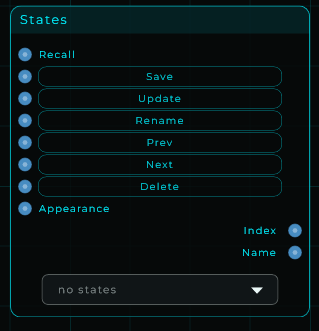
Saves and recalls snapshots of your whole patch. It captures the current value of every control as a named state, so you can build your own presets that live inside the patch and travel with it. Hit Save to store the current sound as a new state, then pick a state from the menu (or send an index into the Recall input) to flip back to it: the controls follow and the sound changes, just like loading a preset. Recall, Save, Update, Rename, Prev, Next and Delete sit on the node, each with a matching input pin so you can drive them from your own buttons or triggers. Recall reloads the state that is showing, which is how you get back to it after moving a few knobs. The menu carries the full Widget ComboBox appearance set and an Appearance input, so an Appearance Changer can restyle it live.
States also capture whether each front-panel widget is shown or hidden: recalling a state restores each widget's visibility, so one state can show one bank of controls and another state a different one. Everything else about the front panel itself (its layout, its look and where its widgets are) is left untouched.
States keep how the panel is patched too: the cables between Jack In and Jack Out sockets, and on each Rack Canvas the modules it holds and where they sit. Recalling a state puts them back and changes only what differs: a module still on its rack stays as it is, one that was taken off comes back, and one added since goes. Morphing between states with the State Morpher moves values only. When a recall brings modules back or takes them away, Undo starts over, as it does when you open a project. A state saved with an earlier version of MNodes has no cables or racks in it and leaves them alone.
To keep any control out of states, lock it with the inspector padlock: a locked parameter is neither captured on Save / Update nor overwritten on Recall (it is also skipped by randomize).
| Parameter | Range | Default | Description |
|---|---|---|---|
| State | (the saved states) | (none) | The current state. Pick one from the menu to recall it. |
| Recall | (button) | - | Reloads the state that is showing, so you can get back to it after moving controls around. |
| Scope | Global (all subgraphs) / This Level | Global (all subgraphs) | What a state captures. Global snapshots the parameter values of every node in the patch, descending into every subgraph and module; This Level captures only the nodes at the States node's own graph level. Cables and racks come from the whole patch with Global, and from the States node's level and everything inside it with This Level. |
| Appearance set | colour / font / corner / etc. | (preset) | Full ComboBox look: text and popup colours, solid or gradient background and border, corner radius, fonts and arrow. |
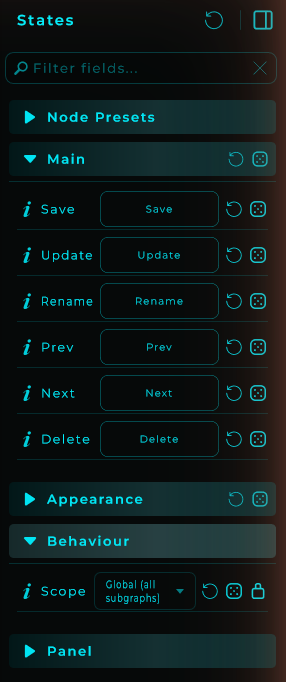
Inputs: Recall (a number selects and recalls a state by index; a trigger reloads the one already selected), Save, Update, Rename, Prev, Next, Delete (each an event/trigger), Appearance (JSON to restyle the menu). Outputs: Index (the current state number), Name (the current state name as text).
State Morpher
An X/Y pad that morphs between the states of a States node. Connect a States node's Morph output to the States input and the pad lays that node's states out as points. Drag the puck to blend between them: the closer the puck gets to a state, the more that state takes over, until sitting right on it recalls it exactly. You can also drag the state points themselves to rearrange the pad. The X and Y inputs accept values or CV, so an LFO, an envelope or automation can steer the morph for you. The puck's position also goes out of the X Out and Y Out pins as it moves, whoever is moving it, so a pair of sliders, a display or anything else on your panel can follow the morph live. Keep in mind that morphing states moves every control those states captured, so everything those controls feed follows along.
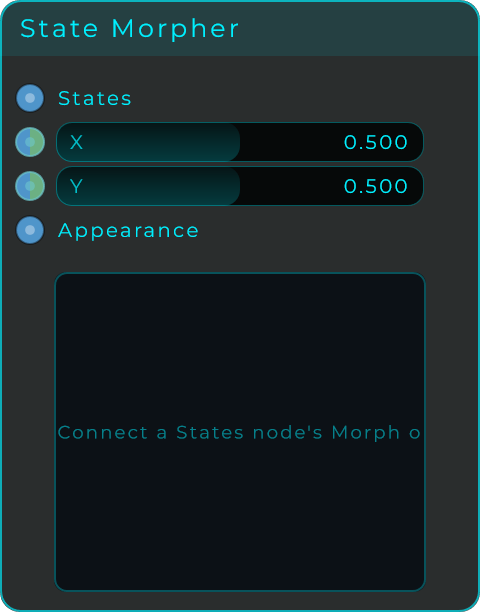
| Parameter | Range | Default | Description |
|---|---|---|---|
| X | 0 to 1 | 0.5 | Puck position across the pad. |
| Y | 0 to 1 | 0.5 | Puck position up and down the pad. |
| Lock Positions | on / off | off | Freezes the state points so a drag on the pad can't nudge them; the puck still moves. |
| Background / Border / Node / Line / Puck / Text Colour | colour | (preset) | Colours of the pad surface, its border, the state points, the connecting lines, the puck and the labels. |
| Corner Radius | 0 to 20 | (preset) | Corner radius of the pad body. |
Inputs: States (connect a States node's Morph output), X (moves the puck; a value or a CV stream), Y (moves the puck; a value or a CV stream), Lock (a value drives Lock Positions), Appearance (JSON object to restyle the widget). Outputs: X Out, Y Out (the live puck position, 0 to 1 on each axis, sent whenever it moves).
Text Input
A box you type into, in your patch or on the front panel, with a Send button. Type your text and press Enter, click away or press Send to emit it as a text message: handy for naming things, driving a Text display, or feeding any node that takes text. The box fills the whole widget, so its edges are the widget's edges when you line it up with other controls, and a single line of text sits on the same middle as the text on the Send button. You can style it fully.
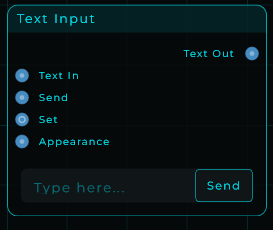
| Parameter | Range | Default | Description |
|---|---|---|---|
| Text | text | (empty) | The current text in the box. |
| Placeholder | text | Type here... | The faint hint shown while the box is empty. |
| Emit On Change | on / off | on | Sends the text when you press Enter or click away. Off waits for the Send button or the Send input. |
| Multiline | on / off | off | Lets the text run over several lines, starting at the top. |
| Keep Focus | on / off | off | Off, Enter lets the caret go, so the box stops blinking once you have used it. On, the caret stays after Enter, for typing one entry after another. Escape gives the edit up and a click anywhere else lets the caret go, either way |
| Background Colour | colour | (preset) | Background fill (solid or gradient). |
| Border Colour | colour | (preset) | Border colour. |
| Border Width | 0 to 12 | 0 | Width of the border outline. |
| Corner Radius | 0 to 40 | 6 | Corner rounding in pixels. |
| Padding | 0 to 60 | 8 | Room between the edge of the box and the text. When the box is too short for it, the top and bottom give way first, so the text is never cut off. |
| Text Colour | colour | (preset) | Colour of the typed text. |
| Text Size | 8 to 48 | 16 | Size of the typed text. |
| Font Weight | Regular / Medium / SemiBold / Bold / Light | Regular | Weight of the text in the box, including what is already typed. |
| Justification | Left / Centre / Right | Left | Where the text sits across the box. |
| Show Send Button | on / off | on | Shows the Send button at the right of the box. |
| Send Label | text | Send | The text on the Send button. |
| Button Colour | colour | (preset) | Colour of the Send button. |
| Button Width | 0 to 240 | 0 (auto) | Width of the Send button in pixels. |
| Button Text Size | Auto, 6 to 48 | Auto | Size of the text on the Send button. Auto follows Text Size and makes it smaller when the button is too short. Set a size to fit a long word. A label of several words wraps when the button has room for two lines. |
| Show Label | on / off | off | A name label above, below or beside the box, the same one the Knob, the Slider and the ComboBox have. Its text, position, colour, size, gap and offsets are in the Label group. |
Inputs: Text In (sets the text), Send (sends the current text again), Set (sets the text without sending it), Appearance (JSON to restyle the widget). Outputs: Text Out (the text, sent when you finish typing or press Send).
Jack In
A socket on the front panel that a patch cable arrives at. Take its output into the patch and whatever is plugged in on the panel turns up here.
Needs: a Jack In node in the graph with its Out pin wired into a filter's cutoff, and the same jack on the Front Panel with a cable plugged in.
The cable somebody plugs on the front panel is not a picture of a connection, it is the connection: the same edge you would have drawn in the graph. Wiring this node's Cable pin to a Jack Out's Cable pin in the graph and plugging the cable on the panel do exactly the same thing, so a panel can be repatched by hand while the patch stays a patch. A States node and a Preset Manager preset remember which sockets are joined and put the cables back when they are recalled.
A Jack In takes one cable: a new cable let go on it takes the place of the one it had. Drag from a Jack In that has a cable to move that cable to another Jack In, or let go away from the sockets to pull it out. Right-click it to disconnect. On the Front Panel, cables are plugged while the panel is locked, and on a Rack Canvas at any time. Everything about plugging, moving, seeing and hiding cables is in Patch Cables.
| Parameter | Range | Default | Description |
|---|---|---|---|
| Type | Audio, CV, MIDI, Data | Audio | What the socket carries. Only sockets of the same type can be joined, and changing it pulls out the cables that no longer fit. |
| Normalled CV | on / off | off | For a jack set to CV. While nothing is plugged in, the jack sends the Normal value instead of silence, like a normalled input on a hardware module. A cable plugged in takes over. |
| Normal | any value | 0 | The value sent while Normalled CV is on and nothing is plugged in. It is also a pin on the node while Normalled CV is on. |
Appearance (in the Inspector):
| Setting | Range | Default | Description |
|---|---|---|---|
| Visible | on / off | on | Shows or hides the jack on the panel. |
| Body Colour | colour | dark grey | The round body of the socket. |
| Ring Colour | colour | unset | The ring around the hole. Unset wears the theme's wire colour for the jack's type. |
| Ring Width | 0 to 12 | 3 | Thickness of the ring, in pixels. 0 removes it. |
| Hole Colour | colour | near black | The hole in the middle. |
| Hole Size | 0 to 100 % | 46 | Size of the hole, as a share of the jack. |
| Hole Image | PNG, JPEG or SVG | none | A picture drawn in the hole instead of the plain circle. Draw the body and the ring as nothing and the picture is the socket. |
| Hole Image Fit | Fit / Fill / Stretch | Fit | Fit keeps the whole picture inside the hole, Fill crops it to cover the hole, Stretch fills the hole ignoring the picture's proportions. |
| Cable Colour Audio / CV / MIDI / Data | colour | unset | The colour of a cable of that type. A plugged cable takes the colour of the Jack Out it leaves, so on a Jack In these colour only a cable you drag out from here. Unset follows the theme's wire colour for that type. |
| Show Label | on / off | on | Shows the caption. |
| Label Text | text | In | The caption's words. Left empty it reads In. |
| Position | Above / Below / Left / Right | Above | Where the caption sits around the socket. |
| Label Colour | colour | unset | The caption's colour. Unset follows the theme. |
| Label Size | 6 to 48 | 12 | The caption's size. |
| Label Gap | 0 to 100 | 4 | Space between the caption and the socket. |
| Label Offset X / Y | -300 to 300 | 0 | Moves the caption from where Position puts it. |
| Font Family | fonts | app font | The caption's font, as on other widgets. |
| Tooltip | text and settings | none | The tooltip shown when the mouse rests on the jack, as on other widgets. |
Inputs: Cable (the panel side), Type, Normal (Data, while Normalled CV is on), Appearance (Data).
Outputs: Out (whatever arrived through the cable).
Jack Out
A socket on the front panel that a patch cable leaves from. Wire into its input whatever the panel should be able to patch from.
Needs: a Jack Out node in the graph with an LFO wired into its In pin, and the same jack on the Front Panel with two cables leaving it.
The other half of Jack In, and it works the same way in both directions: plug on the panel or wire in the graph, it is one connection either way. A Jack Out can feed as many cables as you like: drag from it once for each. Right-click it to disconnect its cables. The cables leaving it take its cable colour for their type. Everything about patch cables is in Patch Cables.
| Parameter | Range | Default | Description |
|---|---|---|---|
| Type | Audio, CV, MIDI, Data | Audio | What the socket offers. Only sockets of the same type can be joined, and changing it pulls out the cables that no longer fit. |
Appearance (in the Inspector): the same settings as Jack In. Here Cable Colour Audio / CV / MIDI / Data colour every cable that leaves this jack, and the caption reads Out when Label Text is empty.
Inputs: In (what this socket offers), Type, Appearance (Data).
Outputs: Cable (the panel side).