
Appearance
Plugin Host
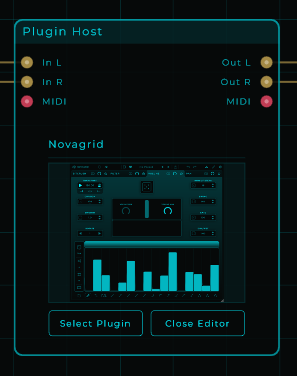
The Plugin Host node lets you load one of your own third-party VST3 plugins and use it right inside your MNodes patch, just like any other node. You can send audio and notes through it, control its settings from the Inspector, and move those settings automatically with CV.
Loading a plugin
Click the body of the node, or its Select Plugin button, to open the plugin chooser. Search by name or maker and click a plugin to load it.
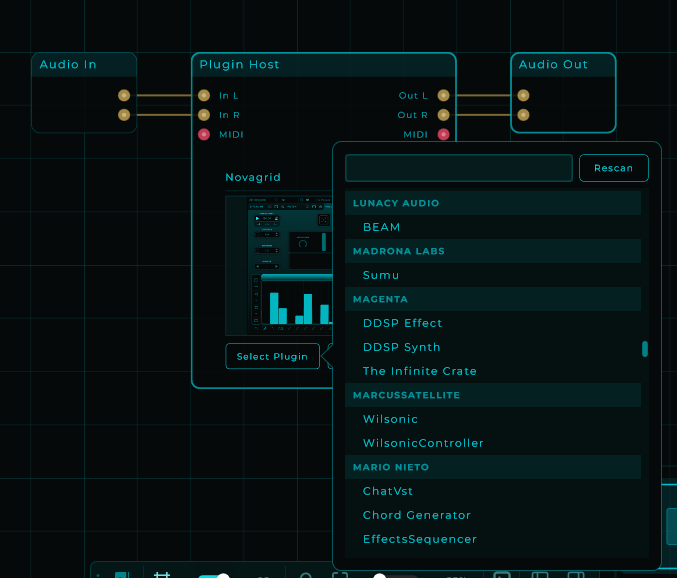
Once a plugin loads, the node rebuilds its connection points to fit it: audio in and out for an effect, a note (MIDI) input for an instrument, and so on.
A loaded plugin runs in its own separate background program. That is good news for you: if a plugin crashes or freezes, it cannot drag MNodes down with it. MNodes spots the problem and reloads the plugin on its own.
The plugin editor
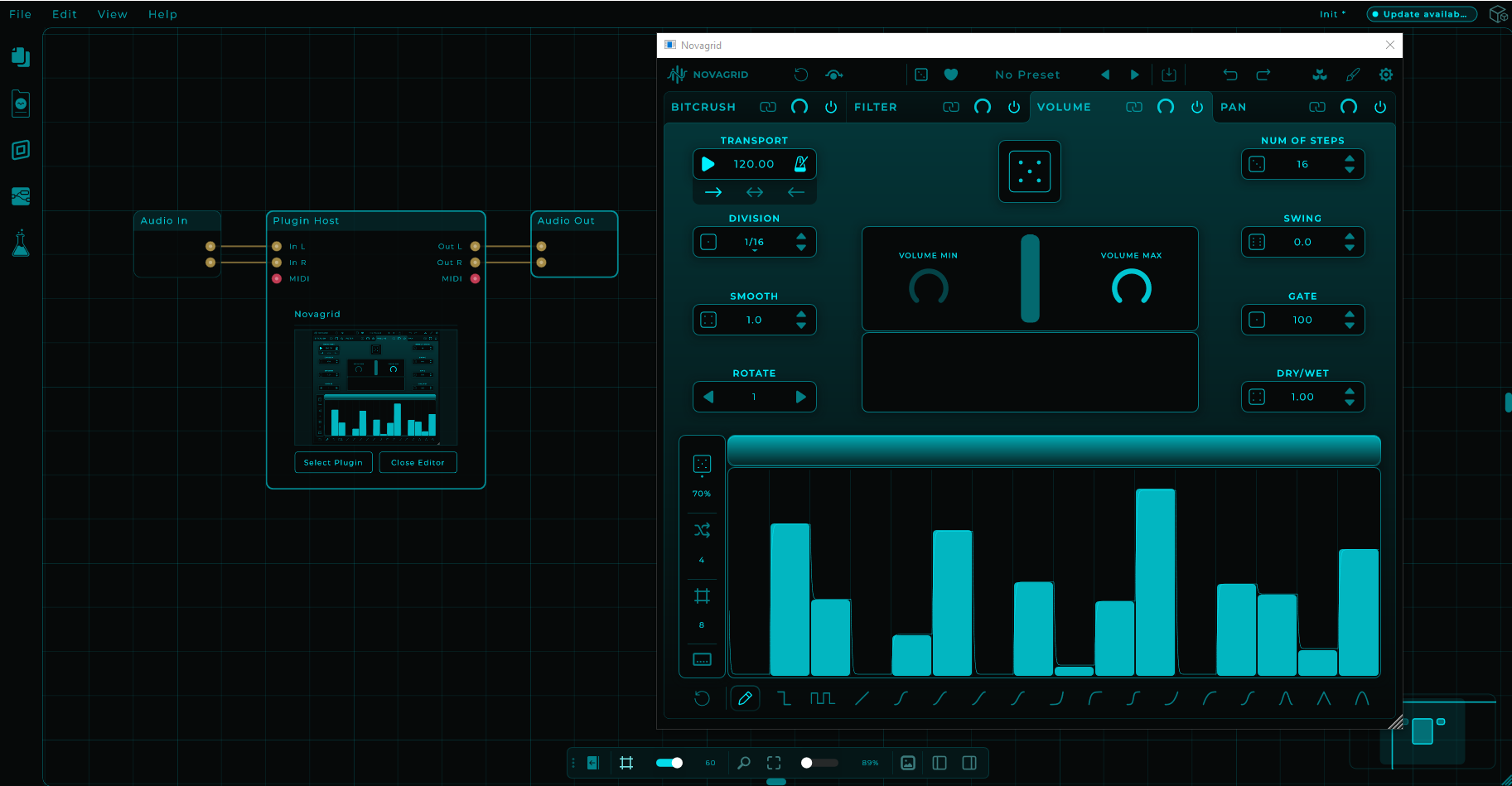
Click the preview area in the node's body, or the Open Editor button, to open the plugin's own window. It stays in front of the MNodes window. Click Close Editor, or the window's own close button, to hide it again.
The preview in the node's body is a picture of the plugin's window, taken a moment after it opens and again when you close it.
Plugin parameters
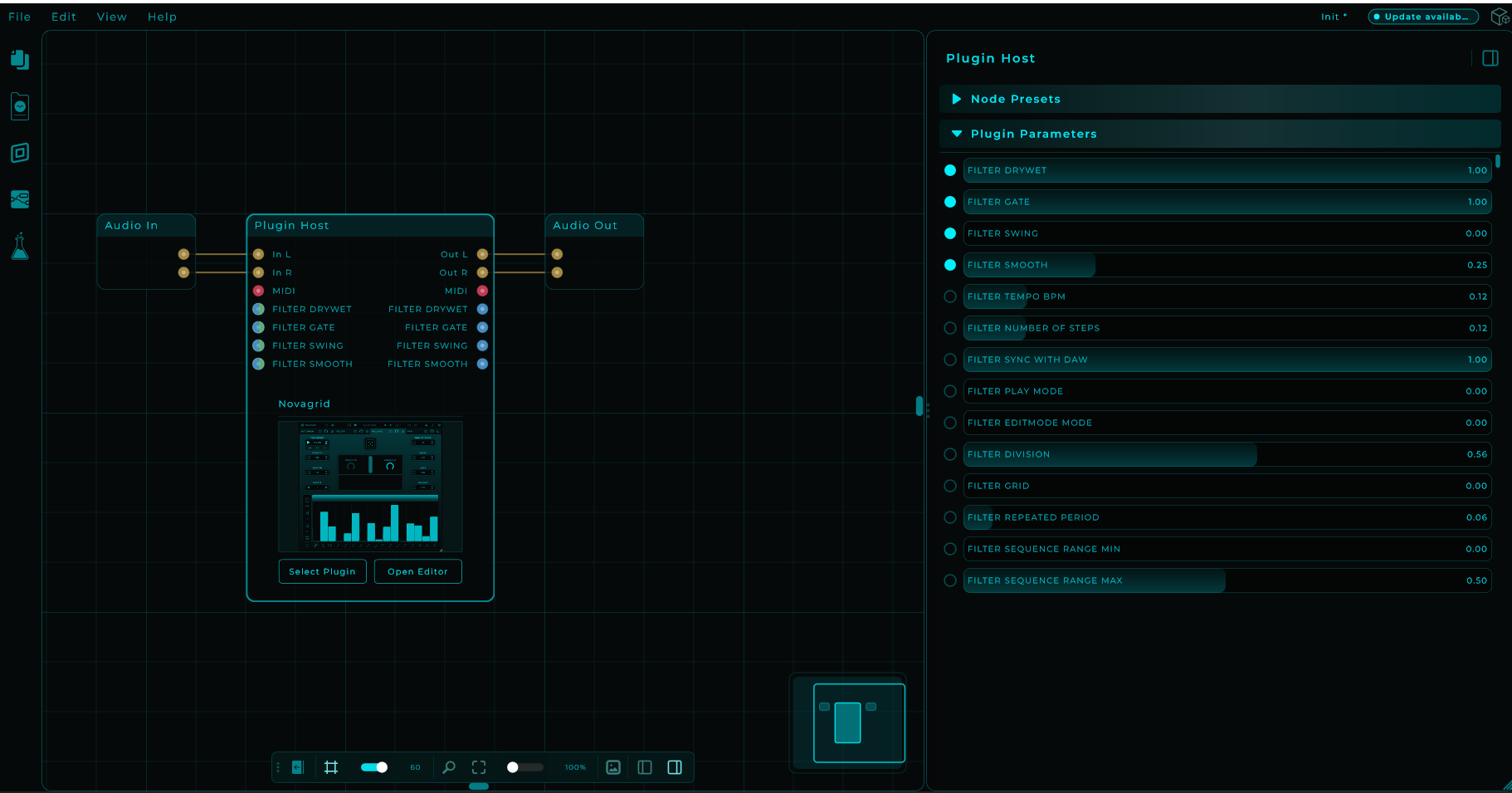
Select the Plugin Host node and the Inspector lists every setting of the loaded plugin, under Plugin Parameters. Drag a slider and the change reaches the plugin right away.
The two stay in sync both ways: move a control in the plugin's own window and the matching slider in the Inspector follows along. The Inspector also keeps track of the last setting you touched: that row is selected and scrolled into view automatically, so you never lose sight of the control you are adjusting, even on plugins with hundreds of settings.
Exposing parameters as pins
Each setting row in the Inspector has a small dot on its left. Click it to expose that setting, and the node grows two connection points for it:
- an input pin that takes a value or a CV signal. Wire an LFO, an envelope or a sequencer into it to move that plugin setting automatically in real time.
- an output pin that sends out the setting's current value, so other nodes or panel controls can stay in step with it.
Click the dot again to remove that setting's pins. The node grows and shrinks as you add and hide settings, so the pins always have room.
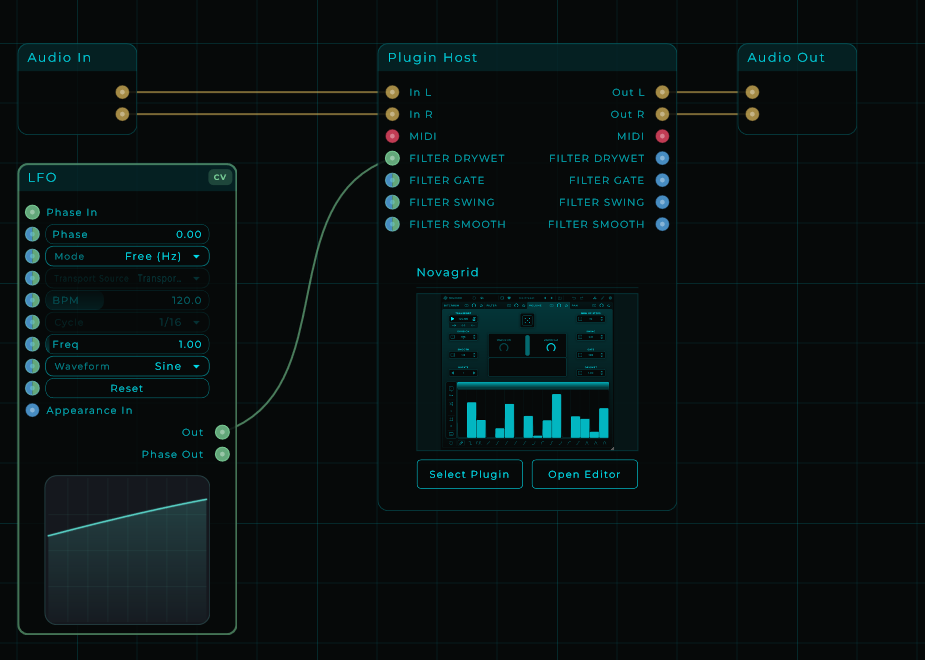
Tempo sync
The loaded plugin picks up the timing (transport) from your DAW, or from MNodes' own transport when you run MNodes on its own. Plugins, arpeggiators and LFOs that lock to tempo will follow the song's position and speed automatically.
Where MNodes looks for plugins
MNodes searches your computer's system VST3 folders for plugins. To add or change which folders it searches, open Settings and find the Plugin Folders block.
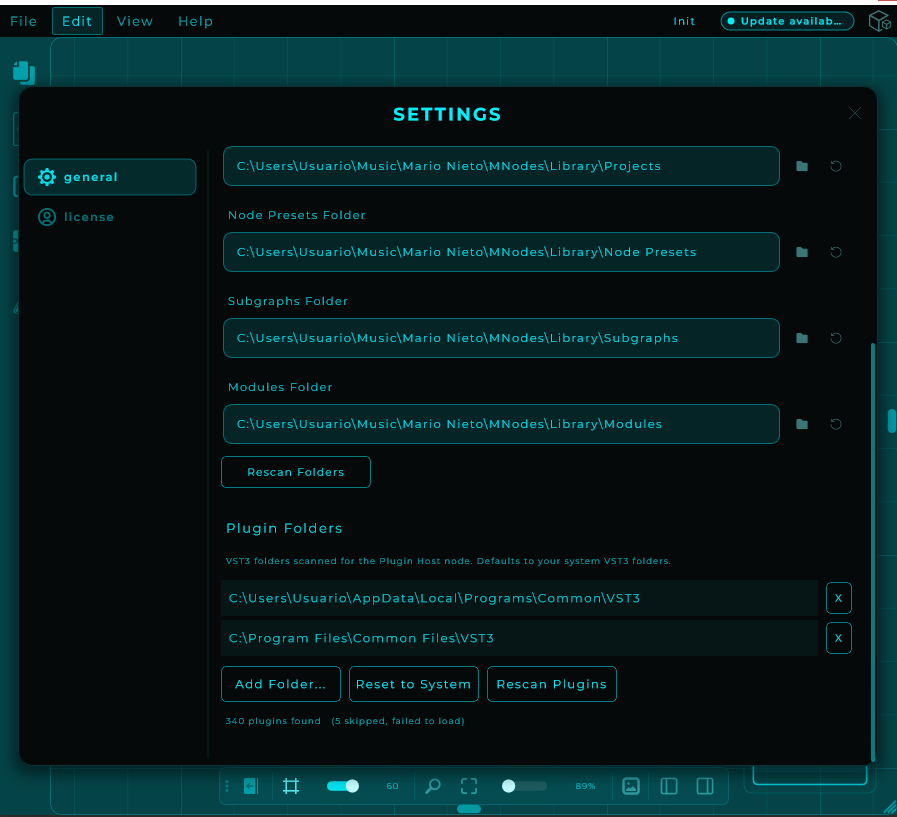
Each plugin is tried in a separate background program, so one that crashes or freezes while it is being looked at cannot take MNodes down. A plugin that fails is tried once more at the end of the scan, on its own and with more time. If it fails again it is skipped, and the Plugin Folders block counts how many were. Scan new plugins, and the rescan in the Plugin Host's plugin list, try the skipped ones again; Rescan all looks at every plugin from scratch. The reason each one was skipped is written to PluginScanLog.txt, in the MNodes settings folder (%APPDATA%\Mario Nieto\MNodes on Windows).
Inputs and outputs
The exact connection points depend on the plugin you load.
| Pin | Type | Direction | Shown when |
|---|---|---|---|
| In L / In R | Audio | Input | The plugin is an effect (hidden for instruments) |
| Extra input pairs | Audio | Input | You raise Input Pairs and the plugin has them |
| MIDI | MIDI | Input | The plugin accepts MIDI |
| Out L / Out R | Audio | Output | Always |
| Extra output pairs | Audio | Output | You raise Output Pairs and the plugin has them |
| MIDI | MIDI | Output | The plugin produces MIDI |
| Exposed parameter | Data / CV | Input | You expose a parameter (one pin each) |
| Exposed parameter | Data | Output | You expose a parameter (one pin each) |
Sidechains and extra inputs
Plenty of plugins take more than one stereo input: a compressor with a sidechain, a vocoder with a carrier and a modulator, a morphing effect with an A and a B. Those extra inputs are switched off until a host asks for them, which is why the node showed only In L / In R.
Raise Input Pairs in the Inspector and the extra pins appear, named after the plugin's own buses where it tells us what they are called, so you get a pin marked Sidechain rather than In 2. It works the same way Output Pairs already does: you ask for what you need rather than every plugin growing pins nobody wired. The plugin's own count still caps it, so asking for four pairs from a plugin that only has one gives you one.
An extra input you leave unwired is fed silence, which is exactly what a DAW does with an unconnected sidechain.
Extra outputs
The same idea on the way out. A drum machine that keeps its kick, snare and hats on separate outputs, or a sampler that gives each layer its own, has more than one stereo pair to offer, and the node shows one until you ask for more.
Raise Output Pairs in the Inspector and the extra Out pins appear, in the plugin's own order, so you can send each pair to its own chain. A plugin with a single stereo output gives you one pair however high you set it.
Unused outputs
Some instruments switch on every output they have and go on rendering all of them, whether or not anything is listening: Omnisphere runs nine stereo outputs by default. Your DAW does not work that way. Live, for instance, runs the main output and leaves the rest alone until you ask for them, which is why the same instrument can cost several times more inside MNodes than on a track of its own.
Unused Outputs, in the Inspector, is where you choose. Active keeps every output running, which is how MNodes has always behaved. Off keeps only the outputs you are actually using and switches the rest off, the way a DAW does.
What Off keeps is exactly what Output Pairs asks for, counting from the first. With Output Pairs at 1, the default, you keep the first stereo pair and everything above it goes quiet. At 3 you keep the first three pairs. The main output is never switched off whatever you set, and raising Output Pairs switches the ones you need back on there and then, without reloading the plugin.
WARNING
Active is the default on purpose. Two Steinberg instruments, HALion 7 and Groove Agent SE, crash inside their own processing when an output they declared is switched off. If a plugin goes quiet, glitches or disappears with Off, put it back to Active and it will behave. The setting belongs to that one node, so it costs nothing to try, and a plugin that cannot take it takes only itself down: it runs in its own process, never in MNodes.
Instruments and DC offset
Some instruments leave a constant offset (DC) in their output even when nothing is playing. You cannot hear it, but it holds a level meter up as if something were sounding. For an instrument, the Plugin Host removes it with a very gentle cut below 5 Hz.
An effect gets nothing of the kind: what it sends out is passed on exactly as it is. So an effect that does not change the sound gives back exactly what it was fed, which matters when you mix a processed branch against the original, for example to hear only what an EQ or a reverb adds.
An empty Plugin Host
A Plugin Host with no plugin chosen lets its audio straight through, the way an empty insert slot does in a DAW, so you can build a chain first and fill the slot later. While a plugin is loading, or if its background program has stopped, the node is silent.
TIP
Only VST3 plugins are supported. A plugin and its editor always run in a separate process, so they cannot crash or freeze MNodes itself.
When a plugin misbehaves
MNodes writes down what happens with every hosted plugin: when it loads, when its window opens, when its background program stops. If a plugin freezes, closes its window on its own or keeps reloading, open Settings > General, find Plugin logs and click Show folder. Zip the files you find there (MNodesPluginHost.log, MNHostWorker.log, and any file whose name starts with MNHostWorker-crash) and attach the zip to your report.