
Appearance
Scenes
Needs MNodes 1.1.5 or newer
Scene and all of its nodes are new in MNodes 1.1.5. They do not exist in older versions, so a project that uses them will not work there until you update.
Scene shows the picture. Other nodes provide its objects, controls and materials.
If you are starting from zero, follow the short lessons. Use this page to look up a node's settings and see its complete Help example.
| Connection | Purpose |
|---|---|
| Object (violet) → Objects | Draw a control, shape or view. |
| Material (orange) → Shape/Model Material | Give a 3D object its finish. |
| Surface (pink) → Material map | Change colour, roughness or another material property across the object. |
| Value → a numeric input | Make a control change something. |
See actual pin close-ups and every connection. Colours are customizable in Settings → Appearance.
More about drawing, mouse messages and appearance
A Scene is a surface your graphics card draws: an interface of your own, a visual that answers the sound, a game, or a 3D world. Its picture can be written as code, but it needs none: the Scene nodes on this page draw on it when their Object output is wired into the Scene's Objects input, and a Script can draw on it too. They do not generate sound; Scene can analyze connected audio to drive its picture.
For a step-by-step introduction, start with Scene Studio, then controls and automation, 3D materials and Script/shaders. Downloadable projects accompany the guides.
The Scene: Scene, the surface they draw on, and Scene Group, which moves and cuts several drawings together.
2D Drawing: Scene Rectangle, Scene Circle, Scene Line, Scene Arc, Scene Polygon, Scene Path, Scene Text, Scene Image, Scene Wave and Scene Object.
Controls, played with the mouse on the canvas, each able to wear drawings of your own: Scene Knob, Scene Slider, Scene Button, Scene Toggle, Scene Menu and Scene XY Pad.
3D World: Scene 3D View, the world and the camera that sees it, and Scene 3D Camera, a camera of its own the mouse moves as you say, with Scene 3D Shape, Scene 3D Model, Scene 3D Material to dress them, Scene 3D Light, Scene 3D Sky, Scene 3D Fog, Scene 3D Group, Scene 3D Clones, Scene 3D Join, Scene 3D Subdivide, Scene 3D Displace and Scene 3D Particles in it; Scene 3D Body, Scene 3D Physics and Scene 3D Joint to make it fall, collide, bounce and swing; and Scene 3D Sound, Scene 3D Listener and Scene 3D Reverb Zone for how it sounds.
Materials and calculations: Surface Value, Coordinates, Mapping, Texture, Surface Noise, Fresnel, Surface Math, Surface Mix, Material Mix and Environment Map.
Find the Scene category in the node explorer, or search by node name. Object, Material and Surface are distinct payloads: an Object enters a Scene or View, a Material dresses a Shape/Model, and a Surface calculation enters a Material map or another Surface node. Incompatible connections are rejected. Customize Scene Nodes, Wire Objects, Wire Material and Wire Surface in Settings > Appearance.
Node bodies preview their content. Simple objects use lightweight sketches; materials and Surface nodes use a rendered sphere so their maps can be inspected. Drag a corner or an edge of any Scene node to make it, and its preview, as big or as small as you like; when a setting shows more rows, they take room from the preview. The complete lighting, post-processing and interactions are shown in Scene. Click a Material preview to browse candidates and Apply material to load one and close the browser. See material previews.
Every Scene node that draws something you can point at (the shapes, the text, the pictures, the groups, the controls, the 3D View and the solids in it; not a light or particles) has a Mouse output: everything the mouse does on its drawing, one message each time something happens, as a Scene's own Mouse output sends it. Wire it into a Mouse Actions node and each part has an output of its own: where it was clicked and dragged, from 0 to 1 across and up the drawing, the clicks as events, the pointer over it, the wheel. A solid in a 3D view counts across and up its view, and a group across and up the Scene. A group, a 3D view, a 3D group or clones hear the mouse on everything in them. While a cable is on Mouse, the drawing takes the mouse from whatever is under it (the zones, and over it the wheel no longer zooms the graph), and a control goes on playing as before. So a knob, a fader or a pad of any shape can be made from drawings, with Mouse Actions working out its value.
What the mouse does can move what is drawn, round a loop: the Scene's own Mouse (or a shape's), through Mouse Actions, into the X and Y of a shape wired into that Scene. Drawing/interaction inputs keep their state, so interaction sinks can accept a return connection, as a widget's Set does, and its pin shows the same ring. Mouse Actions counts from 0 to 1 across and up: a Math node in between turns that into the world's units for a 3D shape (0 to 1 into -3 to 3, say). Material and Surface inputs propagate their results and participate in cycle checks; do not build calculation feedback loops.
Every Scene node with settings in its Inspector's Appearance section (its colours, glow, shadow, blur...) has an Appearance input too: wire an Appearance Changer into it, choose a setting, and a value from the patch changes it as it plays. Copy Appearance and Paste Appearance, in its right-click menu, carry the same settings from one node to another of its kind.
New to Scene? Start with the short lessons and real pin close-ups. This page is the detailed reference: choose a node when you need to look up one of its settings.
Start with an editable example
Open Scene Studio in the Factory modules or projects. Modules expose their control values and sound inputs for reuse; projects contain the complete wiring, a front panel and notes explaining what to change. Node Help opens a connected lesson. Code lives in a separate Shader Code or Script node, and Shader Code can follow your own file.
| Example | What you can learn and change |
|---|---|
| Custom Knob / Custom Slider | Replace Body and Pointer, or Track, Fill and Thumb. Position drives another drawing while Value keeps its real units. |
| Spectrum / Ring Meter | Feed Sound on the module; projects include a visual-only test tone. Change the bands, palette or geometry. |
| 3D Control / Spectrum Columns 3D | Turn a solid with a slider, or animate instanced columns with sound. |
| Orb Knob 3D / Crystal Slider 3D / Lift Fader | Real 3D views replace native control parts, retaining dragging, ranges and automation. |
| Soft Button / Mint Switch / Push Button 3D / Power Toggle 3D | Reusable switches and buttons with editable colours, shapes and materials. |
| XY Motion / Orb XY 3D | Reuse X/Y Value and normalized X/Y Position separately. |
| Slider / Button / Toggle / XY collections | Six independent designs per family, with Set inputs and named outputs. Edit their separate Shader Code nodes; native zones supply interaction. |
| Paint / Pong / Orbit | Complete interactive patches, with shader code in a separate node. |
| Scene Drawing / Scene Controls / Scene Sound | Separate Script nodes demonstrate custom drawings, controls and native sound bindings. |
| Knob - Synth Cutoff / Synth Resonance / Synth Drive | Individual knobs extracted from the Synth panel, with Set Amount and Amount ports. |
| Knob - Porcelain / Brass / Obsidian / LED Encoder / Neon Halo / Glass / Vinyl / Compass | Distinct static designs with editable code and ranges. |
| Knob - Liquid / Aurora / Orbit / Prism / Ember / Vortex | GPU colour and motion effects at 30 fps; Speed 0 freezes the animation. |
| Script Macro Bank / Fader Bank / XY Duet / Drum Pads / Switch Matrix / Mode Selector | Reusable Script controls with named module inputs and outputs. |
| Script Step Patterns / Level Duo / Reactive Bloom / Orbit Knob / Twin Knobs / Colour Knob | Pattern arrays, meters, sound bindings and animation helpers. |
The collection's Code Library folder contains readable GLSL and JavaScript source copies, alongside Scene Studio Guide.md. Copy helpers into your own Script, or point Shader Code's File row at an external GLSL file. Static examples keep Tick off; animated examples describe when and why they update.
Build your own control
- Start with the interaction: Knob for relative dragging, Slider for a position along a track, XY Pad for two values, Button or Toggle for switches. Wire its Object to the Scene's Objects.
- Set Min, Max, Step, Default, Unit and Label. Use Value for the real number: Hz, dB, degrees or whatever your patch needs.
- Replace its appearance through the part inputs. A drawing wired into Body, Pointer, Track, Fill or Thumb replaces that piece and follows the control automatically. Use a Scene Group for several drawings, or Image and Path for your own artwork. Set the part drawings to Percent: 0..100 fills the part's box and 50,50 is its centre.
- Use Position to animate other graphics. It always sends 0..1 across the range, including logarithmic ranges. It can go straight into an Arc's Value or a drawing's Opacity; a Math node can map it to an angle, size or 3D distance. XY Pad has X Position and Y Position separately.
- Play the result on the Scene. With Keyboard off, Tab visits visible controls; arrows adjust values, Home/End reach the limits and Space/Enter plays switches. Label supplies the accessible name. Expose to DAW preserves automation with your custom appearance.
These part inputs change the drawing without changing the interaction. For a different interaction, use a shape's Mouse output with Mouse Actions, or a Script that handles the gestures. Custom mouse logic needs its own control semantics; drawing a shape alone does not make it a keyboard control. For 3D, put the objects into a Scene 3D View, then wire the View to the Scene. Controls can sit beside or over the View.
Scene
A surface your graphics card draws, for an interface of your own, a visual or a game. A new Scene is empty, only its Background: wire the Scene nodes on this page into its Objects input and each draws on it, where and as big as its rows say, with no code: shapes, text, pictures, controls that play the patch, a 3D world. Its picture can also be code, written the way the Shader's is, with a list of zones where the mouse plays: knobs, sliders, buttons, toggles, radios, XY pads, rotates and drags, each with an output of its own. Use it for a front panel that glows, turns in 3D or pulses with the sound and still plays the patch like ordinary knobs, for a visual that answers the mouse, or for a small game. It generates no sound; its In A/B taps provide audio analysis for the picture.
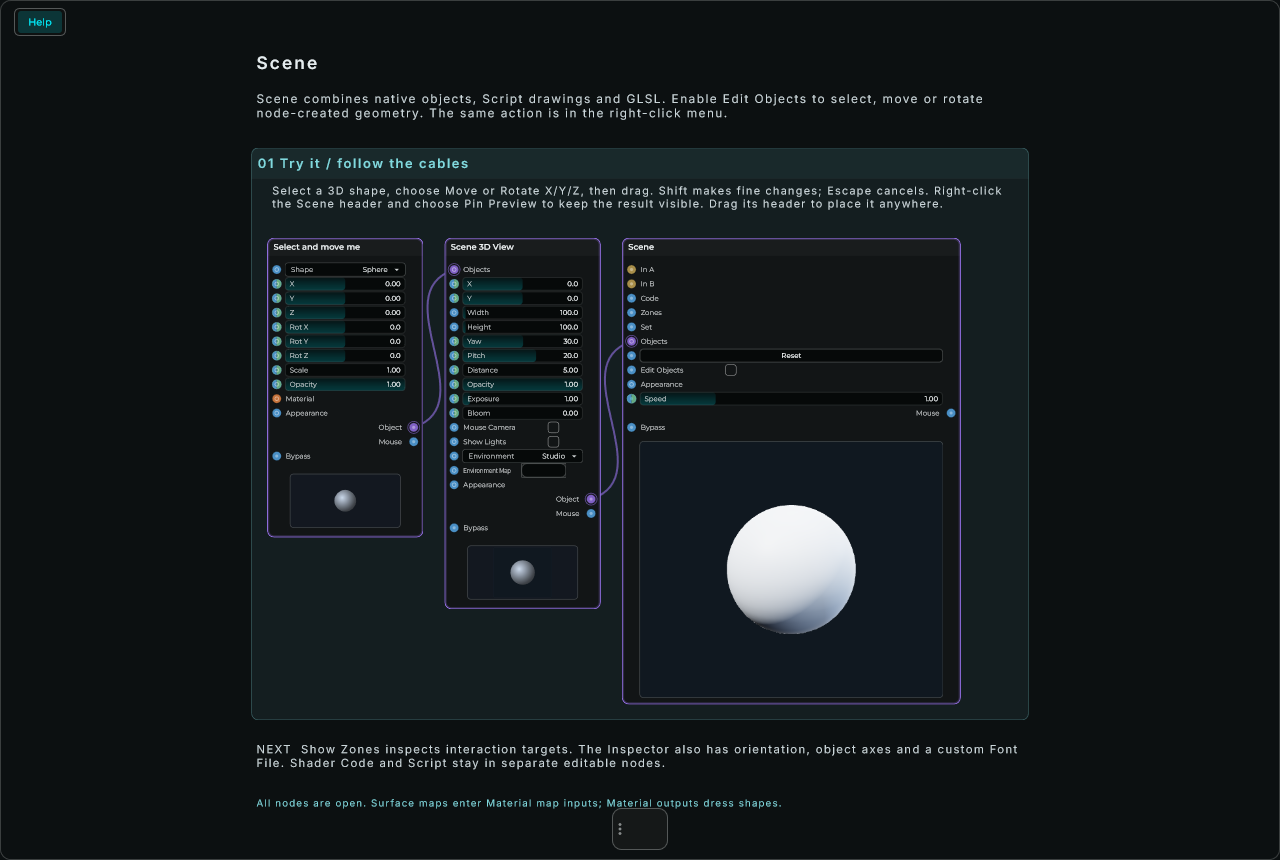
The code comes in on Code, and you write it in a Shader Code node wired into it: right-click the canvas's title and choose Edit Code to get one already wired and holding the canvas's code. Its File row follows an external GLSL file. The Shader Code checks it the way the canvas compiles it, the zones' names included, and its Variables sheet lists the canvas's own names too: each zone by its name, the text, the buffers, the keys and the images, each with a button that writes it. Scene Studio in Factory supplies these complete patches and reusable modules:
- Control Panel: three knobs, a fader, an XY pad, a power switch and three tabs, all drawn by the code, each a zone with an output.
- Starter: a knob and a button drawn plainly, the smallest canvas to start from.
- Neon Knob: one knob lit like neon, with the sound on In A pulsing round it.
- Pong: a game in one node, its state kept in Buffer A. Drag your paddle, or turn Keyboard on and use W and S or the arrows; a click or Space serves.
- Paint: draw with the mouse. The painting is kept in Buffer A, with colours and sizes to pick and a button that clears it.
- Orbit: a 3D scene worked out for every pixel, turned by dragging, with a Zoom knob.
While new code compiles, and when it has a mistake, the last picture that worked keeps running, and the mistake shows on the canvas, named at its line. New code is compiled away from the interface, the graphics driver's part included, so writing it never holds MNodes up. The canvas keeps the last code it received, so your project opens with the picture already there.
Zones, in the Inspector, says where the mouse plays: a list in JSON, one zone an object between braces. Places and sizes are shares of the canvas from its bottom left corner, 0 to 1 each way, the way MouseX and MouseY count, so a zone stays in its place whatever size the canvas has. Anything left out takes its default.
With Keyboard off, Tab and Shift+Tab move through these zones and visible Scene controls. Arrow keys change a continuous control by its Step, or by 1% when no Step is set (Shift: 0.1%); Home and End reach its limits. Space or Enter plays a button, toggle or radio. A momentary button releases when the key is released or focus leaves it. XY controls have separate X and Y focus stops. Controls expose names, roles, ranges and values to accessibility tools. Script-declared zones are included, with the canvas as their focus outline. Native Scene controls use their placed bounds, including group transforms and clipping; hidden or disconnected controls leave the focus traversal. These focus stops are disabled while editing zones or when Ignore Clicks or Keyboard is enabled; Keyboard keeps its existing shader/game input behavior.
json
[
  { "name": "Cutoff", "type": "knob", "shape": "circle", "x": 0.05, "y": 0.4, "w": 0.2, "h": 0.3, "default": 0.6 },
  { "name": "Space", "type": "xy", "x": 0.6, "y": 0.1, "w": 0.35, "h": 0.8 },
  { "name": "Sine", "type": "radio", "group": "wave", "x": 0.05, "y": 0.05, "w": 0.15, "h": 0.15, "default": 1 },
  { "name": "Saw", "type": "radio", "group": "wave", "x": 0.25, "y": 0.05, "w": 0.15, "h": 0.15 }
]| Field | Default | What it sets |
|---|---|---|
| name | Zone 1, Zone 2... | The zone's name: its output is called after it, and the code reads the zone by it. |
| type | button | knob, slider, button, toggle, radio, xy, rotate or drag, as in the next table. |
| shape | rect | rect, circle or ring: where in its box the mouse finds it. The mouse in a ring's hole reaches whatever zone lies under it. |
| x, y | 0.4 | Its bottom left corner. |
| w, h | 0.2 | Its width and height. |
| min, max | 0, 1 | What its output sends at each end. |
| default, defaultY | min | Where it starts, and where a double-click puts it back, between min and max. defaultY is the Y of an XY pad or a drag. |
| minY, maxY, scaleY | min, max, linear | An XY pad's or a drag's up and down in a range of its own, so one pad can sweep a filter's cutoff across (min to max, log) and its resonance up (minY to maxY). Left out, Y goes over the same range as X. With them, defaultY is in the Y's range and starts at minY. |
| sensitivity | 1 | How far a drag moves a knob, a rotate or a drag, and a wheel notch a knob, a slider or a rotate: 2 is twice as far, 0.5 half. |
| vertical | its longer side | A slider: true up and down, false across. |
| group | Radios: the ones of one group turn each other off. | |
| inner | 0.6 | A ring's hole, a share of its size. |
| step | The output in whole steps of this: 1 for semitones, 0.5 for halves. A knob or a slider then moves from step to step, and a wheel notch is one step. | |
| scale | linear | "log" spreads min to max along a curve, as frequencies want (both have to be above 0): the middle of 20 to 20000 is about 632. |
| unit, decimals | , 2 | How a DAW shows the value: "Hz", "dB", "%"... after it, with so many decimals. |
| tooltip | The text shown when the pointer rests on the zone. | |
| id | Keeps the zone's output, and the cables on it, when the list changes. Left out, the canvas gives the zone one and writes it into the list. |
| Type | What the mouse does |
|---|---|
| knob | Drag vertically up to turn it up; horizontal movement does not change it: about 200 points of drag take it from one end to the other. |
| slider | Follows the pointer along its length. |
| button | On while you hold it: max while held, min when let go. |
| toggle | Each click flips it between min and max. |
| radio | A click turns it on and the others of its group off. |
| xy | Follows the pointer across and up. It has two outputs, X and Y. |
| rotate | Turned round its middle, clockwise to go up, and on round like a jog wheel: past max it starts again from min. |
| drag | Moved by dragging, from where it was, across and up: a drag as long as the zone goes from one end to the other. It has two outputs, X and Y. |
Show Zones, in the menu on the canvas's title, shows the declared interaction areas and native control bounds while you keep playing. It is off by default and does not alter the project. Clicking a control or capturing Pong's keyboard no longer draws a focus border; keyboard navigation still shows which control has focus.
Edit Zones, in the same menu, lays the zones over the picture as outlines with their names, so you can place them by hand instead of writing numbers. Drag a zone to move it and its edges or corners to resize it (Shift keeps its proportions); double-click it for its settings: name, kind, shape, range, default and what only some kinds have (a slider's direction, a radio's group, a ring's hole); right-click for a new zone of any kind where you clicked, Duplicate, Bring to Front, Send to Back and Delete. Delete, the arrows (a pixel, ten with Shift) and Cmd + D (Ctrl + D) act on the zone picked, and Escape, or Edit Zones again, stops. While you edit, the mouse places zones instead of playing them; each change is one step on the undo list, and the zones keep their values, their outputs and their cables.
Shift while you drag a knob, a rotate or a drag moves it five times more finely, and a double-click puts a knob, a slider, an XY pad, a rotate or a drag back to its default. The mouse wheel over a knob, a slider or a rotate moves it; elsewhere on the canvas the wheel is the code's while it reads MouseWheel, and otherwise zooms the graph. Each zone has an output on the node, named after it (an XY pad and a drag have two, Name X and Name Y), that sends its value, from min to max, whenever the mouse moves it. The values are saved with the project and kept in a State as a knob's is; a State that moves them, when recalled, sends every zone's value out again, as if it had been played. With Expose to DAW on, each zone is also a plugin parameter your DAW can automate, named as the zone is: moving a zone moves its lane, and the lane moves the zone. A button, a toggle and a radio take only on and off from the lane (and a radio turned on turns the others of its group off), a stepped zone lands on its steps, and the DAW shows the value with the zone's unit and decimals. Grabbing a zone and letting it go is a gesture for the DAW, so its touch and latch automation modes record what you play. Over a zone the pointer says what it does (a hand on a button, arrows on a knob or a slider, a cross on an XY pad), and its tooltip shows when the pointer rests on it. A Script node can build the zones and set their values from the patch: its Zones Grid and Canvas Set examples show how. There can be up to 32 zones.
New zones can come in on the Zones input as JSON while the patch runs, so another node can build the interface: a zone that keeps its id keeps its value, its output and its cables. JSON that is half written, or not a list, leaves the zones as they were, and the canvas says why. Set moves zones from the patch without sending anything out, so a patch can feed the canvas its own values back: names and values as text (Cutoff 0.7; Drive 0.2, or one a line, an XY pad with two numbers, Space 0.3 0.8) or as JSON ({"Cutoff": 0.7, "Space": [0.3, 0.8]}), each in the zone's own range, min to max.
Objects takes what draws on the Scene: the Scene nodes, and Scripts. From a Script it also takes everything at once, from one cable: one message, an object, which is what a Script's out() sends when you give it one. It can carry any of the parts below, so a Script can hold a whole canvas in its own editor, the picture's code and the zones as well as what moves them, and send it all over one cable into Objects:
js
function onStart() {
    out(1, { zones: ZONES, code: SHADER });    // the zones and the picture, written in the Script
}

function onTick(dt) {
    out(1, { p: [x, y], set: { Glow: 0.8 } }); // P1, P2 and a zone, Tick times a second
}| Part | What it does |
|---|---|
| code | The picture's code, as Code takes it. |
| zones | The zones, a list as Zones takes it. They go in before the code, which reads their names. |
| set | Zones' values by name, as Set takes them: { "Glow": 0.8, "Space": [0.2, 0.7] }. |
| p | P1 on: a list, [0.2, 0.7] for P1 and P2, or by name, { "P3": 0.5 }. From 0 to 1, and up to P Count. |
| speed | How fast time runs, 0 to 4, as Speed. |
| reset | true starts again, as Reset. |
| labels | The Labels: a text, or a list of lines. |
| image1, image2 | Image 1 and Image 2: a file's path. |
| scene | Shapes, text and pictures to draw over the picture, as a list of steps (see below). |
A Scene 3D node (a shape, a model, a light, a sky, a fog, a camera) wired into Objects goes into a Scene 3D View put in between for you: the one already wired into that Scene (the nearest, if there are several), or a new one that fills the Scene. So a 3D world is two cables away, and its camera, light, surroundings, fog and bloom are on a node you can see and set. What is 3D and reaches the Scene another way, out of a module, is drawn in a 3D view of the Scene's own, as big as the Scene and under everything else on it.
Text that is not an object is taken as code, so out(1, SHADER) is enough to send the picture alone. Scene in Code, in the Script's Examples, is a whole Scene written this way: a ball the Script moves, a knob the Script turns, and a knob whose output, wired back into the Script, sets how fast the ball goes.
A Script wired into Objects can also draw on the Scene with no GLSL at all: canvas(n) in its code makes rectangles, circles, arcs, lines, text and pictures over the canvas's picture (or on a plain background instead of it), changes them, moves them over time and hears what the mouse does to them. The mouse goes to what the Script draws first, and to the zones under it when the Script does not want it; on a background of the Script's own, the canvas's picture and its zones are put aside. How to write it is in the Script's Drawing on a Scene, and Scene Drawing, in the Script's Examples, draws a whole interface this way. A Script wired into a Scene Group, or from inside a module, draws there too. What it draws can have shadows, soft edges, patterns and trails, and can follow In A, In B, the P controls, the clock or a zone by itself, on every frame, with no code running (Following the sound with no code). What a Script draws is its own: it is drawn again whenever its code starts, and it is not saved with the canvas. A control the Script makes with param: true becomes one of the canvas's zones, with an output here, a DAW parameter and its value saved with the canvas; it has no place of its own on the canvas and does not show in Edit Zones, since the Script's drawing is what plays it. Any other node can draw too, sending scene, a list of steps, each an object: {"scene": [{"op": "new", "id": "dot", "kind": "circle", "props": {"x": 50, "y": 50, "r": 10, "fill": "#4fd1ff"}}]} makes a circle, and "set", "del", "anim" and "clear" change it, move it over time, take it away and take everything away.
What the code can use, besides everything the Shader's code can (iResolution, iTime, iMouse, MouseX and the rest of the mouse, the sound on In A and In B in iChannel0 and iChannel1, more of it in iWave, noise in iChannel2 and iChannel3, P1 to P60):
| Name | What it holds |
|---|---|
| zoneValue(Cutoff), zoneValueY(Space) | A zone's value from 0 to 1, by its name, and the Y of an XY pad or a drag. In a name, spaces become _ (Low_Cut). A name that starts with a digit or is one of GLSL's own words cannot be used, and the zone's number, counted from 0 in the list, works instead. |
| zoneOutput(Cutoff) | The value as its output sends it, from min to max. |
| zoneHover(Cutoff), zonePressed(Cutoff) | 1 while the pointer is over the zone, and while the zone is held. |
| zoneRect, zoneCenter, zoneSize | Where the zone is, in the units fragCoord counts in: its box (left, bottom, width, height), its middle and its size. |
| zoneUV(Cutoff, fragCoord), inZone(Cutoff, fragCoord) | Where a pixel is inside the zone's box, 0 to 1 each way, and whether it is inside it. |
| zoneAngle(Cutoff) | The value as an angle in radians, a full turn (0 to 2Ï€) over the zone's range, for a rotate. |
| ZoneCount, ZoneActive, ZoneHovered | How many zones there are, the one held and the one under the pointer (-1 for none). |
| zoneName(fragCoord, Cutoff, position, size, align) | The zone's name written as text: 1 on the letters and 0 off them, smooth at their edges, to mix a colour with. position is a point on its baseline, and align says which: 0 its left end, 0.5 its middle, 1 its right end; size is how tall it is, in fragCoord's units. |
| labelText(fragCoord, line, position, size, align) | A line of Labels, the first being 0, written the same way. |
| drawNumber(fragCoord, value, decimals, position, size, align) | A number with so many decimals, written the same way: a zone's output, a score. |
| iBufferA, iBufferB | Buffer A and Buffer B. readA(fragCoord) and readB(fragCoord) read them under a pixel, readA(ivec2(0, 0)) one texel exactly, and texelAt(fragCoord) says which texel a pixel is in. |
| keyDown(KEY_LEFT), keyPressed(KEY_SPACE), keyToggled(KEY_A) | With Keyboard on: 1 while a key is held, 1 for the frame it goes down, and a switch each press flips. KEY_LEFT, KEY_RIGHT, KEY_UP, KEY_DOWN, KEY_SPACE, KEY_ENTER, KEY_ESCAPE, KEY_TAB, KEY_BACKSPACE, KEY_SHIFT, KEY_CTRL, KEY_ALT, KEY_W, KEY_A, KEY_S and KEY_D are there by name; any other key is its code, as on ShaderToy (65 is A). |
| iImage0, iImage1 | Image 1 and Image 2, the right way up at texture(iImage0, fragCoord / iResolution.xy). |
Code split by #pass A, #pass B and #pass Image lines draws Buffer A first, then Buffer B, then the picture. Each buffer is a picture the size of the canvas that keeps what was written into it the frame before, so a pass can read its own last frame: that is how a canvas remembers a game's score, a trail or a painting. The buffers hold numbers outside 0 to 1 too, for places, speeds and counts. What comes before the first #pass line is shared by all of them, and PASS_A, PASS_B and PASS_IMAGE say which pass the shared code is in. Code with no #pass line is the picture alone; with buffers and no #pass Image, the picture shows Buffer A. With Keyboard on, a click on the canvas gives it the keys until you click somewhere else or press Esc: the code reads them, and MNodes' own shortcuts wait.
| Parameter | Range | Default | Description |
|---|---|---|---|
| Reset | button | Starts again: iTime and iFrame back to 0, and the buffers emptied. | |
| P Count | 0 to 60 | 8 | In the Inspector, at the top of Controls. How many P the canvas has, each a row on the node and an input. |
| Speed | 0 to 4 | 1 | How fast time runs for the code. 0 freezes iTime. |
| P1 to P60 | 0 to 1 | 0 | Numbers the code reads by these names, as many as P Count says. A CV can take them past this range. |
| Code | text | none | The retained source received on Code. Edit it in a separate Shader Code node or external file. With none, the Scene is its Background with what is wired into Objects drawn on it. |
| Zones | JSON | none | Where the mouse plays, as above. |
| Labels | text | none | Lines of text the code writes with labelText, one a line, up to 16. |
| Image 1, Image 2 | file | Pictures from files (PNG, JPEG, GIF or BMP), iImage0 and iImage1 in the code. | |
| Font Family | Montserrat / Inter / Poppins / JetBrains Mono / Orbit | Montserrat | In the Inspector, under Canvas. The font of all the Scene's text: its Scene Text objects, its controls' labels, and what the code writes with labelText, zoneName and drawNumber. These are the fonts that come with MNodes, so the panel looks the same on any computer. |
| Font File | file | none | In the Inspector, under Canvas. A TTF or OTF file used instead of Font Family. |
| Resolution | Full / Half / Quarter | Full | How many pixels it works out. Half and Quarter are softer but much lighter on the graphics card. |
| Frame Rate | 30 / 60 fps | 60 | At most how many pictures a second, for a canvas that moves on its own. |
| Transparent | on / off | off | On uses the alpha the code writes, so the front panel shows through. |
| Background | colour | dark grey | In the Inspector: what the Scene is drawn on when it has no code. A Script's own background wins; with Transparent on, its alpha lets the front panel through. |
| Keyboard | on / off | off | On, a click gives the shader/game its keys. Off, Tab visits canvas controls; their adjustment keys work while focused and other keys remain available to MNodes. |
| Zone Inputs | on / off | off | On, every zone has an input too, on its own row, as a Knob has In: a number moves the zone, in its own range, and goes on out of its output; an Event sends the value it holds again. |
| Expose to DAW | on / off | off | In the Inspector, under DAW. Hands every zone to your DAW as a plugin parameter, to automate or map like any knob: one each, two for an XY pad or a drag (X and Y), named after the node and the zone, in the order of the zones' ids. They take slots next to each other among the 128 MNodes offers the host; changing the zones deals them again, and switching it off gives them back. |
| Ignore Clicks | on / off | off | In the Inspector, under Appearance. On, the canvas leaves the mouse alone: the zones and the code get nothing, and on the front panel the click goes through to whatever sits under the canvas. |
An unchanged canvas reuses its rendered picture: it is drawn again only when something its code reads changes (a zone, the mouse, a P); one with buffers, or that reads the time or the sound, draws every frame while it can be seen. The picture keeps its look at any zoom: the code measures everything against the canvas's own size, and the picture has as many pixels as the screen where it sits, up to 4096 a side (1024 where the graphics card cannot hand its picture straight to the screen). Dragging on the canvas plays its zones and moves iMouse, so the node is moved by its title, and Restart, in the menu on its title, starts it again as Reset does and puts MouseWheel and iDrag back to 0. The Scene can be placed on the front panel, and it goes with a plugin made with Export. On the front panel the canvas takes the widget's shape, and the node in the graph shows that same picture: it is worked out once for both, and a click on either lands on the same spot.
Inputs: In A and In B (audio); Objects, what draws on it (Scene nodes, Scripts); Code, the code as text; Zones, the zones as JSON; Set, zones' values by name; Reset, which starts it again on any message; Appearance, an Appearance Changer's text, which changes its Visible and its Background; and Speed and P1 to P8 (up to P60 with P Count), each accepting a value or a CV signal.
Outputs: Mouse, everything the mouse does on the canvas, one message each time something happens, for a Mouse Actions node; and one for each zone (two for an XY pad or a drag), sending its value whenever it moves.
Copy as Script, in the right-click menu of a Scene node (or of the Scene itself), puts on the clipboard what it draws (with what is wired into it) as a Script's code: scene(1) and a line an object, with the values as they are, to paste into a Script and carry on from there.
To draw on the Scene with no code at all, wire the Scene nodes into Objects: Scene Rectangle, Scene Circle, Scene Line, Scene Arc, Scene Text, Scene Polygon, Scene Path, Scene Wave, Scene Image, Scene Object (any of them, its properties as JSON) and Scene Group. The controls are nodes too, played on the canvas: Scene Knob, Scene Slider, Scene Button, Scene Toggle, Scene Menu and Scene XY Pad. And a 3D world: Scene 3D View, with Scene 3D Camera, Scene 3D Shape, Scene 3D Model, Scene 3D Material, Scene 3D Light, Scene 3D Sky, Scene 3D Fog, Scene 3D Group, Scene 3D Clones, Scene 3D Join, Scene 3D Subdivide, Scene 3D Displace and Scene 3D Particles in it; Scene 3D Body, Scene 3D Physics and Scene 3D Joint to make it fall, collide, bounce and swing; and Scene 3D Sound, Scene 3D Listener and Scene 3D Reverb Zone for how it sounds.
Scene Group
Holds other drawings on a Scene and moves them together. What is wired into its Objects input (Scene nodes, a Script's canvas output, other groups) is drawn inside it, on every canvas its own Object output reaches: their places count from the group's X and Y, and the group's Rotation, Scale and Opacity reach all of them. With a Trail, everything in it leaves a trail as it moves.
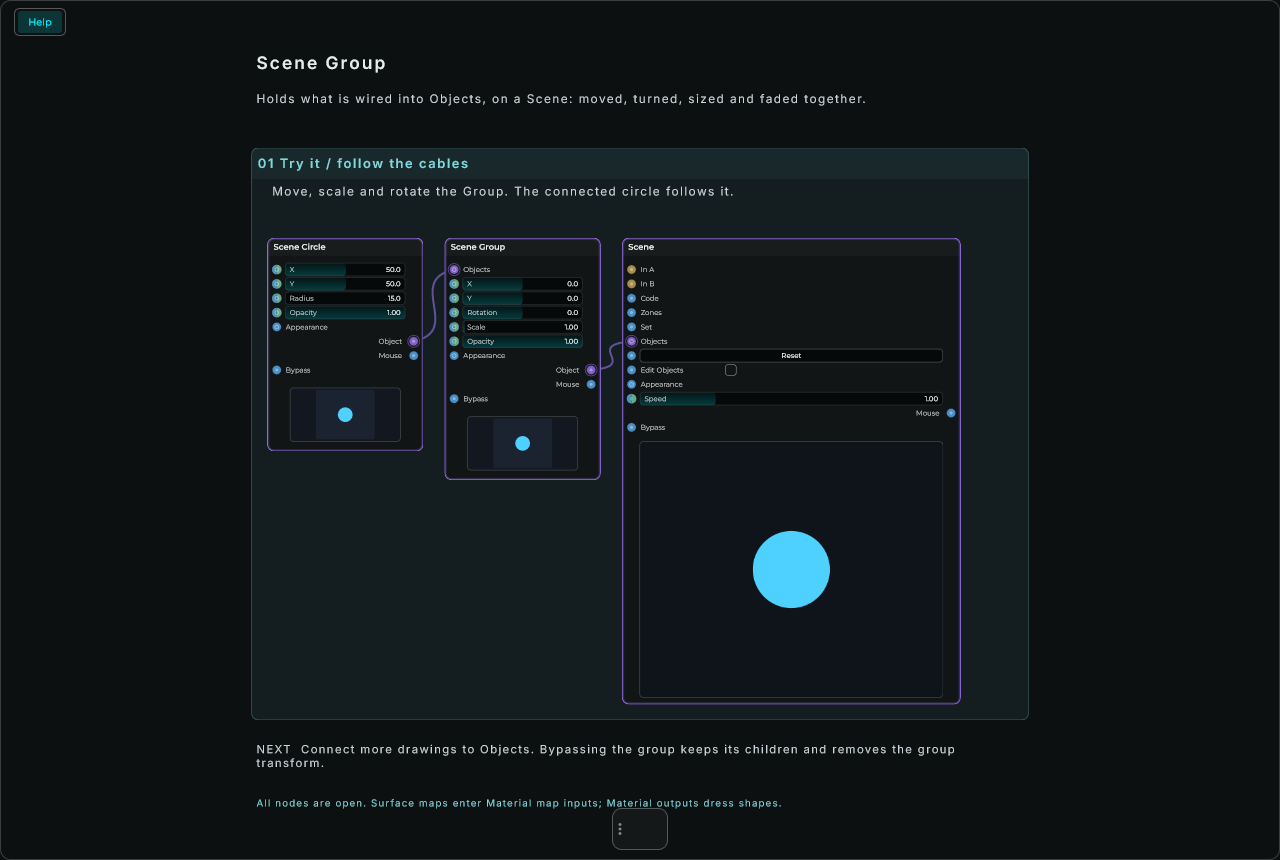
A module holding a group and what it holds, with the rows you want to reach from outside as the module's inputs and the group's Object as its output, is a component: a knob or a meter of your own, to save in the Library and use again in any patch. Scene nodes work inside modules, and through their ports, as they do outside them.
| Parameter | Range | Default | Description |
|---|---|---|---|
| Units | Pixels / Percent | Percent | In the Inspector: X and Y as a share of the canvas (Percent), or in pixels. |
| X, Y | -4000 to 4000 | 0, 0 | Where what it holds counts from. |
| Rotation | -360 to 360 | 0 | Turned round its X, Y, in degrees, clockwise. |
| Scale | 0 to 50 | 1 | How big what it holds is: 2 twice as big. |
| Opacity | 0 to 1 | 1 | For everything in it. |
| Trail | 0 to 10 s | 0 | In the Inspector: where what it holds has been stays behind and fades over so many seconds. |
Inputs: Objects, for the drawings it holds; X, Y, Rotation, Scale and Opacity, each accepting a value or a CV signal.
Outputs: Object; Mouse, what the mouse does on anything in it, for a Mouse Actions node.
Scene Rectangle
A rectangle on a Scene, with no code. Wire its Object output into the Scene's Objects input and it is drawn there, over the canvas's picture. Each row on the node, X, Y, Width, Height, Rotation and Opacity, takes a value or a CV cable on its input: a value sets it, and a CV cable moves it smoothly, followed by the canvas on every frame, so an LFO wired into X slides the rectangle across. Put it in a Scene Group to move it with other shapes.
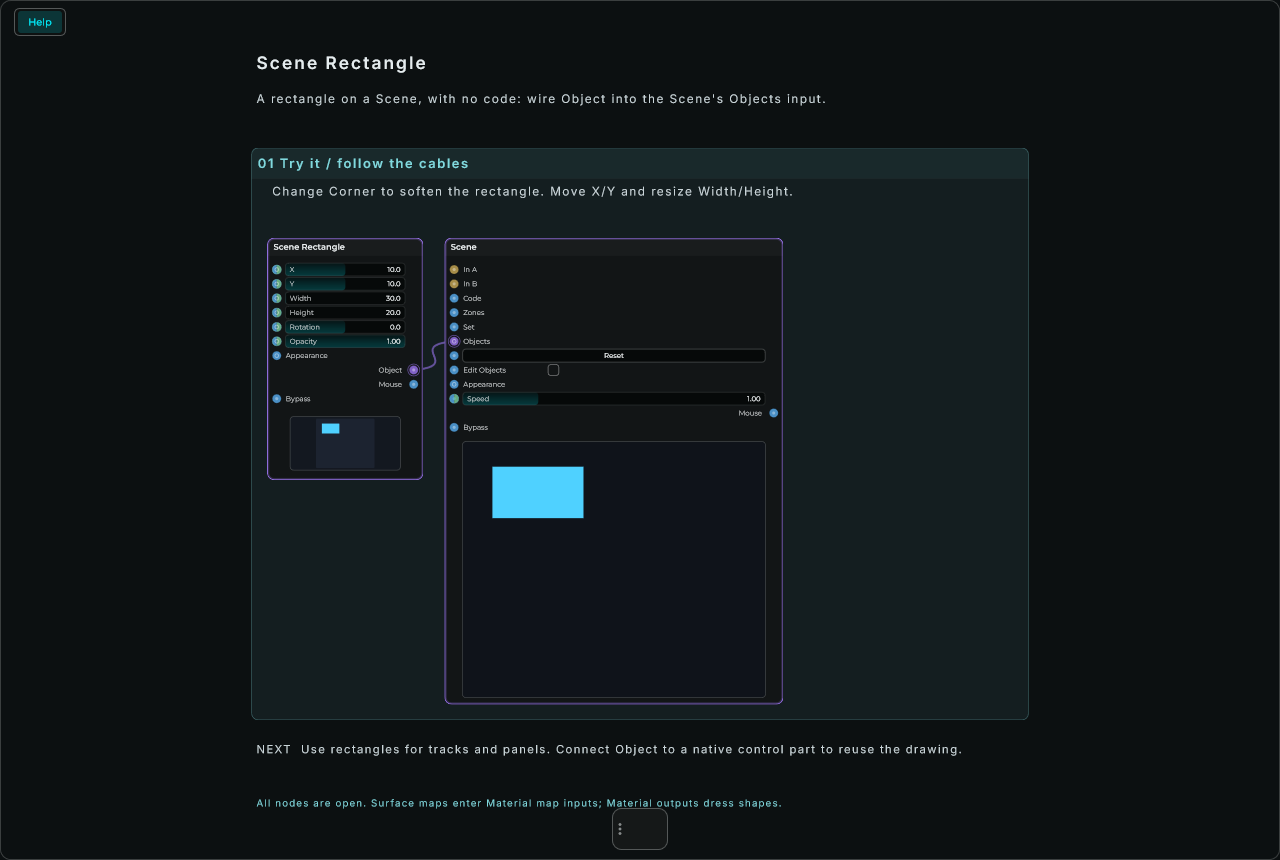
Places and sizes are shares of the Scene, counted from its top left corner: X 10 and Width 80 put the rectangle across the middle eight tenths of it, whatever size it is, in the graph and on the Front Panel at once, each at its own size. With Units on Pixels, in the Inspector, they are in the Scene's own units instead (its size, or the size a Script gave it), as in projects made before Units was there. Every Scene node that draws on the canvas's face has Units (a 3D world's are its own units); switching it keeps the object where it is. In Percent, places and sizes show two decimals, and a fine drag (Ctrl, Cmd on a Mac) moves them by hundredths. One Scene node can be wired into several Scenes, and draws on each.
| Parameter | Range | Default | Description |
|---|---|---|---|
| Units | Pixels / Percent | Percent | In the Inspector: X, Y, Width and Height as a share of the canvas (Percent), or in pixels: 50 is half of it. |
| X, Y | -4000 to 4000 | 10, 10 | Its top left corner. |
| Width, Height | 0 to 4000 | 30, 20 | Its size. |
| Rotation | -360 to 360 | 0 | Turned round its middle, in degrees, clockwise. |
| Opacity | 0 to 1 | 1 | 0 is not seen. |
| Corner | 0 to 2000 | 0 | In the Inspector: how round its corners are. |
| Colour | colour | light blue | In the Inspector, under Appearance: its colour. Fully clear for none. |
| Outline, Outline Width | colour, 0 to 100 | none, 0 | Its outline and how thick. |
| Glow, Glow Colour | 0 to 200, colour | 0, white | A soft light round it, so many units wide. |
| Shadow, Shadow X, Shadow Y, Shadow Blur | colour, -200 to 200, -200 to 200, 0 to 200 | none, 0, 4, 12 | A drop shadow under it, moved and softened. |
| Blur | 0 to 200 | 0 | Softens its edges. |
| Blend | Normal / Add | Normal | Add adds its light to what is under it. |
| Trail | 0 to 10 s | 0 | Where it has been stays behind it and fades over so many seconds. |
Inputs: X, Y, Width, Height, Rotation and Opacity, each accepting a value or a CV signal.
Outputs: Object, wired into a Scene's Objects input, a Scene Group's Objects, or a module's output; Mouse, what the mouse does on it, for a Mouse Actions node.
Scene Circle
A circle on a Scene, with no code, the way Scene Rectangle draws a rectangle: wire Object into the Scene's Objects input. X and Y are its middle, and Radius how far its edge is from it; each row takes a value or a CV cable.
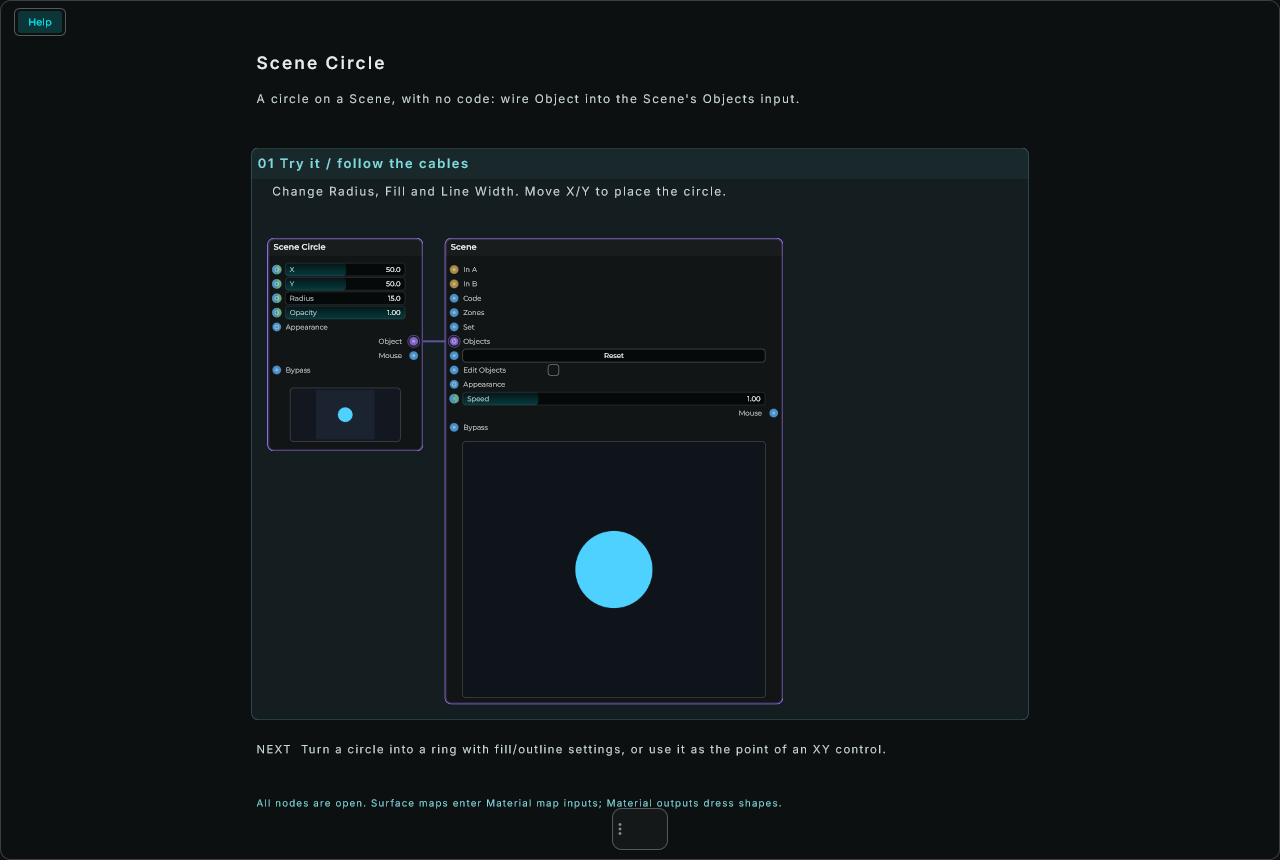
| Parameter | Range | Default | Description |
|---|---|---|---|
| Units | Pixels / Percent | Percent | In the Inspector: its place and Radius as a share of the canvas (Percent), or in pixels (Radius of its smaller side). |
| X, Y | -4000 to 4000 | 50, 50 | Its middle. |
| Radius | 0 to 4000 | 15 | Its size. |
| Opacity | 0 to 1 | 1 | 0 is not seen. |
Its colour, outline, glow, shadow, blur, blend and trail are in the Inspector, as the Scene Rectangle's.
Inputs: X, Y, Radius and Opacity, each accepting a value or a CV signal.
Outputs: Object; Mouse, what the mouse does on it, for a Mouse Actions node.
Scene Line
A straight line on a Scene, from X1, Y1 to X2, Y2, with no code: wire Object into the Scene's Objects input. Each row takes a value or a CV cable.
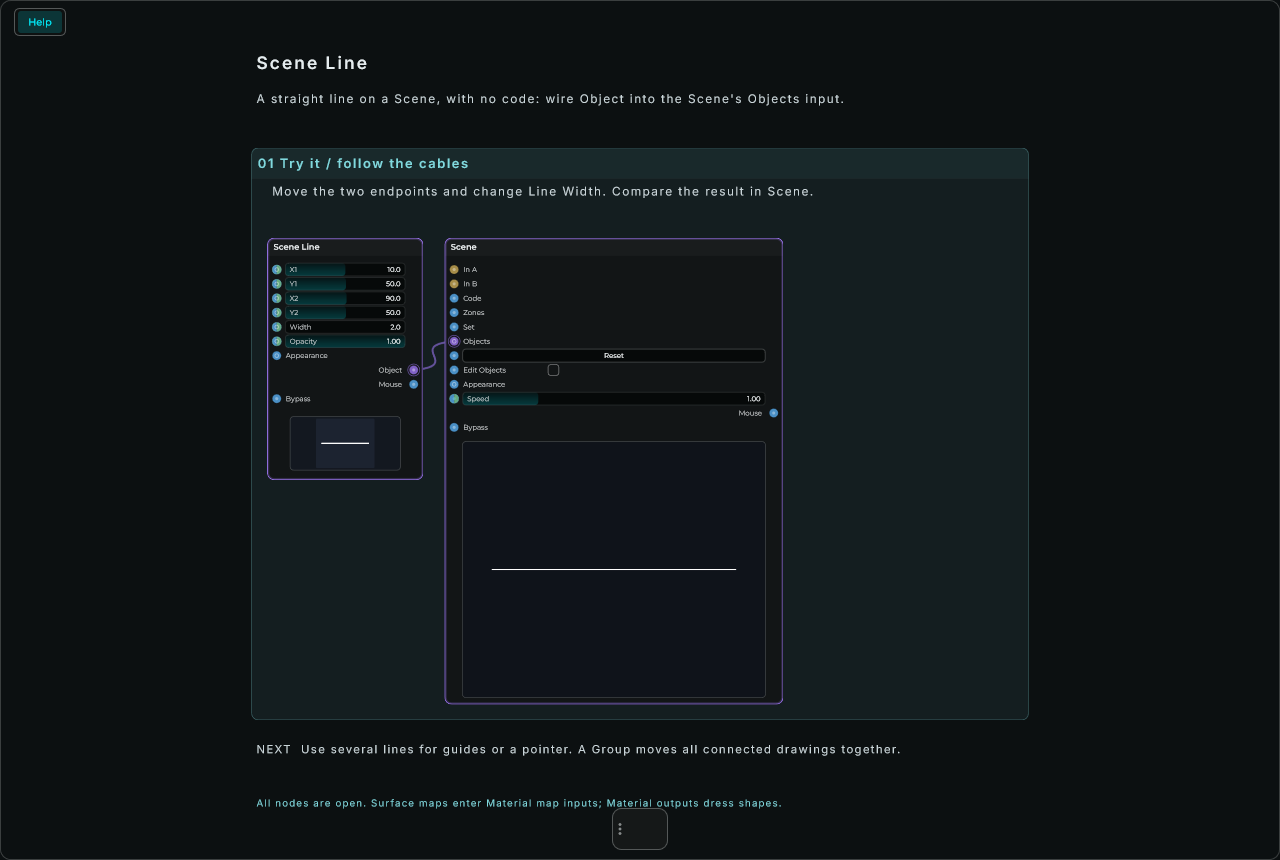
| Parameter | Range | Default | Description |
|---|---|---|---|
| Units | Pixels / Percent | Percent | In the Inspector: its place and size as a share of the canvas (Percent), or in pixels, so it follows the canvas's size. |
| X1, Y1 | -4000 to 4000 | 10, 50 | Where it starts. |
| X2, Y2 | -4000 to 4000 | 90, 50 | Where it ends. |
| Width | 0 to 400 | 2 | How thick it is. |
| Opacity | 0 to 1 | 1 | 0 is not seen. |
| Ends | Round / Butt / Square | Round | In the Inspector: round ends, cut square at its ends, or square past them. |
Its colour, glow, shadow, blur, blend and trail are in the Inspector, as the Scene Rectangle's.
Inputs: X1, Y1, X2, Y2, Width and Opacity, each accepting a value or a CV signal.
Outputs: Object; Mouse, what the mouse does on it, for a Mouse Actions node.
Scene Arc
Part of a ring on a Scene, drawn from Start round to End as far as its Value says: 0 draws nothing and 1 all the way. It is the arc of a knob or a round meter, with no code: wire a knob, a level or an envelope into Value and it shows it. Wire Object into the Scene's Objects input.
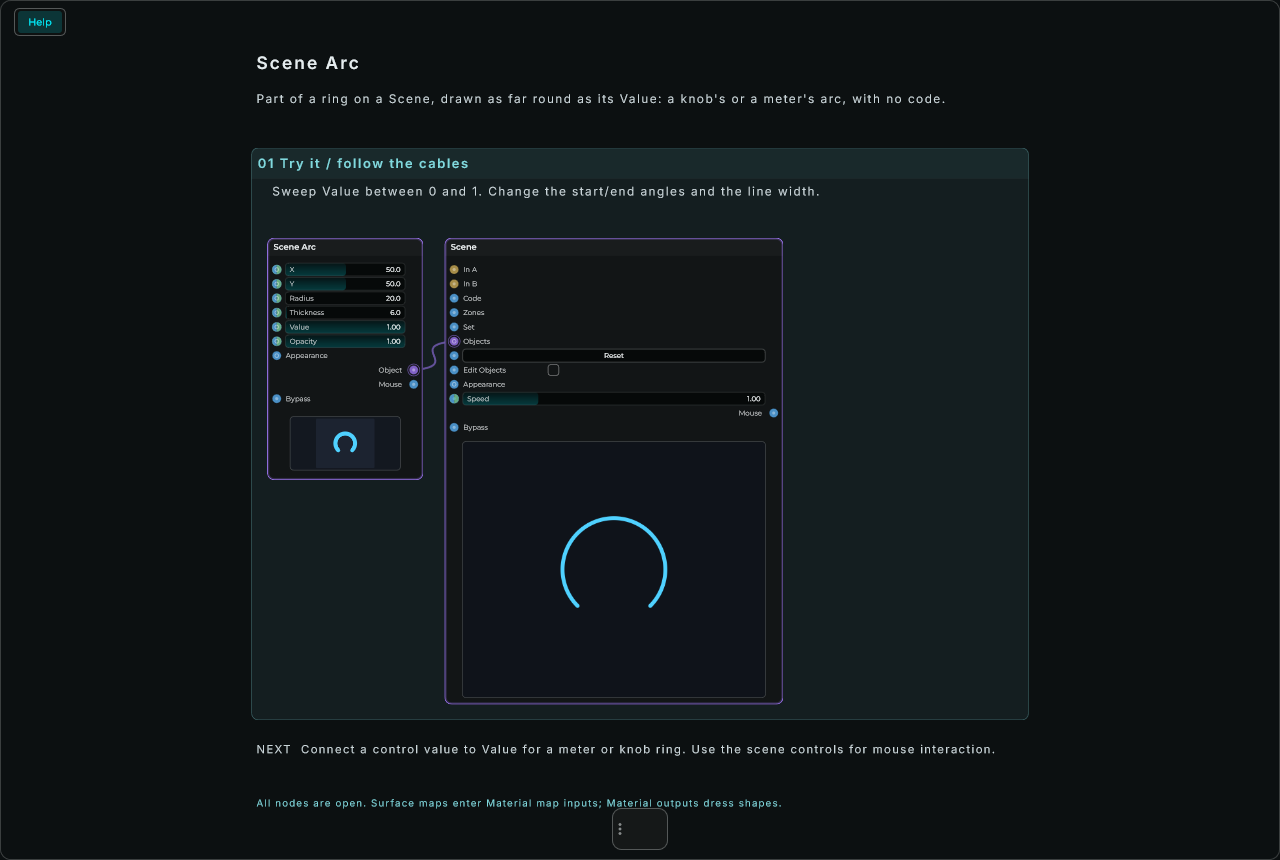
| Parameter | Range | Default | Description |
|---|---|---|---|
| Units | Pixels / Percent | Percent | In the Inspector: its place and Radius as a share of the canvas (Percent), or in pixels (Radius of its smaller side). |
| X, Y | -4000 to 4000 | 50, 50 | Its middle. |
| Radius | 0 to 4000 | 20 | How far the ring is from its middle. |
| Thickness | 0 to 400 | 6 | How thick the ring is. |
| Value | 0 to 1 | 1 | How far round it is drawn, from Start to End. |
| Opacity | 0 to 1 | 1 | 0 is not seen. |
| Start, End | -360 to 360 | -135, 135 | In the Inspector: where it starts and where it ends at Value 1, in degrees from the top, clockwise. |
| Ends | Round / Butt / Square | Round | In the Inspector: its ends. |
Its colour, glow, shadow, blur, blend and trail are in the Inspector, as the Scene Rectangle's.
Inputs: X, Y, Radius, Thickness, Value and Opacity, each accepting a value or a CV signal.
Outputs: Object; Mouse, what the mouse does on it, for a Mouse Actions node.
Scene Polygon
A regular polygon, or a star, on a Scene, with no code, the way Scene Rectangle draws a rectangle: wire Object into the Scene's Objects input. Its first corner is at the top. Sides takes a value or a CV cable like the other rows, a whole side at a time, so an LFO wired into it makes the shape change as it turns.
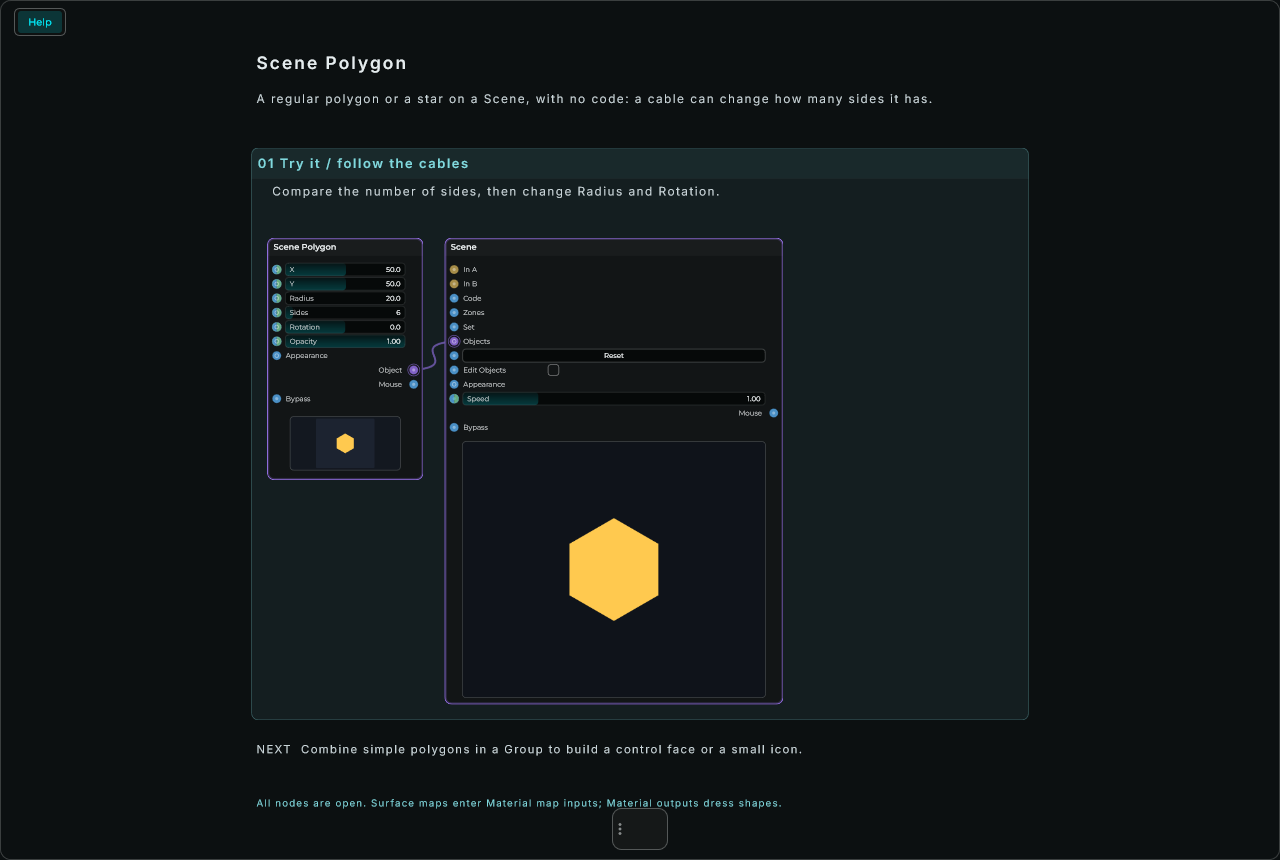
| Parameter | Range | Default | Description |
|---|---|---|---|
| Units | Pixels / Percent | Percent | In the Inspector: its place and Radius as a share of the canvas (Percent), or in pixels (Radius of its smaller side). |
| X, Y | -4000 to 4000 | 50, 50 | Its middle. |
| Radius | 0 to 4000 | 20 | How far its corners are from its middle. |
| Sides | 2 to 64 | 6 | How many sides it has (3 at least), or a star's points. |
| Rotation | -360 to 360 | 0 | Turned round its middle, in degrees, clockwise. |
| Opacity | 0 to 1 | 1 | 0 is not seen. |
| Star | on or off | off | In the Inspector: a star instead of a polygon. |
| Inner | 0 to 1 | 0.5 | In the Inspector: how far a star's inner corners are from its middle, a share of Radius. |
Its colour, outline, glow, shadow, blur, blend and trail are in the Inspector, as the Scene Rectangle's.
Inputs: X, Y, Radius, Sides, Rotation and Opacity, each accepting a value or a CV signal.
Outputs: Object; Mouse, what the mouse does on it, for a Mouse Actions node.
Scene Path
Any outline on a Scene, with no code: an icon, a logo, a curve of your own. Write it in its Path row the way SVG writes a path's d, or paste one from a drawing program, and it is filled inside and outlined along it, smooth at any size. M x y moves the pen there, L x y draws a straight line, H and V go straight across and down, C and Q draw curves, A an arc and Z closes the outline; a small letter counts from the last place. Where outlines overlap, the inside of the inner one is left empty, as the hole in an "O". Wire Object into the Scene's Objects input.
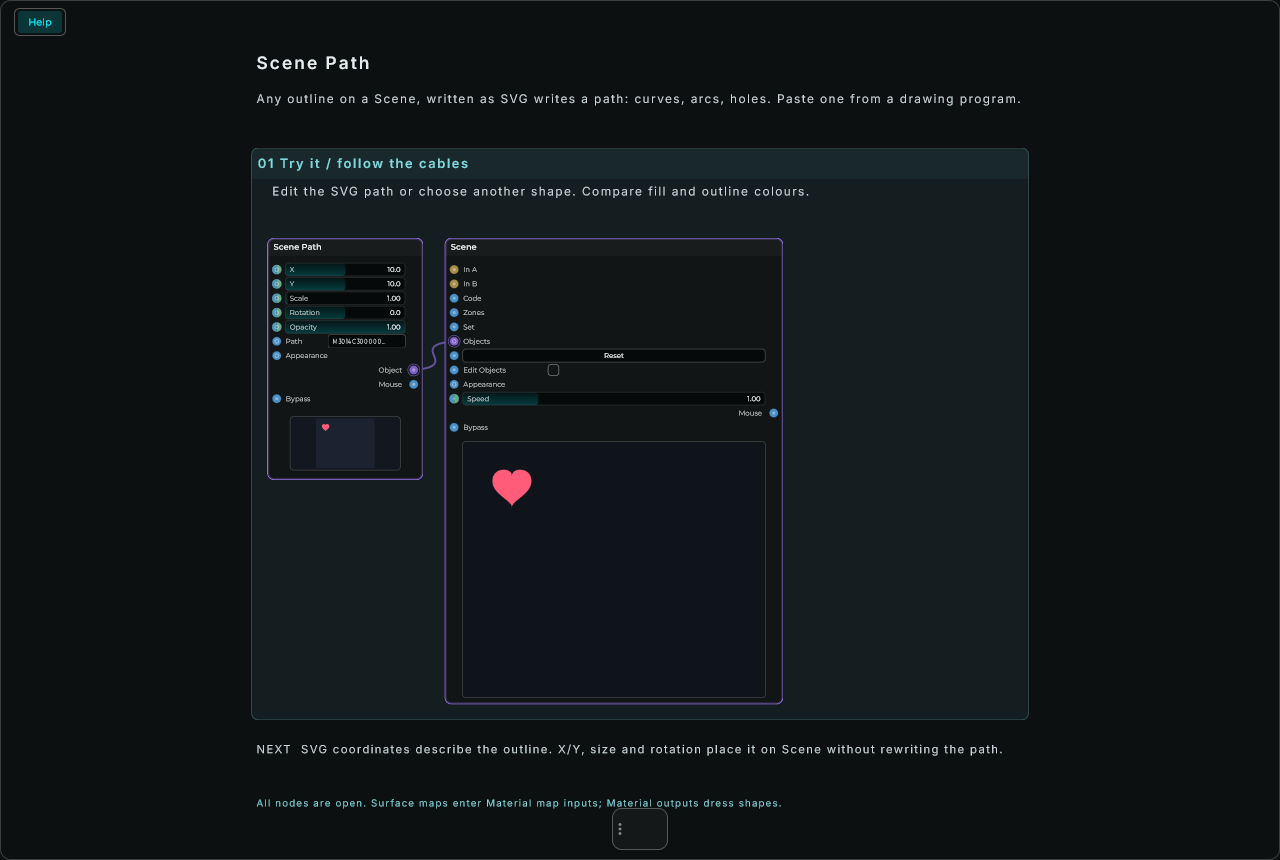
| Parameter | Range | Default | Description |
|---|---|---|---|
| Units | Pixels / Percent | Percent | In the Inspector: its place as a share of the canvas (Percent), or in pixels. Its outline stays in canvas units. |
| X, Y | -4000 to 4000 | 10, 10 | Where the path's own 0, 0 lands on the canvas. |
| Scale | 0 to 50 | 1 | How big it is drawn, round its middle: 2 twice as big. |
| Rotation | -360 to 360 | 0 | Turned round its middle, in degrees, clockwise. |
| Opacity | 0 to 1 | 1 | 0 is not seen. |
| Path | text | a heart | The outline. A text wired in replaces it. |
Its colour, outline, glow, shadow, blur, blend and trail are in the Inspector, as the Scene Rectangle's. With its colour fully clear, only its outline is drawn.
Inputs: X, Y, Scale, Rotation and Opacity, each accepting a value or a CV signal; Path, a text.
Outputs: Object; Mouse, what the mouse does on it, for a Mouse Actions node.
Scene Text
Text on a Scene: a title, a label, or a value shown as it changes. Type it in its Text row, or wire a text or a number into it: a number shows with as many decimals as Decimals says. A backslash and an n (\n) typed in the text start a new line. Wire Object into the Scene's Objects input.
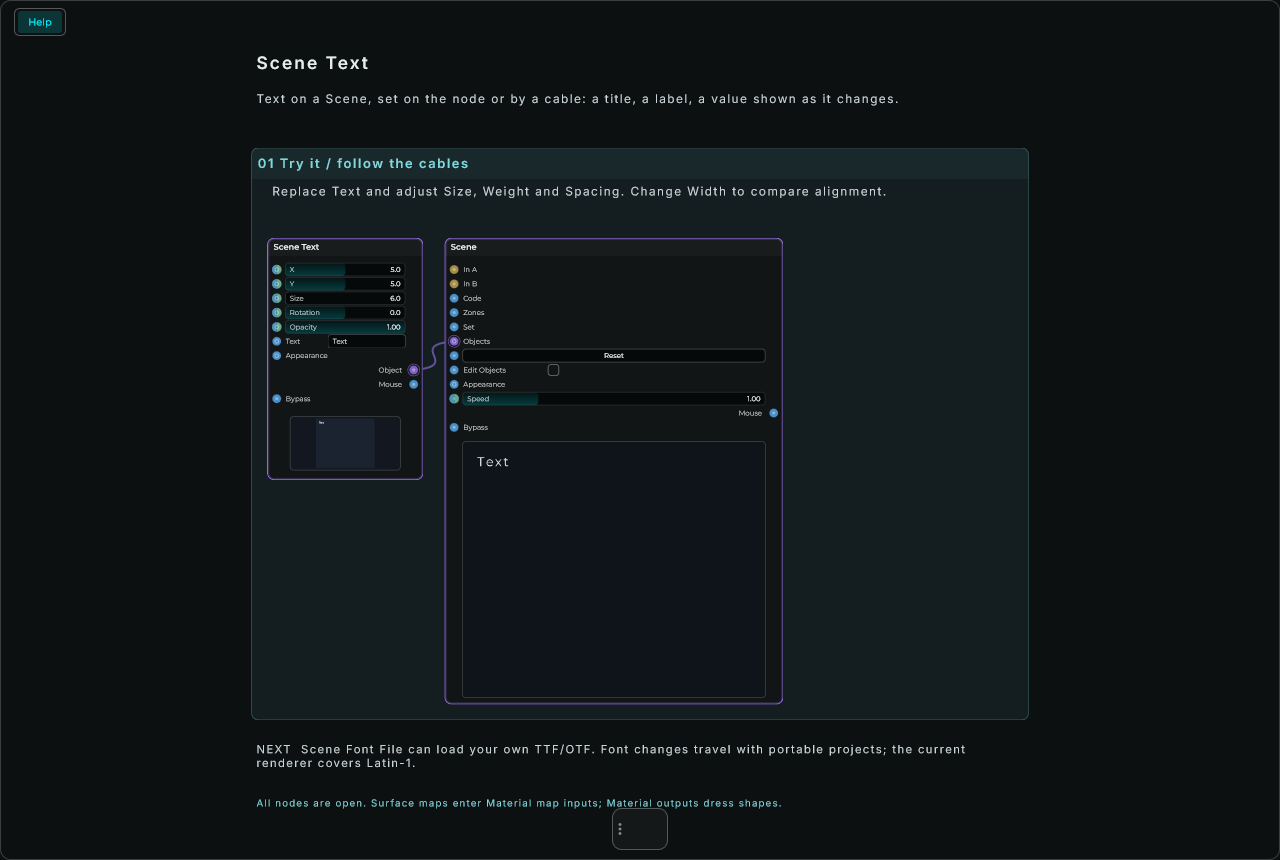
| Parameter | Range | Default | Description |
|---|---|---|---|
| Units | Pixels / Percent | Percent | In the Inspector: its place and Size as a share of the canvas (Percent), or in pixels (Size of its height). |
| X, Y | -4000 to 4000 | 5, 5 | Where it is (see Align and Baseline). |
| Size | 0.1 to 1000 | 6 | How big its letters are. |
| Rotation | -360 to 360 | 0 | Turned round its middle, in degrees, clockwise: -90 reads upwards. |
| Opacity | 0 to 1 | 1 | 0 is not seen. |
| Text | text | Text | What it shows. |
| Align | Left / Centre / Right | Left | In the Inspector: whether X is where the text starts, its middle or where it ends. |
| Baseline | Top / Middle / Bottom | Top | In the Inspector: whether Y is the top of the text, its middle or its bottom. |
| Decimals | 0 to 6 | 2 | In the Inspector: the decimals a number wired into Text shows. |
Its colour, glow, shadow, blur, blend and trail are in the Inspector, as the Scene Rectangle's.
Inputs: X, Y, Size, Rotation and Opacity, each accepting a value or a CV signal; Text, a text or a number; Appearance, an Appearance Changer's text.
Outputs: Object; Mouse, what the mouse does on it, for a Mouse Actions node.
Scene Image
A picture on a Scene, with no code: a file of your own, chosen on its File row (the folder button, or drop a file on it), or the Scene's own Image 1 or Image 2. The file goes with the project when you collect it to share. Wire Object into the Scene's Objects input.
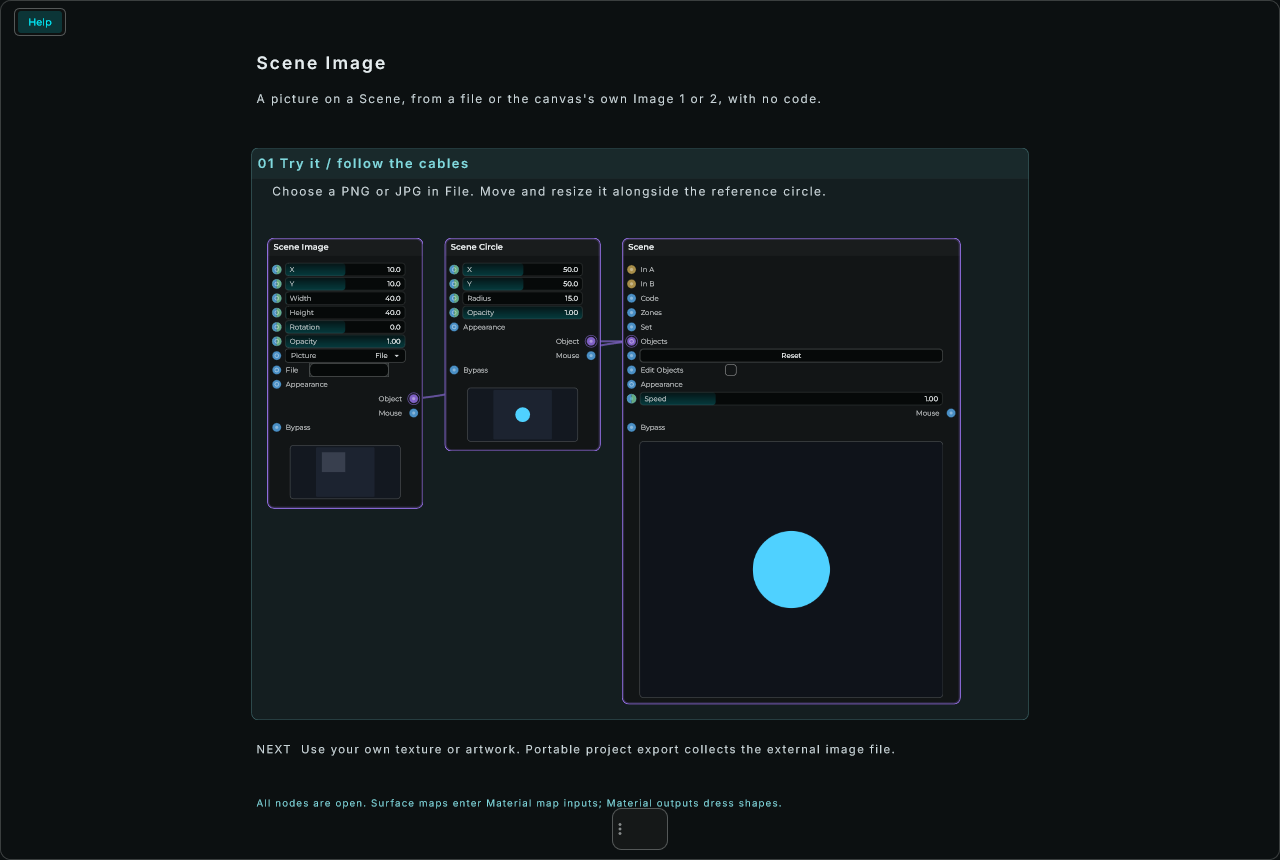
| Parameter | Range | Default | Description |
|---|---|---|---|
| Units | Pixels / Percent | Percent | In the Inspector: its place and size as a share of the canvas (Percent), or in pixels, so it follows the canvas's size. |
| X, Y | -4000 to 4000 | 10, 10 | Its top left corner. |
| Width, Height | 0 to 4000 | 40, 40 | Its box. |
| Rotation | -360 to 360 | 0 | Turned round its middle, in degrees, clockwise. |
| Opacity | 0 to 1 | 1 | 0 is not seen. |
| Picture | File / Scene Image 1 / Scene Image 2 | File | On its row: where the picture comes from. Its input takes its number, its name, image1 or image2, or a file's whole path. |
| File | a file | none | On its row, shown with Picture on File: the picture file (PNG, JPEG, GIF). The folder button chooses one, or drop one on it; its input takes a file's whole path, and a file chosen sets Picture to File. |
| Fit | Stretch / Contain / Cover | Contain | In the Inspector: stretched to its box, all of it inside the box, or the whole box covered and what does not fit cut away. |
| Corner | 0 to 2000 | 0 | In the Inspector: how round its corners are. |
| Tint | colour | white | In the Inspector: its colours are multiplied by this. White shows it as it is. |
Its glow, shadow, blur, blend and trail are in the Inspector, as the Scene Rectangle's.
Inputs: X, Y, Width, Height, Rotation and Opacity, each accepting a value or a CV signal; Picture and File, as above; Appearance, an Appearance Changer's text.
Outputs: Object; Mouse, what the mouse does on it, for a Mouse Actions node.
Scene Wave
A sound drawn as it plays: its waveform, or its spectrum from the lows on the left to the highs on the right. Wire the sound into its own In (an oscillator, a voice, a track), and its Object into the Scene's Objects input. With nothing on its In, it shows the Scene's own In A (or In B). It is read on the graphics card on every frame, so it costs about what a rectangle does, and several Waves can each show a sound of their own.
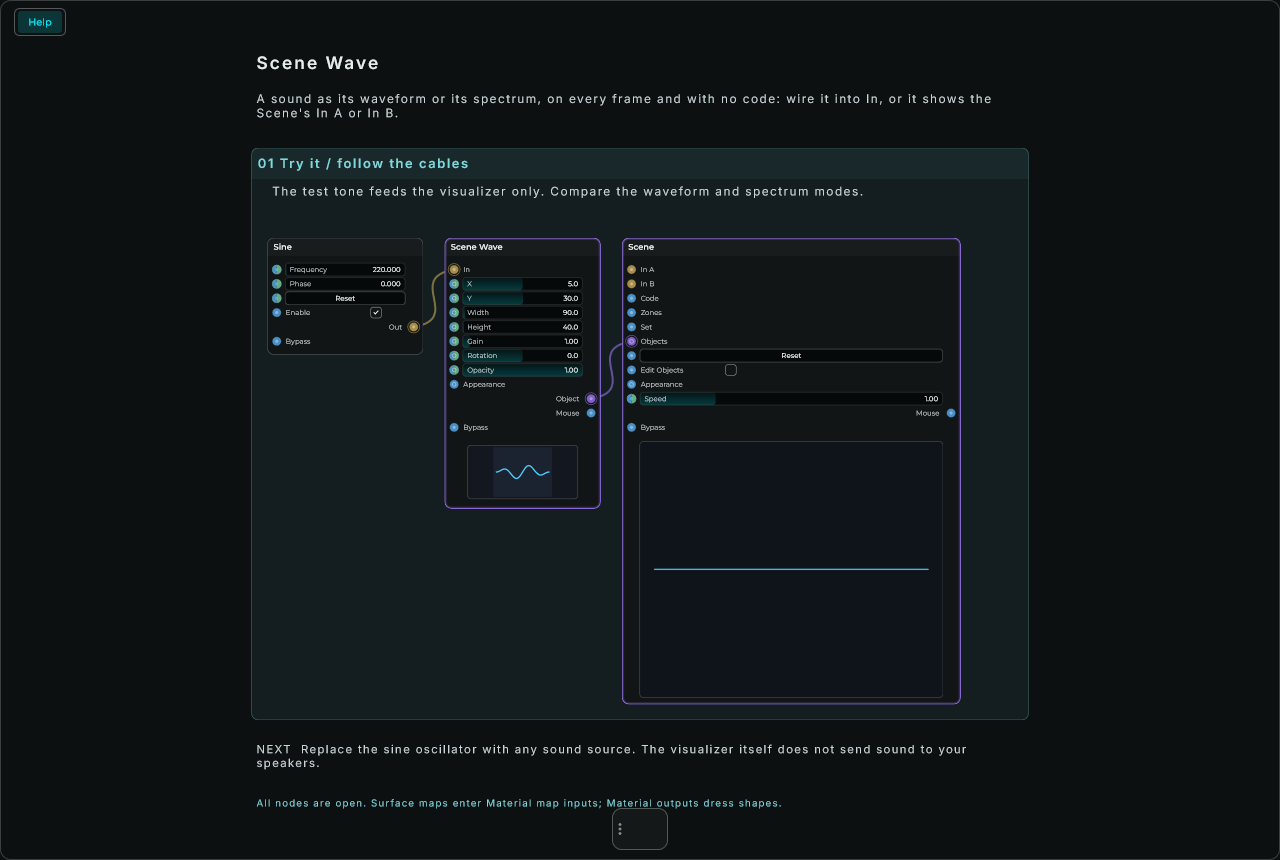
| Parameter | Range | Default | Description |
|---|---|---|---|
| Units | Pixels / Percent | Percent | In the Inspector: its place and size as a share of the canvas (Percent), or in pixels, so it follows the canvas's size. |
| X, Y | -4000 to 4000 | 5, 30 | Its top left corner. |
| Width, Height | 0 to 4000 | 90, 40 | Its box. |
| Gain | 0 to 16 | 1 | How big the sound is drawn: 2 twice as big. |
| Rotation | -360 to 360 | 0 | Turned round its middle, in degrees, clockwise: 90 stands it up. |
| Opacity | 0 to 1 | 1 | 0 is not seen. |
| Sound | In A / In B | In A | In the Inspector: with nothing on its own In, which of the Scene's sound inputs it shows. |
| Shows | Waveform / Spectrum | Waveform | In the Inspector: the sound as it moves, or how loud it is at each frequency. |
| Style | Line / Fill / Bars / Mirror | Line | In the Inspector: a line through it, filled under it (a waveform: between it and the middle), bars, or as much above the middle as below. |
| Bars | 1 to 256 | 32 | In the Inspector: how many bars, with Style on Bars. |
| Octaves | on or off | on | In the Inspector: a spectrum with every octave as wide as the next, as ears hear it. Off spreads the frequencies evenly. |
| Line Width | 0 to 100 | 2 | In the Inspector: how thick the line is, with Style on Line. |
Its colour, glow, shadow, blur, blend and trail are in the Inspector, as the Scene Rectangle's.
Inputs: In (audio), the sound it shows; X, Y, Width, Height, Gain, Rotation and Opacity, each accepting a value or a CV signal; Appearance, an Appearance Changer's text.
Outputs: Object; Mouse, what the mouse does on it, for a Mouse Actions node.
Scene Object
Any object a Scene can show, with no code: choose its Kind, write its properties in Props as JSON, and let rows A to D drive any of its numbers. It is how to reach everything the canvas can do from the patch: a path with a gradient, a text that shows the level, a star with a glow and a trail, a sphere or a model in a Scene 3D View (wire the 3D kinds into its Objects). The properties are those a Script's canvas objects take, bindings to the sound included, and a text wired into Props changes them as the patch plays. What the mouse does to it goes out, so anything drawn can be a button.
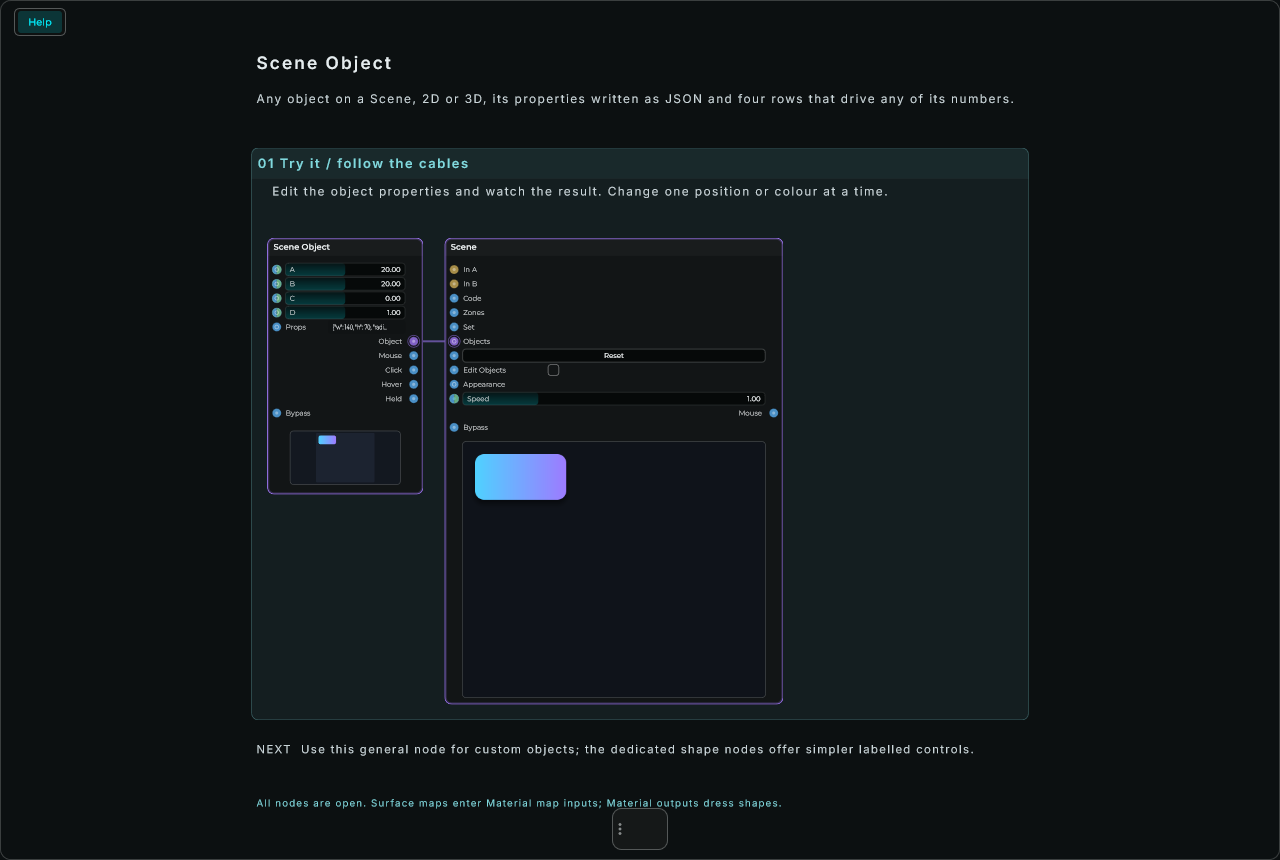
| Parameter | Range | Default | Description |
|---|---|---|---|
| A, B, C, D | any number | 20, 20, 0, 1 | The numbers their Drives name, each a value or a CV cable followed on every frame. |
| Props | JSON | a rectangle with a gradient and a shadow | Its properties, such as {"fill": "#4fd1ff", "w": 120, "glow": 12, "glowColor": "#4fd1ff"}. |
| Kind | Rectangle ... Particles | Rectangle | In the Inspector: what it is. Every kind the canvas has, flat or 3D. |
| A Drives ... D Drives | a property's name | x, y, rotation, opacity | In the Inspector: which number each row sets (x, y, w, h, r, rotation, rotY, glow, gain...). Empty for none. |
| Click Outputs | on or off | on | In the Inspector: the mouse on it goes out of Click, Hover and Held, and it takes the mouse from what is under it. |
Inputs: A, B, C and D, each accepting a value or a CV signal; Props, a text.
Outputs: Object; Click, an Event on each click; Hover, 1 while the pointer is over it; Held, 1 while it is held down; Mouse, what the mouse does on it, for a Mouse Actions node.
Scene Knob
A knob drawn on a Scene and played there, with no code: drag up and down (Shift for fine steps), turn the wheel, or double-click for its default. Its ring fills as it turns and its value shows in its middle, with its unit. Wire Object into the Scene's Objects input, and Value into whatever it should move.
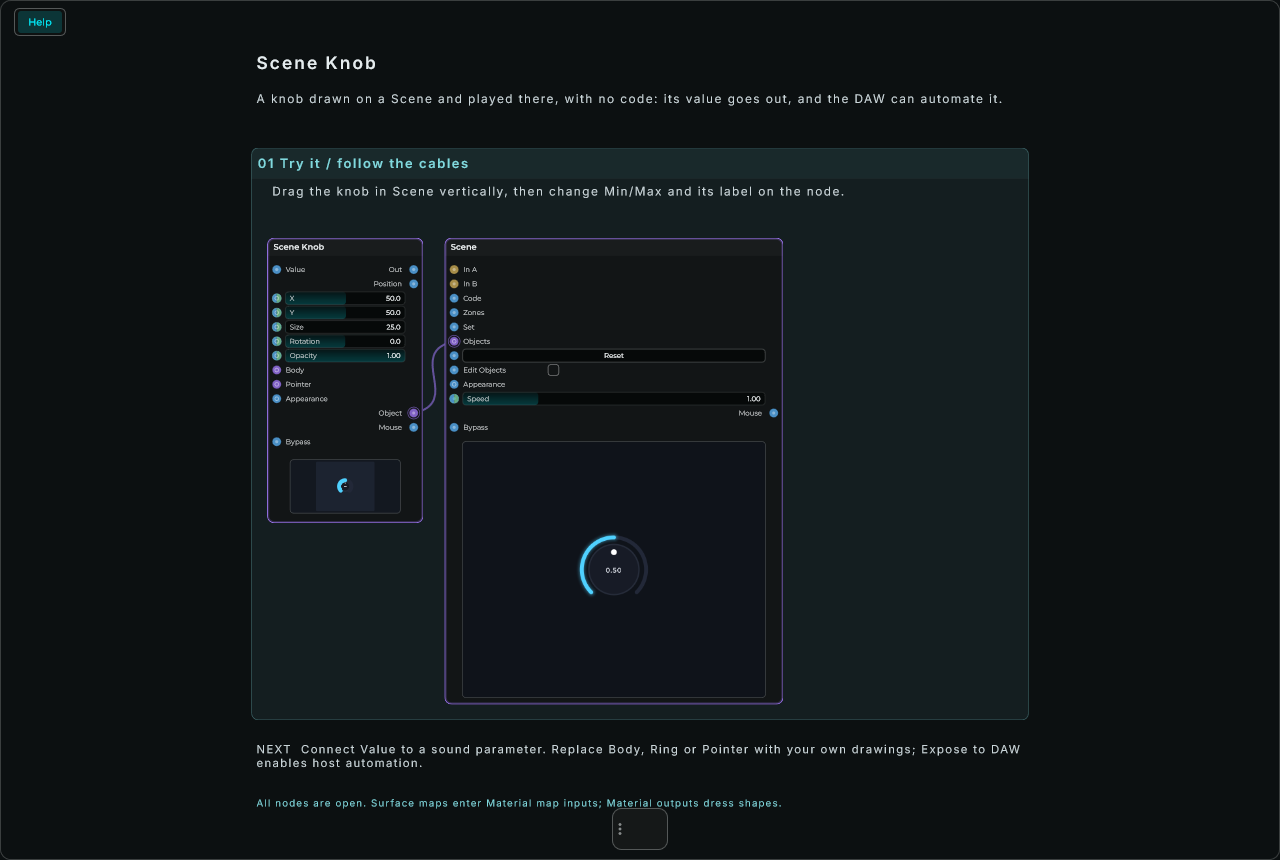
Every Scene control has a Value row with an input and an output, as a Knob has In and Out: its value goes out whenever it moves, a number wired in sets it and goes on out, and an Event sends it again. Its value is kept with the project and in its States. With Expose to DAW on, in the Inspector, your DAW sees it as a plugin parameter to automate or map, and grabbing it is a gesture for the DAW, so touch and latch automation record what you play; when the DAW moves it, the control moves on the canvas too. Its colours follow the Script's controls, so both sit together on one canvas: Accent, Body, Edge, Track, Text and Label Colour, in the Inspector.
Position, on Knob and Slider, sends the normalized position from 0 to 1, including logarithmic ranges. XY Pad has X Position and Y Position. These outputs update with mouse/keyboard playing, incoming Value messages, automation and state recall, so the same value can drive any number of visual properties. Value keeps its real units. Try Factory's Scene Studio / Custom Slider for a wired example.
Parts of your own. Every Scene control can be drawn with drawings of your own instead of its own: wire Scene nodes (a Scene Image, a Scene Path, a Scene Group of several) into one of its part inputs, and they are drawn in that part's place and moved by the value as the part is, while the control plays exactly as before. Each part is a box, and a drawing on Percent counts its shares from it: a Scene Rectangle at X 0 and Y 0, 100 wide and 100 tall, fills it whatever size the control is. The knob's parts are Body, in place of its face, a box as wide as the knob round its middle that stays still as it turns; and Pointer, in place of its dot, the same box turned with the value from -135 to 135 degrees: a thin rectangle from the middle up, or a picture of a knob's cap. Show Ring, in the Inspector, hides its track and its ring.
| Parameter | Range | Default | Description |
|---|---|---|---|
| Value | Min to Max | 0.5 | Its value, going out whenever it moves. |
| Units | Pixels / Percent | Percent | In the Inspector: X, Y and Size as a share of the canvas (Percent), or in pixels (Size of its smaller side); the whole knob grows with it. |
| X, Y | -4000 to 4000 | 50, 50 | Its middle. |
| Size | 1 to 4000 | 25 | How wide it is. |
| Rotation | -360 to 360 | 0 | Turned round its middle, in degrees, clockwise: where its travel starts and ends. |
| Opacity | 0 to 1 | 1 | 0 is not seen. |
| Min, Max | any number | 0, 1 | In the Inspector: its value at each end of its travel. |
| Log | on or off | off | In the Inspector: its travel spread by octaves, for a frequency (Min must be above 0). |
| Unit | text | none | In the Inspector: shown after its value, such as " Hz". |
| Default | any number | 0.5 | In the Inspector: where it starts, and where a double-click brings it back to. |
| Decimals | 0 to 6 | 2 | In the Inspector: the decimals its value shows. |
| Step | 0 and up | 0 | In the Inspector: what it moves by (0 moves it as finely as it goes). |
| Label | text | none | In the Inspector: its name, under it. |
| Show Value | on or off | on | In the Inspector: its value in its middle. |
| Sensitivity | 0.1 to 10 | 1 | In the Inspector: how far a drag turns it. |
| Glow | 0 to 1 | 0.07 | In the Inspector: how much its ring glows; more under the pointer. |
| Show Ring | on or off | on | In the Inspector: its track and the ring that fills along it. |
| Expose to DAW | on or off | off | In the Inspector: its value as a plugin parameter. |
Inputs: Value, a number or an Event; X, Y, Size, Rotation and Opacity, each accepting a value or a CV signal; Body and Pointer, drawings of your own; Appearance, an Appearance Changer's text.
Outputs: Value; Position (0 to 1); Object; Mouse, what the mouse does on it while it plays, for a Mouse Actions node.
Scene Slider
A slider drawn on a Scene and played there, with no code: press anywhere on it to jump there, drag, turn the wheel, or double-click for its default. Taller than wide, it stands up. Wire Object into the Scene's Objects input.
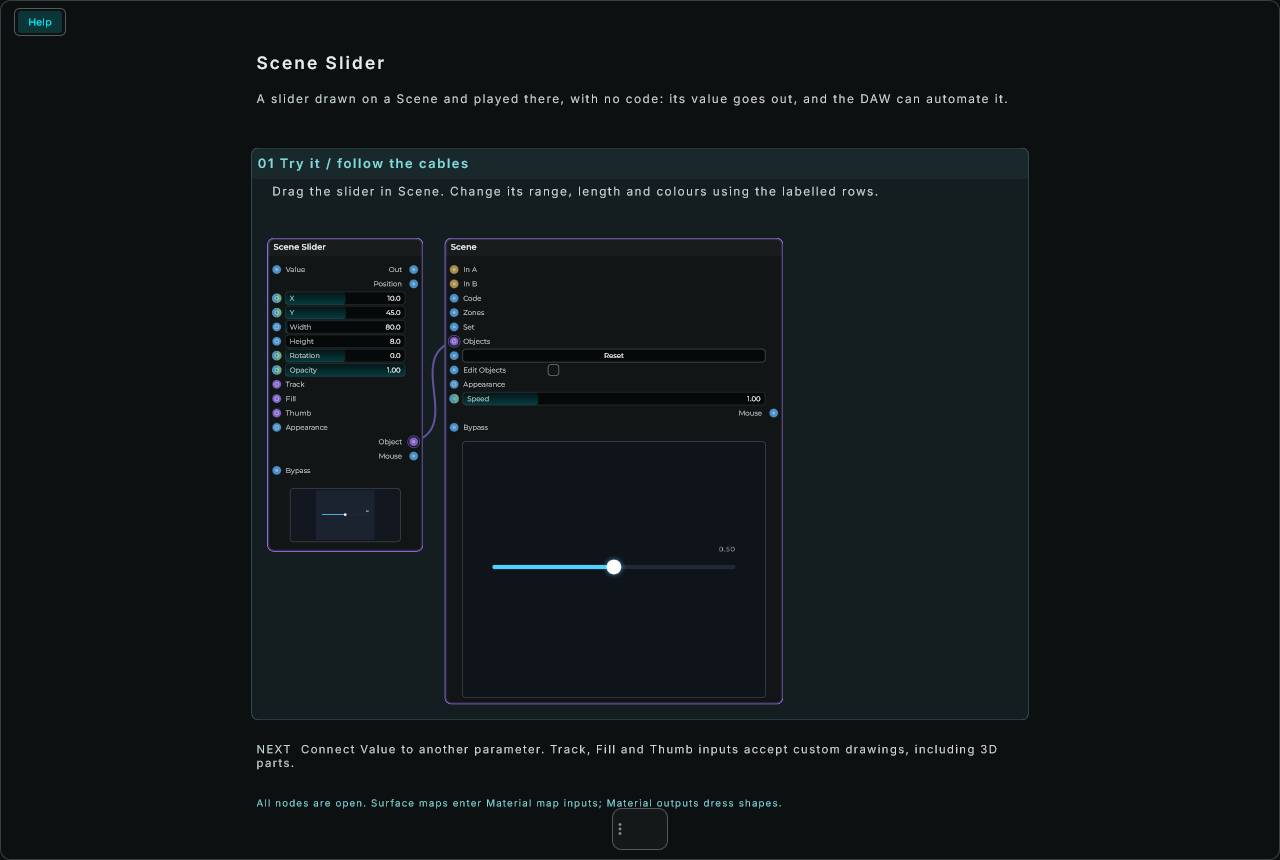
Its Value, Min, Max, Log, Unit, Default, Decimals, Step, Label, Show Value and Expose to DAW are the Scene Knob's, and so is what its Value does. Its parts of your own (as the Scene Knob's): Track, in place of its track, its whole box; Fill, in place of its fill, its whole box shown from its start as far as its value (from the bottom when it stands up), so a gradient or a picture is uncovered as it moves; and Thumb, in place of its thumb, a square as thick as the slider, its middle where the value is.
| Parameter | Range | Default | Description |
|---|---|---|---|
| Units | Pixels / Percent | Percent | In the Inspector: its place and size as a share of the canvas (Percent), or in pixels; its track and thumb grow with it. |
| X, Y | -4000 to 4000 | 10, 45 | Its top left corner. |
| Width, Height | 1 to 4000 | 80, 8 | Its size. A value only, not a CV. |
| Rotation | -360 to 360 | 0 | Turned round its middle, in degrees, clockwise: 90 or -90 stands it up, any angle between tilts it. The mouse follows it along its track. |
| Opacity | 0 to 1 | 1 | 0 is not seen. |
Inputs: Value, a number or an Event; X, Y, Rotation and Opacity, each accepting a value or a CV signal; Width and Height, a value; Track, Fill and Thumb, drawings of your own; Appearance, an Appearance Changer's text.
Outputs: Value; Position (0 to 1); Object; Mouse, what the mouse does on it while it plays, for a Mouse Actions node.
Scene Button
A button drawn on a Scene and pressed there, with no code. It lights while it is held. With Mode on Momentary its Value is 1 while it is held and 0 when it is let go, to hold a sound or open a gate; on Trigger, Value sends an Event each time it is pressed, to start an envelope or step a counter. Wire Object into the Scene's Objects input.
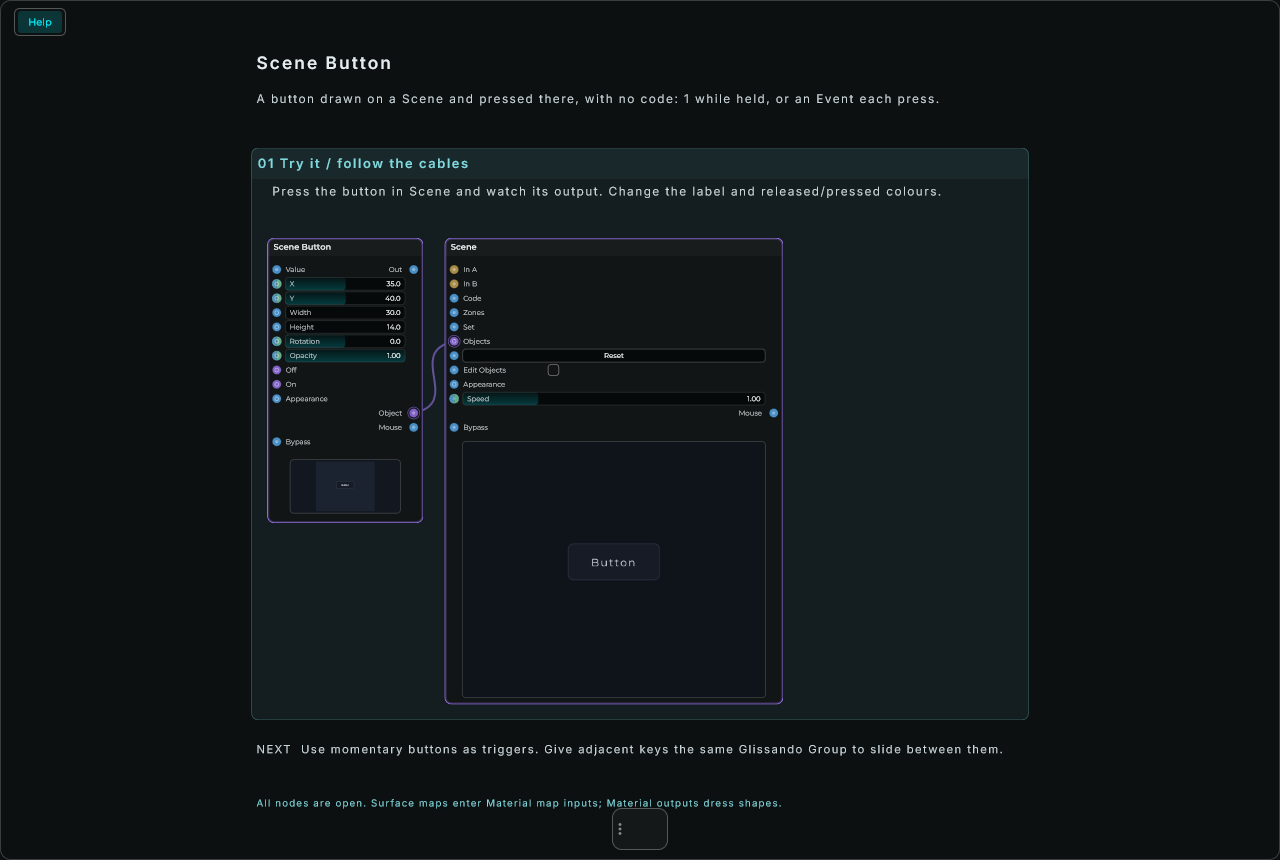
Its parts of your own (as the Scene Knob's): Off, in place of its face, its whole box; and On, the same box shown while it is held, over Off, which fades out.
| Parameter | Range | Default | Description |
|---|---|---|---|
| Value | 0 or 1 | 0 | 1 while it is held (Momentary); an Event on each press (Trigger). |
| Units | Pixels / Percent | Percent | In the Inspector: its place and size as a share of the canvas (Percent), or in pixels; its caption grows with it. |
| X, Y | -4000 to 4000 | 35, 40 | Its top left corner. |
| Width, Height | 1 to 4000 | 30, 14 | Its size. |
| Rotation | -360 to 360 | 0 | Turned round its middle, in degrees, clockwise. |
| Opacity | 0 to 1 | 1 | 0 is not seen. |
| Caption | text | Button | In the Inspector: the text on it. |
| Mode | Momentary / Trigger | Momentary | In the Inspector: what its Value sends. |
| Expose to DAW | on or off | off | In the Inspector: its value as a plugin parameter. |
Inputs: Value (a number sets it; on Trigger an Event presses it once); X, Y, Rotation and Opacity, each accepting a value or a CV signal; Off and On, drawings of your own; Appearance, an Appearance Changer's text.
Outputs: Value; Object; Mouse, what the mouse does on it while it plays, for a Mouse Actions node.
Scene Toggle
A switch drawn on a Scene: a click turns it on and off, its thumb gliding across. Its Value is 1 on and 0 off. Wire Object into the Scene's Objects input.
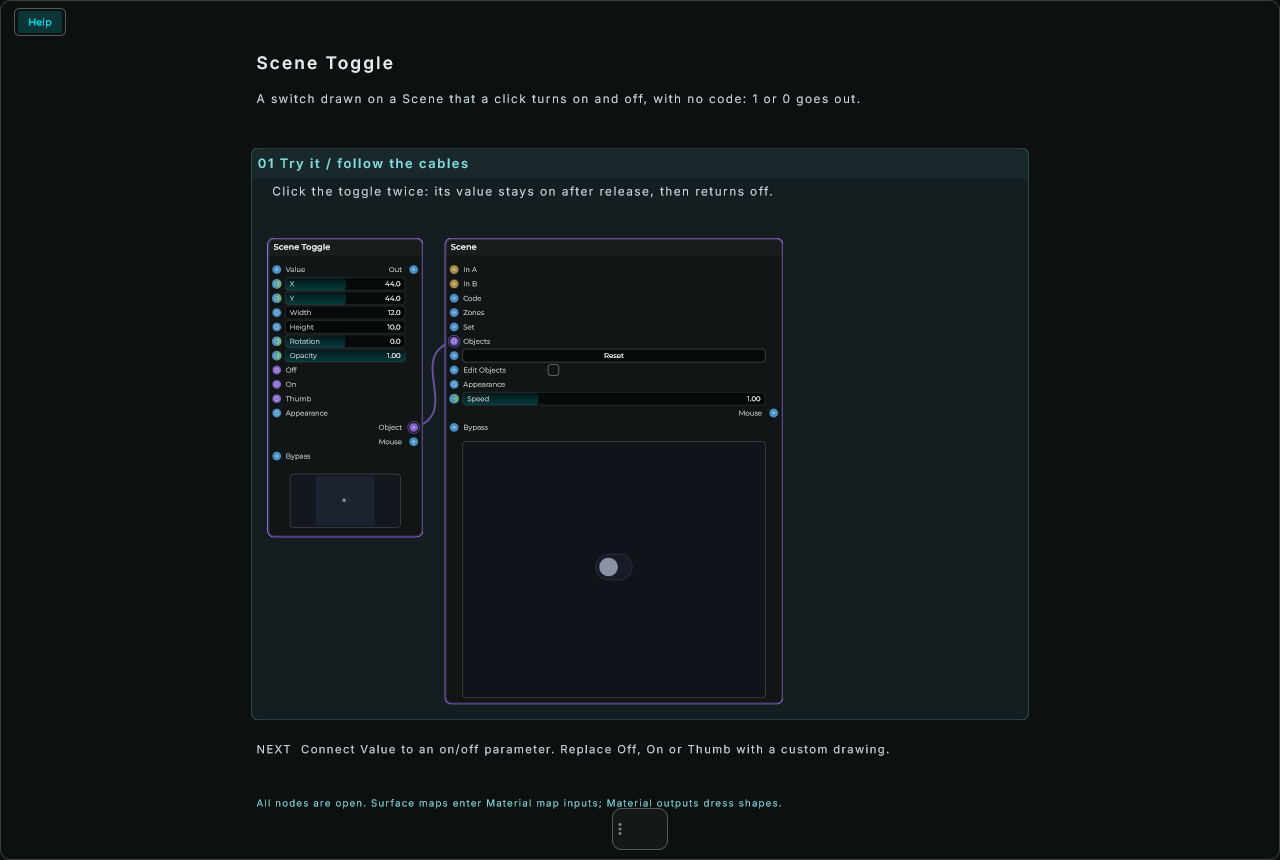
Its parts of your own (as the Scene Knob's): Off, in place of its track, its whole box; On, the same box shown while it is on (Off fades out); and Thumb, in place of its thumb, a square as tall as it that glides from its left end to its right end.
| Parameter | Range | Default | Description |
|---|---|---|---|
| Value | 0 or 1 | 0 | On or off. |
| Units | Pixels / Percent | Percent | In the Inspector: its place and size as a share of the canvas (Percent), or in pixels. |
| X, Y | -4000 to 4000 | 44, 44 | Its top left corner. |
| Width, Height | 1 to 4000 | 12, 10 | Its size. |
| Rotation | -360 to 360 | 0 | Turned round its middle, in degrees, clockwise. |
| Opacity | 0 to 1 | 1 | 0 is not seen. |
| Label | text | none | In the Inspector: its name, beside it. |
| Expose to DAW | on or off | off | In the Inspector: its value as a plugin parameter. |
Inputs: Value, a number or an Event; X, Y, Rotation and Opacity, each accepting a value or a CV signal; Off, On and Thumb, drawings of your own; Appearance, an Appearance Changer's text.
Outputs: Value; Object; Mouse, what the mouse does on it while it plays, for a Mouse Actions node.
Scene Menu
New in MNodes 1.1.6
Older versions of MNodes do not have Scene Menu.
A drop-down menu drawn on a Scene: a box with the item chosen and a small arrow. Click it and the list of its items opens by the box, in its colours; pick one and it is chosen. The wheel over it steps through them. Wire Object into the Scene's Objects input.
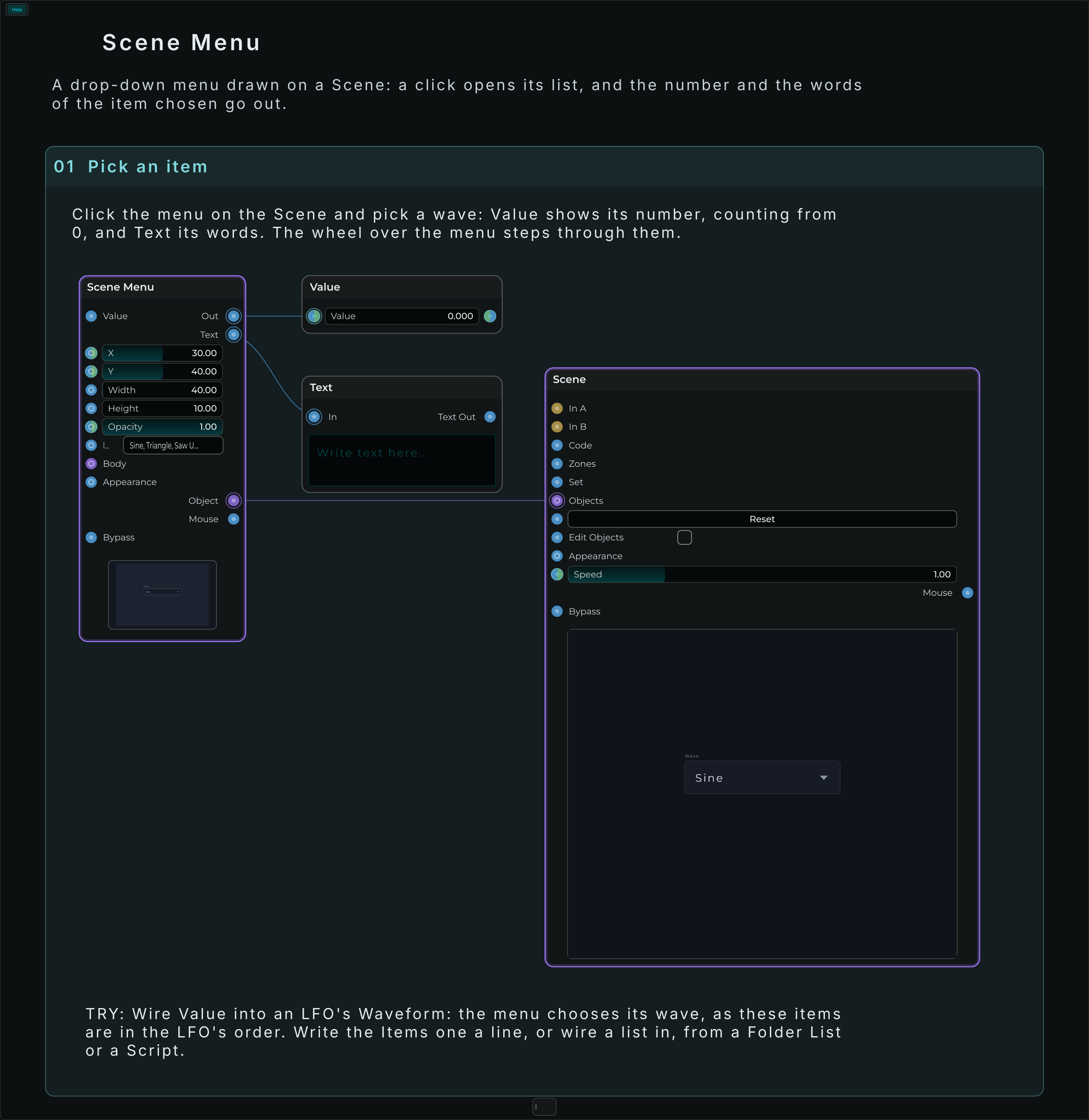
Value is the number of the item chosen, counting from 0: the way a Filter's Mode, an Output Select or any setting with a list of choices takes it, so wire it straight in. Text sends the item's words. A number wired into Value chooses that item, and so do an item's words.
Write Items between commas or one a line (a JSON list, ["A, B", "C"], for items with commas in them). A list wired into Items, from a Folder List's Paths or a Script, takes the place of the one written; the item chosen keeps its number. On a page (a Scene Group whose Scale or Opacity a Radio Link switches), it comes and goes with the page.
Its part of your own (as the Scene Knob's): Body, in place of its box, its whole box.
| Parameter | Range | Default | Description |
|---|---|---|---|
| Value | 0 to the number of items less one | 0 | The item chosen, counting from 0. |
| Units | Pixels / Percent | Percent | In the Inspector: its place and size as a share of the canvas (Percent), or in pixels. |
| X, Y | -4000 to 4000 | 30, 40 | Its top left corner. |
| Width, Height | 1 to 4000 | 30, 10 | Its size. |
| Opacity | 0 to 1 | 1 | 0 is not seen. |
| Items | text | Item 1, Item 2, Item 3 | Its items, between commas or one a line. |
| Label | text | none | In the Inspector: its name, over it. |
| Expose to DAW | on or off | off | In the Inspector: its value as a plugin parameter. |
Inputs: Value, a number, an item's words or an Event; X, Y and Opacity, each accepting a value or a CV signal; Items, a list that takes the place of the one written; Body, drawings of your own; Appearance, an Appearance Changer's text.
Outputs: Value; Text; Object; Mouse, what the mouse does on it while it plays, for a Mouse Actions node.
Scene XY Pad
A pad drawn on a Scene, with a point you press and drag anywhere on it: across is X Value and up is Y Value, each with its own output and input, its own range, unit and decimals. A double-click brings both back to their defaults. Across for a filter's cutoff and up for its resonance is the classic. Wire Object into the Scene's Objects input.
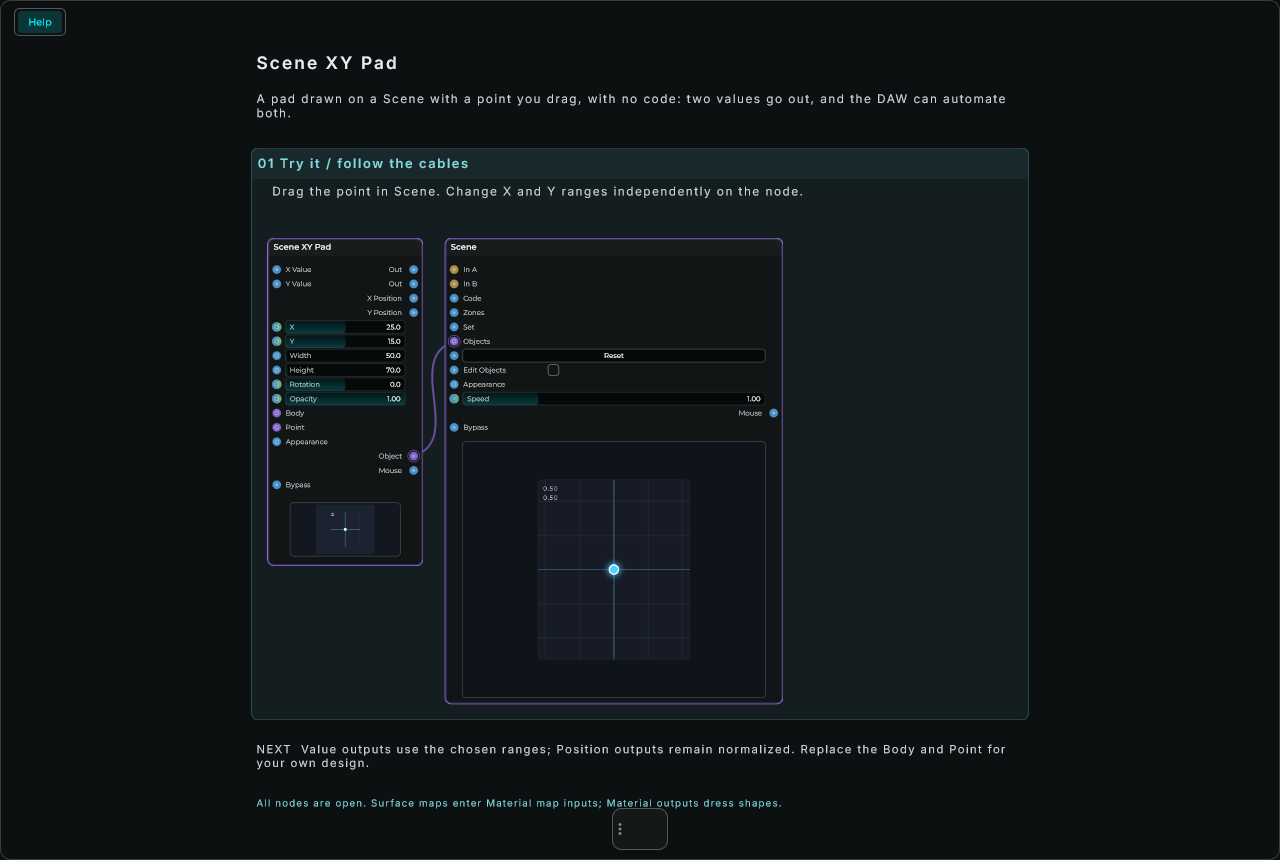
Its parts of your own (as the Scene Knob's): Body, in place of its face and grid, its whole box; and Point, in place of its point and its two lines, a square a sixth of its height, its middle where the point is.
| Parameter | Range | Default | Description |
|---|---|---|---|
| X Value, Y Value | their Min to Max | 0.5, 0.5 | Across and up. |
| Units | Pixels / Percent | Percent | In the Inspector: its place and size as a share of the canvas (Percent), or in pixels. |
| X, Y | -4000 to 4000 | 25, 15 | Its top left corner. |
| Width, Height | 1 to 4000 | 50, 70 | Its size. |
| Rotation | -360 to 360 | 0 | Turned round its middle, in degrees, clockwise: X Value and Y Value go along its own sides. |
| Opacity | 0 to 1 | 1 | 0 is not seen. |
| Min X, Max X, Log X, Unit X, Default X, Decimals X | as the Scene Knob's | In the Inspector: across. | |
| Min Y, Max Y, Log Y, Unit Y, Default Y, Decimals Y | as the Scene Knob's | In the Inspector: up. | |
| Step | 0 and up | 0 | In the Inspector: what both move by. |
| Label | text | none | In the Inspector: its name, at its foot. |
| Expose to DAW | on or off | off | In the Inspector: both values as plugin parameters, X and Y. |
Inputs: X Value and Y Value, a number or an Event each; X, Y, Rotation and Opacity, each accepting a value or a CV signal; Body and Point, drawings of your own; Appearance, an Appearance Changer's text.
Outputs: X Value, Y Value; X Position, Y Position (0 to 1); Object; Mouse, what the mouse does on it while it plays, for a Mouse Actions node.
Scene 3D View
A 3D world on a Scene, with no code. It is a box on the canvas, and what is wired into its Objects is in the world inside it: Scene 3D Shape, Scene 3D Model, Scene 3D Light, Scene 3D Sky, Scene 3D Group, Scene 3D Clones, Scene 3D Join, Scene 3D Subdivide, Scene 3D Displace and Scene 3D Particles nodes, or a Script's 3D objects. The graphics card draws it with light as metals and plastics catch it, smoothed edges and fog. Wire its Object into the Scene's Objects input.
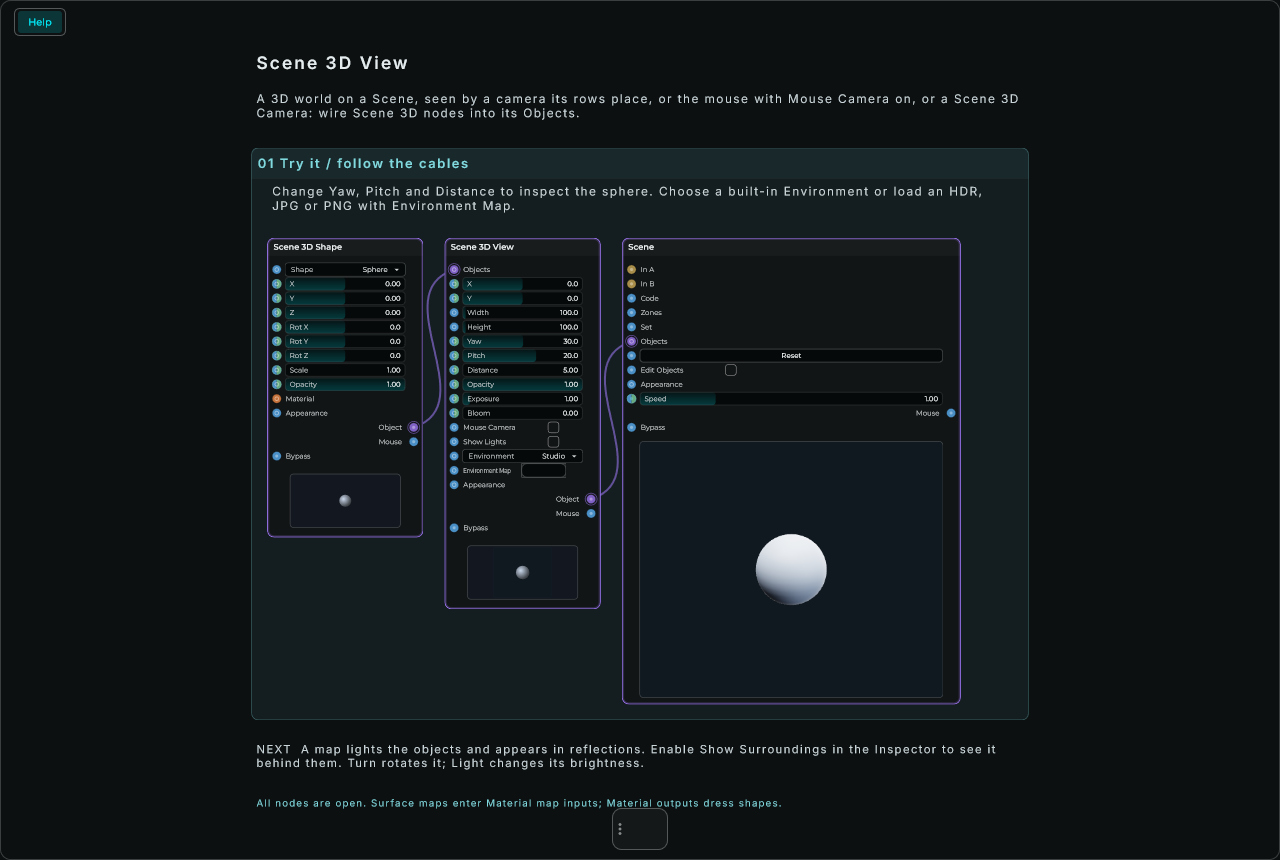
The camera looks at a point (Look At) from Distance away, turned round it by Yaw and raised above it by Pitch, or straight on with Orthographic. With Mouse Camera on (a switch on the node, off unless you turn it on), dragging on the view turns it round, Shift and drag slides what it looks at, and the wheel brings it nearer, with no code: where you leave it is kept in Yaw, Pitch, Distance and Look At, and saved with the project. A CV cable on one of them wins over the mouse. For more say, wire a Scene 3D Camera into its Objects: the view sees through it, and it says which of these the mouse may do, how far, and whether it spins by itself. In the world y is up, and sizes are the world's own units: a box 1 across, seen from 5 away, fills about a fifth of the view. With no light of its own it is lit by two.
A flat Scene node wired in with them (a Scene Text, a Scene Circle, a control) is a label: it is drawn over the view where the middle of the 3D group it is in is seen, and follows it as the camera turns, moved from there by its own X and Y in canvas units. With Hide Labels Behind on, a label is hidden while a solid stands between it and the camera. Wire a Scene Text into a Scene 3D Group placed over a shape and the shape has its name.
Its Surroundings are what is all round the world: a studio, a sky, a sunset or a night made for you, or a panorama from a file (a picture of all round, twice as wide as it is tall; an .hdr keeps the sun as bright as it really is). Their light falls on everything, and what is smooth shines with them, sharp or blurred as it is rough: a metal ball becomes a mirror of the sky. With Show Surroundings on they are seen behind the world. Exposure makes the whole picture brighter or darker, as a camera does, and Bloom makes what is brighter than white glow round it: a lamp, a glowing shape, the sun caught in a mirror ball.
| Parameter | Range | Default | Description |
|---|---|---|---|
| Units | Pixels / Percent | Percent | In the Inspector: its place and size on the canvas as a share of the canvas (Percent), or in pixels: Width and Height 100 fill the canvas whatever its shape. |
| Render Quality | High / Balanced / Low | High | Shadow and mirror resolution, and automatic round-shape detail. Balanced halves shadow-tile and mirror dimensions; Low quarters them. An explicit Segments value is kept. The main view retains four-sample antialiasing. |
| X, Y | -4000 to 4000 | 0, 0 | Its top left corner on the canvas. |
| Width, Height | 1 to 4000 | 100, 100 | Its size on the canvas. A value only. |
| Yaw | -3600 to 3600 | 30 | The camera turned round what it looks at, in degrees. |
| Pitch | -90 to 90 | 20 | The camera raised above what it looks at, in degrees. |
| Distance | 0.1 to 1000 | 5 | How far the camera is from what it looks at. |
| Opacity | 0 to 1 | 1 | 0 is not seen. |
| Exposure | 0 to 16 | 1 | How much light the camera takes in: 2 twice as bright, 0.5 half. |
| Bloom | 0 to 20 | 0 | How strongly what is brighter than white glows round it (0: none). |
| Mouse Camera | on or off | off | On its row, with an input: on, the mouse turns, slides and zooms the camera, and where it leaves it is kept. Off, the mouse over the view pans and zooms the graph as anywhere else. |
| Field of View | 5 to 150 | 40 | In the Inspector: how much the camera sees, top to bottom, in degrees. |
| Look At X, Y, Z | any | 0, 0, 0 | In the Inspector: what the camera looks at. |
| Fog, Fog Colour | 0 to 2, colour | 0, none | In the Inspector: how thick the air is, and what the distance fades into (none: the background). A Scene 3D Fog wired into Objects takes their place. |
| Fog Start | 0 to 1000 | 0 | In the Inspector: how far from the camera the fog begins. |
| Fog Height, Fog Fade | -1000 to 1000, 0 to 20 | 0, 0 | In the Inspector: with Fog Fade above 0 the fog thins above Fog Height and lies low, a mist over the ground. |
| Environment | None / Studio / Sky / Sunset / Night / File | Studio | In the Inspector: what is all round the world, lighting it and shining in what is smooth. A Scene 3D Light of Type Environment wired into Objects takes their place. |
| Surroundings File | a file | none | In the Inspector: the panorama for File. |
| Surroundings Light | 0 to 20 | 1 | In the Inspector: how bright the surroundings' light is. |
| Surroundings Turn | -360 to 360 | 0 | In the Inspector: the surroundings turned round, in degrees: where the sun comes from. |
| Show Surroundings | on or off | off | In the Inspector: the surroundings seen behind the world, in place of the Background. |
| Orthographic | on or off | off | In the Inspector: seen straight on, with no perspective, as in a plan. |
| Show Lights | on or off | off | On its row, with an input: a mark where each light is, in its colour (a spot's and a panel's the way they face, a panel's own rectangle), to find and place them. A light from far away (a Directional one or a Scene 3D Sky's sun) is marked in the picture, between what the camera looks at and where the light comes from, with dots the way its light goes. The marks cast no shadow and light nothing. |
| Hide Labels Behind | on or off | off | In the Inspector: labels hidden while a solid stands between them and the camera. |
| Bloom Threshold | 0 to 20 | 1 | In the Inspector: how bright light must be to glow; lower, more of the picture glows. |
| Bloom Size | 0 to 1 | 0.5 | In the Inspector: how far the glow spreads, from a tight halo to a wide haze. |
| Focus Blur | 0 to 1 | 0 | On its row, with an input: how blurred what is out of focus is (0: all sharp). It is sharp round what the camera looks at, or at Focus Distance. |
| Focus Distance | 0 to 1000 | 0 | On its row, with an input: how far from the camera it is sharp, in the world's units (0: where the camera looks, so a camera that follows a character keeps it sharp). |
| Focus Range | 0 to 1000 | 2 | In the Inspector: how deep the sharp part is; with Tilt-Shift, how tall the sharp band is, in the world's units at what the camera looks at. |
| Tilt-Shift | 0 to 1 | 0 | In the Inspector: 1 is sharp in a band across the middle of the picture and blurred above and below, as a photo of a miniature; 0 is sharp by distance. |
| Occlusion | 0 to 1 | 0 | In the Inspector: corners, creases and where things meet the ground darker, as the light reaches them less (ambient occlusion). |
| Occlusion Radius | 0.01 to 100 | 0.6 | In the Inspector: how far round each point it looks for what shades it, in the world's units. |
| Saturation | 0 to 2 | 1 | On its row, with an input: how strong the colours are: 0 grey, 2 twice as vivid. |
| Contrast | 0 to 2 | 1 | On its row, with an input: lights lighter and darks darker above 1, flatter below. |
| Warmth | -1 to 1 | 0 | On its row, with an input: warmer (towards orange) above 0, cooler below. |
| Vignette | 0 to 1 | 0 | On its row, with an input: the corners of the picture darker. |
| Outline | 0 to 1 | 0 | On its row, with an input: lines round what is in the world, where it ends against what is behind it or turns sharply, as an illustration. |
| Outline Width | 0.5 to 8 | 1 | In the Inspector: how wide the outlines are, in pixels. |
| Outline Colour | colour | black | In the Inspector: the outlines' colour. |
| Temporal AA | on or off | off | In the Inspector: edges smoothed over the frames (temporal antialiasing). Each frame is seen a part of a pixel aside and blended with the last ones, found again where each point was, so thin things and edges stop flickering as the camera moves, and the camera moves as smoothly as ever. What moves fast can leave a faint blur on its back edge for a frame or two. A still view settles in a quarter of a second and then rests. |
| Corner | 0 to 2000 | 0 | In the Inspector: how round its corners are. |
| Background | colour | very dark blue | In the Inspector: what is behind the world. Fully clear shows the canvas through it. |
Its outline, glow, shadow, blur, blend and trail on the canvas are in the Inspector, as the Scene Rectangle's.
Inputs: Objects, for the world's contents; X, Y, Yaw, Pitch, Distance, Opacity, Exposure and Bloom, each accepting a value or a CV signal; Focus Blur, Focus Distance, Saturation, Contrast, Warmth, Vignette and Outline, the same, so the patch can move the picture's look (a focus that follows the music, a vignette that breathes with the kick); Width and Height, a value; Mouse Camera and Show Lights, a value each (above a half: on); Appearance, an Appearance Changer's text.
Outputs: Object; Mouse, what the mouse does on it and on anything in it, for a Mouse Actions node.
Scene 3D Camera
The camera of a Scene 3D View, and what the mouse may do to it. Wire its Object into the view's Objects, as a light is: the view sees through it, and the view's own Yaw, Pitch, Distance and Look At are set aside while it is there.
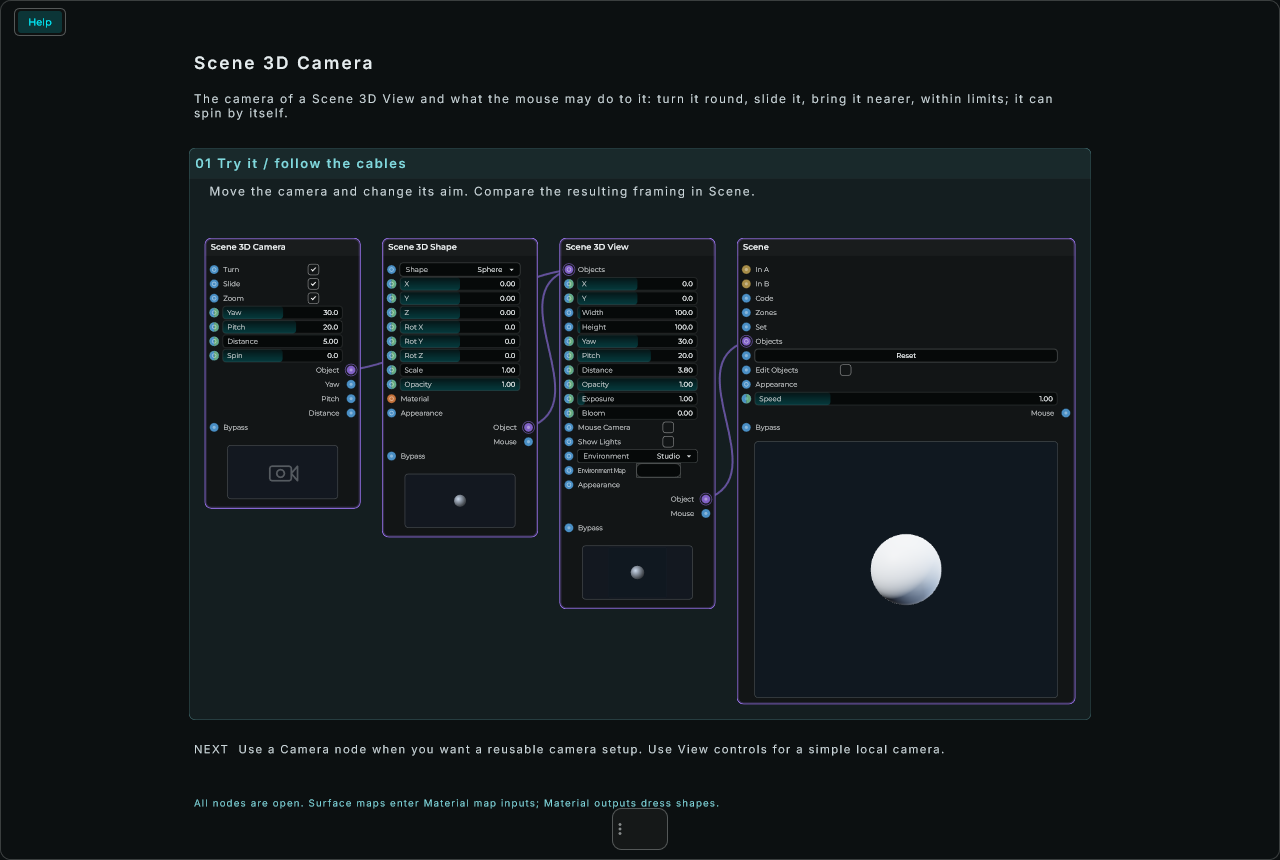
Turn, Slide and Zoom, switches on the node, say what the mouse may do: a drag turns the camera round what it looks at, Shift and a drag slides what it looks at (a plain drag, with Turn off), and the wheel brings it nearer or further, each within the limits in the Inspector. With all three off, the mouse over the view moves the graph as anywhere else. Where the mouse leaves the camera is kept in its rows, saved with the project, and sent out of Yaw, Pitch and Distance, so the view's angle can move anything else in the patch. Spin turns it round by itself, so many degrees a second, as on a turntable.
| Parameter | Range | Default | Description |
|---|---|---|---|
| Turn, Slide, Zoom | on or off | on | On its rows, with inputs: what the mouse may do to it. |
| Yaw | -3600 to 3600 | 30 | Turned round what it looks at, in degrees. |
| Pitch | -90 to 90 | 20 | Raised above what it looks at, in degrees. |
| Distance | 0.1 to 1000 | 5 | How far it is from what it looks at. |
| Spin | -360 to 360 | 0 | It turns round by itself, degrees a second. |
| Look At X, Y, Z | any number | 0 | In the Inspector: what it looks at. |
| Field of View | 5 to 150 | 40 | In the Inspector: how much it sees, top to bottom, in degrees. |
| Orthographic | on or off | off | In the Inspector: seen straight on, with no perspective. |
| Min Distance, Max Distance | 0.01 to 10000 | 0.2, 1000 | In the Inspector: the nearest and the furthest the wheel takes it. |
| Min Pitch, Max Pitch | -90 to 90 | -90, 90 | In the Inspector: the lowest and the highest a drag takes it. |
Inputs: Turn, Slide and Zoom, a value each (above a half: on); Yaw, Pitch, Distance and Spin, each accepting a value or a CV signal.
Outputs: Object, wired into a Scene 3D View's Objects; Yaw, Pitch and Distance, whenever the mouse moves it.
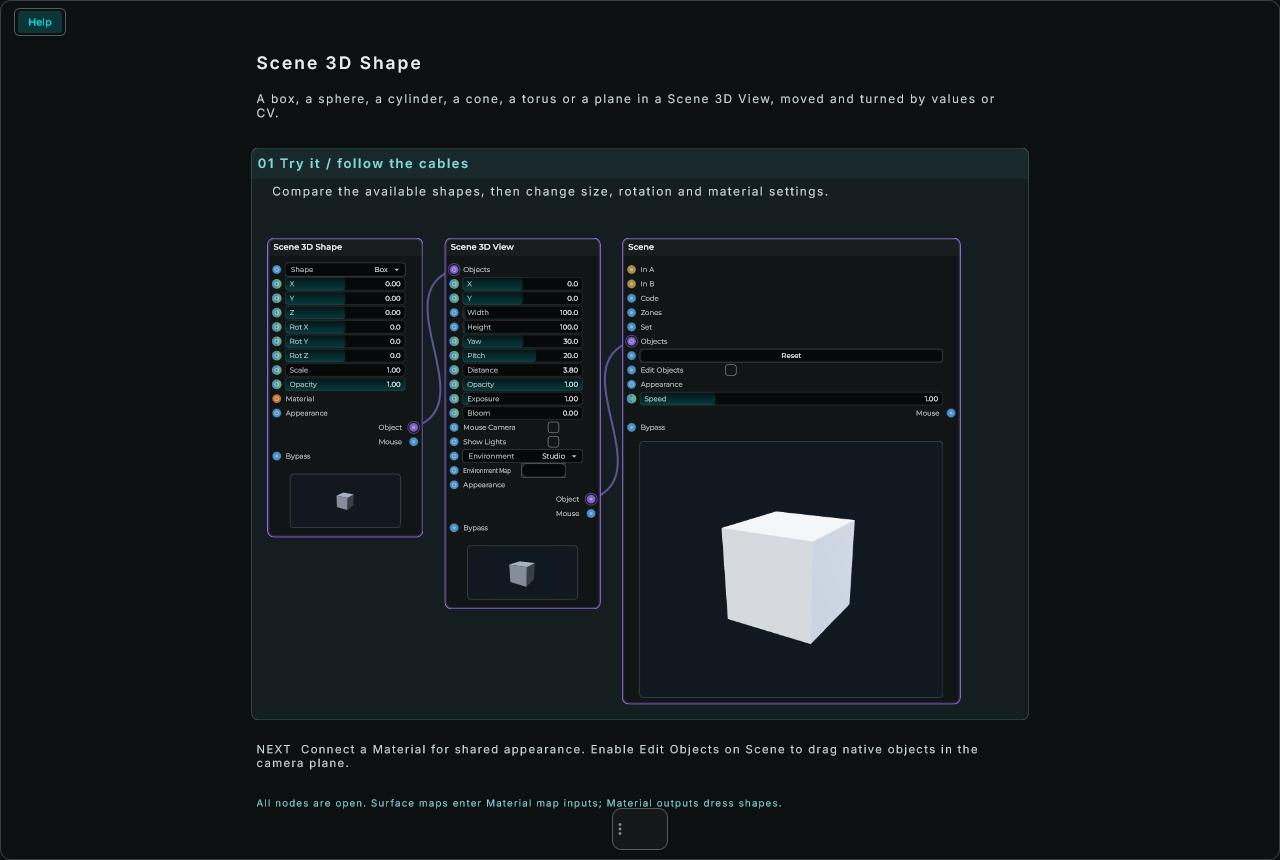
Scene 3D Shape
A solid in a Scene 3D View: a box, a sphere, a cylinder, a cone, a torus or a plane. Wire its Object into the view's Objects, or into a Scene 3D Group's. Its rows place it, turn it and size it, each following a value or a CV cable on every frame, so an LFO into Rot Y spins it and a level into Scale makes it swell.
It can wear a Picture, from a file or from the Scene's own Image 1 or 2, repeated across it as many times as Repeat says, and a Normal Map (the blue and purple pictures 3D programs and texture sites give) whose bumps catch the light. A round shape with a few Sides and Flat on is a gem, a prism, or, a cone of 4, a pyramid. A plane with Mirror reflects the world as a mirror does: a polished floor, a still lake, blurred as it is rough and rippled by a normal map.
| Parameter | Range | Default | Description |
|---|---|---|---|
| X, Y, Z | -4000 to 4000 | 0, 0, 0 | Where it is: across, up, towards you. |
| Rot X, Rot Y, Rot Z | -3600 to 3600 | 0 | Turned round each axis, in degrees. |
| Scale | 0 to 1000 | 1 | How big it is. |
| Opacity | 0 to 1 | 1 | Under 1, what is behind it shows through. |
| Collider | Own / Box / Ball / Capsule / Cylinder / None | Own | In the Inspector: in a Scene 3D Body, the shape it collides with: its own, or a box, a ball, a capsule or a cylinder round it; None, seen and carried with the body but no part of its shape or its weight (a pendulum's string, a decoration). |
| Shape | Box / Sphere / Cylinder / Cone / Torus / Plane | Box | On its first row, with an input that takes its number (0 a box) or its name: which shape it is. |
| Width, Height, Depth | 0 to 1000 | 1, 1, 1 | In the Inspector: a box's size; a plane's width and depth; a cylinder's and a cone's height. |
| Radius, Tube | 0 to 1000 | 0.5, 0.18 | In the Inspector: a sphere's, a cylinder's or a cone's radius, or a torus's ring; a torus's tube. |
| Sides | 0 to 256 | 0 | In the Inspector: a round shape's sides; 0 smooth. |
| Mirror | 0 to 1 | 0 | In the Inspector: a plane that reflects the world, 1 a perfect mirror; its Rough blurs it, a normal map ripples it. 4 a view at most. |
| Colour | colour | light grey-blue | In the Inspector: its colour. |
| Metal, Rough | 0 to 1 | 0, 0.5 | In the Inspector: 0 a plastic, 1 a metal; 0 polished, 1 matt. |
| Glow, Glow Colour | 0 to 20, colour | 0, white | In the Inspector: the light it gives of its own; over 1 it is brighter than white, and glows round it with the view's Bloom. |
| Flat | on or off | off | In the Inspector: each face shaded as one. |
| Picture, Picture File | None / File / Scene Image 1 / Scene Image 2 / a pattern, a file | None | In the Inspector: a picture on it, its colours times its Colour: a file's, the Scene's Image 1 or 2, or a pattern made here (Checker, Grid, Stripes, Dots, Bricks, Tiles, Wood, Marble, Noise). Its clear parts are cut away. |
| Normal Map, Normal Map File | None / File / Scene Image 1 / Scene Image 2 / bumps, a file | None | In the Inspector: bumps on it that catch the light: a normal map's, or bumps made here (Bricks, Tiles, Noise, Waves, Dimples, Brushed). |
| Repeat | 0.01 to 1000 | 1 | In the Inspector: how many times its picture and normal map repeat across it, each way. |
| Bumps | 0 to 10 | 1 | In the Inspector: how strong the normal map's bumps are. |
| Offset X, Offset Y | -1000 to 1000 | 0 | In the Inspector: its picture and normal map slid across and up, in repeats. |
Inputs: Shape, a number or a name; X, Y, Z, Rot X, Rot Y, Rot Z, Scale and Opacity, each accepting a value or a CV signal; Material, a Scene 3D Material that dresses it in place of its own look.
Outputs: Object; Mouse, what the mouse does on it, across and up its view, for a Mouse Actions node.
Mouse Hit Test, in the Inspector, decides what counts as clicking the shape. Bounds uses the box around it, which is quick. Surface uses the shape itself: a click through the hole of a torus, or beside the point of a cone, misses it, a round shape with few sides is picked as if it were smooth, and a model is picked by its own faces once it has finished loading. See-through parts of a picture, the solids a Join, Subdivide or Displace makes, and reshaped objects still use the box. In a Script, write "hitTest":"surface" or "hitTest":"bounds".
Scene 3D Model
A 3D model from an OBJ or a glTF file (.glb, or .gltf with its files), which most 3D programs save, in a Scene 3D View. It is fitted into a box 1 across round its middle, whatever size it was made at, and its Width, Height and Depth stretch that box. A model with no normals of its own is shaded smooth where its faces meet gently and sharp where they do not. A picture or a normal map is laid on it as the file says. Its files are kept with the project when you collect it to share. Its rows and its look, pictures included, are the Scene 3D Shape's.
A glTF model can move: a character that walks, waves or jumps, a door that opens, a flower that sways. Write the name of one of its animations in Animation (as the file calls it, or its number from 0) and say how far into it it is in Animation Time, in seconds; past its end it starts again. Wire a ramp or a clock into Animation Time to play it, faster or slower, backwards, or held on one moment. Its bones and parts move as the file says, and it keeps its size and place as it moves (it is fitted by how it stands at rest). Its colours and pictures come from this node's look, not from the file.
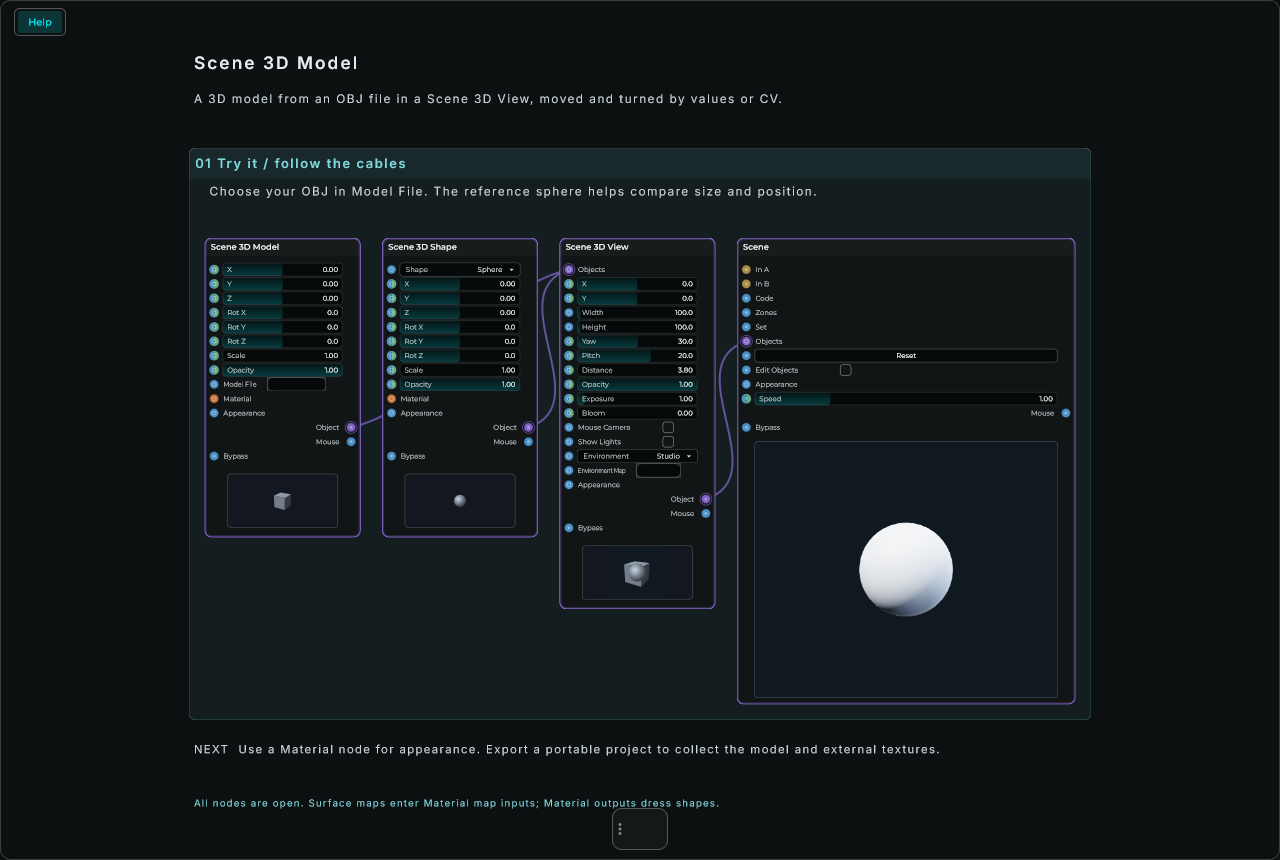
| Parameter | Range | Default | Description |
|---|---|---|---|
| Model File | OBJ or glTF file | none | Choose, paste or drop the model on this node. |
| Animation | text | empty | On its row, with an input: a glTF model's animation, by its name or its number from 0. Empty: the model at rest. |
| Animation Time | any, seconds | 0 | On its row, with an input that takes a value or a CV signal: how far into the animation it is. |
| X, Y, Z, turns, Scale, Opacity | As a Scene 3D Shape's. | ||
| Width, Height, Depth | 0 to 1000 | 1, 1, 1 | In the Inspector: its box. |
| Collider | Own / Box / Ball / Capsule / Cylinder / None | Own | In the Inspector: in a Scene 3D Body, the shape it collides with (Own: the box it is fitted into; Ball, Capsule or Cylinder round it for a round model or a character). |
Inputs: X, Y, Z, Rot X, Rot Y, Rot Z, Scale and Opacity, each accepting a value or a CV signal; Animation, a text; Animation Time, a value or a CV signal; Material, a Scene 3D Material that dresses it in place of its own look.
Outputs: Object; Mouse, what the mouse does on it, across and up its view, for a Mouse Actions node.
Scene 3D Material
A surface to dress Scene 3D Shapes and Scene 3D Models with. Wire its Material output into their Material input and its look is theirs, in place of their own: one material can dress many, and they all change with it. Its preview is a ball wearing it.
A Preset on its first row starts it from a look (Gold, Silver, Chrome, Copper, Brass, Iron, Plastic, Rubber, Glass, Ceramic, Wood, Marble, Bricks, Tiles, Concrete, Neon, Lamp): choosing one sets the rest, one step to undo, and changing anything by hand makes it Custom. Its Colour is a row too, with an input that takes a colour's text (a Colour node's, "#ff8800", "orange"), and so are its Picture and its Normal Map, chosen on the node: each a file's (choose it in Picture File or Normal Map File on the node), the Scene's Image 1 or 2, or a pattern made here with no file at all. Their inputs take a number, a pattern's name, image1 or image2, or a file's whole path (a File node's). A Gradient picture goes from its Colour at the top of each surface's picture to its Colour 2 (a row that shows with it) at its foot.
On its rows, each with an input: how metal and how rough it is, the light it gives, how see-through it is, and how its picture and bumps lie on a surface: how many times they Repeat, and Offset X and Offset Y to slide them (a value that keeps changing makes them flow, as water or a belt). The patterns:
- Pictures: Checker, Grid, Stripes, Dots, Bricks, Tiles, Wood, Marble and Noise. Their colours are times the Colour: white shows them as they are, a colour tints them.
- Bumps: Bricks, Tiles, Noise, Waves, Dimples (a hammered sheet) and Brushed (brushed metal).
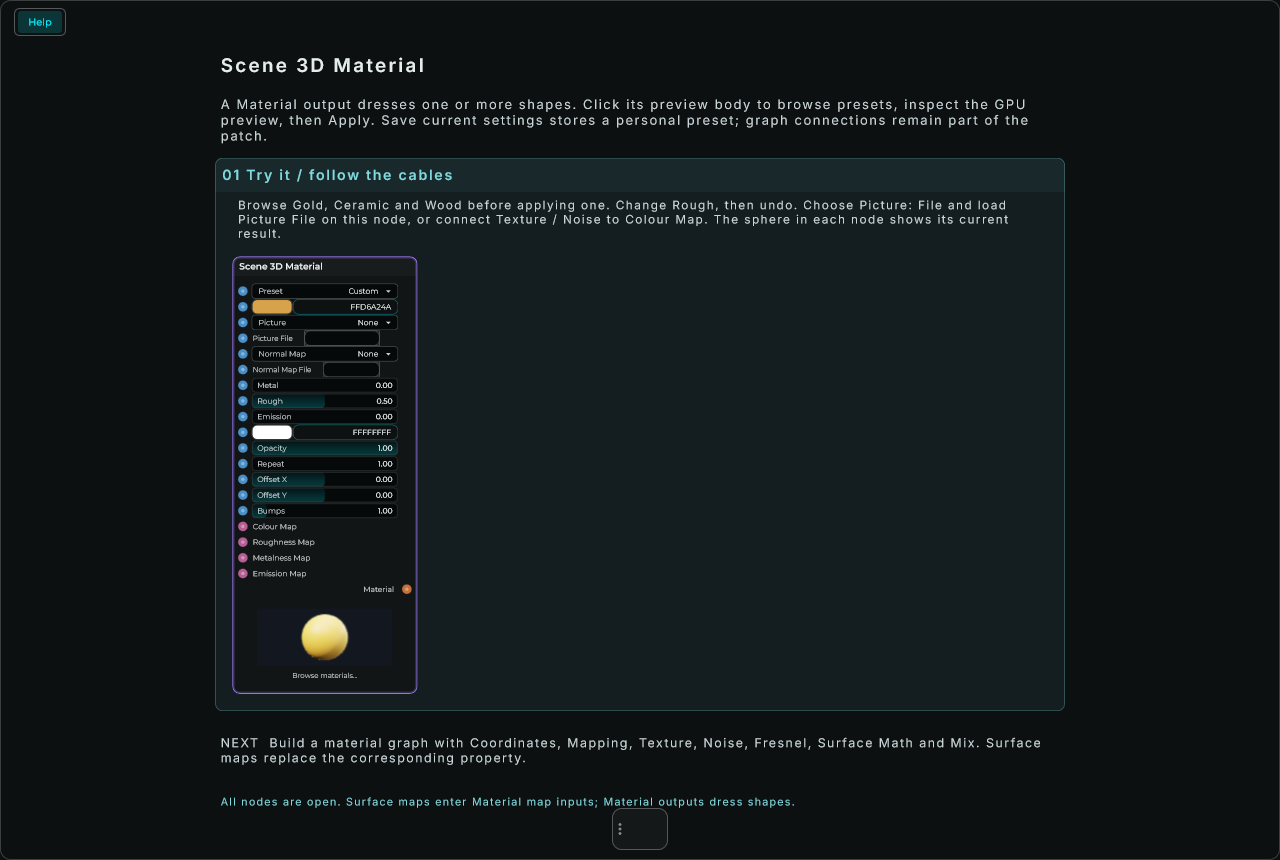
| Parameter | Range | Default | Description |
|---|---|---|---|
| Preset | Custom / Gold / Silver / Chrome / Copper / Brass / Iron / Plastic / Rubber / Glass / Ceramic / Wood / Marble / Bricks / Tiles / Concrete / Neon / Lamp | Custom | A look to start from; changing anything makes it Custom. |
| Colour | colour | gold | Its colour; a picture's colours are times it. |
| Picture | None / File / Scene Image 1 / Scene Image 2 / a pattern / Gradient | None | On its row: a picture on the surface. Its clear parts are cut away. |
| Normal Map | None / File / Scene Image 1 / Scene Image 2 / bumps | None | On its row: bumps on the surface that catch the light. |
| Metal | 0 to 1 | 0 | 0 a plastic or a paint, 1 a metal: its shine takes its colour. |
| Rough | 0 to 1 | 0.5 | 0 polished, with sharp highlights; 1 matt. |
| Emission | 0 to 20 | 0 | The light it gives of its own, in Emission Colour. |
| Opacity | 0 to 1 | 1 | 1 solid; lower, see-through as glass or a veil (times each solid's own Opacity). |
| Repeat | 0.01 to 1000 | 1 | How many times its picture and normal map repeat across a surface, each way. |
| Offset X, Offset Y | -1000 to 1000 | 0 | Its picture and normal map slid across and up, in repeats. |
| Bumps | 0 to 10 | 1 | How strong the normal map's bumps are: 0 none, 1 as drawn. |
| Emission Colour | colour | white | On the node: the colour of the light it gives; Emission must be above zero. |
| Flat | on or off | off | In the Inspector (Surface): shaded flat, each face as one. |
| Colour 2 | colour | blue | A Gradient's other colour (its row shows with Gradient). |
| Picture File, Normal Map File | a file | none | Choose the files directly on the node; select File in the matching source row. |
Inputs: Colour Map, Roughness Map, Metalness Map and Emission Map (Surface calculations); Emission Colour (colour text); Picture File and Normal Map File (paths); Preset, a number or a name; Colour and Colour 2, a colour's text; Picture and Normal Map, a number, a name, image1, image2 or a file's whole path; Metal, Rough, Emission, Opacity, Repeat, Offset X, Offset Y and Bumps, a value each.
Outputs: Material, for a Scene 3D Shape's or a Scene 3D Model's Material input.
Scene 3D Light
A light in a Scene 3D View. Its Type:
- Directional, as the sun: from far away and the same everywhere, coming from its X, Y, Z towards the middle.
- Point, a lamp at X, Y, Z whose light fades over its Reach.
- Spot, a stage light at X, Y, Z pointing at its Aim, its light in a cone that fades out to its edge.
- Panel, a glowing rectangle Width by Height at X, Y, Z, facing its Aim: a window, a softbox, a light box. Its light comes from the whole of it, so it is soft, and what is shiny shows its shape as a long highlight. Nothing behind it is lit.
- Environment, the light from all round: its Surroundings (a studio, a sky, a sunset, a night, or a panorama's file) light the world and shine in what is smooth, in place of the view's own; on Colour it is an even light of its Colour from every side. With it the view adds no lights of its own, so it can light the world alone.
A view takes 32 lights (and one Environment). New views start with the Studio environment and no extra lights. Add Scene 3D Light nodes when you want lights of your own; they work alongside the environment. Choose Environment = None and remove any Light or Sky nodes for an unlit scene. There are no automatic support lights or sky fill. Emissive materials remain visible. Its Type is chosen on the node's first row, and the node and the Inspector show only what that Type uses: a panel's Width and Height, an Environment's Surroundings, its File input (a panorama's whole path from a cable, a File node's say), Turn and Show Behind. The 3D View's Show Lights marks where each light is. Every light but the Environment casts shadows with Shadows on, a point and a panel all round them, as soft as its Shadow Softness says. A see-through shape casts a lighter shadow, as much as it covers, and a picture's clear parts let the light through. A view keeps 16 views of the shadows: a light from far away or a spot takes one, a point or a panel six, and the lights past that cast none.
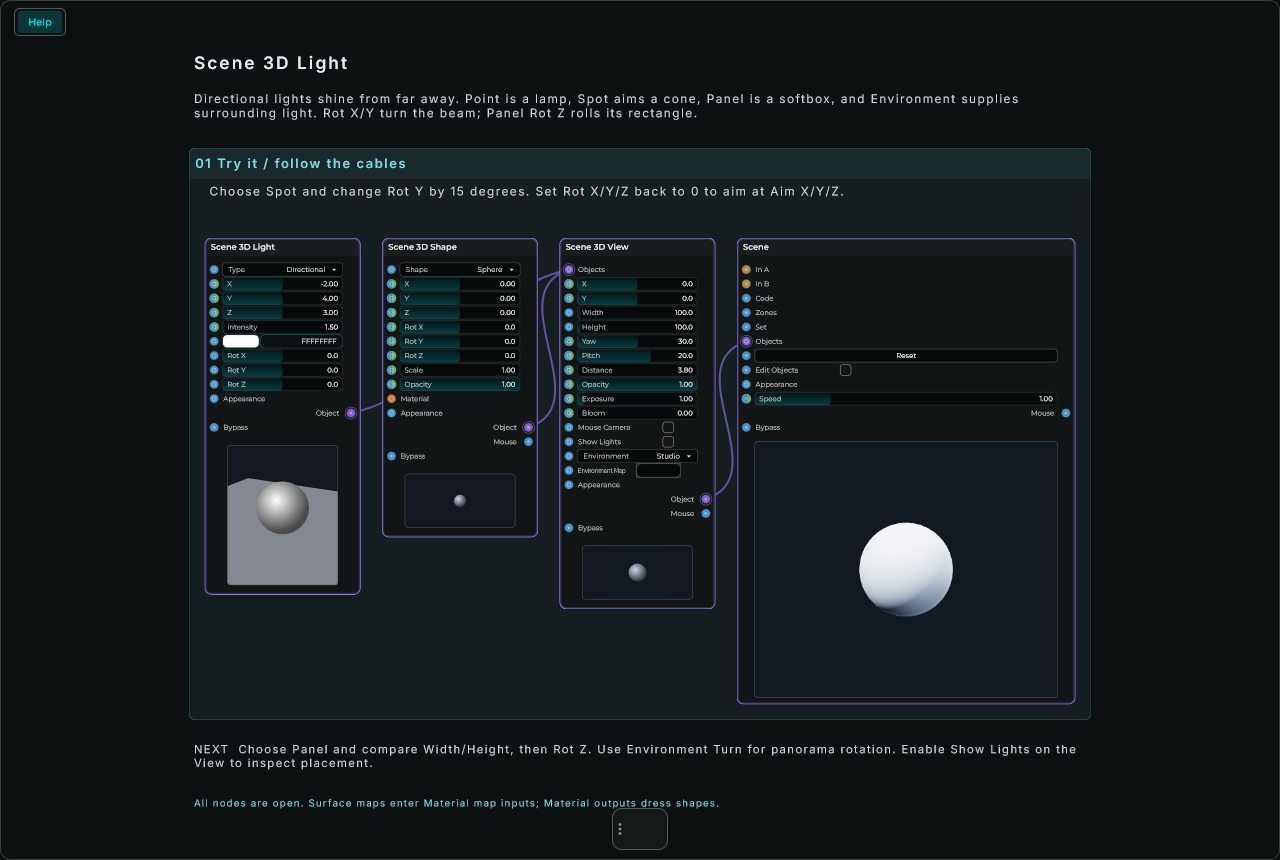
| Parameter | Range | Default | Description |
|---|---|---|---|
| X, Y, Z | -4000 to 4000 | -2, 4, 3 | Where it is, or where it comes from. |
| Intensity | 0 to 100 | 1.5 | How bright it is (an Environment: how bright all round is). |
| Type | Directional / Point / Spot / Panel / Environment | Directional | On its first row, with an input that takes its number or its name: from far away, from a point, in a cone, from a rectangle, or from all round. |
| Colour | colour | white | On its row, with an input that takes a colour's text: its colour; an Environment on Colour: the colour of the light from all round. |
| Reach | 0.1 to 1000 | 10 | In the Inspector: how far a point's, a spot's or a panel's light reaches. |
| Aim X, Y, Z | -4000 to 4000 | 0, 0, 0 | In the Inspector: where a spot points or a panel faces, in the units of what holds it. |
| Cone | 1 to 89 | 30 | In the Inspector: how wide a spot's light is, from its middle to its edge, in degrees. |
| Softness | 0 to 1 | 0.3 | In the Inspector: how much of a spot's cone fades out to its edge; 0 a sharp circle. |
| Width, Height | 0.01 to 1000 | 1, 1 | On their rows (a panel): its size, in the world's units. |
| Surroundings | Colour / Studio / Sky / Sunset / Night / File | Studio | On its row (an Environment): what is all round. |
| Environment Map | a file | empty | On its row (an Environment): a panorama twice as wide as it is tall (HDR, JPG or PNG) whose light and reflections replace Surroundings; clear it to use Surroundings again. From a cable it takes a panorama's whole path, or a sky with its sun somewhere, as sky:30:90 (the sun 30 degrees up, turned 90), what a Scene 3D Sky makes. |
| Surroundings File | a file | none | In the Inspector: the panorama for File, a picture of all round twice as wide as it is tall (an .hdr keeps the sun as bright as it is). |
| Turn | -360 to 360 | 0 | On its row (an Environment): its surroundings turned round the upright, in degrees: where the sun comes from. |
| Show Behind | on or off | off | On its row (an Environment): its surroundings seen behind the world, in place of the view's Background. |
| Shadows | on or off | on | In the Inspector: it casts shadows. |
| Shadow Softness | 0 to 32 | 1.5 | In the Inspector: how soft its shadows' edges are; 0 sharp. |
| Rot X, Rot Y, Rot Z | -3600 to 3600 | 0 | On their rows: the light turned round each axis, in degrees. Rot X tilts its aim, Rot Y turns it, Rot Z rolls a panel round its beam. All 0 keeps Aim as it is. |
Inputs: X, Y, Z and Intensity, each accepting a value or a CV signal; Type and Surroundings, a number or a name; Colour, a colour's text; Width, Height, Turn, Rot X, Rot Y and Rot Z, a value; Environment Map, a path or a text; Show Behind, a value (above a half: on).
Outputs: Object.
Scene 3D Sky
A sky with a sun, for a Scene 3D View: wire its Object into the view's Objects, as a light. Sun Height and Sun Turn place the sun, and the sky is made to match: high, a day's blue sky; low, a sunset's gold; under the horizon, dusk and then the night, with its stars and the moon.
It lights the world twice: from all round, as the sky does (Sky), and from the sun (Sun), with shadows that grow long as it sets. The sun's light turns warmer as it gets lower and fades out as it goes under. Show Behind shows the sky behind the world.
It takes the place of the view's surroundings, as a Scene 3D Light of Type Environment does, and the view adds no lights of its own with it; add Scene 3D Lights for more (a lamp at night). A new sky is made a moment after the sun moves, and the last one stays on until it is ready, so the view never goes dark. Sun and Sky take a CV cable, so the sound can make the daylight pulse.
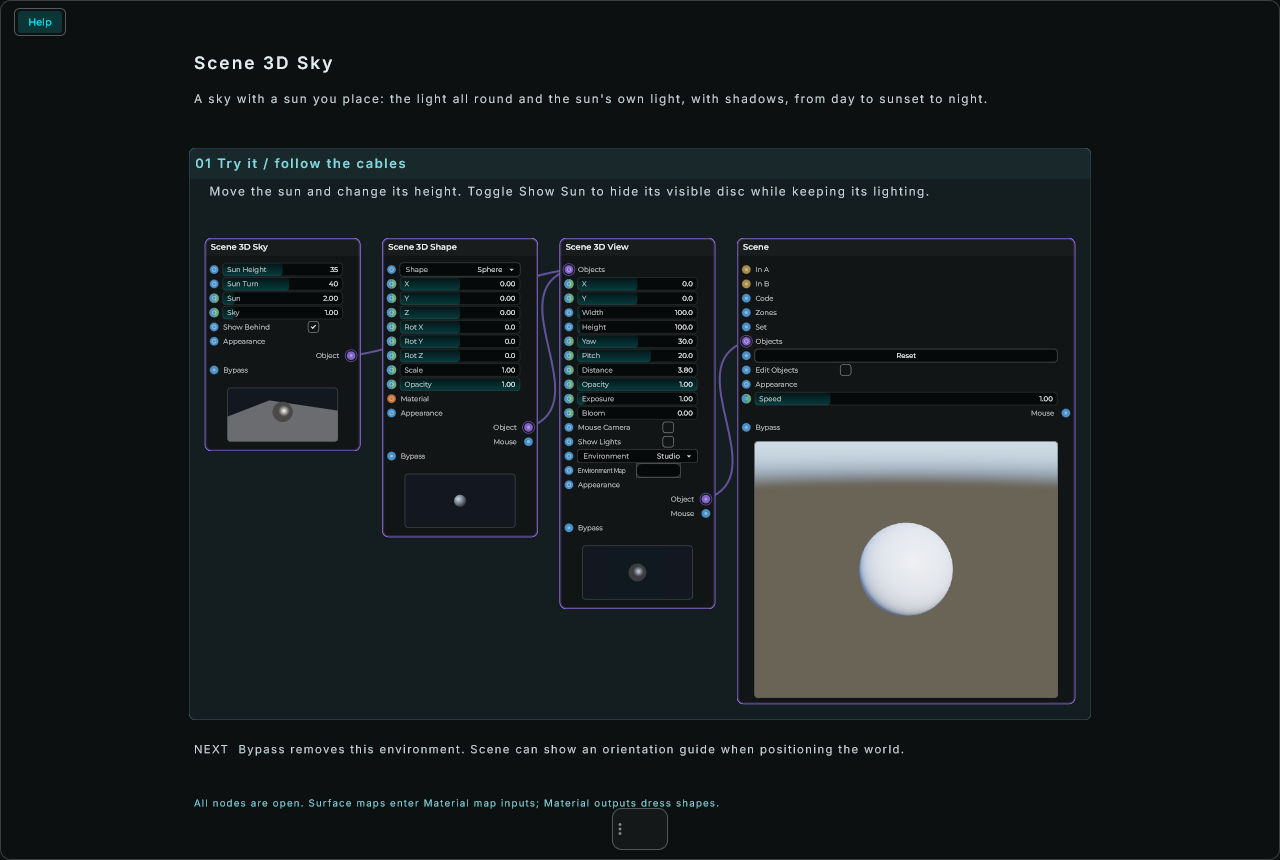
| Parameter | Range | Default | Description |
|---|---|---|---|
| Sun Height | -20 to 90 | 35 | How high the sun is, in degrees over the horizon: day, sunset, or (under it) night. |
| Sun Turn | -360 to 360 | 40 | Where round the world the sun is, in degrees: where its light and its shadows come from. |
| Sun | 0 to 20 | 2 | How bright the sun's own light is (less as it sets, none at night). |
| Sky | 0 to 10 | 1 | How bright the light from all round is, and the sky seen behind. |
| Show Behind | on or off | on | The sky seen behind the world, in place of the view's Background. |
| Shadows | on or off | on | In the Inspector: the sun casts shadows. |
| Shadow Softness | 0 to 32 | 2 | In the Inspector: how soft the sun's shadows' edges are; 0 sharp. |
Inputs: Sun Height and Sun Turn, a value; Sun and Sky, each accepting a value or a CV signal; Show Behind, a value (above a half: on).
Outputs: Object.
Scene 3D Fog
Fog in a 3D world: what is far fades into its Colour, more the thicker its Amount, from Start away from the camera. With Height Fade above 0 it thins above Height and lies low, a mist over a lake or a valley. Wire its Object into a Scene 3D View's Objects (or straight into a Scene's, with the rest of the world): it takes the place of the view's own Fog. What is behind the world (its Background, a sky's surroundings) is not fogged: a fog the colour of what is behind it melts the far things into it.
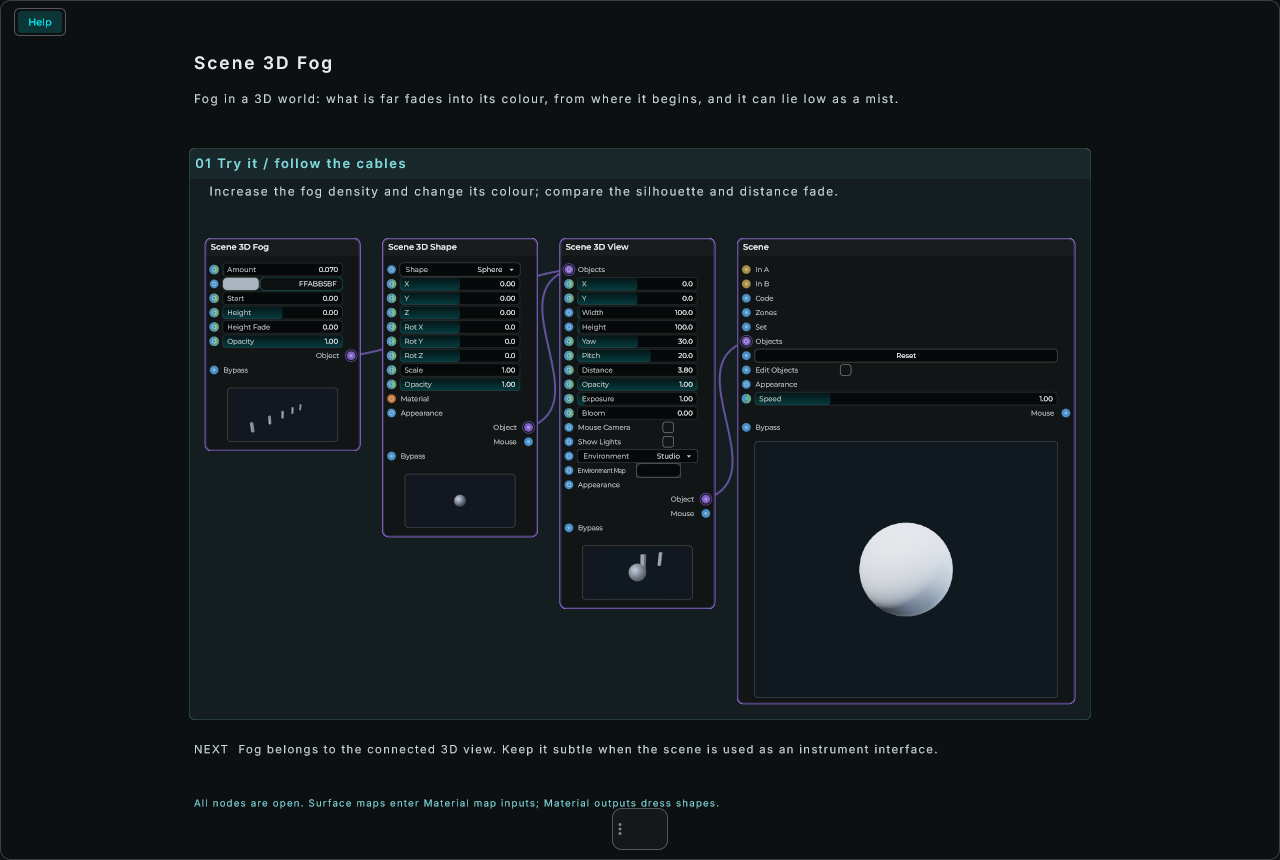
| Parameter | Range | Default | Description |
|---|---|---|---|
| Amount | 0 to 5 | 0.07 | How thick it is: at 0.07 what is 10 away is half gone into it; 0 none. |
| Colour | colour | soft grey | What the distance fades into. Fully clear: the view's Background. |
| Start | 0 to 1000 | 0 | How far from the camera it begins: nearer than that the air is clear. |
| Height | -1000 to 1000 | 0 | With Height Fade above 0: the height it is whole below (up is Y). |
| Height Fade | 0 to 20 | 0 | How fast it thins above Height, a unit up: 0 as thick at every height; 1 or more, a mist on the ground. |
| Opacity | 0 to 1 | 1 | How much of it there is, to fade it in and out. |
Inputs: Amount, Start, Height, Height Fade and Opacity, each accepting a value or a CV signal; Colour, a colour's text.
Outputs: Object.
Scene 3D Sound
New in MNodes 1.1.6
Older versions of MNodes do not have Scene 3D Sound.
A sound with a place in a 3D world. The sound comes into In, and the node's Object goes into the world: into the Scene 3D Group of what makes the sound, a bird, a bell, a waterfall, so it goes wherever that goes, or straight into a Scene 3D View at X, Y and Z. Out L and Out R give the sound as the listener hears it from there: from its side, above or below, near or far.
The three 3D sound nodes connect like this, each part with a cable:
- A sound goes into Scene 3D Sound, and its Object goes into the group of what makes the sound.
- Its Out L and Out R go into a Scene 3D Listener, and the listener's Object goes into the player's group. The world is heard from there.
- The listener's Out L and Out R go to Audio Out.
- A Scene 3D Reverb Zone in the world is a room: while the listener is inside it, what the listener hears gets the room's reverb.
It is at full level within Near and fades past it, faster with more Rolloff. Far sounds lose their highs (Air), the ear away from the sound hears it duller, and a sound behind you is duller still. Doppler: a sound takes as long to arrive as it is far away, so one rushing past rises and falls in pitch (0: none, and no delay at all). Occlusion: behind rocks, walls and trees it is duller and quieter; each solid between it and the listener hides a little more.
It is heard while its Object is in a world that a Scene shows. In the Inspector, Hidden says what happens when it is not (a place you have left, a hidden group): Silent fades it out, Keep holds it where it was. Mode on Headphones gives each ear its own moment (up to two thirds of a millisecond apart, the width of a head) and makes the far ear quieter, for headphones; Speakers keeps it gentle for a room. Script Sound is only for a sound a Script makes with v.sound({ name: "bell" }): type that name and it plays from there.
The sounds follow their places even when nothing draws the Scene (the plug-in's window closed in a DAW, the Scene on no screen): the Scene node places its 3D world again by itself, thirty times a second, for the sounds alone.
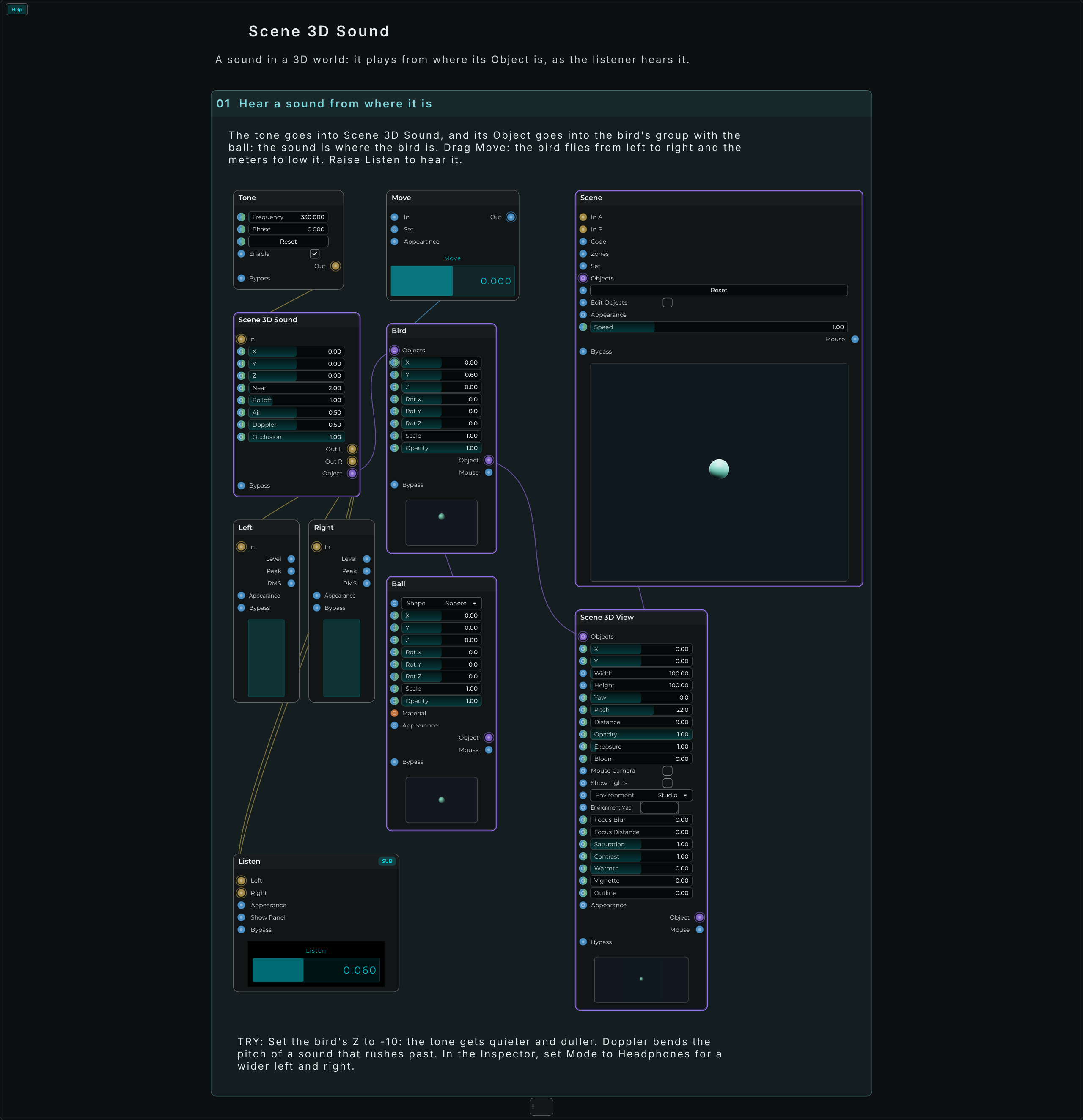
| Parameter | Range | Default | Description |
|---|---|---|---|
| X, Y, Z | any | 0 | Where it is, in the units of what holds it. |
| Near | 0.1 to 100 | 2 | Within this distance it is at full level, in the world's units. |
| Rolloff | 0 to 4 | 1 | How fast it fades past Near: 1 as sounds do, 0 never. |
| Air | 0 to 1 | 0.5 | How much of its highs it loses far away. |
| Doppler | 0 to 1 | 0.5 | How much its pitch bends as it comes and goes: 1 as in the air (343 of the world's units a second), 0 none. |
| Occlusion | 0 to 1 | 1 | How much solids between it and the listener muffle it. |
| Mode | Speakers / Headphones | Speakers | In the Inspector. Headphones: each ear its own moment, the far ear quieter. |
| Hidden | Silent / Keep | Silent | In the Inspector. While no Scene shows it: fade out, or stay where it was. |
| Script Sound | text | empty | In the Inspector. Only for a sound a Script makes: its name. |
Inputs: In (mono audio); X, Y, Z, Near, Rolloff, Air, Doppler and Occlusion, each accepting a value or a CV signal.
Outputs: Out L, Out R (audio): the sound as the listener hears it; Object.
Scene 3D Listener
New in MNodes 1.1.6
Older versions of MNodes do not have Scene 3D Listener.
The ears in a 3D world, and what they hear. Its Object goes into the world: into the player's Scene 3D Group, so the world is heard from wherever the player goes, or straight into a Scene 3D View at X, Y and Z. Every Scene 3D Sound in that world is heard from there. With Facing on Camera, ahead is the way the camera looks along the ground (up the screen), so what is on the right of the screen is heard on the right, as in most games seen from above; on Own it faces its own +Z, turned with Rot Y and with what holds it, as a head in a first-person game.
Put the world's sounds through it: the Scene 3D Sounds' Out L and Out R into In L and In R. They come out with the reverb of the room the listener is in: the Scene 3D Reverb Zones round it, blended as it walks from one into another. Reverb sets how much of it you hear. Keep the music out of it.
Use one listener for each world. With none, the world is heard from what the camera looks at, with no rooms. It is not drawn.
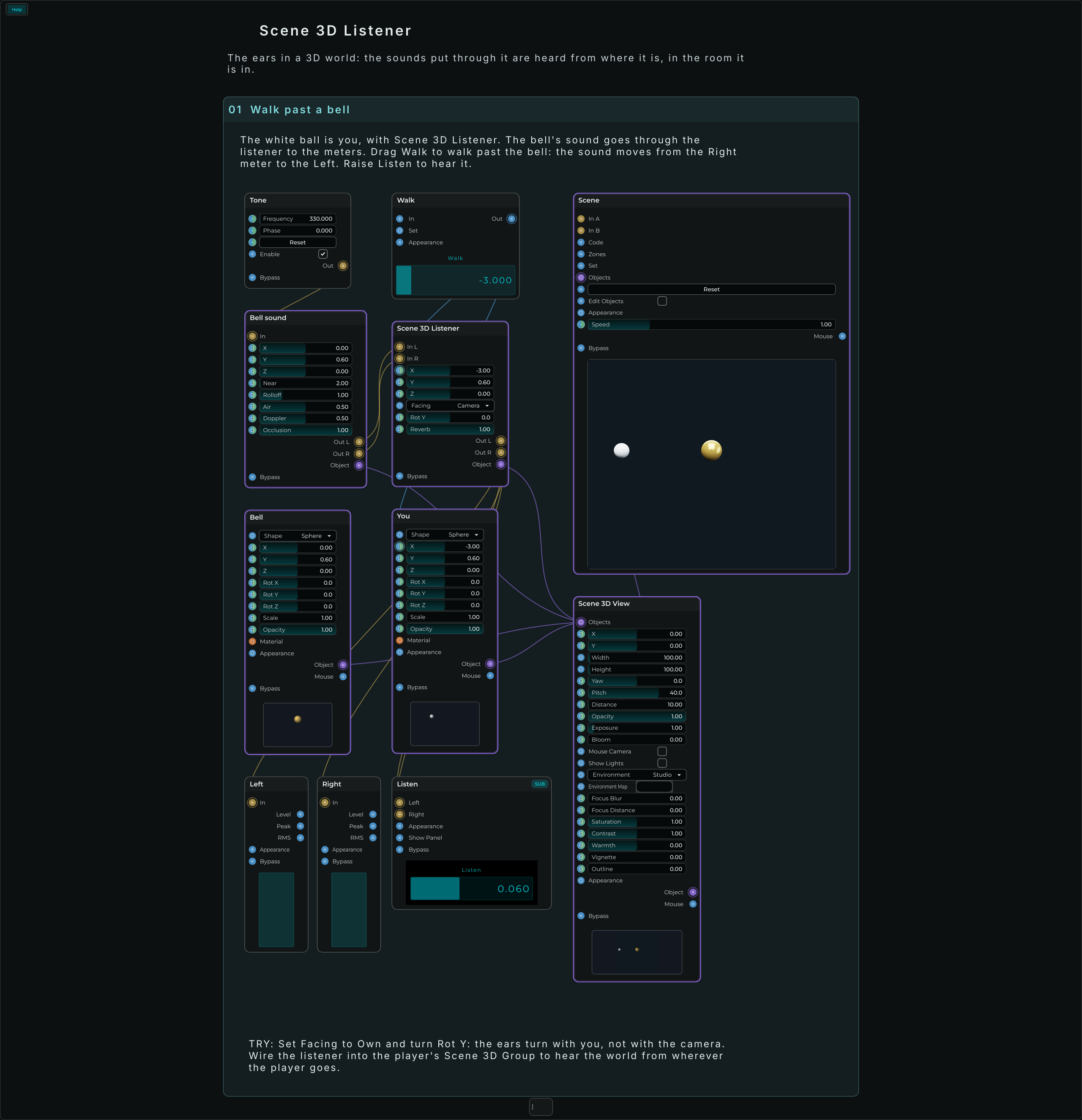
| Parameter | Range | Default | Description |
|---|---|---|---|
| X, Y, Z | any | 0 | Where it is, in the units of what holds it. |
| Facing | Camera / Own | Camera | Which way is ahead. |
| Rot Y | degrees | 0 | Turned round the upright (with Facing on Own). |
| Reverb | 0 to 1 | 1 | How much of the room's reverb comes out with the sounds. |
| Outside | 0 to 1 | 0 | In the Inspector: how much reverb there is out in the open, where no zone is. |
| Width | 0 to 1 | 0.85 | In the Inspector: how wide the reverb spreads. |
| Script Room | text | empty | In the Inspector. Only for a world a Script makes: the room its listener says, v.listener({ room: "room" }) ("room" if it says none). |
Inputs: In L, In R (audio: with only In L wired, both sides hear it); X, Y, Z, Rot Y and Reverb, each accepting a value or a CV signal; Facing, its number or its name.
Outputs: Out L, Out R (audio): the sounds and the room they are heard in; Object.
Scene 3D Reverb Zone
New in MNodes 1.1.6
Older versions of MNodes do not have Scene 3D Reverb Zone.
A place in a 3D world that sounds like a room: a cave, a hall, a forest. It is a box Width by Height by Depth round X, Y, Z (or, with Radius above 0, a ball), and while the Scene 3D Listener in its world is in it, the sounds put through the listener get its reverb: Size how big it sounds, Decay how long it rings, Damping how dull its walls are, Pre-Delay how far away they are, Mix how much of it there is. Coming in, it fades in over Fade beyond its edge; where zones overlap, they blend. It moves with what holds it and is not drawn.
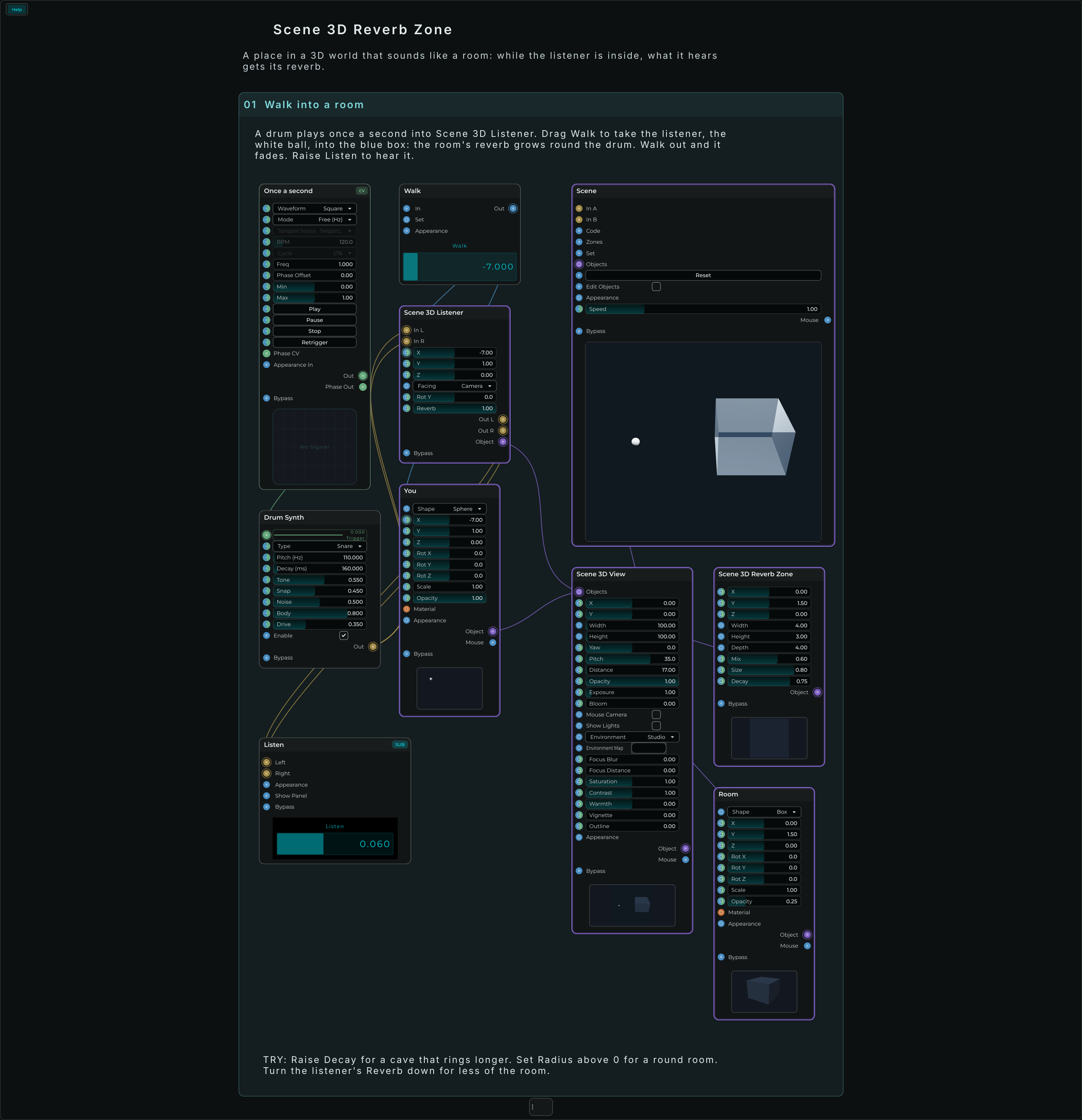
| Parameter | Range | Default | Description |
|---|---|---|---|
| X, Y, Z | any | 0 | Its middle. |
| Width, Height, Depth | 0 and up | 10, 6, 10 | The box. |
| Mix | 0 to 1 | 0.35 | How much of its reverb the listener's sounds get. |
| Size | 0 to 1 | 0.6 | How big it sounds. |
| Decay | 0 to 1 | 0.6 | How long it rings. |
| Radius | 0 and up | 0 | In the Inspector: above 0, a ball this big in place of the box. |
| Fade | 0 and up | 2 | In the Inspector: over how far beyond its edge it fades in. |
| Damping | 0 to 1 | 0.3 | In the Inspector: how dull its walls are. |
| Pre-Delay | 0 to 250 ms | 20 | In the Inspector: how long before its reverb starts. |
Inputs: X, Y, Z, Mix, Size and Decay, each accepting a value or a CV signal; Width, Height and Depth, a value.
Outputs: Object.
Scene 3D Body
New in MNodes 1.1.6
Older versions of MNodes do not have Scene 3D Body.
Makes what is wired into its Objects (Scene 3D Shapes, Models, Groups) one solid thing in the world of the Scene 3D View it reaches. Its shape is the shapes it holds: a ball is round and rolls, a box tips over its edges, a table of five boxes is one body (a model counts as the box it is fitted into). Choose its Type:
- Dynamic falls, collides, bounces, slides and comes to rest, and sleeps once it is still, costing nothing until something wakes it.
- Static stays where it is put: the ground, a wall, a ramp. Lay a Scene 3D Shape plane in one as the floor.
- Kinematic goes where its rows say (a CV, an animation), pushing what is in its way while nothing pushes it: a door, a lift, a paddle.
X, Y and Z are where it is put: a dynamic body starts there, and is put there again whenever they change (a CV moves it only as it changes, never back every frame). An event into Push gives it a kick of Push X, Y and Z units a second (a number: that much up); an event into Restart puts every dynamic body of its view back where it was put, still.
Each time it begins to touch something, an Event goes out of Hit, and how hard out of Strength (0 to 1: half at 3.5 units a second): wire them into an envelope's gate and its velocity, and every bounce plays. With cables on X, Y, Z and Speed, where it is and how fast it goes come out every frame it moves, to follow with a filter or a pan. Rolling and settling send nothing softer than Min Strength.
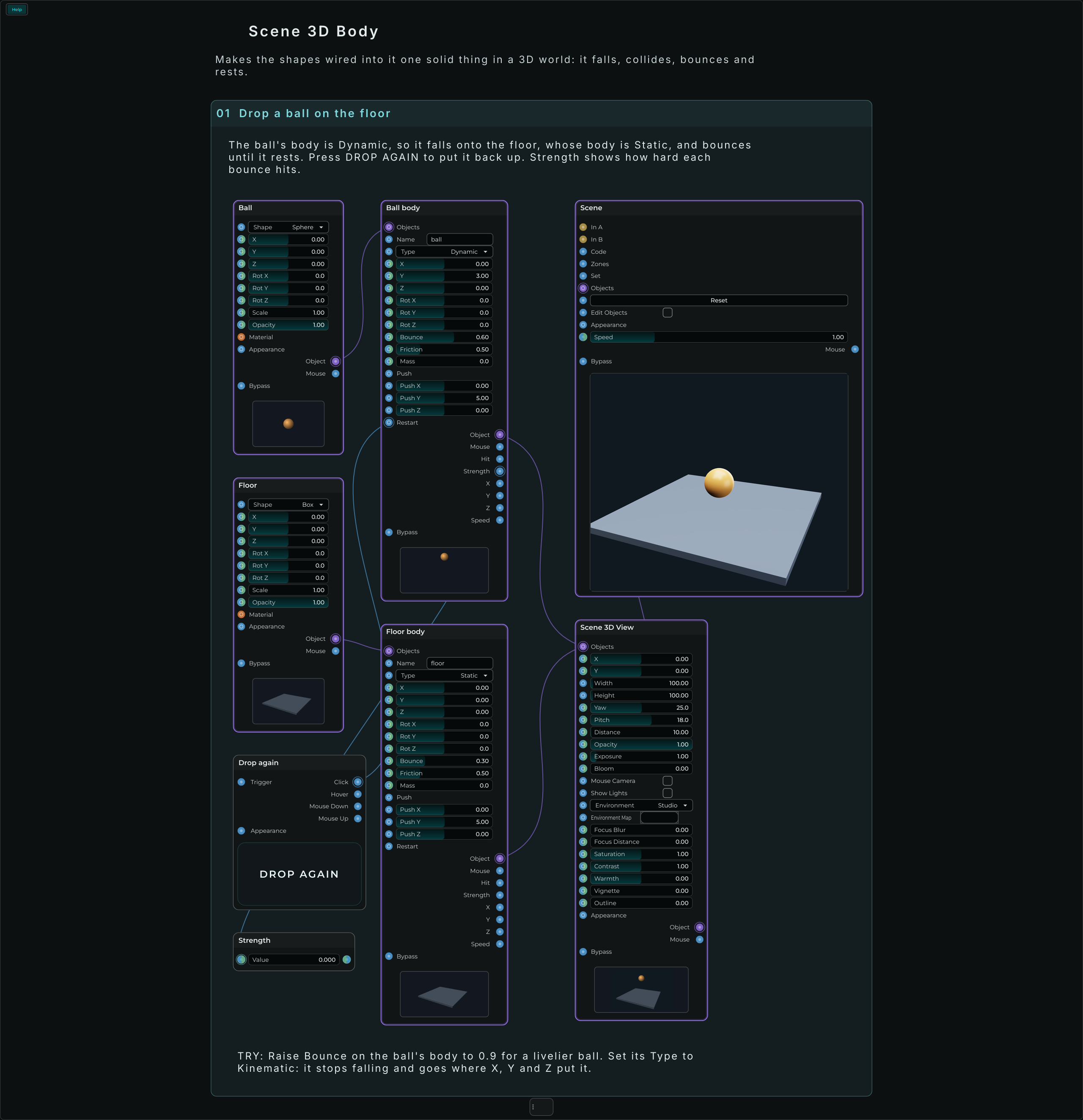
| Parameter | Range | Default | Description |
|---|---|---|---|
| Name | text | empty | Its name, for a Scene 3D Joint to find it by. |
| Type | Static / Dynamic / Kinematic | Dynamic | How it moves. |
| X, Y, Z | any | 0 | Where it is put, in the units of what holds it. |
| Rot X, Rot Y, Rot Z | degrees | 0 | How it is turned when put there. |
| Bounce | 0 to 1 | 0.3 | 0 a thud, 1 a superball. |
| Friction | 0 to 2 | 0.5 | How it grips: 0 ice, 1 rubber. |
| Mass | 0 and up, kg | 0 | How heavy: a heavy body pushes a light one aside. 0 works it out from its size, as water. |
| Push X, Push Y, Push Z | units a second | 0, 5, 0 | The kick an event into Push gives it. |
| Gravity | -10 to 10 | 1 | In the Inspector: how much gravity pulls it (0 floats, below 0 rises). |
| Damping | 0 to 10 | 0.05 | In the Inspector: how much the air slows it. |
| Sensor | on or off | off | In the Inspector: it stops nothing and only feels what comes into it (a goal, a trap, a zone). |
| Upright | on or off | off | In the Inspector: it never turns over (a character, a skittle that slides). |
| Fast | on or off | off | In the Inspector: thrown very fast, it does not pass through thin walls. |
| Min Strength | 0 to 1 | 0.05 | In the Inspector: hits softer than this send nothing out of Hit. |
Inputs: Objects; Name, a text; Type, its number or its name; X, Y, Z, Rot X, Rot Y, Rot Z, Bounce, Friction and Mass, each accepting a value or a CV signal; Push and Restart, events; Push X, Push Y and Push Z, a value.
Outputs: Object; Mouse; Hit, an Event; Strength, X, Y, Z and Speed, values.
Scene 3D Physics
New in MNodes 1.1.6
Older versions of MNodes do not have Scene 3D Physics.
The physics of a 3D world, wired into a Scene 3D View's Objects: Gravity, how hard everything is pulled down (9.81 units a second every second, as on Earth; 1.6 the Moon; 0 none; below 0 up), Speed, how fast its time goes (0.5 slow motion), and Paused, everything stopped where it is. An event into Restart puts every dynamic body back where it was put.
Every time two of its bodies begin to touch, an Event goes out of Hit, how hard out of Strength (0 to 1) and where out of Hit X, Hit Y and Hit Z: a box of balls that plays notes with no code, the place of each hit choosing its pitch or its pan. A view with no Physics node still has its bodies fall, at 9.81. It is not drawn.
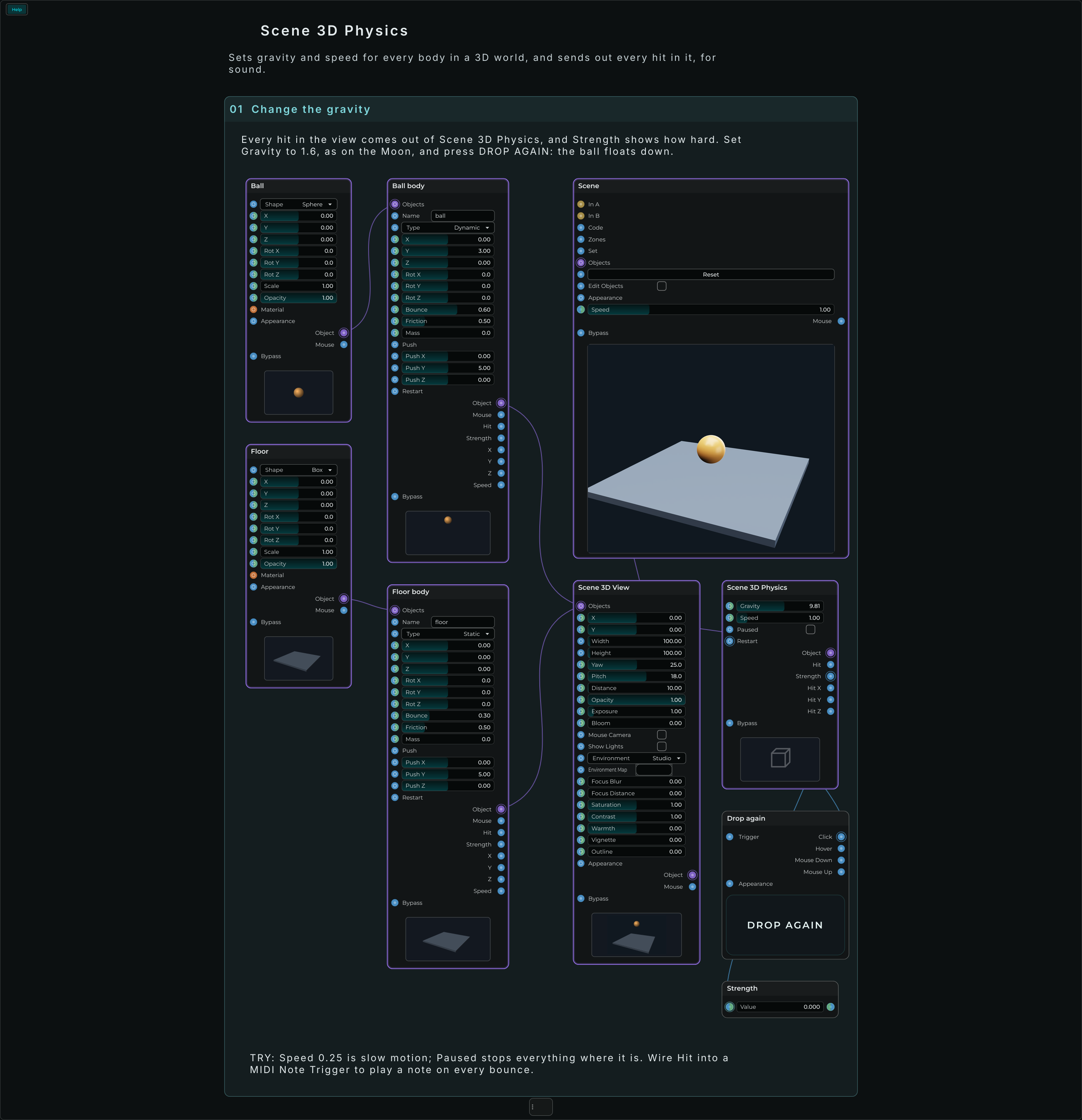
| Parameter | Range | Default | Description |
|---|---|---|---|
| Gravity | -100 to 100 | 9.81 | How hard everything is pulled down, in units a second every second. |
| Speed | 0 to 8 | 1 | How fast its time goes. |
| Paused | on or off | off | Everything stopped where it is. |
| Min Strength | 0 to 1 | 0.05 | In the Inspector: hits softer than this send nothing out of Hit. |
| Tempo | 0 to 300 BPM | 0 | In the Inspector: the tempo the world is laid out at. While the transport plays, its time follows the transport's tempo. 0: off. |
Inputs: Gravity and Speed, each accepting a value or a CV signal; Paused, on or off; Restart, an event.
Outputs: Object; Hit, an Event; Strength, Hit X, Hit Y and Hit Z, values.
The physics runs in steps of a sixtieth of a second whatever the screen, and what is drawn between two steps is put between them, so it moves as smoothly at 144 frames a second as at 60. Since 1.1.8 it also keeps time with the clock: a frame that comes late takes every step it missed, so a ball lands at the same moment however busy the computer is, and Speed is the same on every screen. Only a stop of more than a quarter of a second (MNodes busy opening a project, say) is waited out rather than caught up. It goes on when nothing draws the Scene: with the plug-in's window closed in a DAW, or the Scene on no screen, the Scene node moves its world on by itself, so the balls still fall, the hits still go out and the notes still play, and what CV moves on the nodes' rows still moves it.
Since 1.1.8, Tempo in the Inspector makes the world keep time with the music. Set it to the tempo you laid the world out at, say 90: while the transport plays at 120, everything falls, rolls and bounces a third faster, so a ball that hit a bell on the beat at 90 hits it on the beat at 120. With the transport stopped it goes at its own Speed. Leave it at 0 and nothing changes. A world with many bodies also shares its work over a few of the computer's cores, so a few thousand balls can fall at 60 frames a second, and it takes as many bodies as you make, up to 65,536 in one 3D view.
Scene 3D Joint
New in MNodes 1.1.6
Older versions of MNodes do not have Scene 3D Joint.
Joins two Scene 3D Bodies, or one to the world: Body A and Body B are their Names (give each body its Name), and with Body B empty the body is held where the joint is. Wire it into the same Scene 3D View as the bodies. It holds them as they are when it first finds them both, so put the bodies and the joint where you want them. Two bodies a joint holds do not collide with each other (a door with its post, two links of a chain).
- Hinge: they turn round its Axis through it only. A pendulum is a ball held by a hinge on Axis Z, beside it; a door, a hinge on Axis Y at its edge; a wheel, a hinge at its middle that Motor Speed turns (degrees a second). Its angle is 0 with Body A turned as the joint is (a pendulum hanging straight down), so a pendulum made swung out to 20 degrees reads 20 and swings from 20 to -20. Min and Max limit it (degrees; 0 and 0 is free).
- Spring: Body A is pulled back towards Length from Body B (or from the joint), bouncing Stiffness times a second and settling with Damping. Stiffness 0 is a rigid rod.
- Rope: never further than Length, as near as it likes.
- Ball: held at the joint, turning every way: a ball and socket.
- Fixed: welded as they are.
- Slider: slides along its Axis only, a piston or a drawer, Min and Max in units, driven by Motor Speed.
Out of Value comes a hinge's angle in degrees, a slider's place, a spring's or a rope's length; out of Speed, how fast it changes. With cables on them, they come out every frame it moves: a pendulum's swing for a filter or a pan, its passing the middle for a note. It is not drawn.
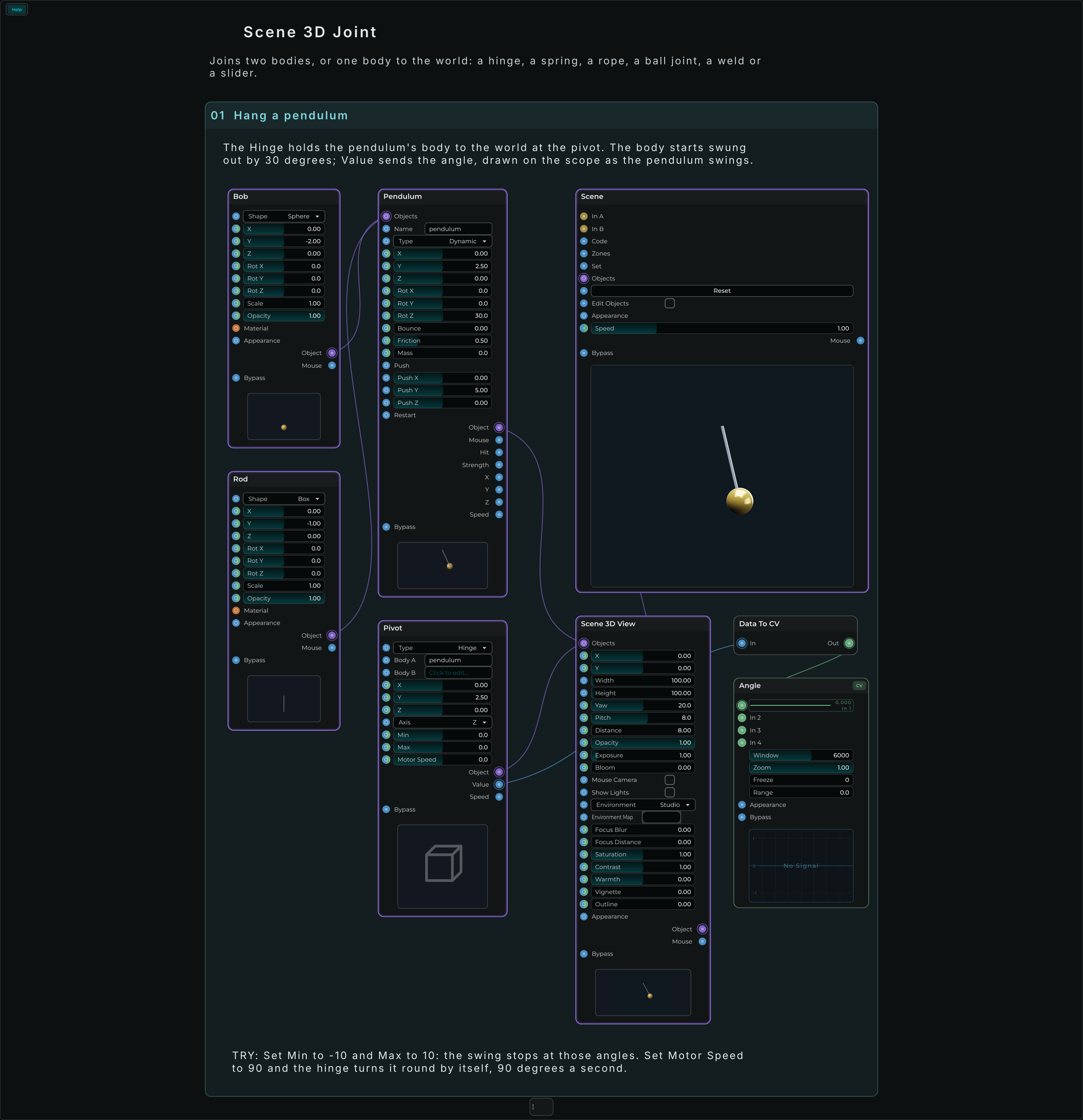
| Parameter | Range | Default | Description |
|---|---|---|---|
| Type | Hinge / Spring / Rope / Ball / Fixed / Slider | Hinge | How it holds them. |
| Body A, Body B | text | empty | The Names of the bodies it joins; Body B empty, the world. |
| X, Y, Z | any | 0 | Where it holds them: a hinge's pin, a ball's socket. |
| Axis | X / Y / Z | Z | Which way a hinge turns round, or a slider slides. |
| Min, Max | any | 0 | A hinge's limits in degrees (Min 0 to -180, Max 0 to 180, 0 with Body A turned as the joint is), a slider's in units; 0 and 0, none. |
| Motor Speed | any | 0 | A hinge's motor, degrees a second; a slider's, units a second; 0, none. |
| Stiffness | 0 to 100 Hz | 2 | How fast a spring bounces (0: a rigid rod). |
| Damping | 0 to 10 | 0.1 | How soon a spring settles. |
| Length | 0 and up | 0 | A spring's length at rest, a rope's longest; 0, as far apart as they are when made. |
| Motor Strength | 0 and up | 0 | In the Inspector: the most the motor pushes with (0: as much as it takes). With Motor Speed 0, a brake. |
| Friction | 0 and up | 0 | In the Inspector: how stiffly a hinge turns or a slider slides. |
| Rot X, Rot Y, Rot Z | degrees | 0 | In the Inspector: its Axis tilted. |
Inputs: Type and Axis, their numbers or names; Body A and Body B, a text; X, Y, Z, Min, Max, Motor Speed, Stiffness, Damping and Length, each accepting a value or a CV signal (Motor Speed and the limits change as it goes).
Outputs: Object; Value and Speed, values.
Scene 3D Group
Holds what is wired into its Objects in a Scene 3D View: Scene 3D Shapes, Models, Lights and other 3D groups, placed from the group's X, Y and Z and turned and sized with it. A planet and its moons, a machine's parts, a knob made of shapes. In a module, with the rows you want as the module's ports, it is a 3D component to keep in the Library.
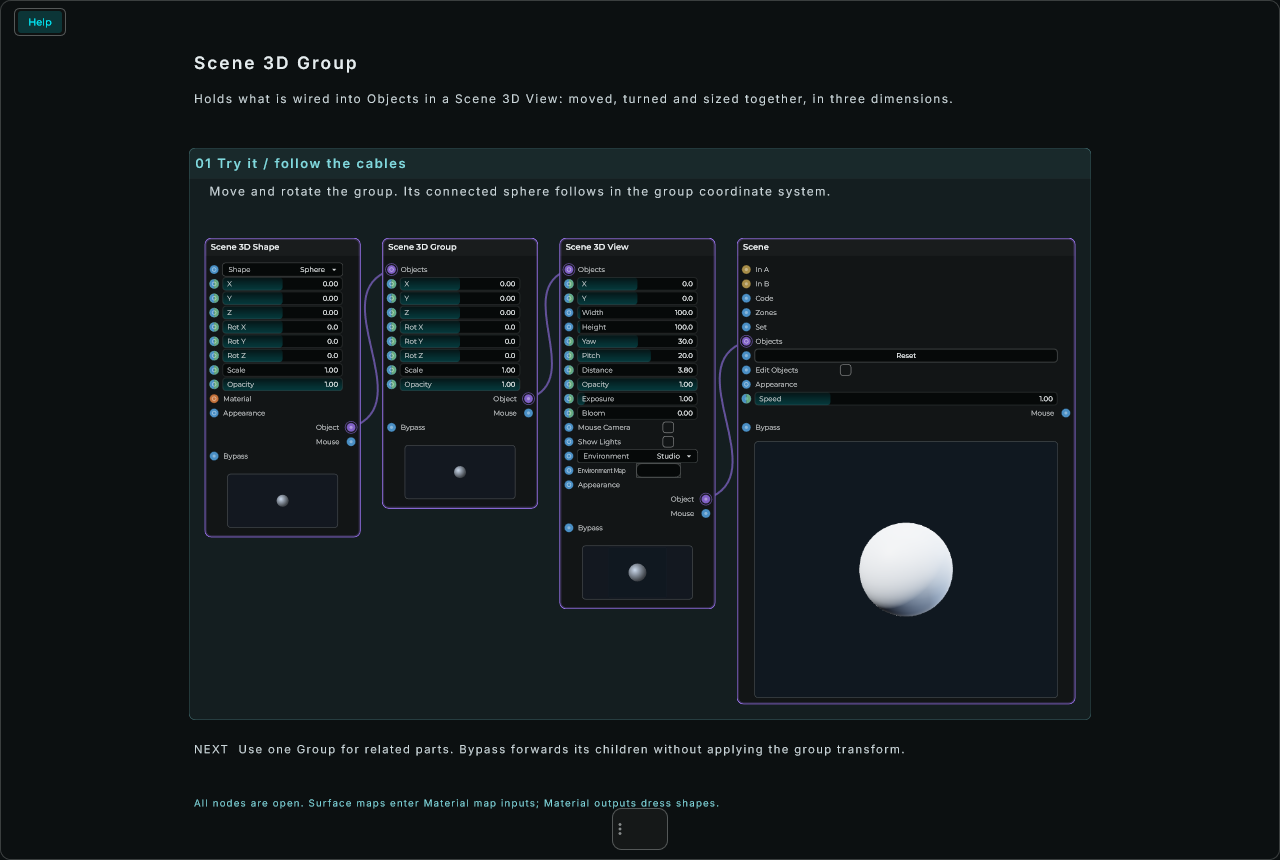
| Parameter | Range | Default | Description |
|---|---|---|---|
| X, Y, Z | -4000 to 4000 | 0, 0, 0 | Where what it holds counts from. |
| Rot X, Rot Y, Rot Z | -3600 to 3600 | 0 | Turned round each axis, in degrees. |
| Scale | 0 to 1000 | 1 | How big what it holds is. |
| Opacity | 0 to 1 | 1 | For everything in it. |
Inputs: Objects; X, Y, Z, Rot X, Rot Y, Rot Z, Scale and Opacity, each accepting a value or a CV signal.
Outputs: Object; Mouse, what the mouse does on anything in it, across and up its view, for a Mouse Actions node.
Scene 3D Clones
Copies of what is wired into its Objects in a Scene 3D View: Count of them, in a line, a grid, a circle, a spiral, over a sphere or at random. Each copy can be turned, raised and grown a little more than the one before, for a twisting tower, a helix or a shell, and shaken at random by Jitter. With Spectrum above 0 each copy is as tall as its band of the sound's spectrum, the lowest first: a ring of bars that dances to the Scene's In A (or In B) with no code. Put what it holds with its foot at 0 (a box 1 high at Y 0.5) and it grows up from the floor.
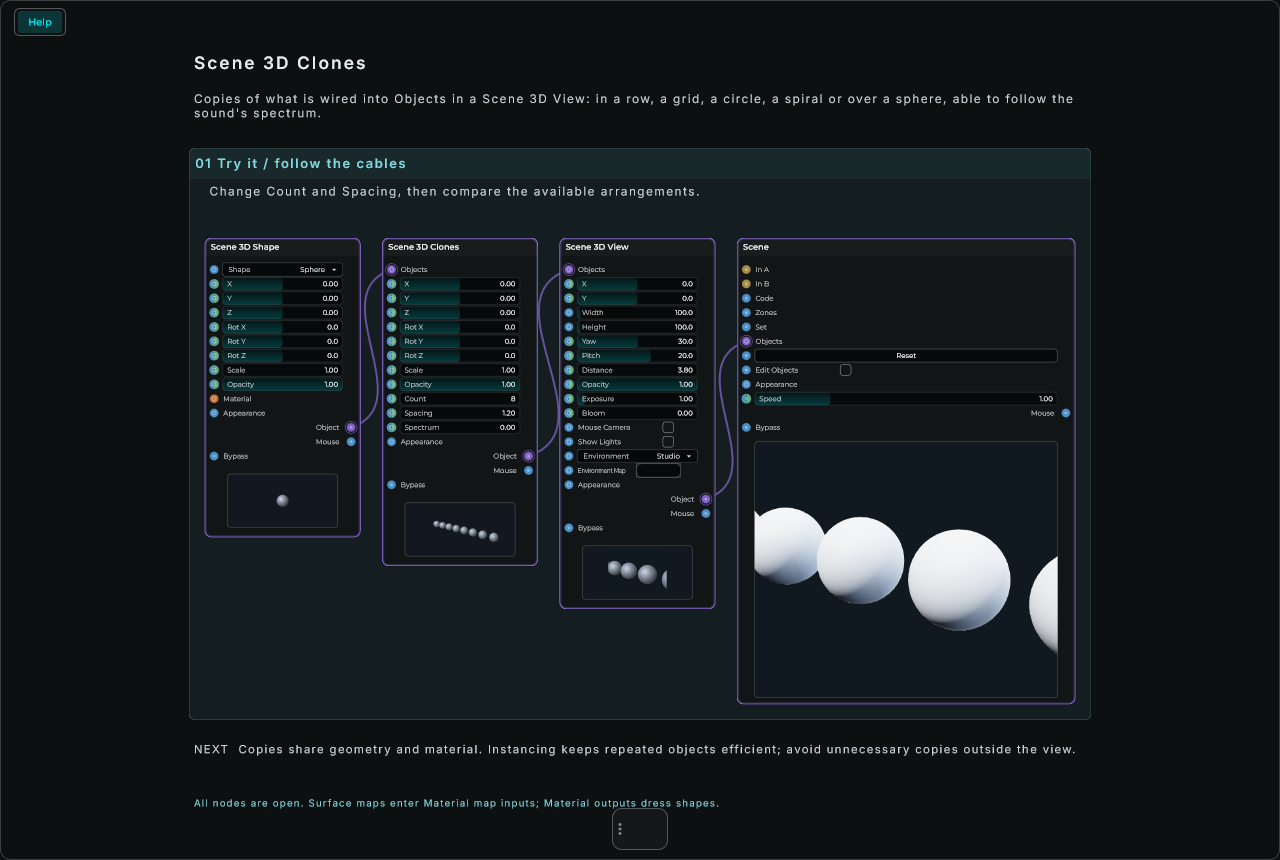
| Parameter | Range | Default | Description |
|---|---|---|---|
| X, Y, Z | -4000 to 4000 | 0, 0, 0 | Where the copies count from. |
| Rot X, Rot Y, Rot Z | -3600 to 3600 | 0 | All of them turned round each axis, in degrees. |
| Scale | 0 to 1000 | 1 | How big all of them are. |
| Opacity | 0 to 1 | 1 | For all of them. |
| Count | 0 to 4096 | 8 | How many copies. |
| Spacing | 0 to 1000 | 1.2 | How far apart they are in a line or a grid. |
| Spectrum | 0 to 100 | 0 | Each copy as tall as its band of the spectrum, this many times at full level (0: they do not follow it). |
| Layout | Line / Grid / Circle / Spiral / Sphere / Random | Line | In the Inspector: how they are laid out. On a circle, a spiral or a sphere they face out. |
| Columns | 0 to 256 | 0 | In the Inspector: a grid's copies across (0: as square as it can be). |
| Radius | 0 to 1000 | 2 | In the Inspector: a circle's, a spiral's or a sphere's radius; how far at random they go. |
| Turns | 0 to 100 | 1 | In the Inspector: how many times round a circle or a spiral goes. |
| Turn Each, Rise Each, Grow Each | any | 0, 0, 1 | In the Inspector: each copy turned (in degrees), raised and sized this much more than the one before. |
| Jitter | 0 to 1 | 0 | In the Inspector: how much each copy is moved, turned and sized at random. |
| Seed | 0 to 99999 | 0 | In the Inspector: which random. |
| Sound | In A / In B | In A | In the Inspector: whose spectrum they follow. |
Inputs: Objects; X, Y, Z, Rot X, Rot Y, Rot Z, Scale, Opacity, Count, Spacing and Spectrum, each accepting a value or a CV signal.
Outputs: Object; Mouse, what the mouse does on anything in it, across and up its view, for a Mouse Actions node.
Scene 3D Join
Makes the Scene 3D Shapes wired into its Objects into one solid, in the Scene 3D View its Object output reaches. Its Mode:
- Merge: put together as they are.
- Blend: melted together where they meet, as soft as Smooth says, as clay. Spheres become a snowman, a mushroom, a character.
- Intersect: only where they all meet.
What is wired into Cut is cut out of it, its edges as soft as Smooth: a hole, a bite, a slice.
It is placed, turned and sized by its rows as a shape is. A Scene 3D Material wired into Material dresses it; with none, it wears the first shape's look. Blend, Intersect and Cut work with anything solid in it: shapes, Scene 3D Models, and what other Joins, Subdivides and Displaces make, on a grid as fine as Detail (one that is not closed, a plane say, is added as it is). A light or particles wired in are placed with it, as they are. It is made again, on threads of its own, when what it holds moves or changes; while that goes on (a CV cable moving Smooth, a shape moving in it) it is made coarser, and fine once it stops, and the last one made stays until the next is ready. Joins, Subdivides and Displaces can be wired into each other: a blend, rounded, then displaced. Their previews show what they make, a little coarser.
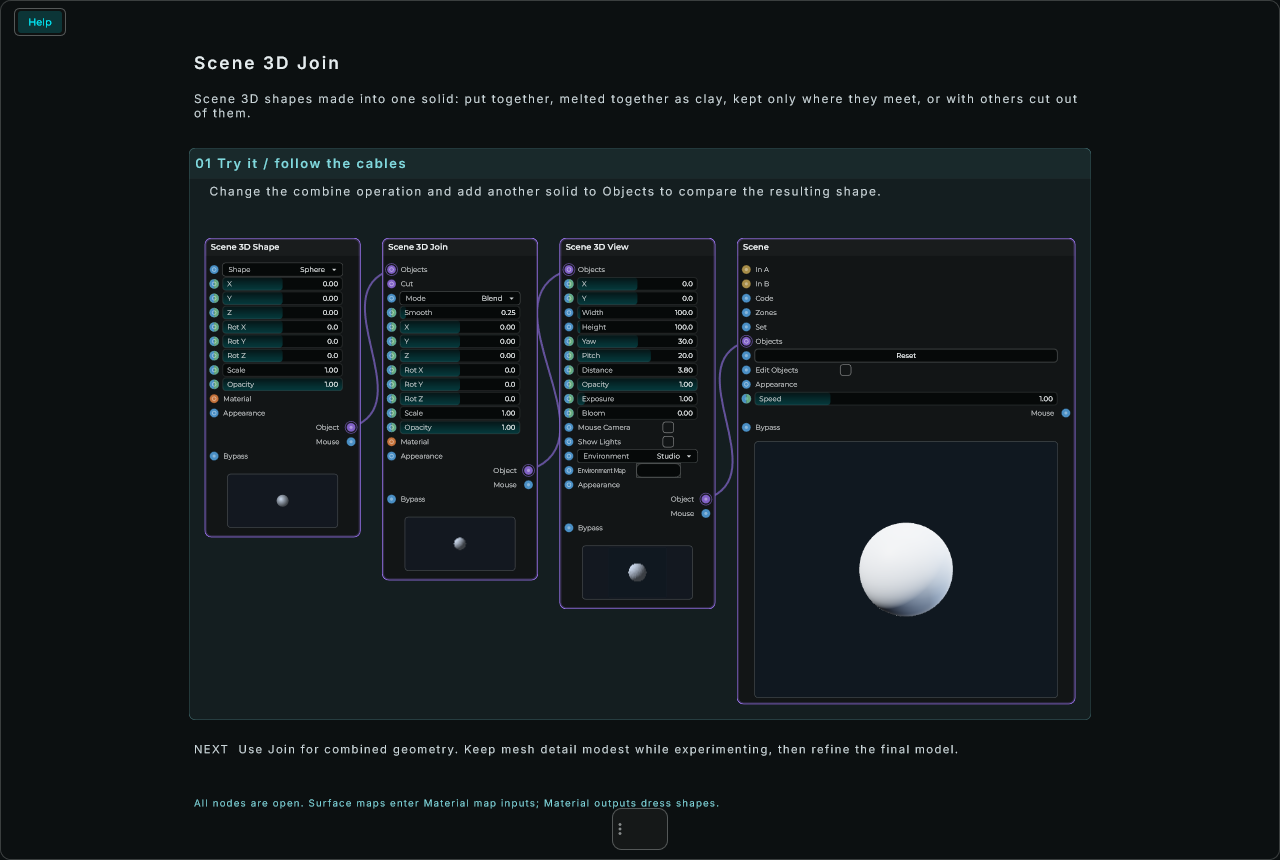
| Parameter | Range | Default | Description |
|---|---|---|---|
| Mode | Merge / Blend / Intersect | Blend | On its row, with an input that takes its number or its name: as they are, melted together, or only where they meet. |
| Smooth | 0 to 5 | 0.25 | How far Blend melts them together, and how soft the edges of what Cut takes out are, in the world's units; 0 sharp. |
| X, Y, Z | -4000 to 4000 | 0 | Where it is. |
| Rot X, Rot Y, Rot Z | -3600 to 3600 | 0 | Turned round its across, its upright and the way it faces you, in degrees. |
| Scale | 0 to 1000 | 1 | How big it is. |
| Opacity | 0 to 1 | 1 | Under 1, what is behind shows through. |
| Detail | 16 to 200 | 64 | In the Inspector: how fine a blended, intersected or cut solid is made, in cells across its longest side. More is finer, and slower to make. |
Inputs: Objects and Cut, Scene 3D nodes; Mode, a number or a name; Smooth, X, Y, Z, Rot X, Rot Y, Rot Z, Scale and Opacity, each accepting a value or a CV signal; Material, a Scene 3D Material.
Outputs: Object; Mouse, what the mouse does on it, for a Mouse Actions node.
Scene 3D Subdivide
Makes what is wired into its Objects into one solid with its faces split in four, Levels times. With Smooth on it is rounded off as it is split, as a subdivision surface: a box turns into a pebble, a sphere of a few sides into a round one. With Smooth off it keeps its shape and only gains points, for a Scene 3D Displace to move.
It is placed, turned and sized by its rows as a shape is, and dressed by a Scene 3D Material wired into Material or else as the first shape it holds. Each level takes about four times as long to make as the one before; it is made on a thread of its own, and the last one made stays meanwhile.
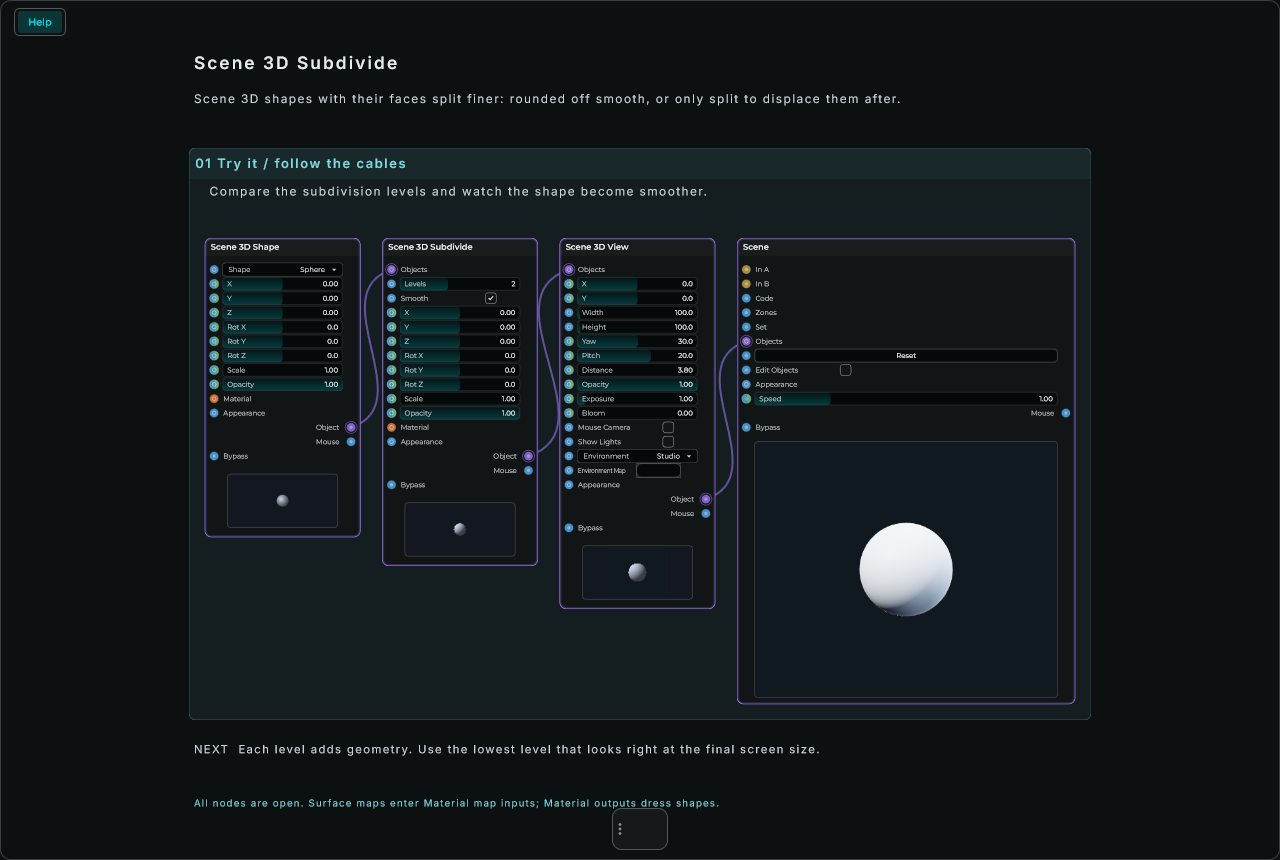
| Parameter | Range | Default | Description |
|---|---|---|---|
| Levels | 0 to 5 | 2 | How many times each face is split in four. |
| Smooth | on or off | on | Rounded off as it is split; off, only split, its shape kept. |
| X, Y, Z, turns, Scale, Opacity | As a Scene 3D Shape's. |
Inputs: Objects, Scene 3D nodes; Levels, a value; Smooth, a value (above a half: on); X, Y, Z, Rot X, Rot Y, Rot Z, Scale and Opacity, each accepting a value or a CV signal; Material, a Scene 3D Material.
Outputs: Object; Mouse, what the mouse does on it.
Scene 3D Displace
Makes what is wired into its Objects into one solid whose surface is moved out and in by heights: light goes out, dark goes in, as far as Amount says. Its Map: Noise for rock, Waves for water, Bricks and Tiles for walls, Dimples for hammered metal, Brushed for fine streaks, or a picture's File (a displacement map, the grey pictures 3D programs and texture sites give). A File node's path into its File row takes the place of Map.
The patterns are laid on from where each point is, seen from its three sides, Repeat times across the solid: no seams and no pinched poles, on any solid, a blend's too. A File's picture is laid on as the solid's own u and v say. Its faces are split Detail times first, so there are points to move: a box needs a few, a sphere fewer. The graphics card moves the surface by Amount itself, so a CV cable on it costs nothing: the sound can make it breathe. It is placed, turned and sized by its rows as a shape is, and dressed by a Scene 3D Material wired into Material or else as the first shape it holds. It is made on a thread of its own, and the last one made stays meanwhile.
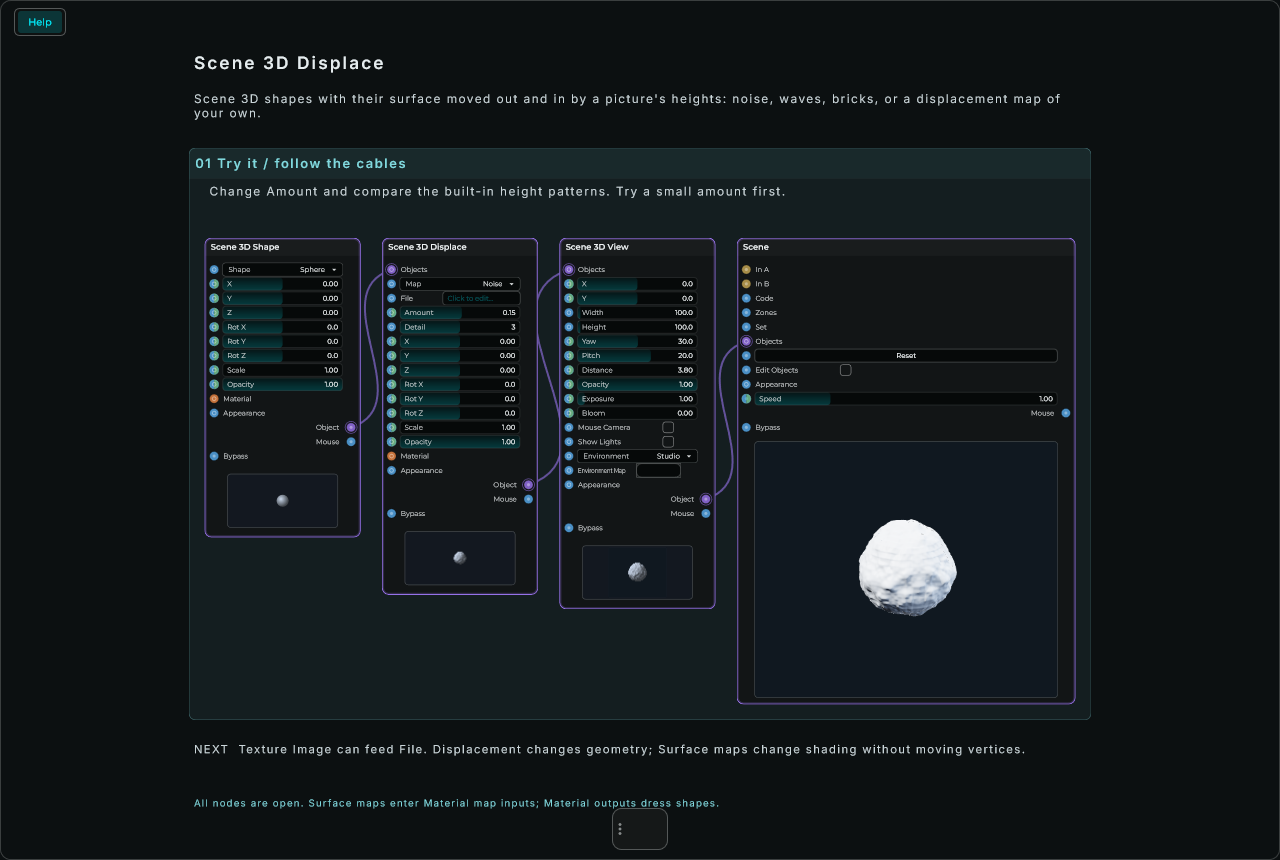
| Parameter | Range | Default | Description |
|---|---|---|---|
| Map | Noise / Waves / Bricks / Tiles / Dimples / Brushed / File | Noise | On its row, with an input that takes its number or its name: where the heights come from. |
| File | text | empty | On its row: a picture's whole path from a cable, in place of Map. |
| Amount | -5 to 5 | 0.15 | How far the lightest parts go out, in the world's units (the darkest as far in); under 0, the other way. |
| Detail | 0 to 6 | 3 | How many times its faces are split in four first. More is finer, and slower to make. |
| X, Y, Z, turns, Scale, Opacity | As a Scene 3D Shape's. | ||
| Mid | 0 to 1 | 0.5 | In the Inspector: the height that stays where it is; 0 black stays, so everything goes out. |
| Repeat | 0.01 to 100 | 1 | In the Inspector: how many times a pattern repeats across the solid (its longest side); a File's picture, across its u and v. |
| Map File | a file | none | In the Inspector: the picture for File. |
Inputs: Objects, Scene 3D nodes; Map, a number or a name; File, a text; Amount, X, Y, Z, Rot X, Rot Y, Rot Z, Scale and Opacity, each accepting a value or a CV signal; Detail, a value; Material, a Scene 3D Material.
Outputs: Object; Mouse, what the mouse does on it.
Scene 3D Particles
Particles in a Scene 3D View: sparks, fire, snow, bubbles, magic dust. It makes Rate of them a second, or Burst Size at once on an event into Burst (a note, a beat, a button), and they leave it along its up (turned by its Rot rows) within Spread degrees at about Speed, pulled down by Gravity, slowed by Drag, growing from Size to Size End and turning from Colour to Colour End over their Life. With Blend on Add their light is added to what is behind them, and with the view's Bloom they glow. Once made they stay where they were made, so an emitter that moves leaves a trail behind it.
Shape also offers Sprite and Model. Sprite uses Image File (a transparent PNG works well) and faces the camera. Model uses Model File (OBJ). Both share one loaded asset across their particles. Particle Rot X/Y/Z and Particle Spin in Inspector change each copy's orientation. See the image/model walkthrough.
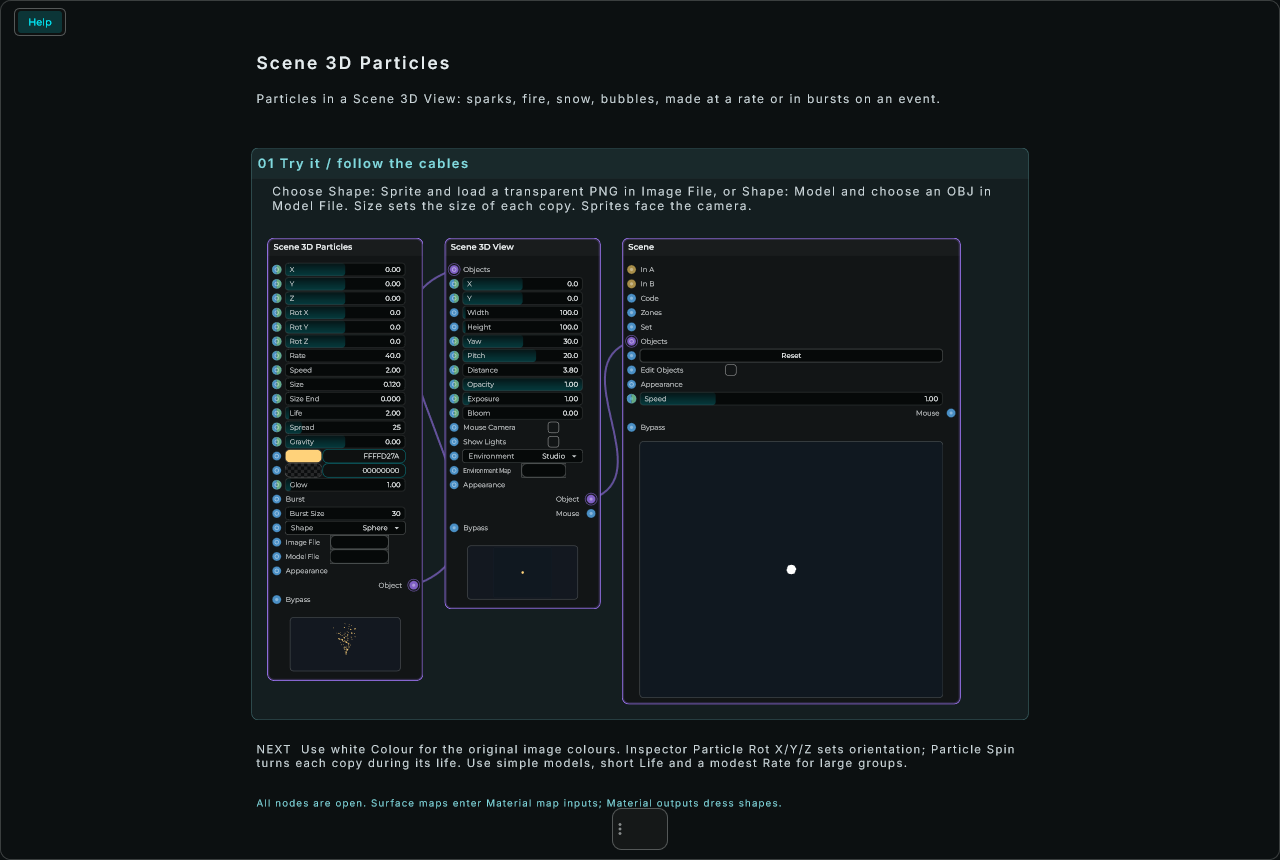
| Parameter | Range | Default | Description |
|---|---|---|---|
| X, Y, Z | -4000 to 4000 | 0, 0, 0 | Where they come from. |
| Rot X, Rot Y, Rot Z | -3600 to 3600 | 0 | Which way they go: its up, turned round each axis, in degrees. |
| Rate | 0 to 5000 | 40 | How many it makes a second (0: only in bursts). |
| Speed | 0 to 1000 | 2 | How fast they leave, in the world's units a second. |
| Size | 0 to 100 | 0.12 | How big each is when it is made. |
| Size End | 0 to 100 | 0 | How big each is at the end of its life. |
| Life | 0.01 to 60 s | 2 | How long each lives, a little more or less. |
| Spread | 0 to 180 | 25 | How far from its up they go, in degrees; 180 every way. |
| Gravity | -100 to 100 | 0 | How hard they are pulled down; under 0, up, as bubbles. |
| Colour, Colour End | colours | warm yellow, clear | Their colour when made and at the end, on their rows. Fully clear black: their Colour, fading out. |
| Glow | 0 to 20 | 1 | The light they give, in their colour. |
| Burst | event or number | Particles all at once: an event (a note, a beat, a button) makes Burst Size of them, a number that many. | |
| Burst Size | 1 to 8192 | 30 | How many an event into Burst makes at once. A value only. |
| Drag | 0 to 20 | 0 | In the Inspector: how fast the air slows them. |
| Blend | Add / Normal | Add | In the Inspector: their light added to what is behind, or laid over it. |
| Shape | Sphere / Box / Sprite / Model | Sphere | On its row, with an input: what each is. Sprite is a picture that always faces the camera; Model is an OBJ. |
| Image File | a picture | none | On its row: the picture for Sprite (a PNG with see-through parts works well). Colour tints it; white keeps its own colours. It also textures a Model. |
| Model File | OBJ file | none | On its row: the model for Model, fitted to Size. Keep it simple when there are many particles. |
| Particle Rot X, Y, Z, Particle Spin | -3600 to 3600, -720 to 720 | 0 | In the Inspector: which way each copy is turned, and how fast it spins. |
| Most | 1 to 8192 | 400 | In the Inspector: how many can be alive at once. |
| Width, Height, Depth | 0 to 1000 | 0 | In the Inspector: the box they come from (0: its middle). |
| Metal, Rough, Seed | 0, 0.5, 0 | In the Inspector: how they catch the light, and which random. |
Inputs: X, Y, Z, Rot X, Rot Y, Rot Z, Rate, Speed, Size, Size End, Life, Spread, Gravity and Glow, each accepting a value or a CV signal; Colour and Colour End, a colour's text; Burst, an Event or a number; Burst Size, a value; Shape, a number or a name; Image File and Model File, a path; Appearance, an Appearance Changer's text.
Outputs: Object.
A Scene keeps at most 32,768 particles alive at once, shared by all its Particles nodes, on top of each node's own Most. Copies made by cloning draw the same particles again, so they cost drawing time but no extra particles. A Script can change the limit with {"op":"canvas","props":{"particleBudget":8192}}, from 0 to 131,072; 0 clears them and stops particles altogether. Lowering it removes the extra particles on the next update. Particles are worked out by the computer's processor, not the graphics card.
Typography and playable keyboards
Native controls expose a Typography inspector section with independent value/caption and label sizes, weight, spacing, offsets and maximum widths. Zero size preserves automatic sizing; zero maximum width leaves text unconstrained. Knob settings use percentages of the knob square; other controls use Scene units. Weight adds a fine outline in the text colour. Existing patches keep their previous text layout until these settings change.
Scene Text supports Letter Spacing and Max Text Width. Script text props use letterSpacing (alias tracking) and maxTextWidth. Width fitting reduces both glyph size and spacing together, preserving alignment and picking bounds.
Factory Scene Studio includes Studio Piano, Neon Pads, Chord Tiles, Glass Piano 3D and Script Scale. Native momentary buttons or Script controls drive separate CV / Data To MIDI voices. The modules expose MIDI, Velocity and Channel. Connect MIDI to an instrument or MIDI Out; the example patches produce no sound themselves. Pitches are editable in the converter nodes. Mouse release, hiding a Scene, losing focus or destroying its body releases a held pointer. The UI supports one pointer; Chord Tiles demonstrates multiple simultaneous MIDI voices from that pointer.
Scene authoring: precision and diagnostics
Scene numeric rows and their Inspector editors use a local drag scale, independently of their legal range. Typical 3D position: 2 world units per 100 pixels; percentage geometry: 25 percentage points per 100 pixels; angles: 45 degrees per 100 pixels. Hold Shift for 1/10 speed or Ctrl (Command on macOS) for 1/100; Alt accelerates. Modifiers can change while dragging without rescaling the previous movement. Double-click to type an exact value. Integer rows accumulate small movements while retaining whole-number values.
Bypass removes source objects, lights and environments from their linked Scene. Group/modifier bypass forwards its children without applying its own operation. A bypassed Material restores the receiving shape's own appearance; re-enabling restores the material. Root Scene bypass hides the surface and suspends GPU drawing while retaining its cached program and image.
Shift-drag onto a wire chooses compatible input and output pins, including Object/Material payload kinds, instead of the first Data input. Insertion requires both legs: a material source with no Material input cannot be inserted into a Material chain.
Scene 3D Sky → Show Sun controls the solar disc and halo in the environment and reflections. It leaves the directional sun light and shadows enabled; use the light settings or bypass Sky to disable that lighting.
Scene → Inspector → Diagnostics offers Show Orientation and Show Object Axes. The orientation indicator follows the first 3D view camera. Object axes show local X/Y/Z; these visual guides are separate from the Move/Rotate editing tools. The overlay is limited to 256 instances per view.
Object editing, fonts and persistent drawing
Enable Edit Objects on the Scene node in graph Edit mode. Select a node-created object and choose Move, Rotate X, Rotate Y or Rotate Z in the overlay. The node menu offers the same editing entry point. Spatial objects move in the camera plane; position changes use the parent's coordinates and support Undo/Redo. Shift slows movement and Escape cancels the active drag. Script-generated geometry is edited in its Script; this mode does not rewrite code. Perform mode retains normal control interaction.
Font Family picks the font of all the Scene's text: its Scene Text objects, the labels of its controls, and the letters and numbers its code writes. It offers the fonts that come with MNodes: Montserrat (the default, the font Scenes have always used), Inter, Poppins, JetBrains Mono and Orbit. They travel with MNodes itself, so a project, a preset or an exported plugin shows them on any computer without carrying a font file. Spacing and centring follow the font you pick. One Scene has one font: for a title in another font, use a second Scene.
Font File loads a TTF/OTF for this Scene's labels and text, in place of Font Family. Font resources are cached independently and included in portable exports. If the file is missing or cannot be read, the Scene uses its Font Family. The renderer currently supports Latin-1 glyphs.
Keep Drawing on Resize rescales Buffer A/B on the GPU instead of clearing them. Enable this for painting or accumulated graphics; leave it disabled for pixel-state simulations that should restart on resize. Reset always clears both buffers.
Momentary Scene Button controls can share a Glissando Group. While the mouse is held, moving between matching buttons releases the old button before pressing the new one. Leaving all matching buttons releases the current one. Script buttons provide the same option through glissando.
Composable 3D materials
The Surface nodes build a small GPU expression graph. Connect Surface outputs to each other and to Scene 3D Material. The Material still connects to a Shape or Model's Material input. Surface cables are distinct from Object and Material cables, so incompatible connections are rejected.
| Node | Purpose |
|---|---|
| Surface Value | Colour or scalar constant; scalar repeats on every channel. |
| Coordinates | UV, local position, world position, world normal, view direction. |
| Mapping | Independent XYZ scaling, Z rotation in degrees, XYZ offset. |
| Texture | Reusable file or pattern, channel extraction, planar UV/XY or world triplanar projection. |
| Surface Noise | Continuous 3D value noise on the GPU, with scale and seed. |
| Fresnel | Camera-facing edge mask with Power, Bias and Gain. |
| Surface Math | Add, subtract, multiply, divide, min/max, power, sine, fraction, absolute, invert, clamp, smoothstep, dot, length and channel extraction. |
| Surface Mix | Blend A and B by a mask; black selects A, white selects B. |
Material's Colour Map replaces the base RGB; Roughness Map and Metalness Map use the red channel as a value; Emission Map replaces Emission Colour and is multiplied by Emission. Disconnecting a map restores the material's original controls. Emission needs its Emission amount above zero. Colour inputs use display RGB; the renderer converts to linear light for shading. Graph colour alpha does not control transparency: use the existing Opacity, or Picture alpha for cutouts and matching shadows. Normal Map remains the dedicated normal-map input.
A Texture has two different outputs. Surface is a per-pixel expression that can mix with masks and calculations. Image is the reusable image source: connect it to Material's Picture / Normal Map, or Displace → File. Select File as the texture source and choose Image File on the node, or send an absolute path into the File row. Portable exports collect and remap those assets. For Normal Map use an actual normal-map file, or the shared Bricks/Tiles/Noise patterns; colour-only patterns are not normal maps. Displace accepts height-map files and its own height patterns (the Texture node shares Bricks/Tiles/Noise).
Coordinates → Mapping → Texture/Noise → Mix/Math → Material is a useful starting chain. World coordinates line up a pattern across separate objects; local coordinates follow each mesh. Texture defaults to UVs for planar mapping and world position for triplanar mapping. When explicitly connecting triplanar coordinates, use World: its blend weights are world normals. Mapping rotates around Z; other vector combinations can be built with Math. Normal and View are signed world-space vectors, not colour values.
Actual displacement uses Shape/Model → Displace → View. Displace samples its height source and builds its mesh asynchronously, then moves vertices on the GPU as Amount changes. Detail increases geometry quickly; start low. The Surface graph is a fragment calculation and does not replace Displace's geometry stage. Texture Image can reuse a height source in both stages, but colour/mask calculations are not baked back into a displacement image.
The material compiles to a cached, immutable instruction list: no shader compilation or CPU pixel loop when adjusting a parameter. The Surface and Material nodes allocate no realtime DSP processors. Identical branches execute once per pixel, and identical materials retain instancing. Static scenes retain their rendered picture. Changing surface maps reuses shadow depth because these maps do not change opacity or geometry. Each material supports 32 unique operations and 4 distinct Surface images, in addition to Picture and Normal Map; exceeding a limit reports an error rather than rendering a partial graph. Triplanar mapping uses three samples per texture, so choose planar mapping when suitable. Surface node parameter inputs accept Data changes, not audio-rate CV. Animated data still rebuilds the small instruction list and consumes GPU time.
Factory's Materials examples are Pearl Rim, World Patina, Layered Silk, Ember Stone and Displaced Moon. Each has a complete editable graph, a module, a preset and native-rendered thumbnail. Every new node includes a connected Help patch. Available from MNodes 1.1.5 with Factory v31.
Material authoring and Pluja
Material Mix blends two materials' colour, roughness, metalness and glow in one lighting pass. A supplies the normal map, alpha/opacity and rendering settings. It blends PBR parameters, rather than evaluating two separate lighting models. The combined graph shares the 32-operation / four-Surface-image budget. Use Surface Mix for individual colours, textures or scalar fields.
Surface Noise now offers Value, Fractal, Ridged, Voronoi Distance, Voronoi Cells and Voronoi Edges. Voronoi searches a fixed 27-cell neighbourhood; Edges is the F2-F1 distance mask. Fractal detail is bounded to four octaves. All execute on the GPU. New examples: Cloud Porcelain, Ridged Alloy, Cellular Pearl, Mosaic Stone and Voronoi Veins.
Click the Scene 3D Material preview body to open the material browser. Select a name to preview it on a real GPU-rendered sphere, then choose Apply material. Applying is undoable. Save current settings stores a uniquely named personal preset with the node's parameters and image paths. Connected Surface graphs remain part of the patch; they are not packaged inside setting presets. The browser renders only the selected material.
In graph Edit mode, click Edit Objects in the Scene node rows or Inspector to select and drag native 3D geometry. Shift provides fine movement; Escape cancels. The right-click menu has the same action. Script-owned objects are edited in their Script source. Perform mode keeps the interactive instrument controls.
Scene 3D Light exposes Rot X/Y/Z for Directional, Spot and Panel. A panel's Z rotation rolls its rectangle around its beam. Zero rotations preserve the original Aim behaviour. Environment uses Turn; an omnidirectional Point light has no visible orientation.
Shader preparation shares an in-flight translation between concurrent identical loads. A bounded cache keeps recently used translations, including diagnostics for unchanged invalid source. Closing/reopening a panel reuses its retained GPU picture and programs. Surface parameter edits use the fixed material evaluator and do not compile GLSL.
Pluja, in the Scene Studio preset collection, is a complete water instrument. Click the water for notes or enable Rain and adjust Intensity. Falling droplets trigger notes at impact. Root and Scale offer all 58 MNodes scales; the small keyboard edits Custom. Eight two-partial voices pan from left to right with pitch and share stereo delay and reverb. Width opens the stereo image; zero centres the complete output, including effects. Falling droplets, splashes and expanding rings use 49 normalized Scene uniforms. MIDI Out carries the quantized notes and matching note-offs. Four sounds use Preset Manager. Native Scene controls expose automation; separate Script and Shader Code keep the instrument editable. See Pluja Guide for routing and CPU measurement scope.
Scene 3D Surface Value
A colour or scalar constant for GPU material calculations. A scalar repeats in every channel; Colour uses RGB in display colour space.
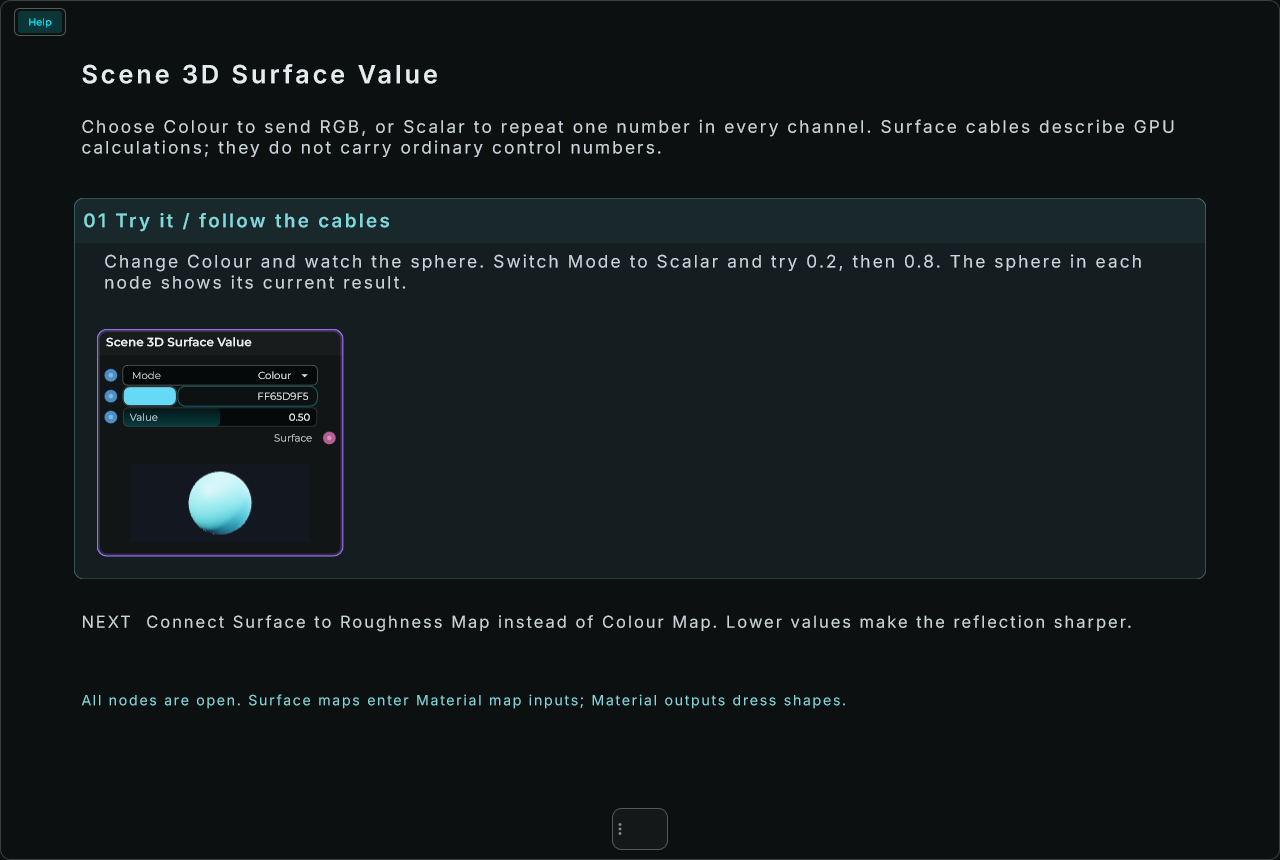
Try it
Choose Colour and connect Surface to Material Colour Map. For a single number, choose Scalar; Value repeats across all channels.
| Parameter | Range / choices | Default | Description |
|---|---|---|---|
| Mode | Colour / Scalar | Colour | Choose colour or scalar. |
| Colour | colour / text | FF65D9F5 | The colour. |
| Value | -1000 to 1000 | 0.5 | Coordinate multiplier. Negative values mirror that axis. |
Inputs: Mode, Colour, Value.
Outputs: Surface.
Surface calculations run on the GPU and accept Data parameter changes. The shared material budget is 32 unique operations and four distinct Surface images; identical branches share work.
Scene 3D Coordinates
UV, local position, world position, world normal or view direction. World coordinates stay fixed across objects; local coordinates follow the mesh. Position units are Scene world units before or after the object's transform.
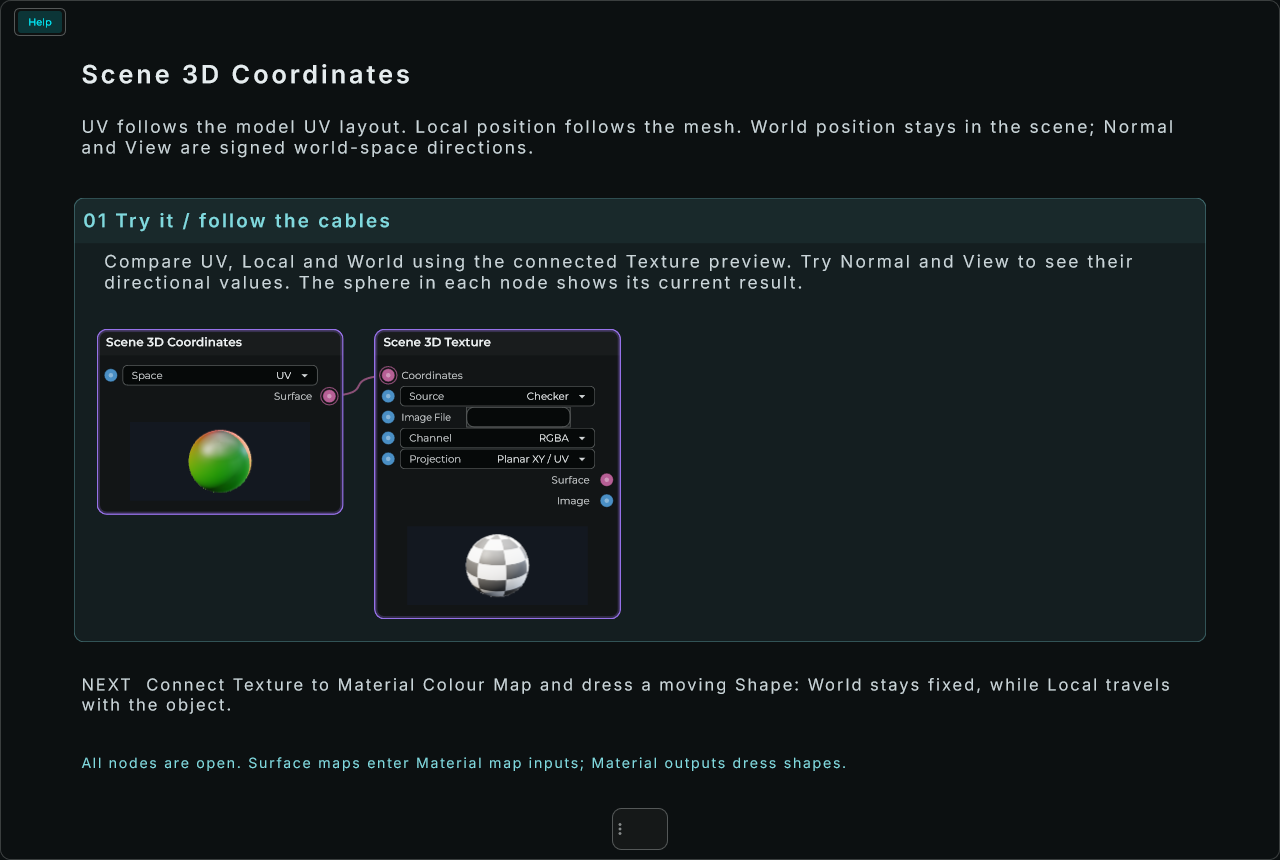
Try it
Choose World, feed Mapping, then feed Surface Noise. Moving the mesh through the world changes which part of the pattern lies on it. Choose Local to attach the pattern to the mesh.
| Parameter | Range / choices | Default | Description |
|---|---|---|---|
| Space | UV / Local / World / Normal / View | UV | Select the coordinate space. Normal and View are signed world-space directions. |
Inputs: Space.
Outputs: Surface.
Surface calculations run on the GPU and accept Data parameter changes. The shared material budget is 32 unique operations and four distinct Surface images; identical branches share work.
Scene 3D Mapping
Transform coordinates: scale XYZ, rotate around Z, then offset XYZ. The unconnected input uses the model's UVs. Feed a Texture or Noise; use Math for other vector operations.
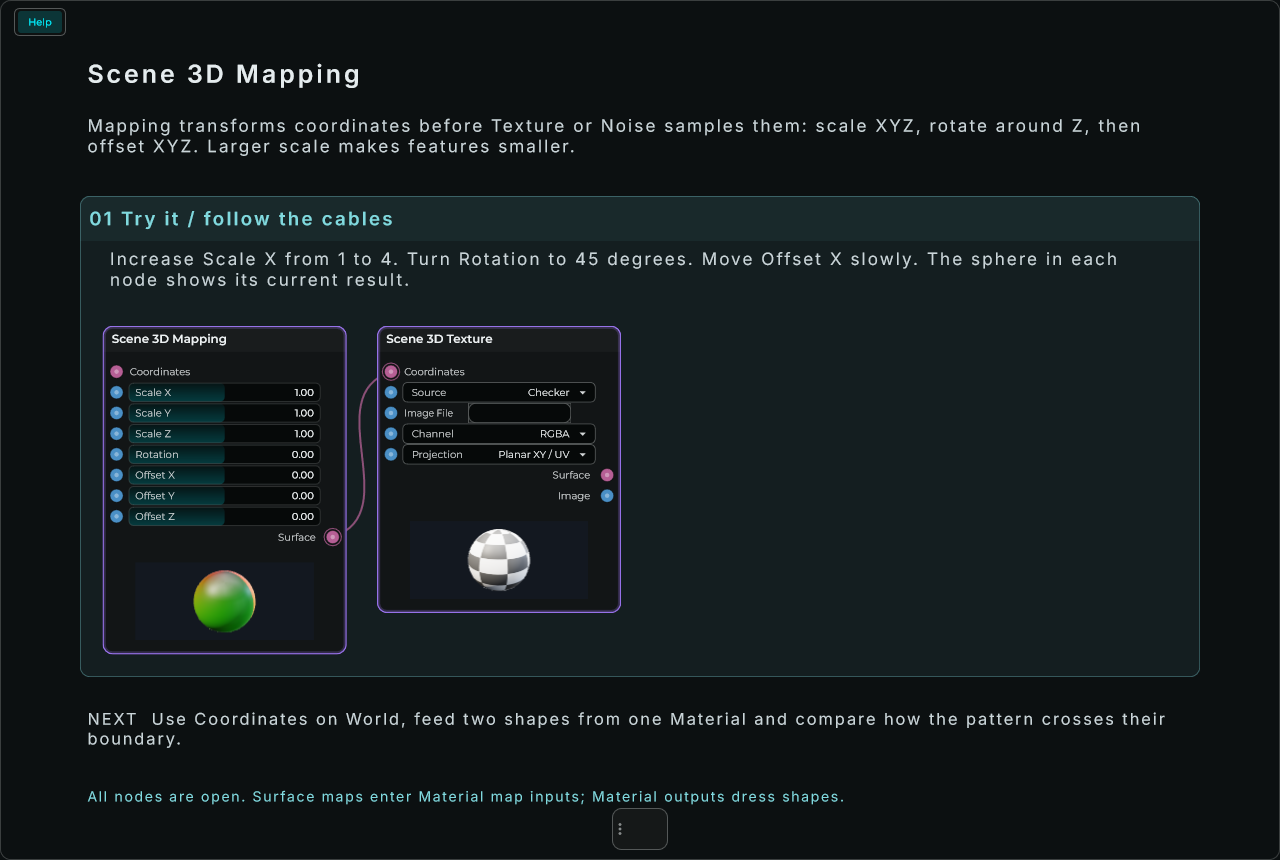
Try it
Connect Coordinates set to UV into Coordinates, then Surface into Texture Coordinates. Set Scale X to 4 for four horizontal repeats and Rotation to 45 to turn the mapping around Z.
| Parameter | Range / choices | Default | Description |
|---|---|---|---|
| Scale X | -1000 to 1000 | 1.0 | Coordinate multiplier. Negative values mirror that axis. |
| Scale Y | -1000 to 1000 | 1.0 | Coordinate multiplier. Negative values mirror that axis. |
| Scale Z | -1000 to 1000 | 1.0 | Numeric fallback or transform value; changes arrive as Data, not audio-rate CV. |
| Rotation | -3600 to 3600 | 0.0 | Rotation around Z, in degrees. |
| Offset X | -1000 to 1000 | 0.0 | Translation along that coordinate axis, applied after scaling and rotation. |
| Offset Y | -1000 to 1000 | 0.0 | Translation along that coordinate axis, applied after scaling and rotation. |
| Offset Z | -1000 to 1000 | 0.0 | Translation along that coordinate axis, applied after scaling and rotation. |
Inputs: Scale X, Scale Y, Scale Z, Rotation, Offset X, Offset Y, Offset Z, Coordinates.
Outputs: Surface.
Surface calculations run on the GPU and accept Data parameter changes. The shared material budget is 32 unique operations and four distinct Surface images; identical branches share work.
Scene 3D Texture
A reusable image or pattern with its own coordinates and channel selection. Surface feeds material calculations; Image feeds Material Picture / Normal Map or Displace File. File assets are included when exporting a portable patch. Planar projection uses XY; triplanar blends three projections using world normals, so use World coordinates for it.
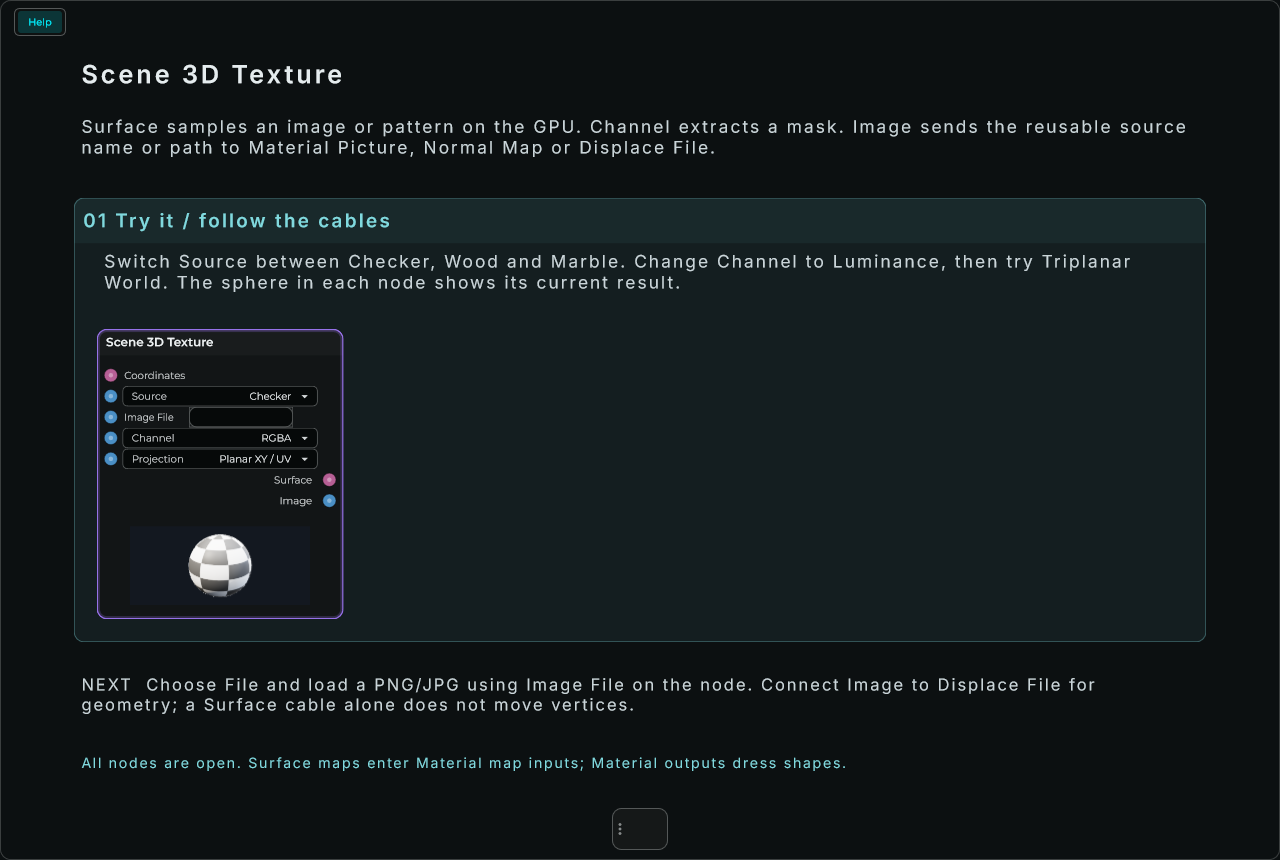
Try it
Set Source to File and choose Image File on the node. Connect Surface to Material Colour Map. Image is a separate source output for Picture, Normal Map or Displace File; it does not bake Surface calculations.
| Parameter | Range / choices | Default | Description |
|---|---|---|---|
| Source | Checker / Grid / Stripes / Dots / Bricks / Tiles / Wood / Marble / Noise / File / Image 1 / Image 2 | Checker | Pattern, external file, or a Scene image. |
| Image File | text / file | Choose an image here, paste a path or drop a file. Select Source: File to use it. | |
| Channel | RGBA / Red / Green / Blue / Alpha / Luminance | RGBA | Extract a mask channel, repeated as a scalar. |
| Projection | Planar XY / UV / Triplanar World | Planar XY / UV | Triplanar takes three samples and blends on world normals; use World coordinates. |
Inputs: Source, Channel, Projection, Image File, Coordinates.
Outputs: Surface, Image.
Surface calculations run on the GPU and accept Data parameter changes. The shared material budget is 32 unique operations and four distinct Surface images; identical branches share work.
Scene 3D Surface Noise
GPU procedural textures: Value, Fractal, Ridged, Voronoi Distance, Voronoi Cells and Voronoi Edges. Coordinates default to local position. Scale controls feature size; Seed shifts the pattern. Detail limits fractal octaves (1..4). Voronoi searches 27 neighbouring cells; Edges is the F2-F1 distance mask. No CPU texture generation or timer.
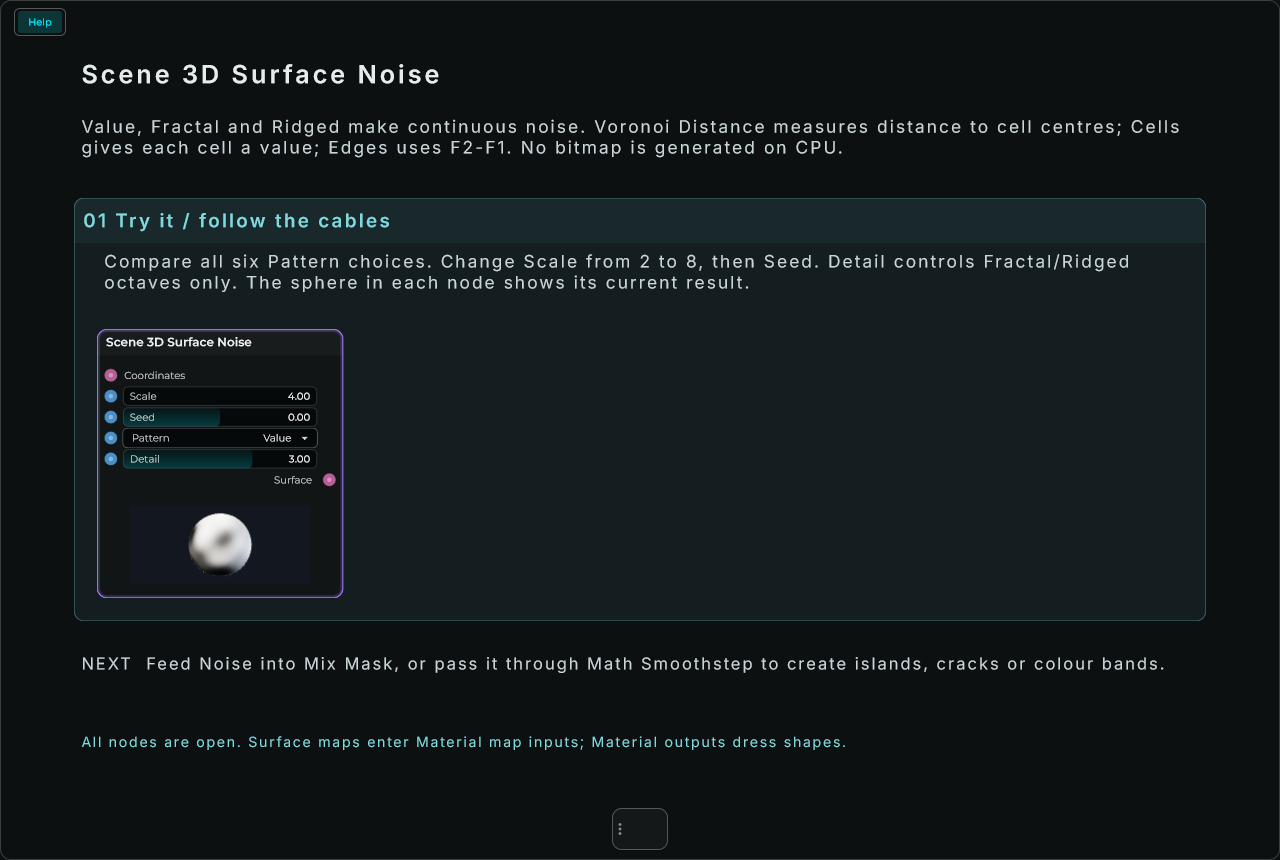
Try it
Connect Surface to Material Roughness Map and choose Fractal. Change Scale to adjust feature size. For coloured cells, use Voronoi Cells as the Mask of a Surface Mix with two Surface Value colours.
| Parameter | Range / choices | Default | Description |
|---|---|---|---|
| Scale | 0.001 to 1000 | 4.0 | Pattern frequency; higher values produce smaller features. |
| Seed | -1000 to 1000 | 0.0 | Shifts the procedural pattern. |
| Pattern | Value / Fractal / Ridged / Voronoi Distance / Voronoi Cells / Voronoi Edges | Value | Pattern evaluated per pixel. Fractal and Voronoi cost more GPU work than Value. |
| Detail | 1 to 4 | 3.0 | Fractal octave limit, up to four. |
Inputs: Scale, Seed, Pattern, Detail, Coordinates.
Outputs: Surface.
Surface calculations run on the GPU and accept Data parameter changes. The shared material budget is 32 unique operations and four distinct Surface images; identical branches share work.
Scene 3D Fresnel
An edge-facing mask: Bias + Gain * (1 - abs(normal dot view)) ^ Power, clamped to 0..1. It follows the camera, including reflections. Use it as Mix's Mask, a roughness map or coloured emission.
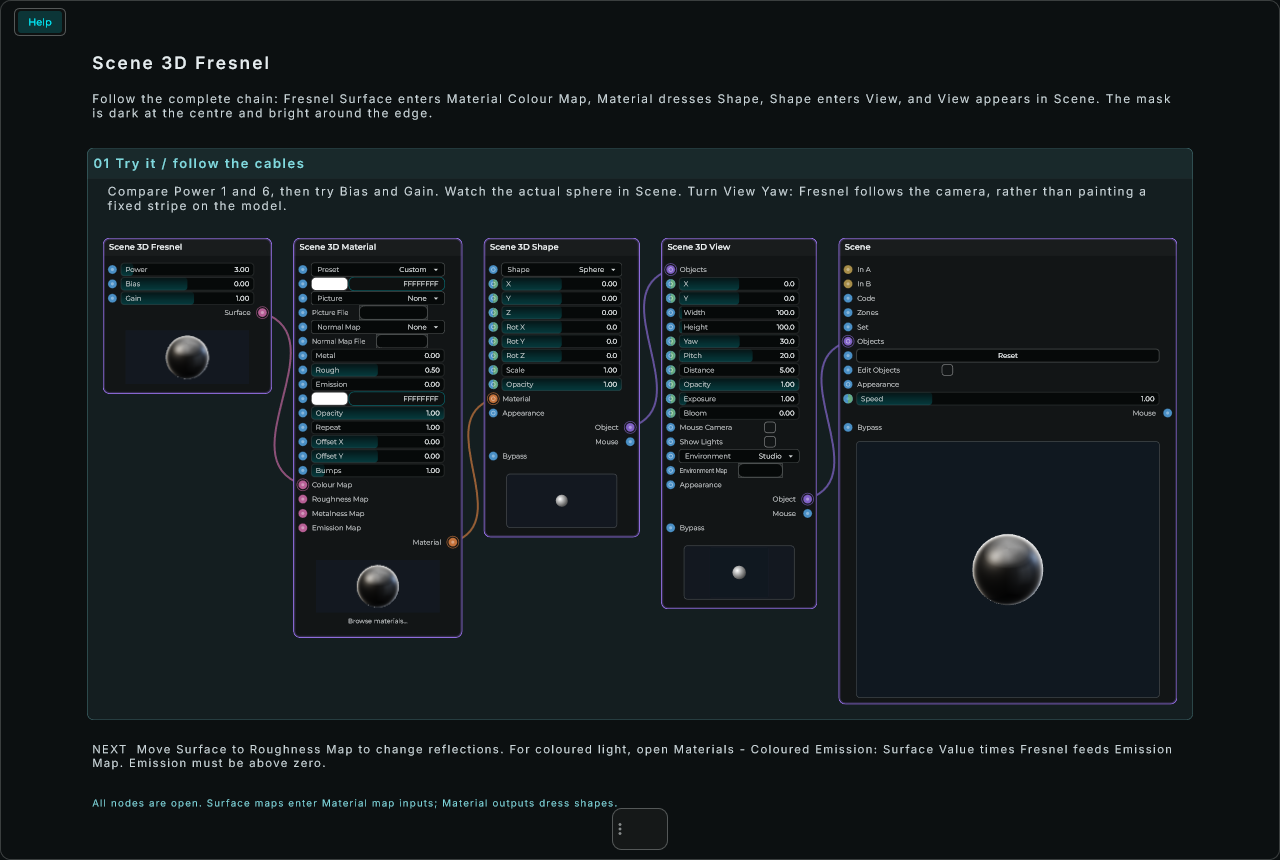
Try it
Follow the complete Help chain below: Surface → Material Colour Map, Material → Shape Material, Shape → View Objects, View → Scene Objects. Compare Power 1 and 6. For coloured emission, multiply a Surface Value colour by Fresnel and connect the result to Emission Map; set Emission above zero. Open the full recipe.
| Parameter | Range / choices | Default | Description |
|---|---|---|---|
| Power | 0.01 to 32 | 3.0 | Narrows or broadens the rim. |
| Bias | -1 to 1 | 0.0 | Adds to the edge mask before clamping. |
| Gain | -10 to 10 | 1.0 | Scales the edge contribution. |
Inputs: Power, Bias, Gain.
Outputs: Surface.
Surface calculations run on the GPU and accept Data parameter changes. The shared material budget is 32 unique operations and four distinct Surface images; identical branches share work.
Scene 3D Surface Math
Scalar and vector calculations per pixel. Unconnected A/B use their numeric rows. Unary operations use A. Smoothstep uses From/To thresholds (equal or reversed thresholds become a step); Channel extracts 0=R/X, 1=G/Y, 2=B/Z, 3=A/W. Dot and Length use XYZ. Division by zero and powers are guarded.
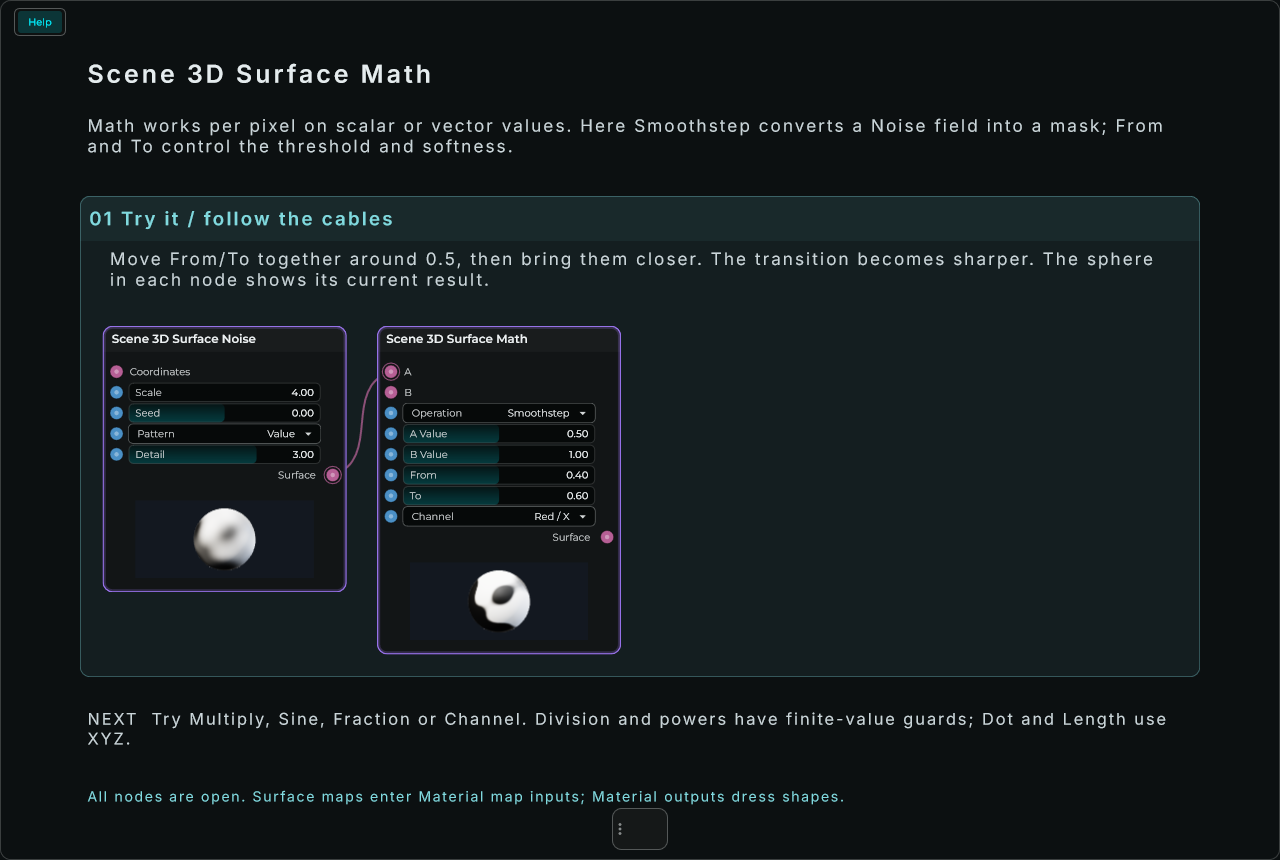
Try it
Choose Multiply, connect Surface Value Colour to A and Fresnel to B, then Surface to Material Emission Map. Unconnected A/B use A Value/B Value. Set Emission above zero to see the result.
| Parameter | Range / choices | Default | Description |
|---|---|---|---|
| Operation | Add / Subtract / Multiply / Divide / Minimum / Maximum / Power / Sine / Fraction / Absolute / Invert / Clamp 0..1 / Smoothstep / Dot / Length / Channel | Multiply | Operation on A and B; unary operations ignore B. |
| A Value | -1000 to 1000 | 0.5 | Numeric fallback or transform value; changes arrive as Data, not audio-rate CV. |
| B Value | -1000 to 1000 | 1.0 | Used when B has no Surface connection. |
| From | -1000 to 1000 | 0.0 | Lower Smoothstep threshold. |
| To | -1000 to 1000 | 1.0 | Upper Smoothstep threshold. |
| Channel | Red / X / Green / Y / Blue / Z / Alpha / W | Red / X | Channel to extract. |
Inputs: Operation, A Value, B Value, From, To, Channel, A, B.
Outputs: Surface.
Surface calculations run on the GPU and accept Data parameter changes. The shared material budget is 32 unique operations and four distinct Surface images; identical branches share work.
Scene 3D Surface Mix
Blend two colours, textures or scalar fields using a mask. Black chooses A, white chooses B. Without a mask cable, Amount blends uniformly. Defaults A=black and B=white make a mask preview.
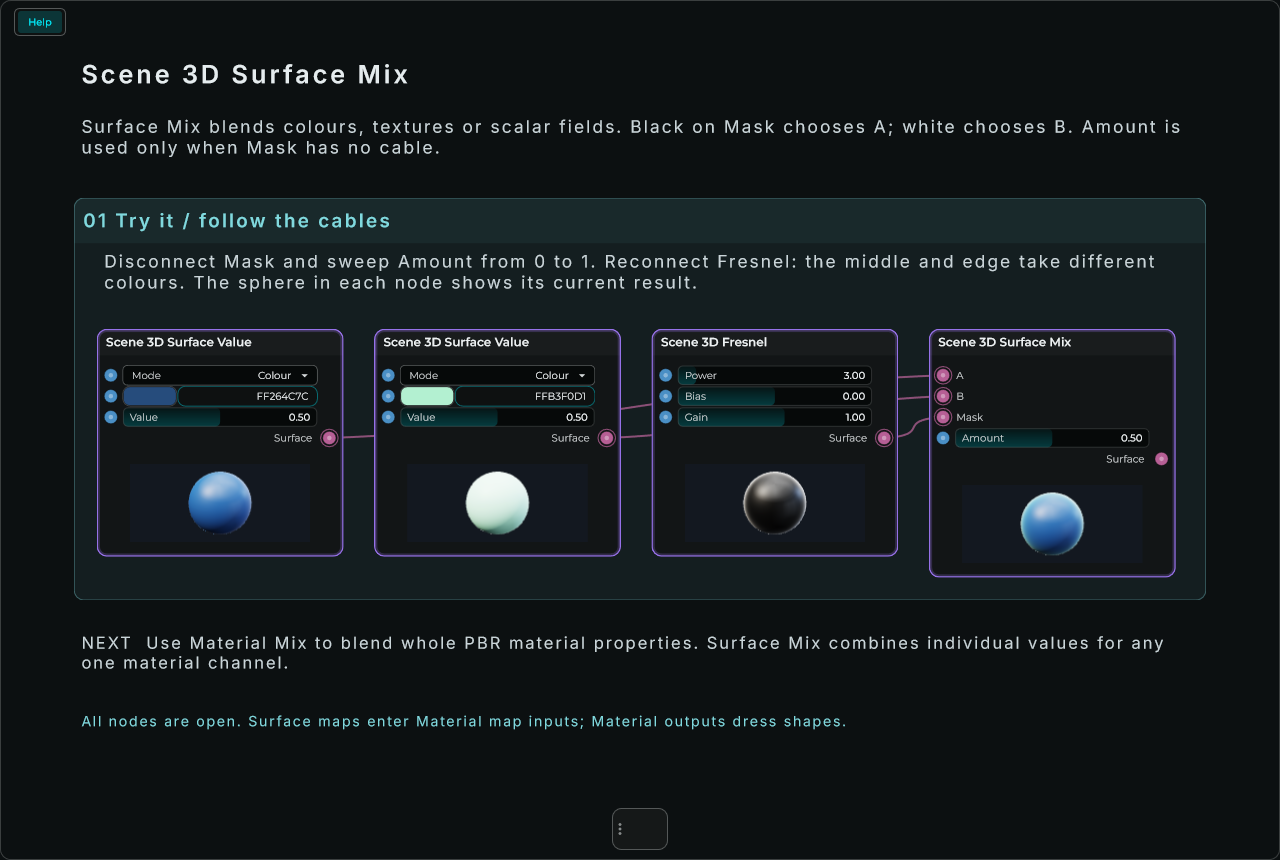
Try it
Connect a blue Surface Value to A, an orange one to B and Fresnel to Mask. Surface → Material Colour Map gives blue front-facing areas and orange edges. Disconnect Mask to use Amount uniformly.
| Parameter | Range / choices | Default | Description |
|---|---|---|---|
| Amount | 0 to 1 | 0.5 | Uniform A-to-B blend when Mask is not connected. |
Inputs: Amount, A, B, Mask.
Outputs: Surface.
Surface calculations run on the GPU and accept Data parameter changes. The shared material budget is 32 unique operations and four distinct Surface images; identical branches share work.
Scene 3D Material Mix
Blend two materials with Amount or a Surface mask: colour, roughness, metalness and glow. Normal map, opacity and rendering settings come from A.
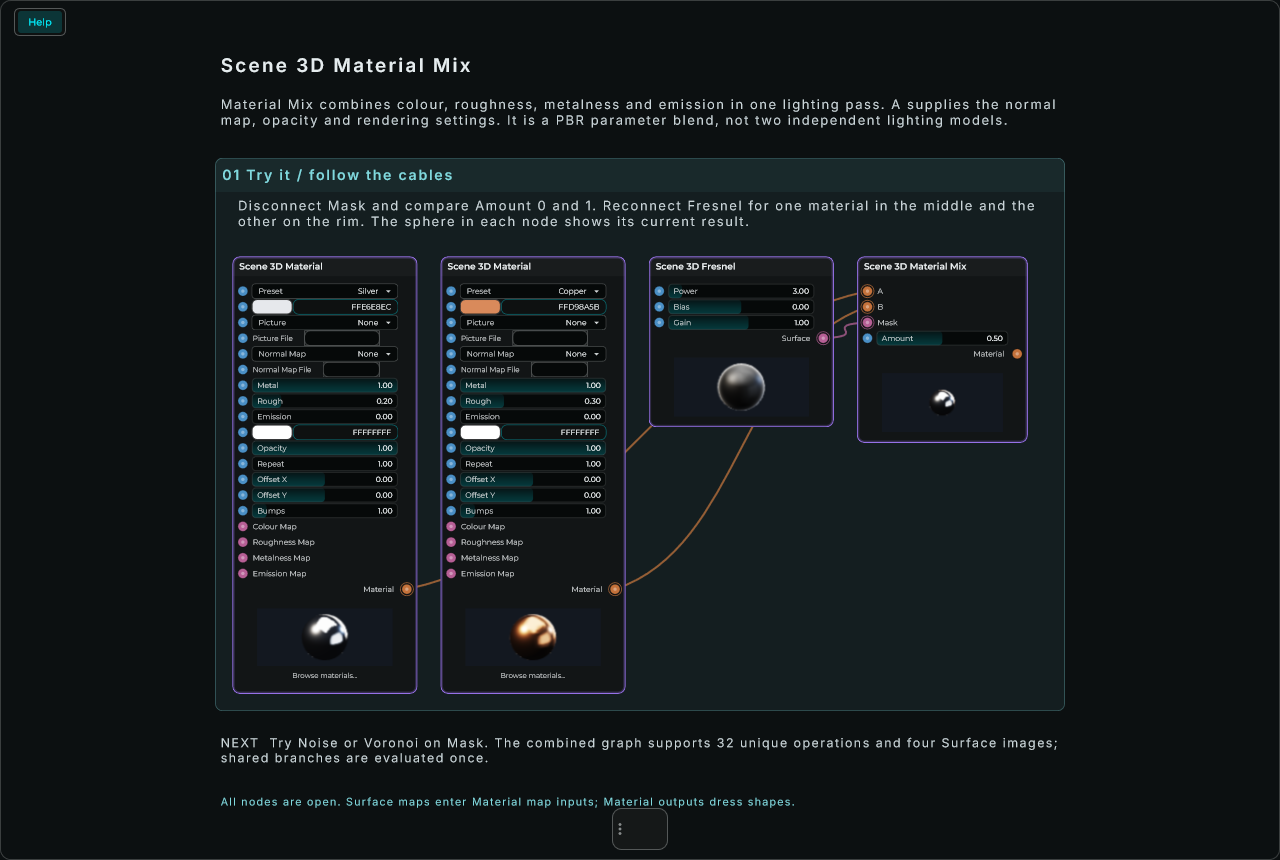
Try it
Connect Gold Material to A and Plastic Material to B, then Material → Shape Material. Vary Amount, or connect a Fresnel/Noise Surface to Mask. Normal map, opacity and rendering settings come from A.
| Parameter | Range / choices | Default | Description |
|---|---|---|---|
| Amount | 0 to 1 | 0.5 | Uniform blend when Mask is not connected. |
Inputs: Amount, A, B, Mask.
Outputs: Material.
Surface calculations run on the GPU and accept Data parameter changes. The shared material budget is 32 unique operations and four distinct Surface images; identical branches share work.
Object, Material and Surface Send / Receive
New in MNodes 1.1.6
Older versions of MNodes do not have the Object, Material and Surface Send and Receive nodes.
Wireless cables for the Scene's own kinds of connection. Give an Object Send and an Object Receive the same name and whatever is wired into the Send comes out of the Receive, as if the cable went straight there, with nothing drawn between them. The same goes for Material Send / Receive (one material dressing shapes all over the project) and Surface Send / Receive (one texture or noise feeding several materials).
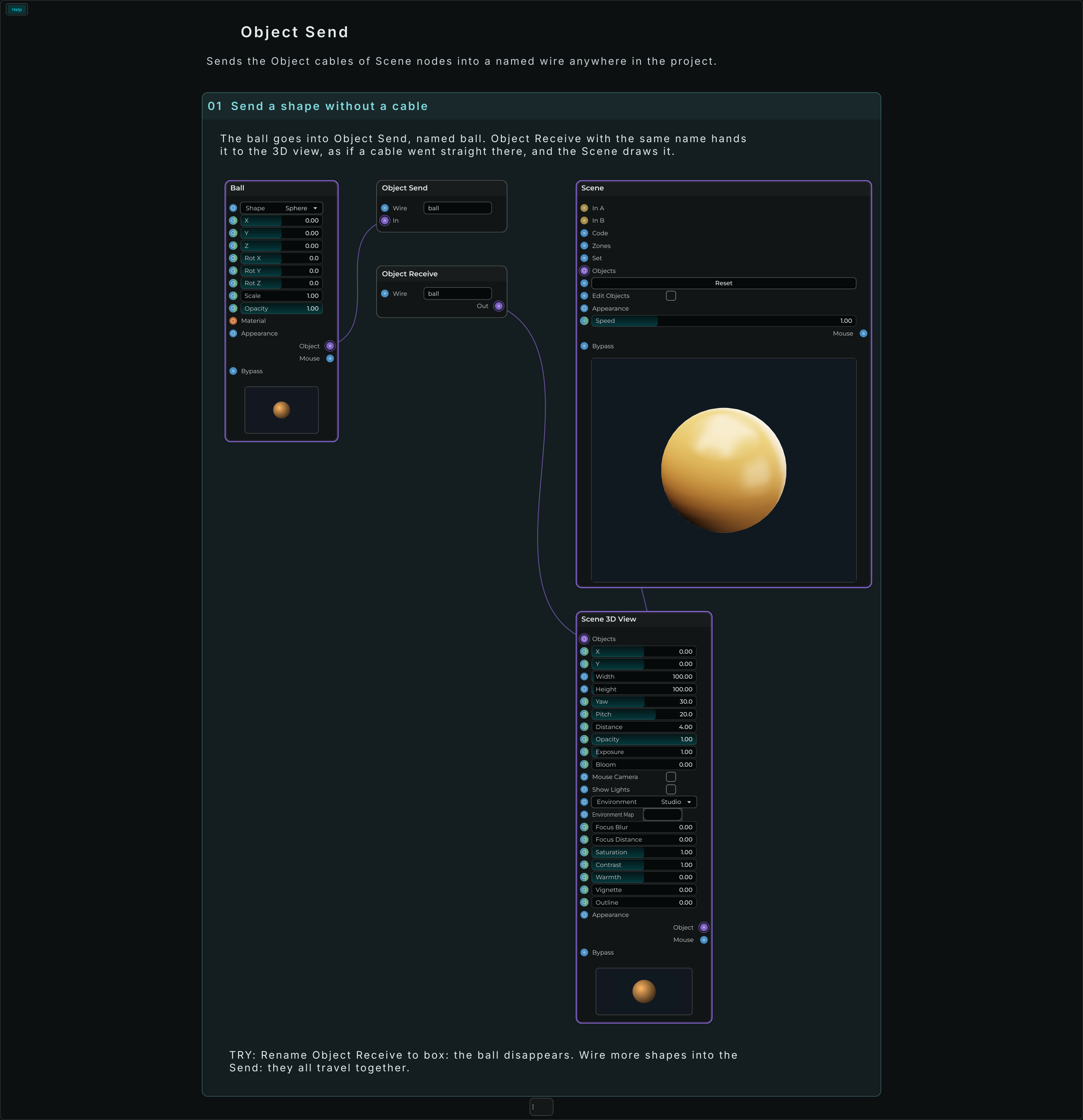
Each comes in two scopes, as the other Send / Receive nodes do:
- Send / Receive: the name reaches the whole project, modules included.
- Sub Send / Sub Receive: the name only reaches inside the module it is in.
| Parameter | Range / choices | Default | Description |
|---|---|---|---|
| Wire | text | (none) | The wire's name. A Send and a Receive of the same kind with the same name are connected. Leave it empty and the node is off. |
Inputs: In (Send only), Wire.
Outputs: Out (Receive only).
Each kind keeps its names to itself: an Object Send called "A", a Material Send called "A" and a Data Send called "A" are three different wires. Several Sends with the same name add up, and a Receive can feed as many inputs as you like.
Scene 3D Environment Map
Light a world with a panorama: choose a map, turn it, soften its reflections and frame its background.
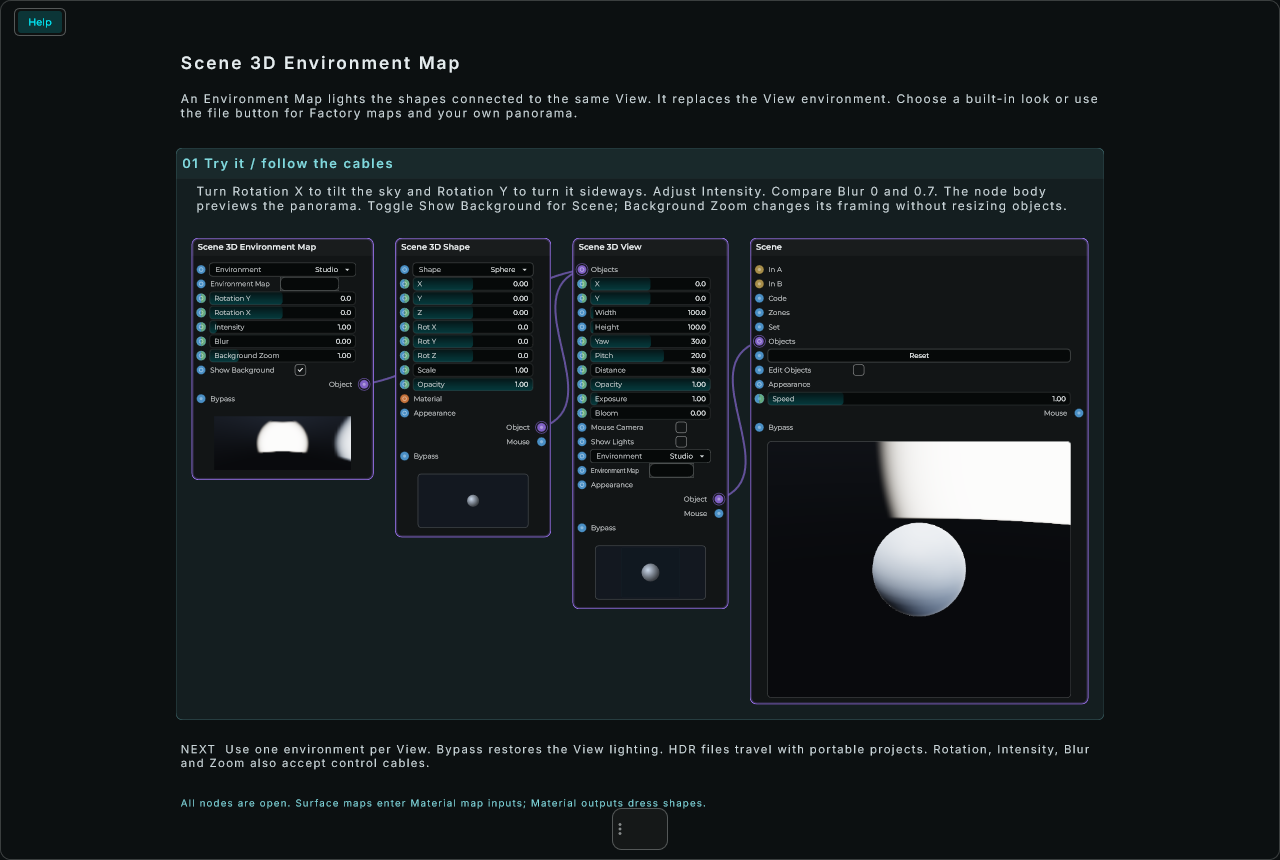
Try it
Connect Object to View Objects. Choose Studio or load a panorama using Environment Map. Rotate the lighting, soften it with Blur, and disable Show Background to keep reflections without displaying the panorama.
| Parameter | Range / choices | Default | Description |
|---|---|---|---|
| Environment | None / Studio / Sky / Sunset / Night / File | Studio | Choose a built-in environment or load a panorama with Environment Map. |
| Environment Map | text / file | Choose a Factory map or your own HDR, JPG or PNG panorama. This selects File automatically. | |
| Rotation Y | -3600 to 3600 | 0.0 | Turn the surrounding light and reflections around the upright axis. |
| Rotation X | -3600 to 3600 | 0.0 | Tilt the surrounding light, reflections and background up/down. |
| Intensity | 0 to 20 | 1.0 | Make the surrounding light and its background brighter or darker. |
| Blur | 0 to 1 | 0.0 | Soften the panorama and its reflections. This reuses the loaded map and does not reload the file. |
| Background Zoom | 0.25 to 4 | 1.0 | Enlarge or widen the visible background. Object sizes and the light stay the same. |
| Show Background | on / off | on | Show the panorama behind objects. Off keeps its lighting and reflections. |
Inputs: Environment, Rotation Y, Rotation X, Intensity, Blur, Background Zoom, Show Background, Environment Map, Bypass.
Outputs: Object.
Scene Zone
Create a mouse area using rows instead of JSON. Follow the beginner example.
Connect Zones → Scene Zones. Name becomes an output on Scene. Type chooses Button, Toggle, Radio, Knob, Slider, XY Pad, Rotate or Drag. Shape chooses Rectangle, Circle or Ring.
X / Y / Width / Height are percentages. X and Y start at the lower-left corner. Minimum / Maximum set the output range. Default sets the initial value; double-click restores it. Show Zones reveals the area while you design it.
Connect another Scene Zone before this one to combine areas. Give every zone a unique Zone ID and Name. Bypass passes the earlier zones through. In Inspector, Default Y, Sensitivity, Vertical, Ring Hole, Step, Radio Group and Tooltip refine the behaviour.
Zones do not draw controls: add shapes, text or shader code underneath. For a ready-made control, use Scene Knob, Slider or XY Pad instead.
Inputs: Zones (the zones of an earlier Scene Zone, to combine them), and one input for each row: Zone ID, Type, Shape, X, Y, Width, Height, Minimum, Maximum, Default, Show Zones, Name. Outputs: Zones (this zone added to the ones that came in, for a Scene's Zones input).