
Appearance
3D worlds and materials
Needs MNodes 1.1.5 or newer
Scene and all of its nodes are new in MNodes 1.1.5. They do not exist in older versions, so a project that uses them will not work there until you update.
For a beginner walkthrough with pictures after every change, start with your first 3D shape and material. This page covers the wider system once that basic chain is familiar.
Shape makes the object. Material gives it a finish. View looks at it. Scene shows it.
| I want to… | Go here |
|---|---|
| Make my first box | Beginner lesson |
| Know where a cable goes | Pins and colours |
| Move the object with my mouse | Edit Objects |
| Use a photo on its surface | Add an image |
| Make the edges glow | Coloured Fresnel |
| Add surroundings and reflections | Environment maps |
| Make things fall, collide and bounce | Scene 3D Body, Physics and Joint |
| Hear sounds from where they are in the world | Scene 3D Sound |
Build the complete chain
- Add Scene 3D Shape, Scene 3D Material, Scene 3D View and Scene.
- Connect Material Material → Shape Material.
- Connect Shape Object → View Objects.
- Connect View Object → Scene Objects.
- Choose Sphere on Shape, Gold on Material and Studio for the View's environment. Adjust View Distance if the object is too small.
text
Material ──Material──► Shape ──Object──► 3D View ──Object──► Scene
                                           ▲
Light / Camera / Environment ──Object───────┘
Use 3D Control for a working interactive example. It turns an asymmetric shape so its rotation is easy to see.
Move and rotate objects
In graph Edit mode, enable Edit Objects on the Scene node. Click an object in the rendered view, then choose Move, Rotate X, Rotate Y or Rotate Z in the editing overlay. Drag to change the selected node's transform. Hold Shift for fine movement; Escape cancels the current gesture. Changes support Undo/Redo.
Move operates in the camera plane and converts the result back to the parent's coordinates. To change depth precisely, edit the node's X/Y/Z rows. Rotations act on the node's corresponding rotation parameter. Script-owned objects remain editable in their Script; this mode does not rewrite generated code. An object without an editable transform may need its parent group moved instead.
Turn Edit Objects off before playing instrument controls. Use Inspector → Diagnostics → Show Orientation or Show Object Axes for visual orientation guides. These guides do not replace the Move/Rotate controls.
Right-click Scene → Pin Preview to keep the final image visible while navigating. Drag its title bar freely within the graph area.
Use your own model
Add Scene 3D Model and choose its model file on the node. Connect its Object output to the View and, optionally, a Material to its Material input. Check the Model reference for supported geometry and options. Imported geometry is fitted around its centre into a box one unit across. Width/Height/Depth and Scale size that result; adjust View Distance if it is difficult to see.
Mesh preparation happens in the background. Subdivision, joining and height-map preparation add work; begin at low detail. A normal map changes shading, while Displace changes vertices. Increasing displacement on a coarse mesh cannot produce fine geometric detail without enough vertices.
Browse and preview materials
Click the Scene 3D Material body preview to open the browser. Select a preset to inspect the sphere, then click Apply material. Applying closes the browser and supports Undo. The browser remembers its preview environment, Backdrop, Rotation, Intensity and Blur when you reopen it. These are preview preferences; they do not change your patch. The inline sphere displays the current material, including connected Surface maps.
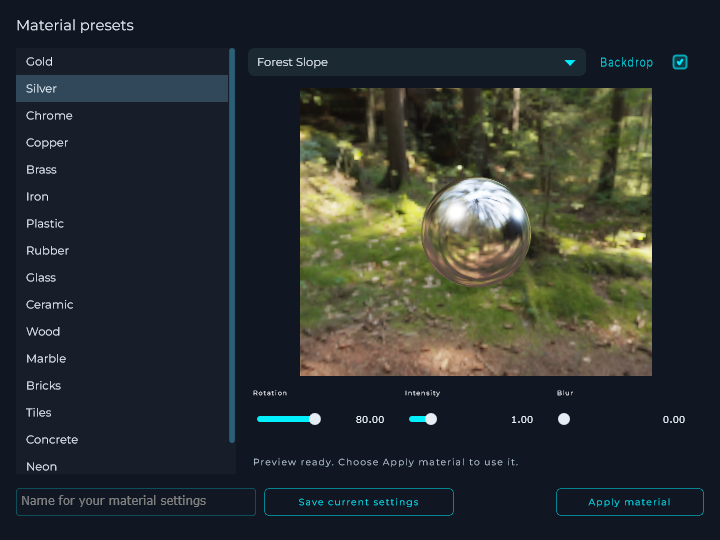
Use the browser's environment preview to inspect reflective surfaces. A chrome sphere in a dark environment can look almost black because it reflects its surroundings. Roughness broadens reflections; Metal changes their response; Emission adds the material's own visible brightness.
Save current settings creates a personal material preset. It stores the material parameters and image paths. It does not package an entire connected Surface graph. Save that graph as a module/subgraph or project when you want to reuse the whole recipe.
Add an image
There are two useful routes:
| Job | Connection |
|---|---|
| Put an image directly on the material | Material Picture: File, then Picture File on the node |
| Reuse an image in a calculation | Texture Source: File → choose Image File → Surface to a map or Surface Math/Mix |
| Share a source with Picture or a normal map | Texture Image → Material Picture or Normal Map |
| Reuse a height image for displacement | Texture Image → Displace File, with its height-map mode selected |
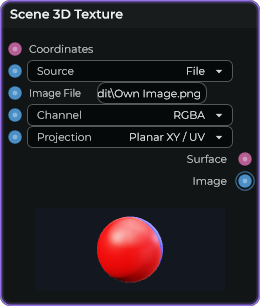
Surface and Image have different purposes. The Image output shares a source; it does not bake Math/Mix operations into a new bitmap. Use a real normal-map image for Normal Map. Colour images and normal maps are not interchangeable.
The simple Picture route multiplies the image by the material Colour, so white preserves the image's colours. Colour Map supplies the base RGB through the Surface graph. Roughness Map and Metalness Map use the red channel. Emission Map supplies emitted colour, multiplied by Emission. Map alpha is not the transparency control: use material Opacity or Picture alpha for cutouts.
Build coloured Fresnel emission
Open Materials - Coloured Emission, or build this:
- Add Scene 3D Surface Value. Set Mode to Colour and choose a blue or violet.
- Add Scene 3D Fresnel. Start with Power 3, Bias 0 and Gain 1.
- Add Scene 3D Surface Math and choose Multiply.
- Connect Surface Value Surface → Math A and Fresnel Surface → Math B.
- Connect Math Surface → Material Emission Map.
- Set Material Emission above zero, for example 2. Connect Material → Shape → View → Scene as above.
- Increase View Bloom for a halo. Turn the camera and watch the bright rim follow the viewing angle.
text
Surface Value (Colour) ──► Math A
Fresnel ────────────────► Math B   [Multiply]
                              └──► Material Emission Map
                                   Emission = 2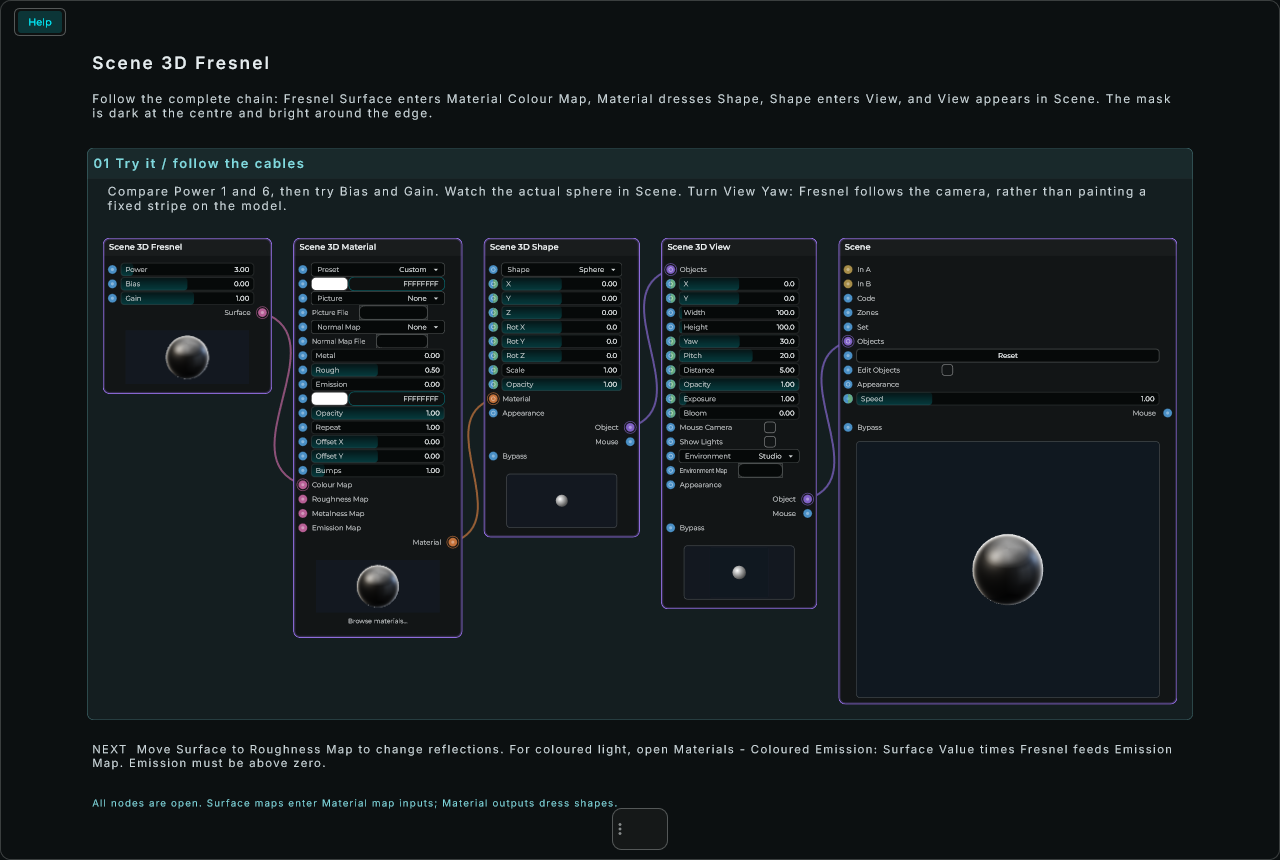
This Help first puts Fresnel into Colour Map so the mask itself is visible. The coloured-emission project adds Surface Value and Multiply.


Fresnel makes a black-to-white pattern based on the viewing angle: usually darker in the centre, brighter around the rim. That pattern is called a mask. It is an ingredient for a material, not a finished object. Higher Power narrows the rim; Bias lifts or lowers the mask; Gain scales it. To mix two colours, connect them to Surface Mix A/B and Fresnel to Mask. Black selects A; white selects B.
Coordinates and procedural textures
Use Coordinates → Mapping → Texture or Surface Noise → Math/Mix → Material map.
| Coordinate space | Behaviour |
|---|---|
| UV | Uses the mesh's texture coordinates |
| Local | Follows the mesh before its object transform |
| World | Stays aligned across objects in the world |
| Normal | Signed world-space surface direction |
| View | Signed world-space direction toward the camera |
Mapping scales XYZ, rotates around Z and offsets XYZ. Texture defaults to UV for planar projection and world coordinates for triplanar projection. When supplying coordinates explicitly for Triplanar World, use World: its blending uses world-space normals. Triplanar takes three samples per texture.
Surface Noise offers Value, Fractal, Ridged, Voronoi Distance, Voronoi Cells and Voronoi Edges. Scale changes feature size; Seed shifts the pattern. Detail bounds fractal work to four octaves. Voronoi Edges uses the difference between the nearest two cell distances, which is useful for veins or borders.
Surface Mix blends a single colour or field. Material Mix blends two materials' colour, roughness, metalness and emission in one lighting pass. Normal map, opacity and rendering settings come from A; it is not a full blend of two independently shaded transparent materials.
A material supports 32 unique Surface operations and 4 distinct Surface images, in addition to Picture and Normal Map. Repeated branches share work. Exceeding a limit reports an error instead of executing an incomplete material. These inputs accept Data changes; they are not audio-rate CV processors.
Environment maps
Connect Scene 3D Environment Map → Object to 3D View → Objects. Choose Studio, Sky, Sunset or Night, or select a panorama in Environment Map. Choosing a file selects File mode automatically.
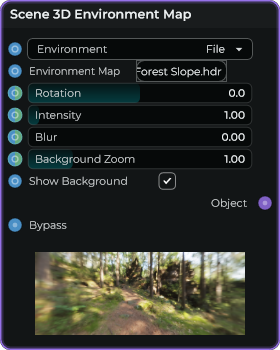
| Control | What changes |
|---|---|
| Rotation Y | Turns the surroundings sideways |
| Rotation X | Tilts the surroundings up/down; the background and reflections follow together |
| Intensity | Brightens the lighting and background |
| Blur | Softens the panorama and reflections without reopening the file |
| Background Zoom | Reframes only the visible background |
| Show Background | Hides/shows the panorama; lighting and reflections remain |
Use an equirectangular HDR, JPG or PNG panorama. Factory maps are available through the file picker when that content is installed. Keep any asset licence/credit files supplied with the pack when redistributing it; your own images may have different terms.
Sky offers a procedural sky with a Show Sun option. Hiding its solar disc does not disable directional sunlight or shadows. Avoid stacking several environment providers while learning; keep one clear source of surrounding light per view.
Lights, grouping and bypass
Point lights illuminate in every direction. Directional, Spot and Panel lights support Rot X/Y/Z; rotating a point light has no visible effect. A panel's Z rotation rolls its rectangular source.
Use 3D Group for shared transforms, Clones for repeated geometry, Join for combined shapes, Subdivide for additional mesh detail and Displace for geometric relief. Bypassing a source hides it; bypassing a group/modifier forwards its children without that operation. Bypassing a material restores the receiving object's own appearance. Bypassing the root Scene suspends its drawing while retaining the prepared picture/program.
For a dark, missing or slow result, continue with performance and troubleshooting.
Particles made from images or models
Connect Scene 3D Particles — Object → Scene 3D View — Objects, then View — Object → Scene — Objects.
For an image: choose Shape: Sprite, then click Image File and choose a PNG with a transparent background. Each copy faces the camera. Set Colour to white to keep the image colours, or choose another colour to tint it. Blend: Normal preserves transparency; Add is useful for sparks and light.
For a model: choose Shape: Model, then click Model File and choose an OBJ. MNodes loads one mesh and reuses it for the particles. The model is fitted to a unit box; Size controls each copy.
- Rate: how many appear each second.
- Life: how long they stay.
- Size / Size End: their size at the beginning and end.
- Rot X/Y/Z on the node: where the emitter points.
- Particle Rot X/Y/Z in Inspector: how each image or model is turned.
- Particle Spin in Inspector: how fast each copy turns during its life. For a sprite, Y turns the image within its plane.
Use a simple model, a modest Rate and a short Life while building the effect. Images and OBJ files are included when exporting a portable project.
Make Scene transparent
Select Scene, open Inspector and enable Transparent. This removes Scene's own background fill. Put another panel item behind it to see the result.
An opaque drawing stays opaque. For a 3D world, also turn Show Background off on its Environment Map and set the View's background alpha to zero. For Shader Code, the fourth component of the output colour is opacity: 0 is clear, 1 is solid. A Script can set an explicit background, including partial transparency.