
Appearance
Drawing with Script and shaders
Needs MNodes 1.1.5 or newer
Scene and all of its nodes are new in MNodes 1.1.5. They do not exist in older versions, so a project that uses them will not work there until you update.
Keep code in a Script, Shader Code node or external file. The Scene is the displayed result. Keeping code separate makes modules easier to understand, reuse and maintain.
New to Scene? Start with a slider without code. For your first shader, copy the disc example and test it one step at a time.
Script uses JavaScript to create objects. Shader Code uses GLSL to draw pixels. These are two different languages; paste each example into the matching node.


Choose Script or GLSL
| Script | Shader Code |
|---|---|
| JavaScript creates/updates objects and handles patch data | GLSL calculates the colour of each pixel |
| Connect its drawing output to Scene Objects | Connect Code to Scene Code |
| Useful for layouts, instruments, games and structured drawing | Useful for procedural backgrounds, water, fire and custom control skins |
| Runs when its inputs/handlers or configured Tick request work | Runs on the GPU when the picture needs a frame |
You can combine them: a shader background, native controls on top and Script for event handling. The visual itself does not synthesize sound. Connect values and MIDI to the audio graph separately.
Start from nodes, then copy as Script
- Build a simple Scene with a Rectangle, Text and Knob.
- Right-click the relevant Scene node and use Copy as Script.
- Paste into a separate Script node. The copied code describes the current objects with
scene(1)and their properties. - Connect that Script's drawing output to Scene Objects.
- Disconnect the original drawing branch while testing the copied version, so it is not drawn twice.
Copying captures the current values; it does not recreate all the original modulation cables. Add Script inputs/handlers when the generated version should follow changing patch data. The Script drawing API documents creation, properties, updates and mouse messages, and the Script reference lists every call and property in one place.
Use stable object IDs and update existing properties instead of rebuilding an entire scene on every tick. A static layout needs no continuous Tick. Enable a suitable Tick rate only for logic that actually animates.
Edit a shader
Add Shader Code, connect its output to Scene Code, and edit the code there. The Scene header's Edit Code action can create a connected code node from its retained source. Shader Code's File setting follows an external GLSL file when you prefer an external editor.
The smallest complete image is:
glsl
void mainImage(out vec4 colour, in vec2 p)
{
    vec2 uv = p / iResolution.xy;
    colour = vec4(uv.x, uv.y, 0.25, 1.0);
}
The Code editor's Variables sheet lists available names. Use its insertion controls to avoid spelling mistakes. When code fails to compile, Scene reports the error and keeps the last valid program. A first load with invalid code has no previous valid picture to show.
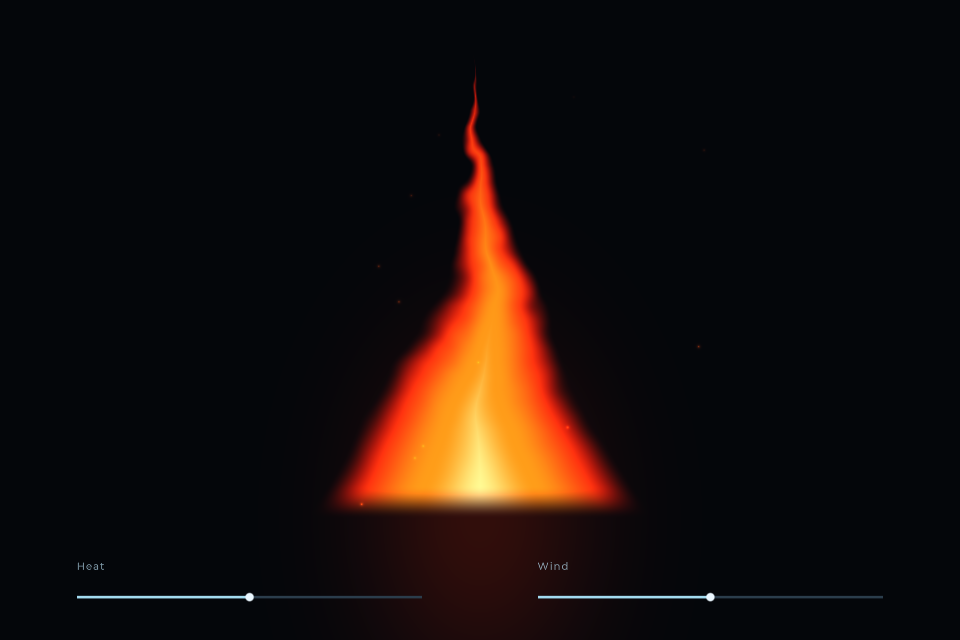
For working examples, open Living Flame, Pong or Paint.
Values available to the shader
| Name | Purpose |
|---|---|
iResolution | Drawing dimensions; divide pixel coordinates by .xy for normalized layout |
iTime, iFrame | Time/frame information for animation |
P1 … P60 | Patch-controlled values; enable the inputs with Scene P Count |
iMouse, MouseX, MouseY | Pointer state; see the Variables sheet for the complete interface |
zoneValue(Name) | A zone value normalized to 0–1 |
zoneOutput(Name) | A zone's value in its configured range |
zoneCenter(Name), zoneSize(Name) | Pixel-space geometry matching its hit area |
zoneHover(Name), zonePressed(Name) | Hover and held states |
iChannel0, iChannel1 | Audio analysis textures for In A and In B |
iWave | The last 4096 samples of In A (first row) and In B (second row), -1 to 1 |
iImage0, iImage1 | Scene Image 1 and Image 2 |
iBufferA, iBufferB | Retained image buffers for feedback passes |
P inputs normally use 0–1 values; incoming CV may go outside that range. Clamp only where your calculation needs it. Changing a P value or a zone value does not compile a new shader. Changing the source or its declared zone layout can require preparation.
For exact audio texture layout and the other built-ins, use the Shader reference and the code editor's Variables sheet. Do not treat a sound input as a normal photo texture.
Text and fonts
Scene Text is the simplest route for labels and numeric readouts. Its Text input can display a changing value. Native controls have their own typography settings.
Shader code can use labelText, zoneName and drawNumber. Scene Labels supplies up to 16 lines, indexed from zero. Draw text from those helpers rather than approximating letters with shapes.
Scene Font Family chooses which of the fonts that come with MNodes all of this text uses: Montserrat (the default), Inter, Poppins, JetBrains Mono or Orbit. Text widths and centring follow it, so labelText and zoneName stay centred whichever you pick.
Scene Font File accepts TTF/OTF, replaces Font Family, and is included in portable exports. The current glyph renderer supports Latin-1; a custom font does not add arbitrary Unicode shaping or all writing systems. Choose a font you have permission to redistribute when sharing a portable project.
Painting, trails and persistent buffers
GLSL source can contain #pass A, #pass B and #pass Image sections. A and B are retained buffers; Image is the final picture. Code before the first pass marker is shared. Each buffer can read its previous contents, which enables trails, painting and game state.
The passes run A, then B, then Image. Use readA(fragCoord) / readB(fragCoord) for pixel-relative access or an integer texel coordinate for stored state. Buffer values can extend beyond 0–1. With buffer passes but no Image pass, the image displays Buffer A.
For painting, enable Keep Drawing on Resize: existing buffer images are rescaled instead of cleared. For simulations whose state depends on exact texel positions, leave it off and restart after resizing. Reset clears both buffers and restarts time/frame state either way.
Buffers consume memory and usually require continued rendering while visible. Use them when the result needs memory; a static gradient or ordinary knob does not need a feedback buffer.
Keyboard and mouse
Use zones for ordinary controls; they provide value storage, gestures and automation. For a game, Scene Keyboard enables raw key helpers such as keyDown(KEY_LEFT) and keyPressed(KEY_SPACE) while the Scene owns keyboard focus. Escape releases that interaction.
Mouse outputs can feed Mouse Actions or Script logic. Decide which layer owns a click: native controls, connected object Mouse handlers, zones and game code can otherwise compete for the same part of the picture. Turn off Edit Objects/Edit Zones when testing performance interaction.
Save and share
Save a complete project when the example needs routing, preset management or audio/MIDI processing. Use modules/subgraphs for reusable controls and visualizers. Export portably when external model, texture or font files are required; an absolute path to your own disk will not work on another computer.
Read Scene performance before increasing resolution, pass count or the number of animated views.