Appearance
Pins and colours
Needs MNodes 1.1.5 or newer
Scene and all of its nodes are new in MNodes 1.1.5. They do not exist in older versions, so a project that uses them will not work there until you update.
A pin is a small circle on a node. A cable connects two pins.
Drag from an output on the right to an input on the left. Read the pin's name as well as its colour. The pictures below are close-ups of the real MNodes pins.
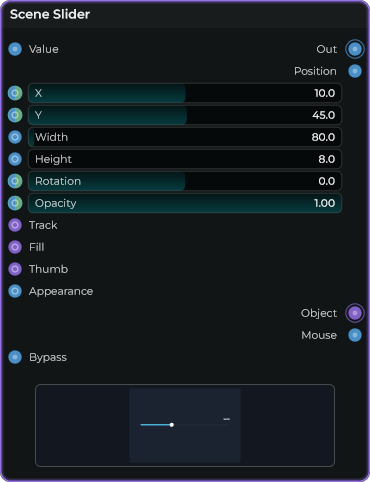
On this slider, Value on the left sets the number. Out on the right sends that number. Object sends the drawing.
The three new colours
| Default colour | Name | What it carries |
|---|---|---|
| Violet | Object | Something Scene can draw: a shape, control or 3D view. |
| Orange | Material | The complete finish to put on a 3D shape or model. |
| Pink | Surface | A colour or pattern used inside a material. |
Colours can be changed in Settings. A different colour theme does not change what a pin accepts. Green is CV, used for sound modulation; it is not the new Surface type.
Violet: show an object
Connect Scene Slider — Object → Scene — Objects.


You should see: the slider appears inside Scene. Several objects can share the Objects input.
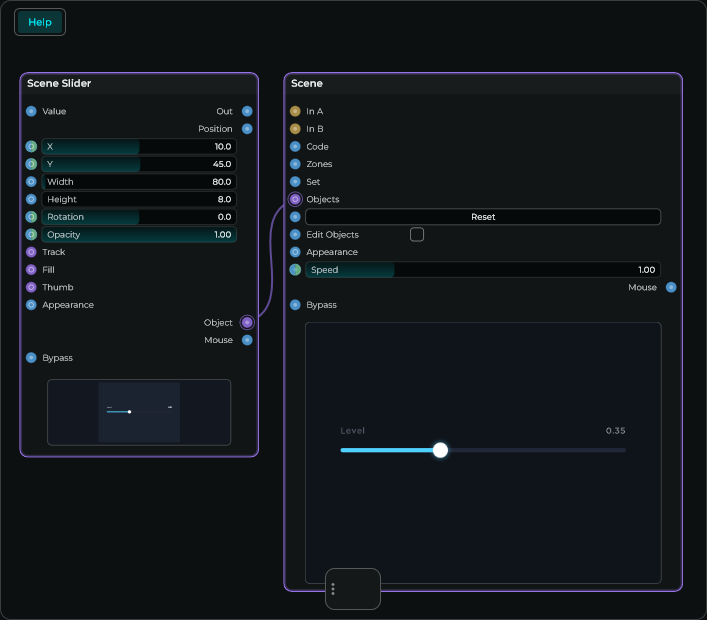
The Object cable draws the slider. To make it change something, use its Out output too.
Blue: change a number
Connect Scene Slider — Out → Scene Rectangle — Width.


You should see: moving the slider changes the rectangle's width.
Set the slider to Min 0, Max 100 for this example. The output is labelled Out on the node: it sends the Value, the chosen number, such as 35. Position sends the same position from 0 to 1, such as 0.35.
A blue/green split pin can also accept streamed modulation. Use the blue numeric connection for this lesson.
Orange: give a 3D object a finish
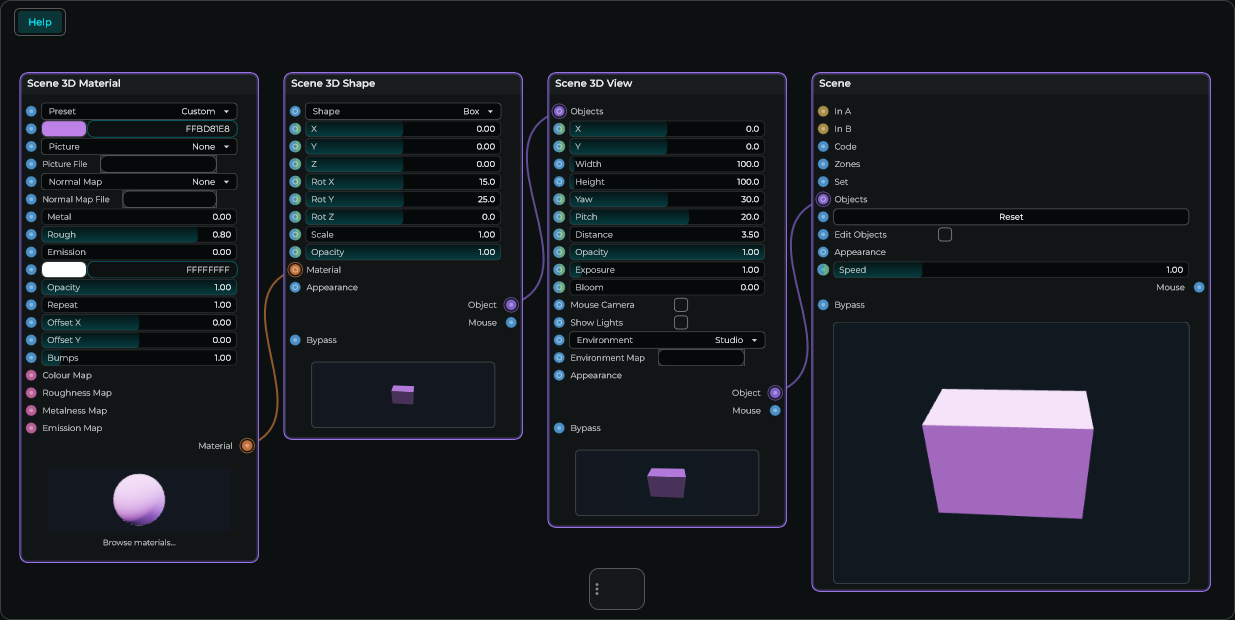
Connect Scene 3D Material — Material → Scene 3D Shape — Material.


You should see: changing the Material's Colour changes the shape.
The shape still needs its drawing route: Shape Object → View Objects, then View Object → Scene Objects.
Pink: change a material across its surface
Connect Scene 3D Fresnel — Surface → Scene 3D Material — Colour Map.


You should see: the material becomes darker toward the middle and brighter near the edges facing away from you. Keep the Material → Shape → View → Scene chain connected.
A map changes a property across an object, instead of using one value everywhere. Colour Map changes colour; Roughness Map changes the finish.
Fresnel Surface → Scene Objects will not work. Pink is a material ingredient; violet is the finished drawable object.
Follow the complete Fresnel example →
Blue does not always mean a number
Blue Data pins can carry different things. Match the names and purpose, not only the colour.
| Source | Destination | What goes through the cable |
|---|---|---|
| Shader Code — Code | Scene — Code | Drawing instructions. |
| Scene 3D Texture — Image | Material — Picture | An image source. |
| Slider — Out | Rectangle — Width | A number. |


Texture has two outputs. Use Image → Picture for an image source, or Surface → Colour Map when using it in a material calculation.
Palette (0–1) on a Factory meter expects a number, such as 0.5, from a Knob, Slider or Number. A Colour node is not the right input. See the meter example.
Change the colours
- Open Settings → Appearance.
- Find the connection colours.
- Click Wire Objects, Wire Material or Wire Surface and choose a colour.
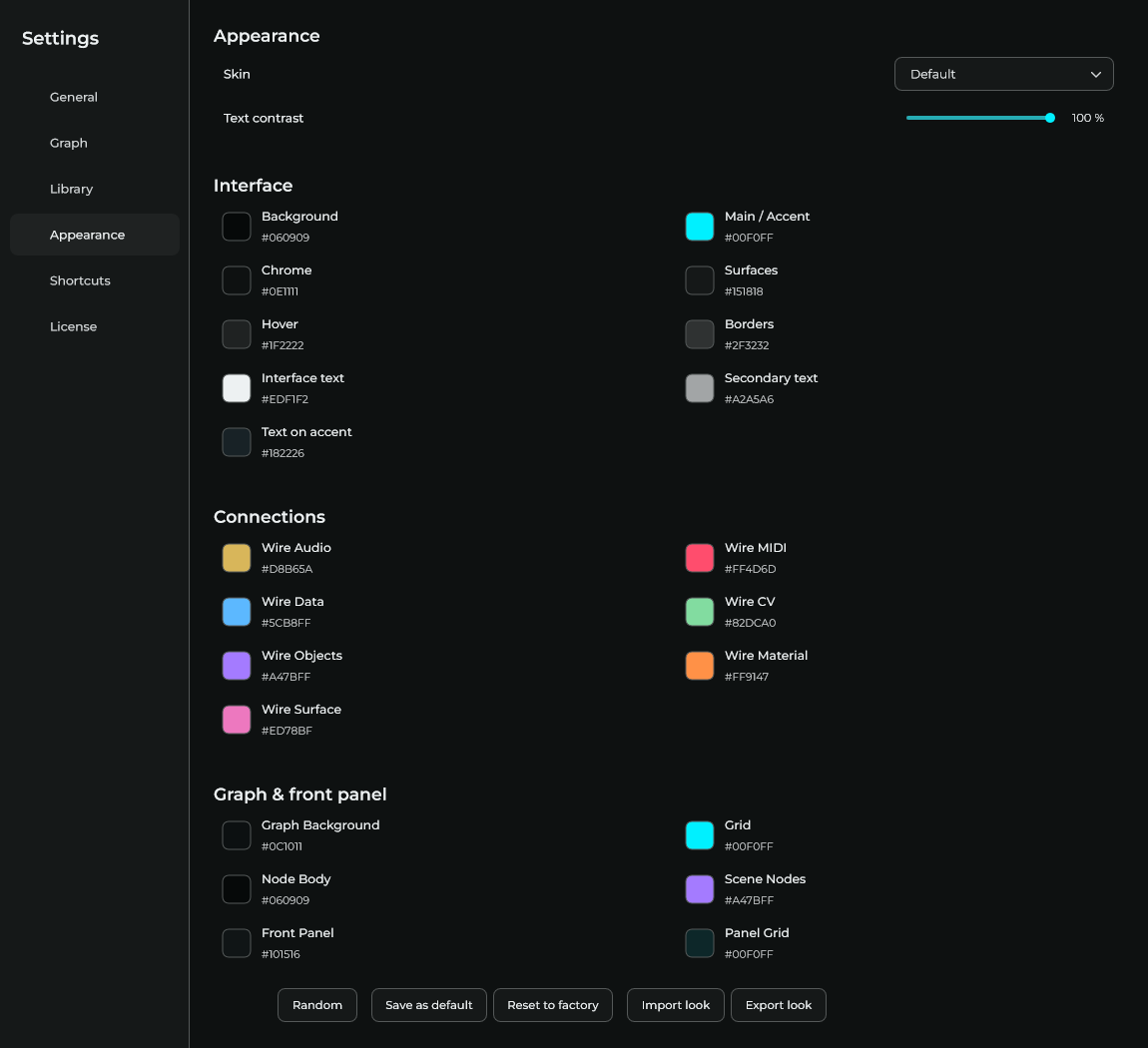
Scene Nodes changes the node outline. It does not change the pin's connection type.
Next: make your first slider.