
Appearance
Make a custom mouse area
Needs MNodes 1.1.5 or newer
Scene and all of its nodes are new in MNodes 1.1.5. They do not exist in older versions, so a project that uses them will not work there until you update.
A zone is the area where Scene listens to your mouse. Its drawing is separate.
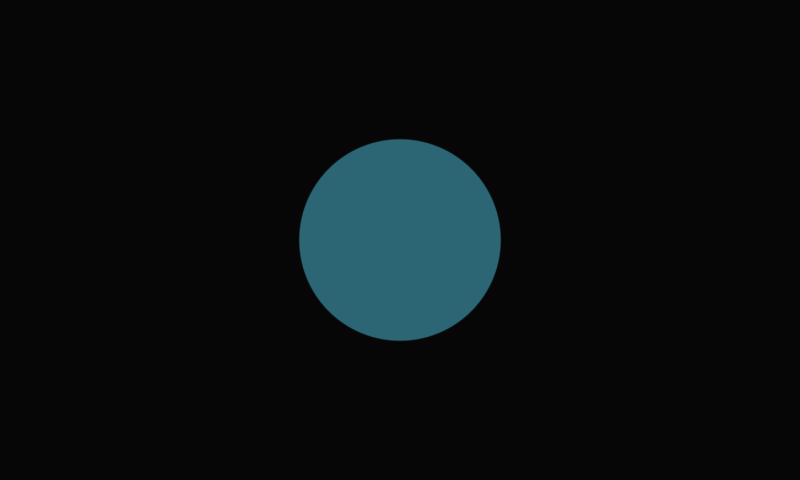
Start with Scene Zone to create and test an area without writing code. The optional shader example below makes a disc brighter when you drag up and darker when you drag down.
For a ready-made slider or knob with its own drawing and mouse behaviour, use Scene controls. Use Scene Zone when you want to choose the mouse area yourself.
Start without code: Scene Zone
- Add Scene Zone, Scene Circle and Scene.
- Connect Scene Zone — Zones → Scene — Zones (blue pins).
- Connect Scene Circle — Object → Scene — Objects (violet pins).
- On Circle, set X 50, Y 50 and Radius 15 with Percent units.
- Leave Zone at Knob, Circle, X 35, Y 35, Width 30, Height 30.
- Keep Show Zones on. The outline shows exactly where you can drag.
- Drag up and down inside the area. Touch, the new output on Scene, changes between 0 and 1.
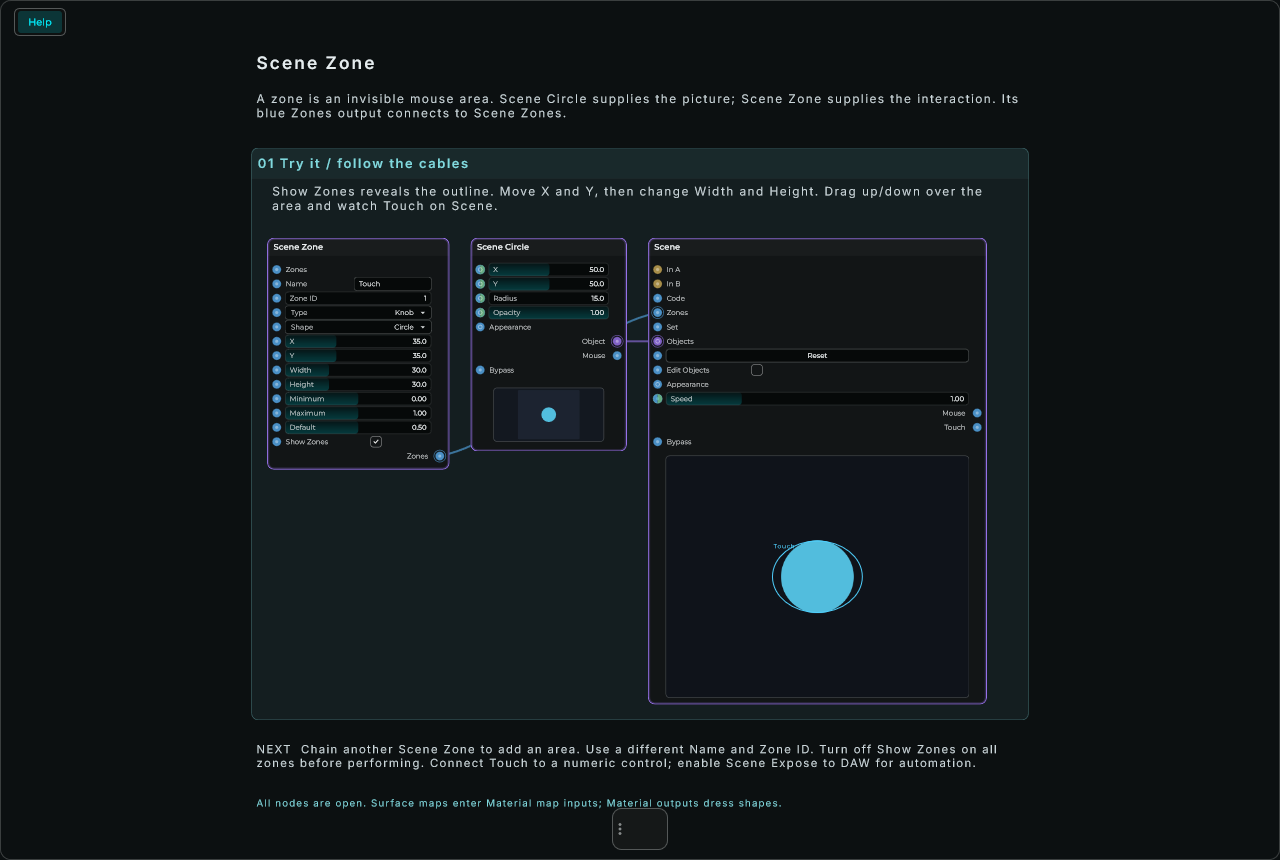
The zone handles the mouse. The Circle draws the picture. You can replace the Circle with your own drawing later.
Which cable does what?
| From | To | What it does |
|---|---|---|
| Scene Zone Zones output | Scene Zones input | Defines the mouse area; blue Data cable |
| Scene Circle Object output | Scene Objects input | Draws the circle; violet Object cable |
| Scene Touch output | A numeric input you want to control | Sends the value as you drag; blue Data cable |
The value comes out of Scene, not Scene Zone. Name sets that output's label: the default is Touch. The Circle will stay the same until you connect the value to something that changes its drawing. Creating a zone alone does not change sound either.
Set the area and its behaviour
| Setting on Scene Zone | What to choose |
|---|---|
| Type | Knob for an up/down drag, Button while held, Toggle for on/off, or Slider / XY Pad for a pointer position |
| Shape | Rectangle, Circle or Ring: where the mouse is accepted |
| X / Y | The lower-left corner, in percent of Scene |
| Width / Height | The area's size, in percent of Scene |
| Minimum / Maximum | The values sent to the patch; for example 0 and 1 |
| Default | The initial value, also restored by double-clicking the zone |
| Show Zones | Show the outline and name while you work |
More options are in Inspector → Zone, including Sensitivity, Step, the slider's Vertical direction and Tooltip. A Step of 0 allows smooth movement. Hold Shift while playing a knob zone for smaller changes.
See and test your area
- Leave Show Zones on in Scene Zone.
- Change X, Y, Width or Height on that node. Watch the outline move in Scene.
- Leave Scene's Edit Zones off while testing the gesture. It is an editing mode, not a playing mode.
- Drag inside the outline and watch Touch on Scene. For a Knob zone, the drag continues outside the outline until you release.
With a Scene Zone node connected, keep editing the area on that node: it supplies the zone definition. The drawing and the outline have separate positions, so move or resize the Circle too if you want them to match.
Add more areas
To add another area, connect the first Zone's Zones output to the second Zone's Zones input. Connect the last Zone to Scene. Give each a different Name and Zone ID. Keep those IDs unchanged once you connect outputs or record automation.
For example: Scene Zone “Cutoff” → Scene Zone “Resonance” → Scene Zones. Use IDs 1 and 2. Scene then provides outputs called Cutoff and Resonance. The first two cables carry zone definitions; take the playable values from Scene's outputs.
The outlines show only while you design: Perform and a locked Front Panel hide them. Bypassing a Zone removes that area and keeps the earlier areas in the chain.
X and Y are percentages from the lower-left corner. Native shapes use the upper-left corner. The example above centres both, so their positions match. A zone stays invisible when its guide is hidden; it does not create a knob drawing by itself.
You can stop here: no Shader Code or JSON is needed for this route. To record the zone in your DAW, follow the automation steps. For a complete built-in example, open Help from the Scene Zone node's menu.
Alternative: define a zone in text
The remaining steps show the same system using the Inspector and Shader Code. Use this route when you want a custom shader drawing. You can also supply its zone with Scene Zone: set Name to Amount, Maximum to 100, Default to 35, Y to 25, and Height to 50.
1. Add the drawing nodes
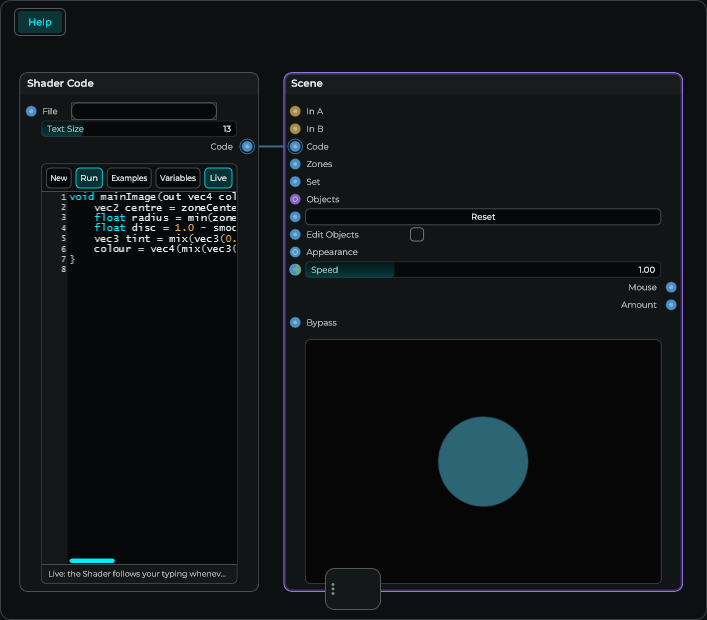
In an empty project, add Scene and Shader Code.
Connect Shader Code — Code → Scene — Code. This sends the drawing instructions to Scene.


Use Shader Code, not Script, for this example. Keep Scene Ignore Clicks off.
2. Open the zone settings
Select Scene. Open Inspector with Ctrl+I / Cmd+I. Search for Zones. Expand Canvas if its settings are hidden.
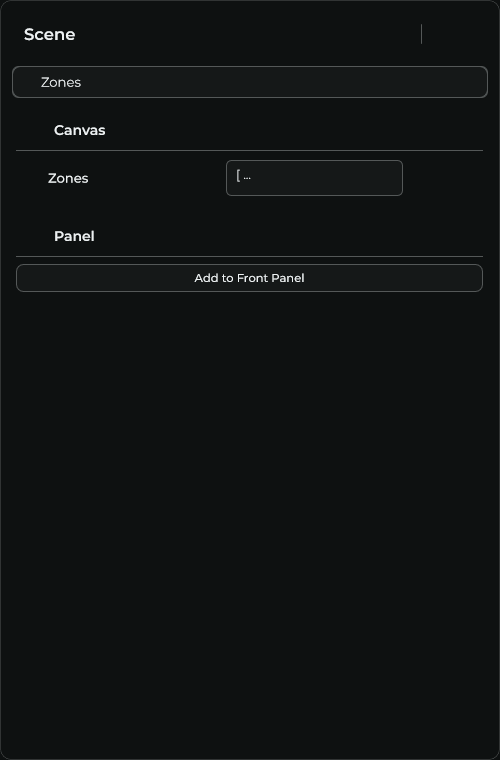
Replace the Zones field with this complete text, including the square brackets:
json
[
  {
    "id": 1,
    "name": "Amount",
    "type": "knob",
    "shape": "circle",
    "x": 0.35, "y": 0.25,
    "w": 0.30, "h": 0.50,
    "min": 0, "max": 100,
    "default": 35,
    "unit": " %"
  }
]
You should see: an Amount output on Scene. The picture is still empty: the zone defines where to drag, but does not draw the disc.
What do these settings mean?
| Setting | Meaning |
|---|---|
| name | The control is called Amount. |
| type: knob | Drag up/down to change it. It does not have to look like a knob. |
| shape: circle | The mouse area is circular. |
| x / y | Where its lower-left corner sits. 0.35 means 35% across; 0.25 means 25% up. |
| w / h | Its width and height as shares of Scene. |
| min / max | The output goes from 0 to 100. |
| default | It starts at 35. |
| id | A stable identifier. Keep it when editing this control. |
Zones measure from the bottom left in 0–1. Native Scene objects use top-left positions, with Pixels or Percent units. Their numbers are not interchangeable.
3. Add the drawing
Open the connected Shader Code editor. Replace its code with this and apply:
glsl
void mainImage(out vec4 colour, in vec2 p) {
    vec2 centre = zoneCenter(Amount);
    float radius = min(zoneSize(Amount).x, zoneSize(Amount).y) * 0.42;
    float disc = 1.0 - smoothstep(-1.0, 1.0, length(p - centre) - radius);
    vec3 tint = mix(vec3(0.08, 0.15, 0.19),
                    vec3(0.35, 0.85, 0.95), zoneValue(Amount));
    colour = vec4(mix(vec3(0.025), tint, disc), 1.0);
}
You should see: a blue disc. Its drawing reads the Amount zone you just created.
4. Show where you can click
Right-click the Scene title. Turn on Show Zones.
You should see: an outline around the mouse area.
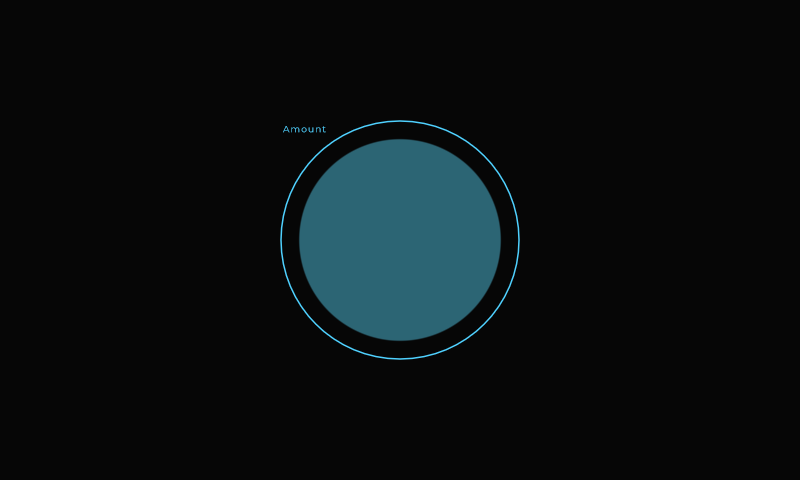
Edit Zones lets you move and resize that area. Turn Edit Zones off before playing it. Show Zones can also be turned off to hide the outline.
5. Drag the disc
Press inside the disc and keep the mouse held. Drag up, then down.
You should see: it gets brighter, then darker. You can keep dragging outside the disc until you release. Hold Shift for smaller changes.
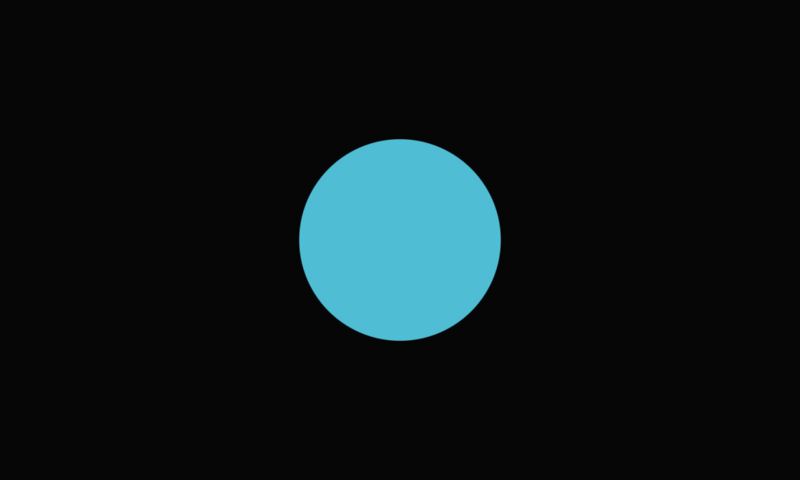
The Amount pin sends 0–100. The drawing's zoneValue(Amount) reads the same position as 0–1. For example, output 72 becomes 0.72 in the brightness mix.
6. Let a slider change it too
On Scene, enable Zone Inputs in Inspector.
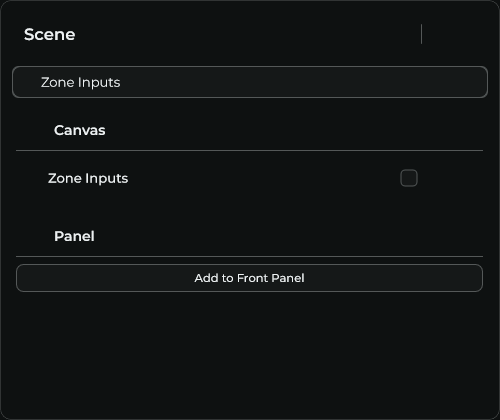
You should see: an Amount input on the left, as well as the output on the right.
Add Scene Slider and set Min 0, Max 100, Value 35. For this layout, set X 10, Y 82, Width 80, Height 5, with Units = Percent.
Connect:
- Slider Object → Scene Objects to show the slider.
- Slider Out → Scene Amount input to change the disc.
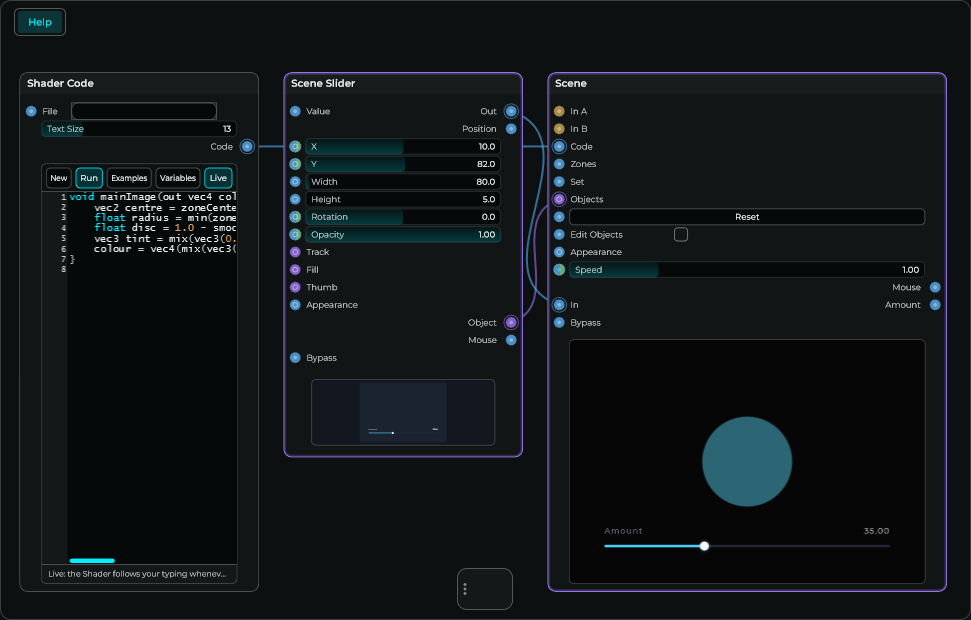
Move the slider to 72.
You should see: the disc becomes brighter.
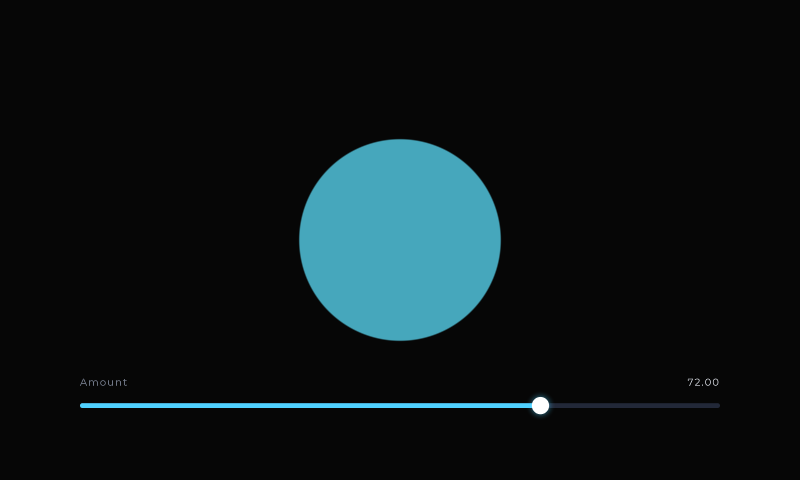
Open the slider-and-disc project
This cable works from slider to disc. Dragging the disc does not move the slider back. Two-way control updates are the next step.
If it does not work
| Problem | Fix |
|---|---|
| Code error mentioning Amount | Use the exact zone name Amount, including the capital A. |
| Empty picture | Check the Code cable and the code editor's error message. |
| Disc moves instead of brightening | Turn Edit Zones off. |
| Mouse does nothing | Keep Ignore Clicks and Bypass off. Show Zones to check the click area. |
| Slider barely changes the disc | Use Out with a 0–100 range, not Position. |
To automate this zone, enable Expose to DAW on Scene. Follow the automation steps.