Appearance
Scene controls, zones and automation
Needs MNodes 1.1.5 or newer
Scene and all of its nodes are new in MNodes 1.1.5. They do not exist in older versions, so a project that uses them will not work there until you update.
First time using Scene? Build a native slider, then follow the one-zone lesson. They show each connection and intermediate result before the wider reference below.
A Scene control already knows how to react to your mouse. Connect Object to draw it, then Out to change something.
| I want to… | Go here |
|---|---|
| Make a slider without code | First slider |
| Make my own clickable drawing | First zone |
| Set a control from another node | Incoming values |
| Record its movement in my DAW | Automation |
For a custom shader drawing, the zone handles the mouse and value; Shader Code makes the picture. See which pins to connect.
Start with Guide - Zones and Interaction. It contains working controls, numbered instructions and visible connections.
Native controls
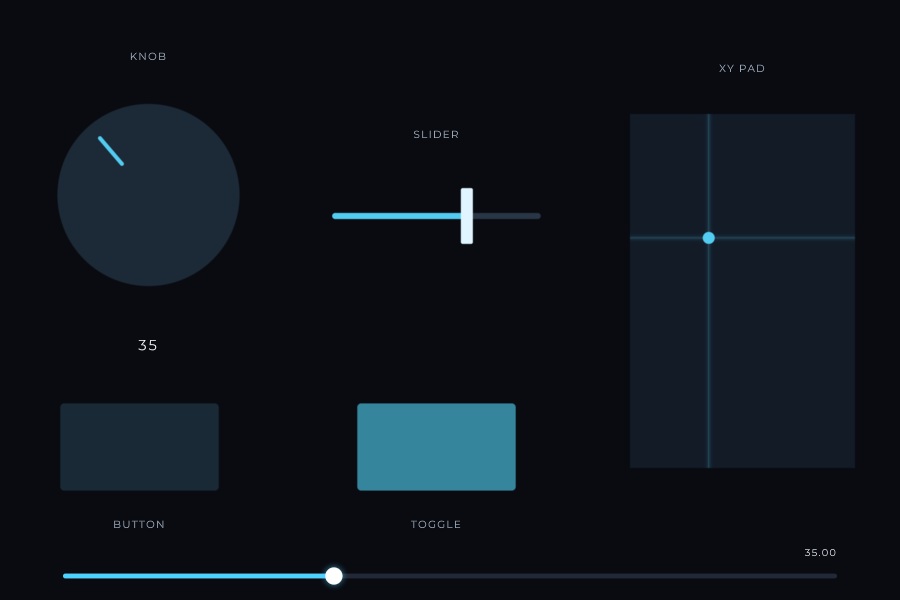
Connect the Object output of Scene Knob, Slider, Button, Toggle, Menu or XY Pad to Scene Objects. Their value outputs are separate from their drawing outputs.
| Control | Gesture | Output |
|---|---|---|
| Knob | Drag up/down; continue outside its bounds until release | Value in its configured range; Position in 0–1 |
| Slider | Click or drag along the rail | Value and normalized Position |
| Button | Hold the pointer down | Press/release state; use momentary behaviour for keys |
| Toggle | Click to change state | A latched on/off value |
| Menu | Click to open its list and pick an item; the wheel steps through them | Value, the item's number counting from 0; Text, its words |
| XY Pad | Drag on two axes | Independent X and Y values |
Hold Shift for finer adjustment. Numeric parameter rows also support Ctrl on Windows or Command on macOS for finer movement, and double-click entry for an exact number. A native control's typography settings adjust label/value size, weight, spacing, offsets and maximum width.
Custom appearances can use the control's Position to rotate a shape, fill an arc or move a thumb. Read the existing value to draw the picture; do not create a second unrelated value that can fall out of sync. Custom Knob is a working starting point.
Create zones with a node
Use Scene Zone to define a mouse area without code. Connect its blue Zones output to the blue Zones input on Scene. Set Type, Shape, X / Y, Width / Height and the value range on Scene Zone. Turn on Show Zones there to see the area while adjusting it.
The playable value comes from a new output on Scene, named by the zone's Name setting. Scene Zone supplies the area; it does not draw a control. Supply the drawing separately through Scene Objects or Code.
To use several areas, chain Scene Zone → Scene Zone → Scene Zones and give them different names and IDs. The outlines show only while you design: Perform and a locked Front Panel hide them. Keep editing connected areas on their Scene Zone nodes.
Build and test your first Scene Zone, step by step →
Alternative: define a shader zone in text
Use this route if you prefer a text definition. With Scene Zone connected, change its settings on that node instead.
Connect Shader Code → Code to Scene → Code. In the Scene Inspector, edit Zones:
json
[
  { "id": 1, "name": "Amount", "type": "knob", "shape": "circle",
    "x": 0.35, "y": 0.25, "w": 0.30, "h": 0.50,
    "min": 0, "max": 100, "default": 35, "unit": " %" }
]
This creates the Amount output. It does not draw a knob by itself. The shader can read zoneValue(Amount) to obtain 0–1 or zoneOutput(Amount) to obtain 0–100.
Zone x/y/w/h are fractions of the entire Scene, measured from the bottom left. A circle fits inside its rectangle; a non-square rectangle changes its hit area. Native 2D object layout uses the Scene's own coordinate system, so do not copy native object positions straight into zone JSON without converting them.
Use stable, unique id values and simple names such as Cutoff or Pad. GLSL names with spaces use underscores; a GLSL keyword or a name beginning with a number should be addressed by its numeric zone index instead. Renaming zones also requires updating code that uses their names.
Right-click the Scene header:
- Show Zones displays the hit regions while keeping the drawing intact.
- Edit Zones lets you move and resize them. Turn it off before testing interaction.
Zones support knob, slider, button, toggle, radio, XY, rotate and drag. See the complete zone fields and gestures for step sizes, ranges, radio groups and axis settings. A zone defines the hit target; the shader must place its drawing to match. zoneCenter() and zoneSize() keep both aligned when resized.
Draw the current value
This small shader draws a disc whose brightness follows Amount. Paste it into the connected Shader Code node with the zone above:
glsl
void mainImage(out vec4 colour, in vec2 p)
{
    vec2 centre = zoneCenter(Amount);
    float radius = min(zoneSize(Amount).x, zoneSize(Amount).y) * 0.42;
    float edge = length(p - centre) - radius;
    float disc = 1.0 - smoothstep(-1.0, 1.0, edge);
    vec3 tint = mix(vec3(0.08, 0.15, 0.19),
                    vec3(0.35, 0.85, 0.95), zoneValue(Amount));
    colour = vec4(mix(vec3(0.025), tint, disc), 1.0);
}
Drag vertically inside the disc. Change the range to see why zoneValue is convenient for drawing while zoneOutput is convenient for meaningful units.
Update a control from the patch
Enable Zone Inputs to add an input for each zone. An incoming Amount value uses its real range: send 35, not 0.35, for the example above. The zone updates its stored value, drawing and output.
For feedback that should update the display without sending the value out again, use Scene Set:
json
{ "Amount": 65, "Pad": [0.2, 0.7] }The keys must name zones in that Scene. Array values address the two axes of an XY/drag zone in their configured ranges. Set is useful when two controls share one source of truth: receive the new value, update the sound, and reflect it into the other control without creating an echo loop.
For a custom native object, route Mouse through Mouse Actions to extract events and coordinates. Plain shapes do not gain knob semantics merely because they have a Mouse output; implement those gestures in Script or use a native control.
Expose controls to the DAW
Open Guide - DAW Automation inside the VST3. Standalone cannot record a host automation lane.
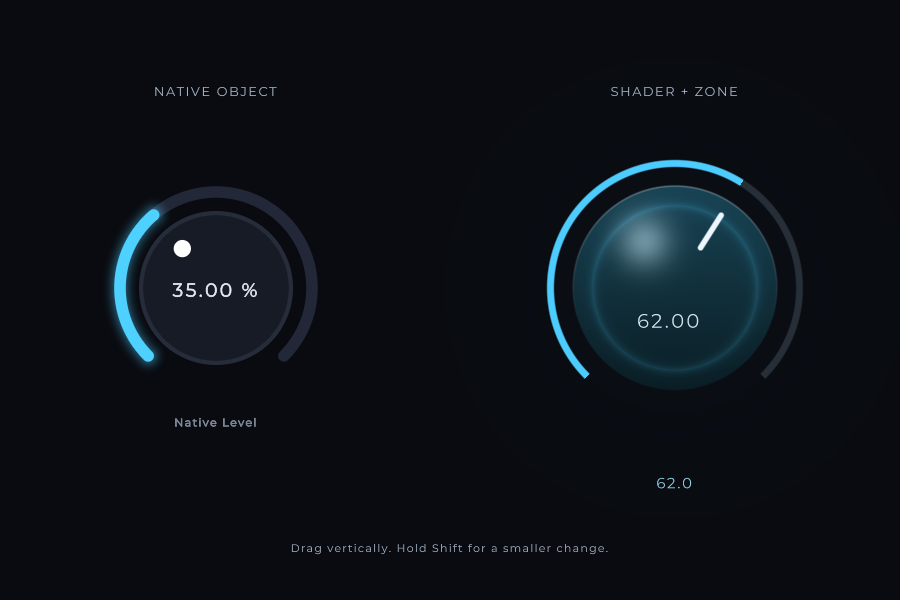
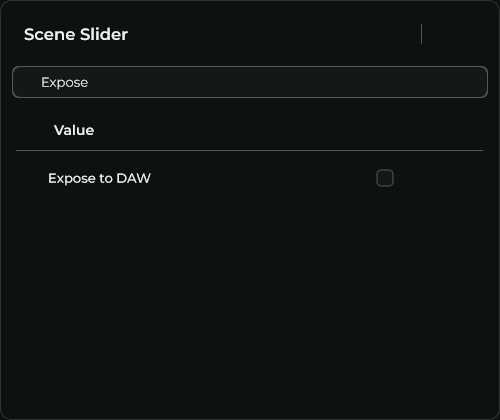
For a native slider/knob, expose the control node. For a shader zone, expose the Scene that owns the zone. The drawing code itself is not the control.
- Select Native Level and open Inspector → DAW. Expose to DAW is already enabled in this lesson.
- Select Automation lesson, the Scene node. Its Expose to DAW setting exposes the ShaderAmount zone.
- Find both parameters in your host's automation list. Record movement, stop recording, then play in the host's Read mode.
- Confirm that both drawings follow playback. The shader zone also updates its connected numeric readout.
- Connect Out/Amount to a sound parameter before expecting an audible change. This lesson intentionally demonstrates the controls without an audio instrument.
For a Shader node or a Scene P1…P60 input, expose a source Knob/Slider and connect its value to that P input. Shader Code is a drawing program, not a host parameter bank. If the P input expects 0–1, use a normalized source or Position.
MNodes has 128 automation slots per instance. XY controls use two. Keep node bindings and zone IDs/order stable once a DAW session contains lanes: adding/removing zones or freeing and reusing slots can change what existing automation addresses. Save both the MNodes project and the DAW session. See Parameter Automation for host recording and troubleshooting.
Keyboard interaction and piano glissando
With Scene Keyboard off, Tab visits visible native controls and zones. Arrow keys adjust continuous values; Shift makes smaller changes. Home/End reach the limits. Space/Enter play buttons and toggles. XY axes have separate focus stops. These controls expose names and values to accessibility tools.
Turn Keyboard on only when a shader/game needs raw key states. It takes over that interaction while the Scene has focus. Edit Zones, Ignore Clicks and object editing also change how pointer/focus interaction is routed.
Momentary native buttons can share a Glissando Group. Hold one key and slide onto another matching key: the first releases before the next presses. Script controls use glissando for the same job. Route the resulting gates through MIDI conversion nodes; drawing keys alone sends no notes. Hiding a Scene or losing pointer capture releases a held key.
Store sounds and reuse the panel
Use Preset Manager to recall the instrument's sound settings. Keep layout/code authoring separate from sound controls, and preserve automation bindings. For reusable modules, expose meaningful public inputs and outputs, such as Set Amount, Amount, Sound or MIDI. Keep Shader Code and Script as separate internal nodes so the next user can find them.
Next: 3D worlds and materials, or Script and shader drawing.