
Appearance
Make your first 3D object
Needs MNodes 1.1.5 or newer
Scene and all of its nodes are new in MNodes 1.1.5. They do not exist in older versions, so a project that uses them will not work there until you update.
No code required. Start with a box, give it a colour, then change its finish.
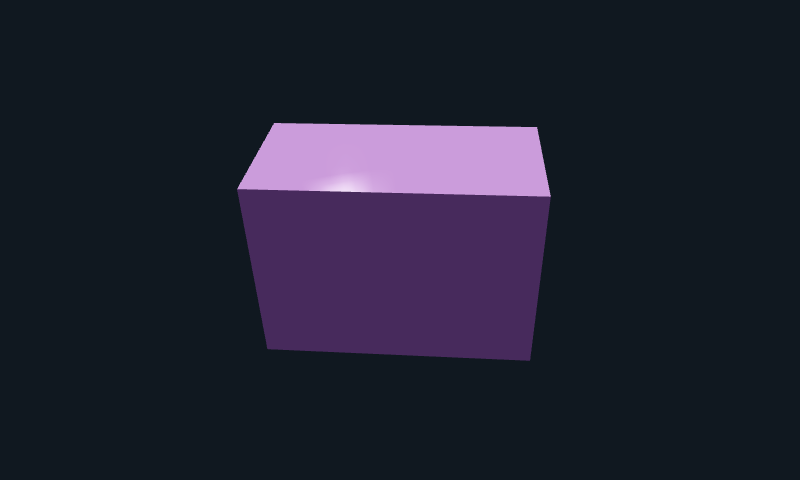
Need help connecting nodes? Start with Pins and colours. Click pictures to enlarge them.
1. Add three nodes
Open an empty project in Edit mode. Right-click empty space and search for each exact name:
| Add this | What it does |
|---|---|
| Scene 3D Shape | Makes the box. |
| Scene 3D View | Provides the viewpoint and basic lighting. |
| Scene | Shows the picture. |
Place them left to right in that order.
2. Connect the two drawing cables
- Shape — Object → View — Objects.
- View — Object → Scene — Objects.
These pins are violet in the default theme. The View sits between Shape and Scene.
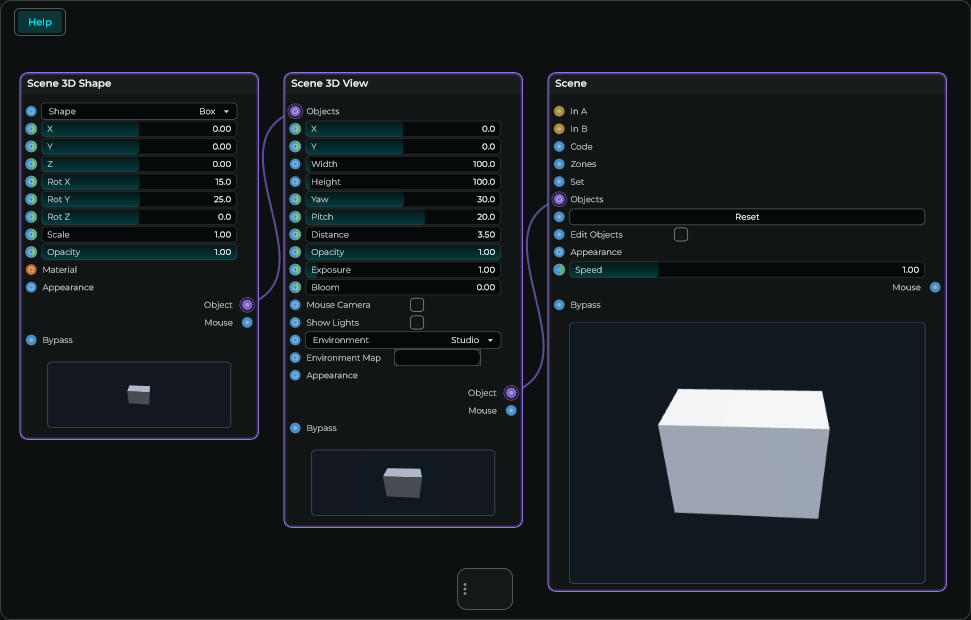
3. Set up the box
Select Shape. Set Shape = Box, Rot X = 15, Rot Y = 25.
In its Inspector, set Width = 1.4, Height = 1, Depth = 0.7.
Select View. Set Distance = 3.5. Environment = Studio is already selected in a new View. The environment lights the object; no support lights are added. Choose None if you want to add all lighting yourself.
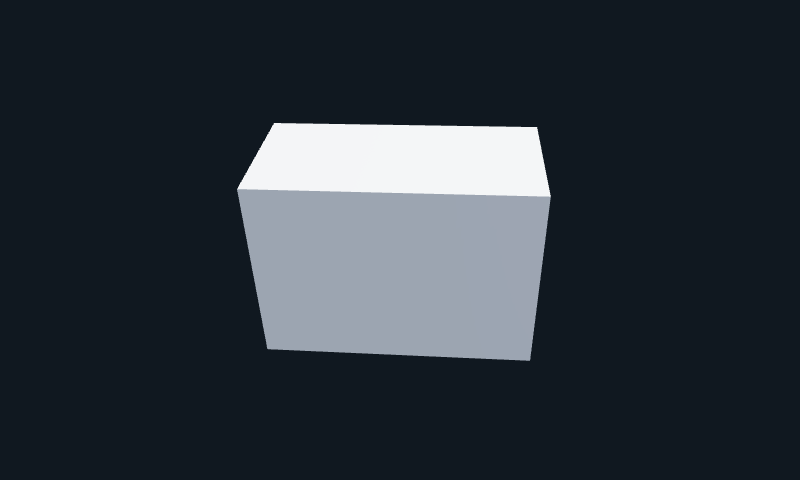
You should see: a lit grey box.
4. Add a material
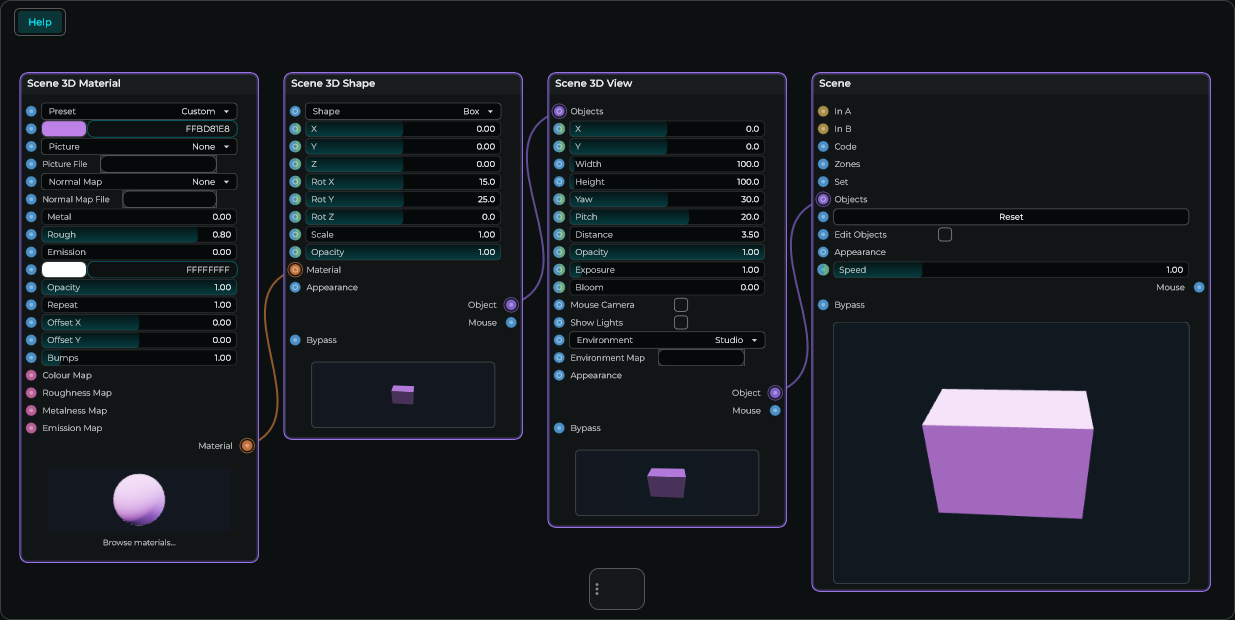
A material is the object's finish: its colour, shine and reflections.
Add Scene 3D Material. Connect Material — Material → Shape — Material. Both pins are orange.


Keep the two violet cables connected.
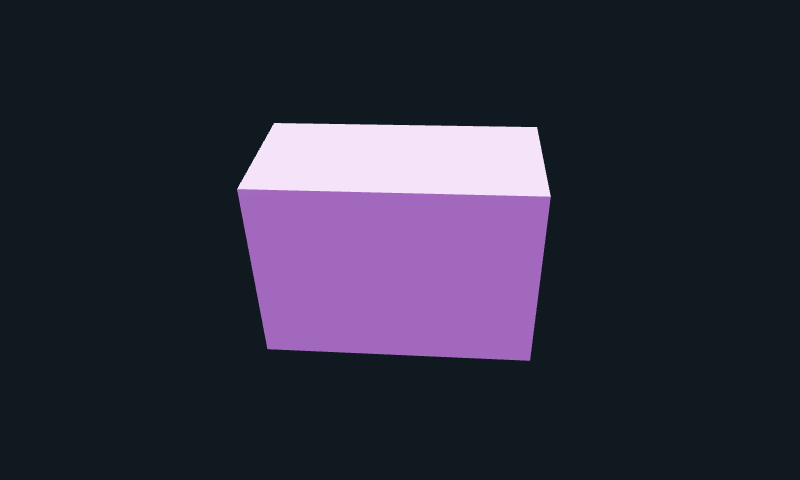
5. Choose its colour
On Material, click the colour swatch. Choose purple. To match the example, enter FFBD81E8.
Set Metal = 0 and Rough = 0.8.
You should see: a purple box with a soft finish. The little sphere inside Material is only a preview of that finish.
6. Make it shiny
On Material, change Rough to 0.12 and Metal to 0.7.
You should see: sharper reflections on the same box.
- Rough: higher is softer; lower is shinier.
- Metal: adds a metallic finish.
- Environment: gives a reflective object something to reflect.
7. Turn the box
On Shape, change Rot Y from 25 to 70.
You should see: the box turns. Its material stays attached.
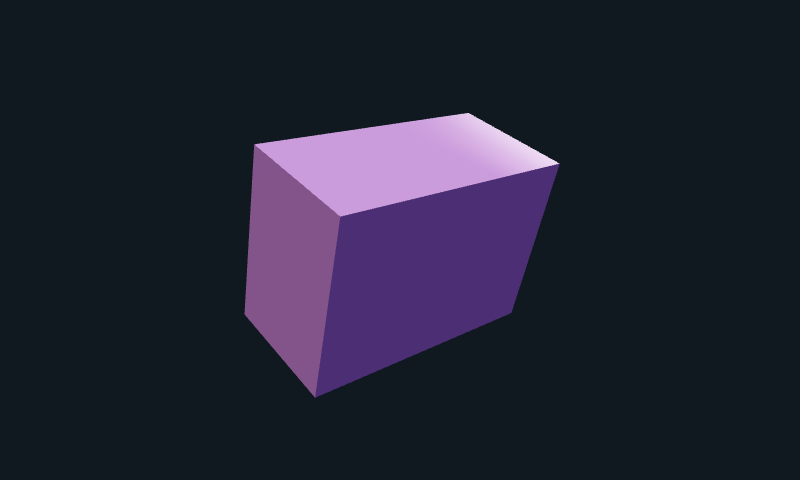
Shape Rot X/Y/Z turns the object. View Yaw/Pitch moves your viewpoint.
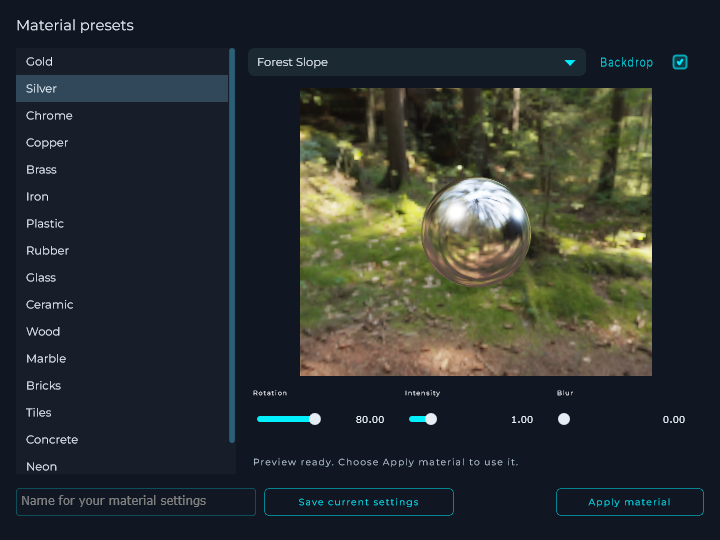
Try a ready-made finish
- Click the sphere preview inside Material.
- Choose a preset in the material browser.
- Click Apply material. The browser closes and your object changes.
Put your own picture on the box
- On Material, set Picture = File.
- Use Picture File to choose your image.
- Set Colour to white to keep the image's original colours.
Repeat repeats the image. Offset X/Y moves it across the surface.
For a separate image node, use Scene 3D Texture — Image → Material — Picture. See these two pins.
If it does not work
| Problem | Fix |
|---|---|
| Empty Scene | Check both violet cables and keep Bypass off. |
| Very dark box | Choose Environment = Studio on View. Check Colour, Opacity and Surroundings Light. |
| Colour changes do nothing | Check the orange cable goes to Shape Material. |
| Box does not move | Change Shape X/Y/Z, not the node's graph position. |