Appearance
Examples you can play and reuse
Needs MNodes 1.1.5 or newer
Scene and all of its nodes are new in MNodes 1.1.5. They do not exist in older versions, so a project that uses them will not work there until you update.
These short recordings show the actual Scene renderer. Open the matching project to inspect its nodes, change the code and try the controls yourself. The clips are silent and start only when you press Play.
Pong: a small interactive game
A click serves; dragging in the left third of the Scene moves your paddle. The other paddle follows the ball. The recording uses those same pointer events.
Open the editable Pong project
- Open the project and switch to Perform, or play the Scene body in Edit mode.
- Click to serve. Hold and drag in the left third of the court to move your paddle.
- Return to Edit. Find the separate Code - Pong node and its cable to Scene Code.
- Select Scene and enable Show Zones from its header menu. The Paddle zone covers the left third, not just the narrow visible paddle.
- Turn Show Zones off. Open Shader Code and find the section headed
#pass Image. This part draws the court, paddles and scores.
Pong has a second part, #pass A, which remembers the ball and score between frames. You do not need to understand that to start changing the colours. Keep a copy before editing the game rules. See multi-pass shaders when you are ready to explore how that state is stored.
A stereo meter following real audio
Two test tones pass through separate Volume nodes. Their levels change independently, both become silent briefly, then the signal returns. This changes the audio being measured; it is not a decorative meter animation.
Open the two-tone meter project
- In Edit, find the two Sine sources and the Demo level Volume nodes.
- Change either Volume's Gain between
0and1. Only its corresponding rail should change. - Bypass both test tones: both rails should fall to silence. Re-enable them to restore the signal.
- Replace the test-tone connections with your own left and right audio signals when reusing the visualizer.
The download starts with steady levels so you can change them yourself. In the recording, the capture host sweeps the same Volume parameters. There is no Audio Out: this project measures sound internally without playing those test tones through your speakers.
Connect a reusable visualizer module
In the Modules explorer, open Factory → Scene Studio and load Meter - Stereo Rails, Spectrum - Mirror or Spectrum - Radial. The finished drawing appears inside the module node, below its pins.
These reusable modules contain no demonstration oscillator. They need your incoming sound. Keep the node expanded to see the panel and its labelled inputs; add the module to the Front Panel if you want its picture in your interface.
| Module input | What to connect | What it changes |
|---|---|---|
| Sound A | Your left audio signal | Upper rail / upper spectrum half |
| Sound B | Your right audio signal | Lower rail / lower spectrum half |
| Sensitivity (0-1) | A numeric Knob, Slider or Number, from 0 to 1 | Display sensitivity; it does not change your sound level |
| Palette (0-1) | A numeric Knob, Slider or Number, from 0 to 1 | Selects a position through the built-in colour palette |
Palette means a number, not an RGB colour
Use a Knob, Slider or Number. Earlier Scene Studio modules called this input Colour. It has been renamed because a Colour node is not the right source for this parameter. Try 0, 0.5 and 1 to compare the looks. A knob with another range can use its Position output to send 0–1.
To choose an exact custom RGB colour instead of shifting the palette, open the module's separate Shader Code and edit its palette function. These modules do not currently expose a direct RGB input. A material's Colour input is a different kind of control.
Mirror and Radial: see each channel separately
In Spectrum - Mirror, low frequencies are at the left and high frequencies at the right. Sound A draws above the centre line; Sound B draws below it. The two halves can show different signals.
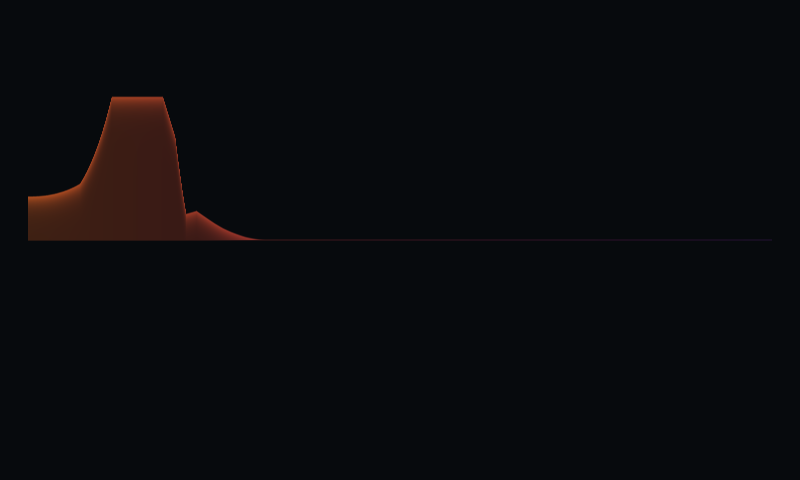
Only A is active: the upper half responds. Feeding the same mono signal to both inputs produces a symmetrical display.
In Spectrum - Radial, the upper semicircle is A and the lower semicircle is B. Low frequencies start at the right end; high frequencies reach the left end on each half.
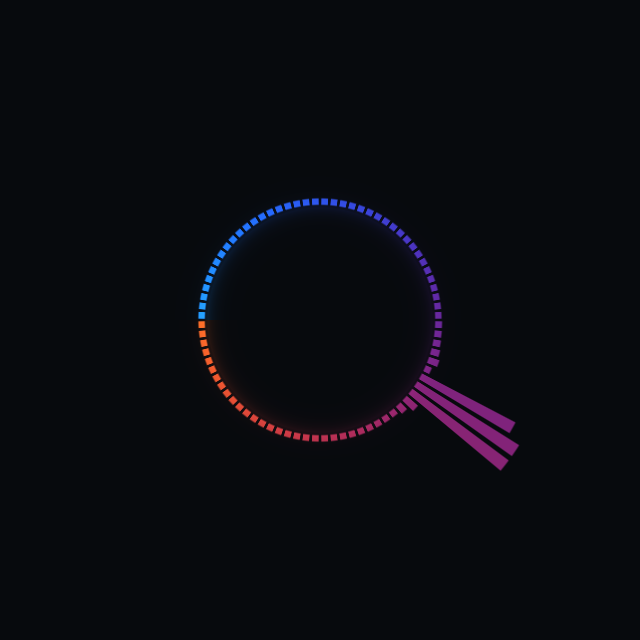
Only B is active: the lower semicircle responds. The faint decorative ring remains visible when the input is silent.
Connect different sounds to A and B to check the wiring. A single mono cable does not create two independent stereo channels. Scene visualizers read audio; they do not output or duplicate it.
Three more things to explore
| Example | First thing to try | Then look inside |
|---|---|---|
| Paint | Hold and drag to draw | See how the shader keeps the previous drawing |
| Living Flame | Watch the moving flame | Open its separate Shader Code and change one colour |
| 3D Control | Drag the slider to rotate the solid | Follow Value into Shape Rot Y |
Start with a project to learn its wiring, then use the corresponding module as a reusable part. For a step-by-step build, begin with your first slider, your first zone, or your first material.