
Appearance
Make your first slider
Needs MNodes 1.1.5 or newer
Scene and all of its nodes are new in MNodes 1.1.5. They do not exist in older versions, so a project that uses them will not work there until you update.
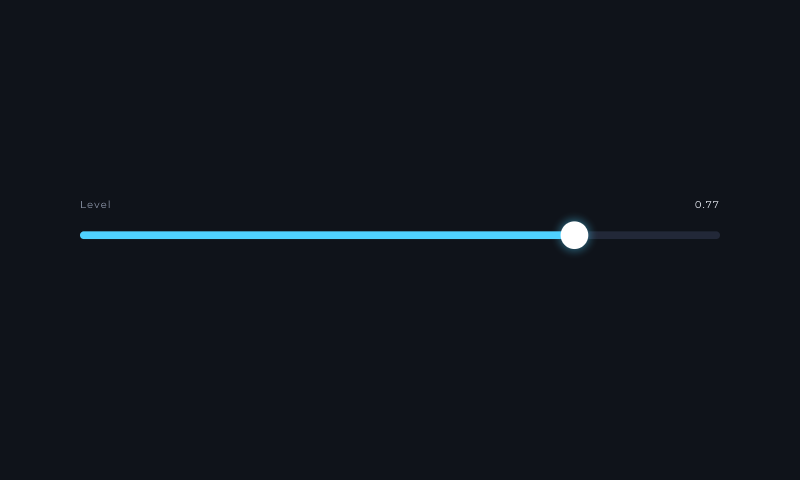
No code. No audio setup. You will make this:
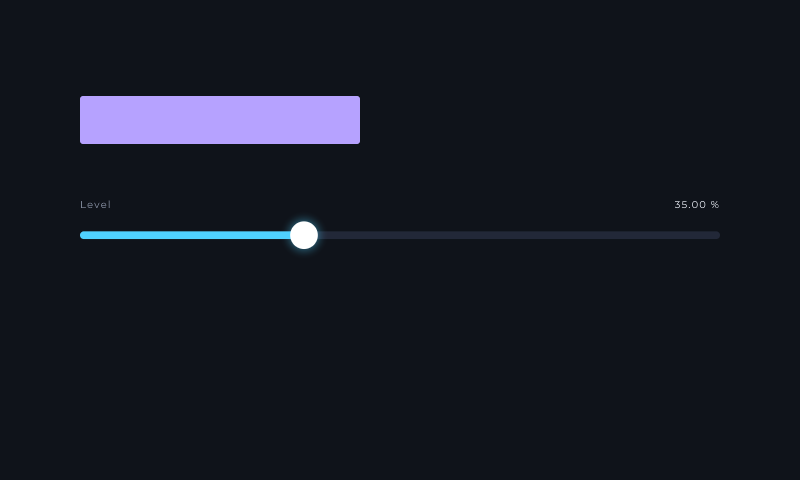
New to nodes? Read Pins and colours first. Click any picture to enlarge it.
1. Add Scene
- Choose Home → New project → Empty Project.
- Work in Edit mode.
- Right-click empty graph space. Search for Scene and add it.
You should see: a node with an empty dark picture. Nothing is connected yet.
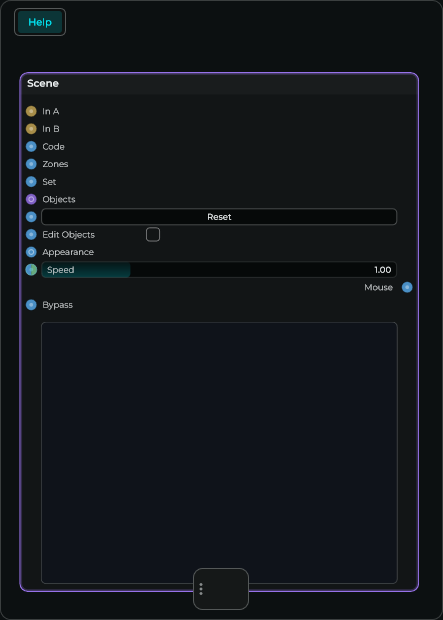
My Scene has extra P1, P2… rows
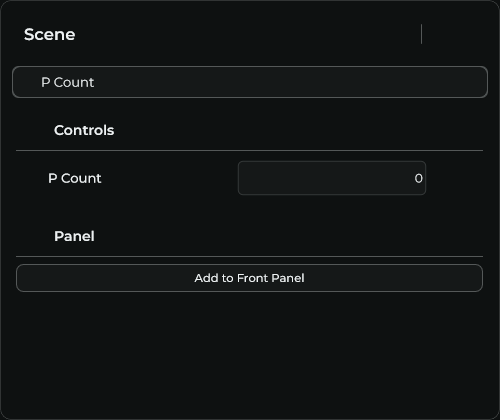
That is fine. These are extra inputs for shader values. To match the pictures, select Scene, open Inspector (Ctrl+I / Cmd+I), search for P Count and set it to 0.
2. Add Scene Slider
Right-click empty graph space, search for Scene Slider and add it.
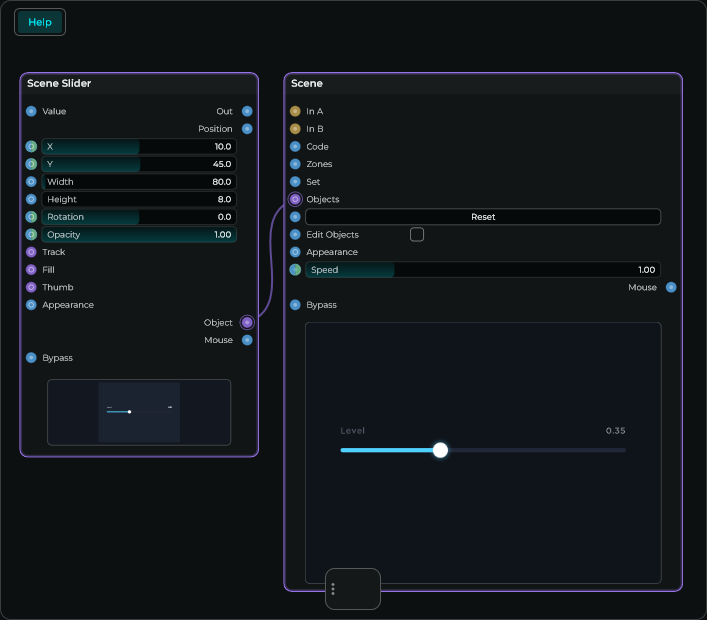
Drag from the slider's Object output to Scene's Objects input. Both pins are violet in the default theme.


You should see: the slider appears inside Scene.
3. Play it
Click the slider inside Scene's picture, then drag left and right.
You should see: its thumb and number move. Dragging the node's title only moves the node around the graph.
4. Set its range
Select Scene Slider. Open Inspector with Ctrl+I / Cmd+I. Find each setting and enter:
| Setting | Type this |
|---|---|
| Min | 0 |
| Max | 100 |
| Value | 35 |
| Unit | % |
Double-click a number to type it. Clear the Inspector search before looking for another setting.
You should see: 35 % on the slider. Its left end is 0 and its right end is 100.
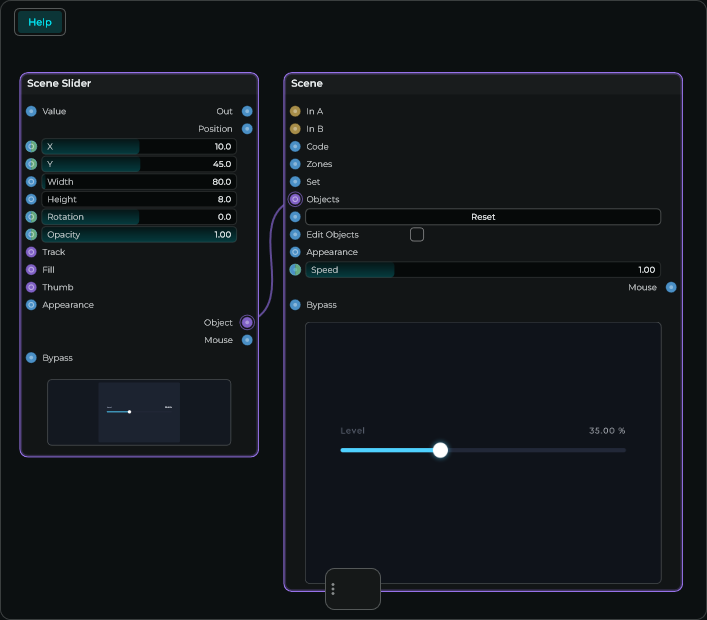
The Out pin on the right sends the slider's Value: 35. Position sends 0.35. We will use Out next.
5. Add a rectangle
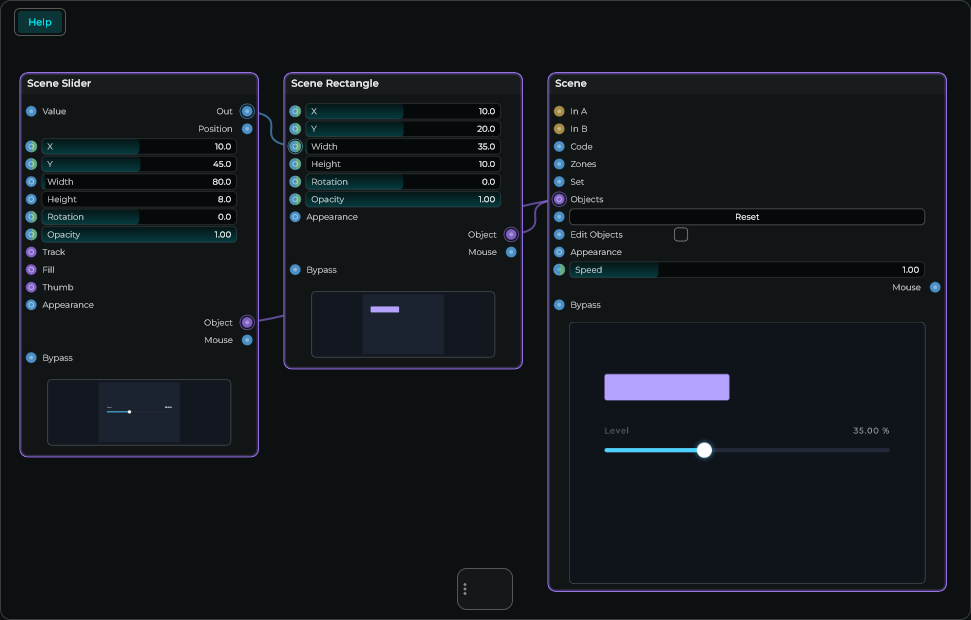
Add Scene Rectangle. Connect its Object output to the same Scene Objects input. Keep the slider connected too.
On Rectangle, set:
| Setting | Value |
|---|---|
| Units | Percent |
| X / Y | 10 / 20 |
| Width / Height | 35 / 10 |
| Corner | 3 |
| Colour | Choose a colour you like. |
You should see: a rectangle above the slider. X moves the drawing right; Y moves it down. Moving the node in the graph does not move the drawing.
6. Make the slider change the rectangle
Connect Slider — Out → Rectangle — Width. Keep both Object cables.


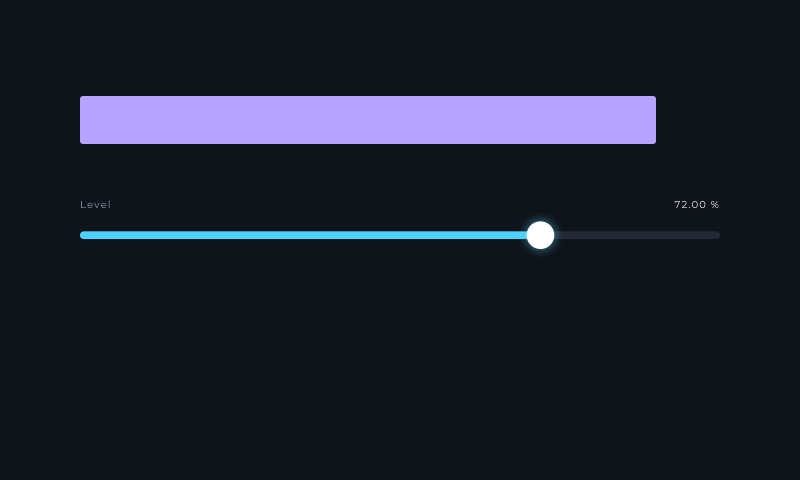
Move the slider to about 72.
You should see: the rectangle gets wider.
If it does not work
| Problem | Fix |
|---|---|
| Empty Scene | Connect Object → Objects. Keep Bypass off. |
| Slider moves, rectangle stays still | Connect Out → Width too. |
| Rectangle is tiny | Use Out, not Position. Set Max to 100. |
| Cannot find a setting | Select the right node; clear Inspector search. |
Use it in your instrument
Right-click the Scene title and add it to the Front Panel. Lock the panel to play it. Front Panel instructions.
To change sound, connect Out to a sound parameter. To automate the slider, enable Expose to DAW on the slider. Automation steps.
Next: make a 3D object or make a custom mouse area.